
The Famous Linux System Cleaner BleachBit Now Has a TUI (And I Tried It Out)
It is a matter of preference to use system cleanup utilities on a computer or smartphone. On Linux, we have many such tools that handle everything from clearing browser caches and old package archives to shredding files and wiping free space.
They range from quick CLI scripts to full-blown graphical applications. Some focus on browser data; others go deeper into system logs, package caches, and temporary files.
One of the more popular offerings among those is BleachBit, which is a free and open source system cleaner for Linux and Windows that handles all that. It’s developers have now given everyone an early look into how its text-based user interface (TUI) is shaping up.
BleachBit TUI works well
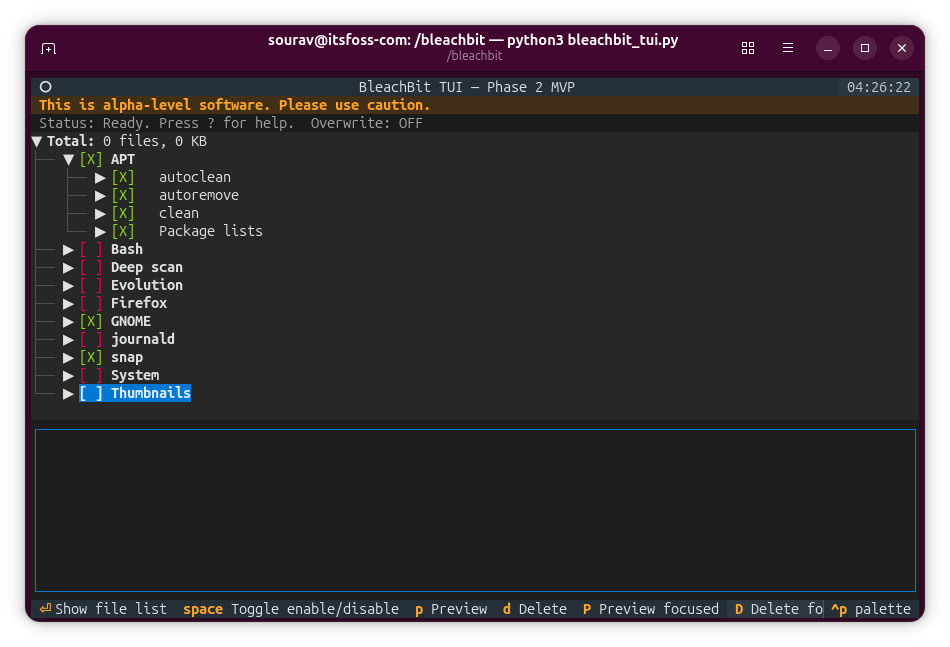
The TUI is simple to navigate. The space bar toggles cleaning options on or off, and Enter expands a category to show the file list underneath.
For previewing what would be cleaned, there are two options: lowercase p runs a full preview across all selected items, while uppercase P previews just the focused component.
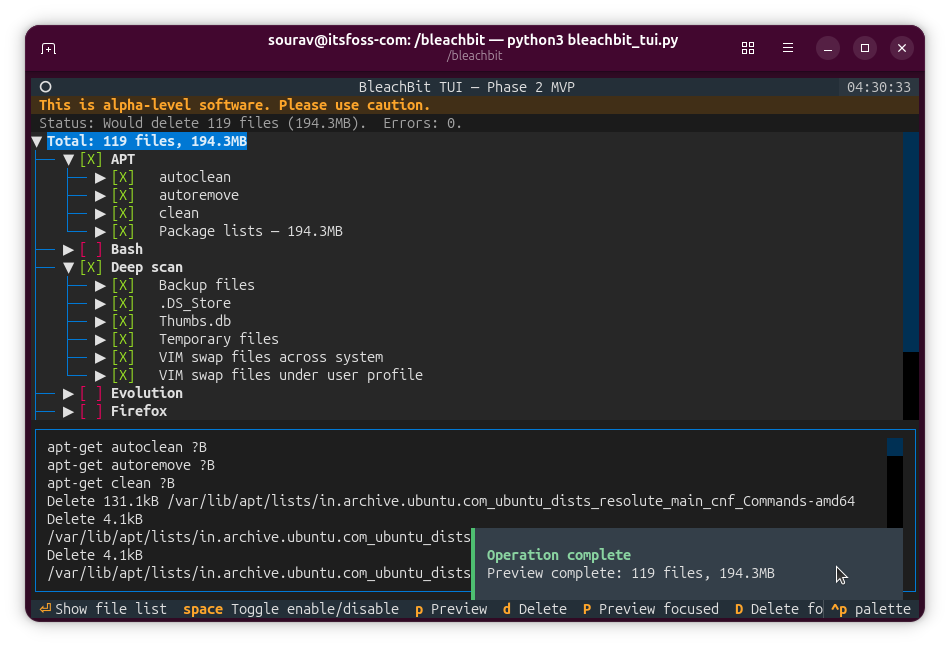
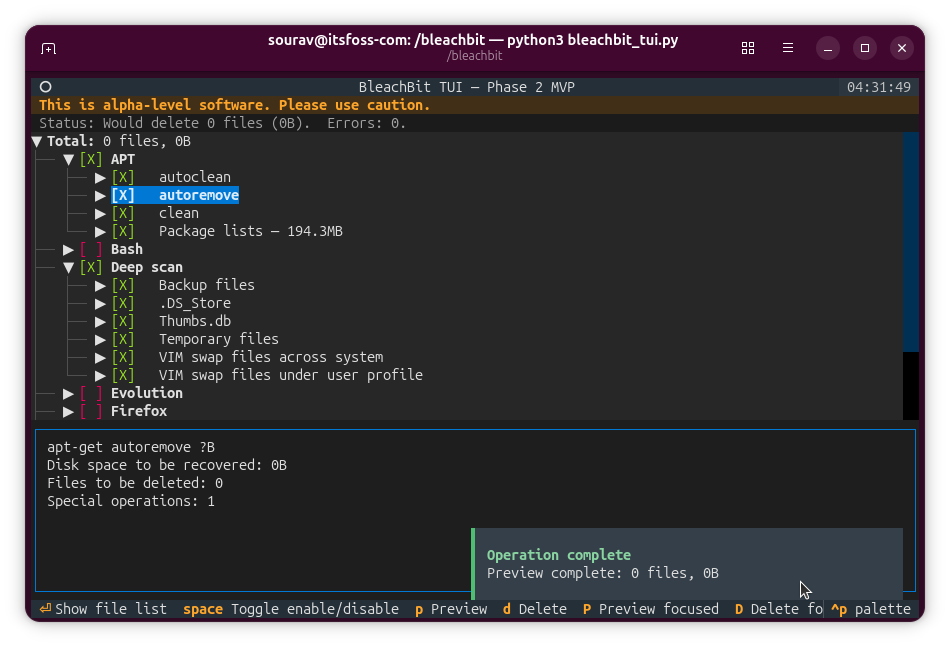
The two preview options (full, focused) on the alpha TUI of BleachBit.
Once done, d handles deletion for everything selected, and D deletes the focused component specifically. On my first attempt, the deletion failed because I had not launched the TUI with elevated privileges.
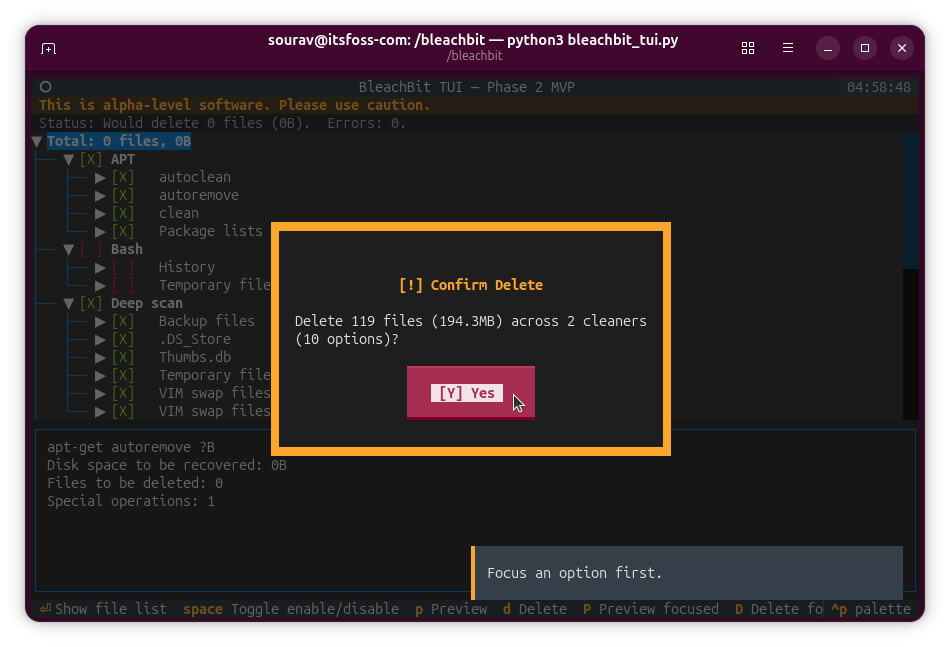
Re-launching with sudo python3 bleachbit_tui.py fixed that. Once initiated, I had to press Y to confirm the action, and when it completed, a dialog appeared in the bottom-right showing the files deleted and space recovered.
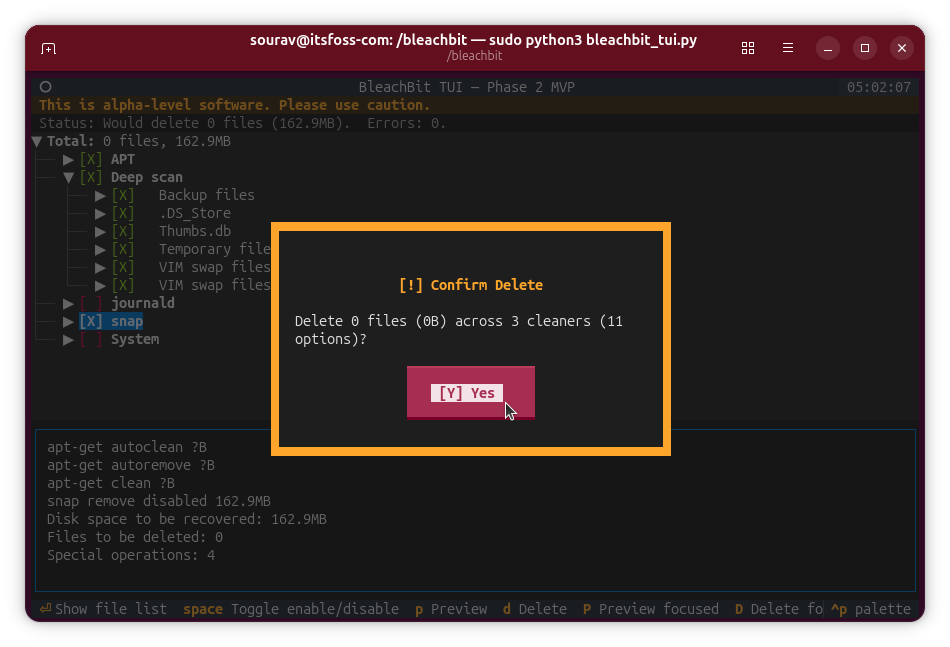
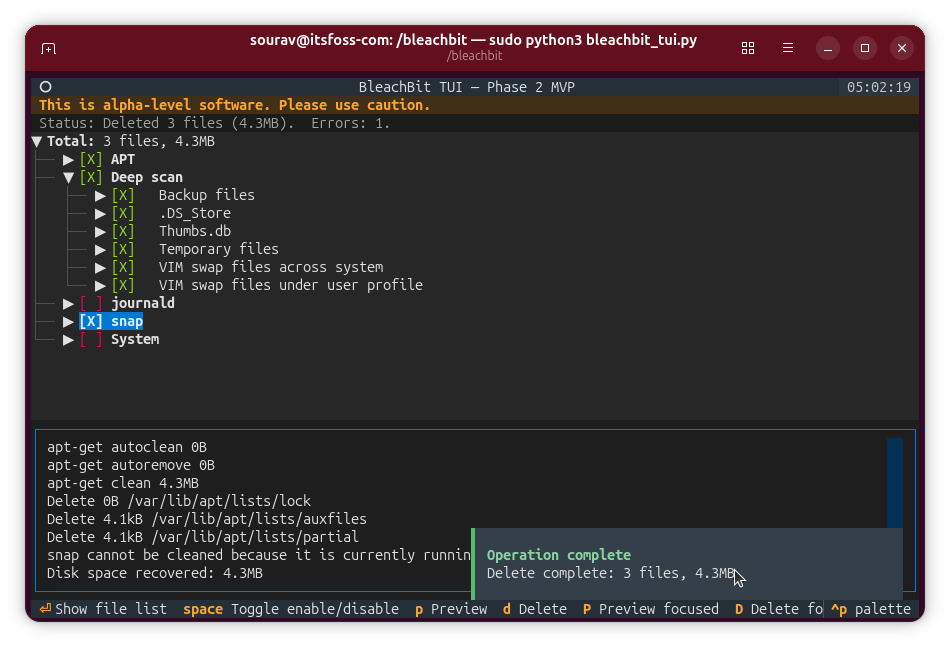
Using sudo fixed the errors I was getting.
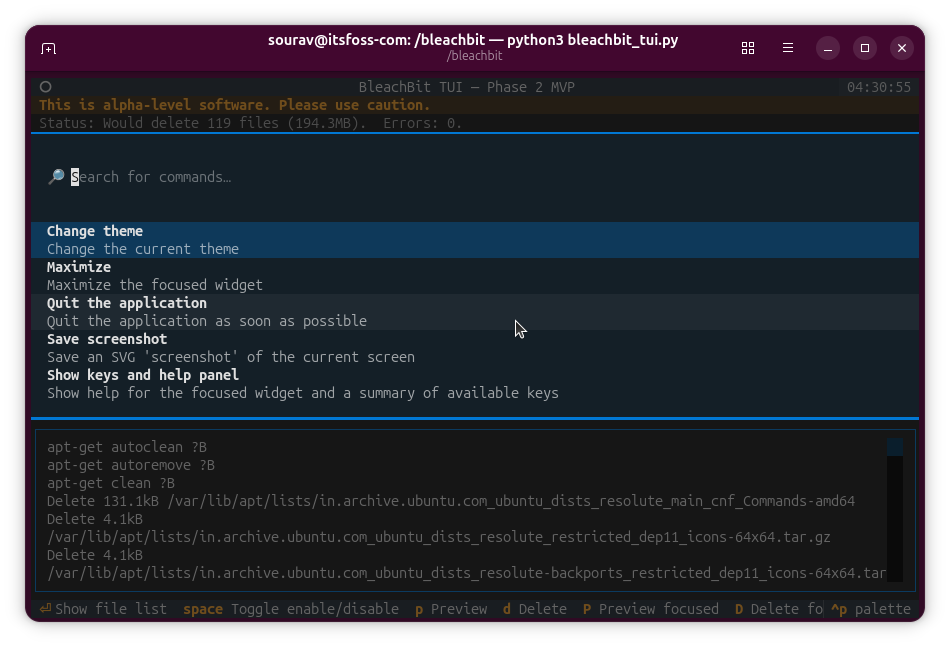
There is also a palette menu, accessible via Ctrl+P. From there, you can search commands, maximize a selected component, quit BleachBit, save a screenshot, and bring up the keys/help side panel.
Since the TUI shares its backend with the regular BleachBit GUI, it picks up all the same settings automatically. That covers your selected cleaning options, keep list, custom cleaning list, and cookie keep list.
It also supports changing display themes and some mouse interaction alongside keyboard navigation, including the scroll wheel. On Windows, the TUI ships as both an installer and a portable package, compiled as a native 64-bit binary, unlike the 32-bit stable GUI and CLI builds.
If you want to try it out on Linux, the official announcement has quick-start instructions for running the TUI on Ubuntu, and if that doesn’t suit you, then you could build from source.
