
I Tried This Open Source ChatGPT Alternative on Linux, But Went Back to Ollama
I may hate AI slop but I am not a AI hater. I have found decent use of the AI tools and I try to include these tools in my workflow wherever it makes sense.
While mainstream LLMs like ChatGPT and Perplexity have decent free offering, they leach on the user data. “If you are not paying for the product, you are the product”.
That’s why I am loving the idea of exploring local AI and I have spend my fair share of time experimenting with LLMs that can be run on normal systems.
Recently, I discovered Jan AI. It is a polished, genuinely usable desktop app that runs entirely on my machine. In fact, I once tried replacing Ollama and llama cpp with Jan AI, but later changed my mind.
I’ll explain why I switched back to Ollama in the later sections. First, let’s learn about Jan AI.
What is Jan AI?
Jan is a free and open-source desktop application that lets you run various large language models directly on your own hardware. You can think of it as a self-hosted, offline-capable ChatGPT, except the model runs on your CPU or GPU, and no data ever leaves your machine.
The project is developed by the Jan.ai company, and the source code is available on GitHub under the AGPL-3.0 license. It’s built on top of llama.cpp under the hood, which means it can run quantized GGUF models efficiently even without a dedicated GPU.
What I found impressive is that Jan’s desktop application is built using the Tauri framework instead of Electron JS, which gives it a good performance boost and I think eats less RAM, too.
A quick catch, you still need plenty of RAM for running your local LLM.
The app supports Linux, macOS, and Windows. I used it on my Linux machine.
System requirements
Running a local LLM with Jan AI does require decent hardware. Here’s what to realistically expect:
- 8 GB RAM minimum. It’s enough for 7B parameter models at 4-bit quantization (Q4_K_M). You’ll notice slowdowns with other applications open. 16 GB RAM is the sweet spot. It can comfortably run 7B models and lets you experiment with 13B models.
- GPU acceleration is optional but makes a big difference. Jan supports NVIDIA (via CUDA), AMD (via ROCm), and Intel Arc. If you don’t have a compatible GPU, CPU-only mode works, but it’s significantly slower.
- Disk space models range from around 4 GB (7B, Q4) to 8 GB+ (13B). Download only what you need.
Installing Jan AI on Linux
Jan offers multiple installation formats, including .deb and AppImage, but the AppImage is what I’d recommend for most Linux users. It’s a single self-contained file that runs on virtually any distro without touching your system packages or requiring root privileges for the app itself. It requires no dependency hell. It’s just made to work.
I am not going in the details but if you need help, refer to this guide to use AppImage on Linux.
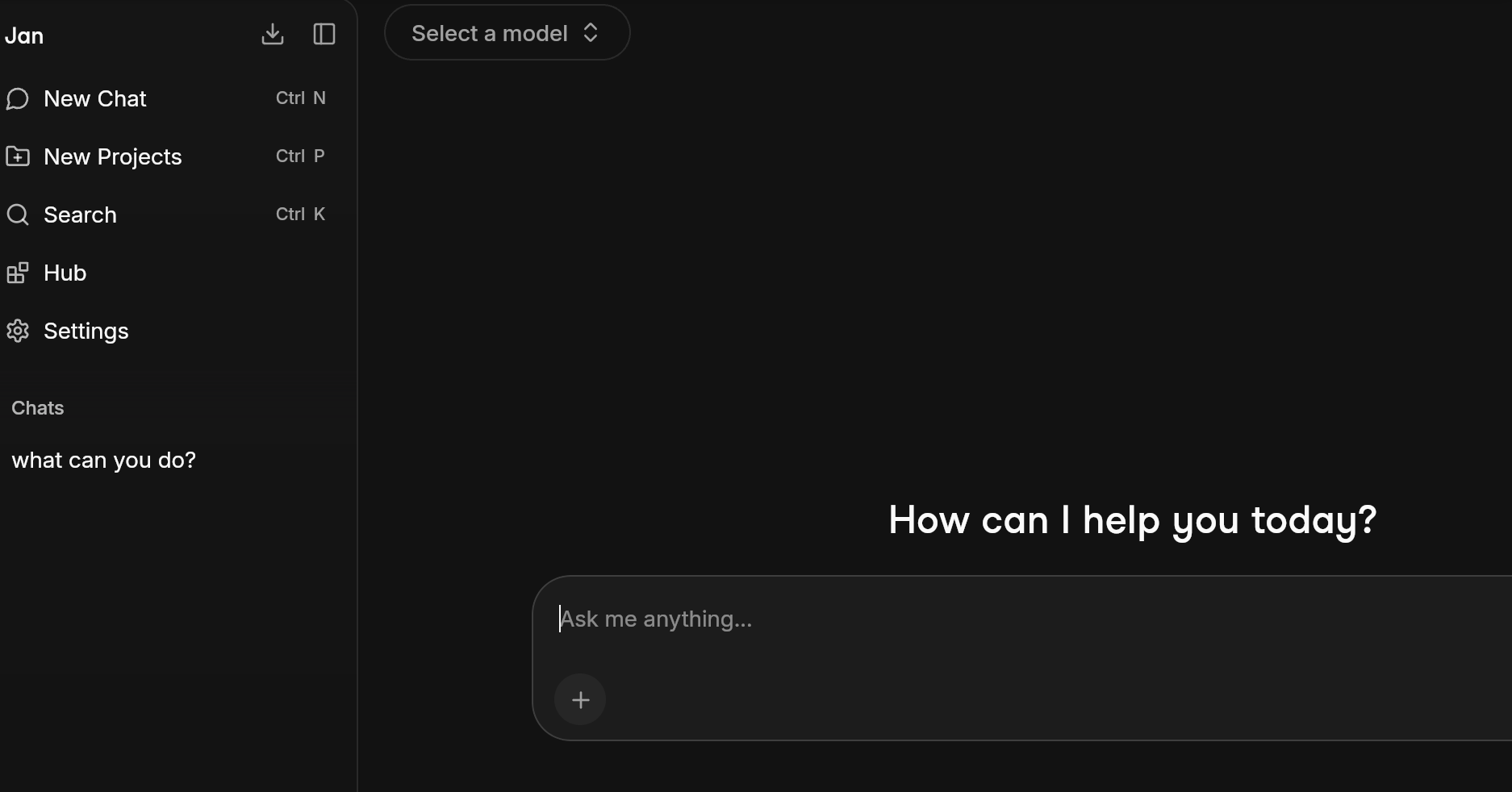
When you run Jan AI for the first time, you should see an interface like this:
Downloading models and putting Jan to work
A freshly installed Jan is essentially an empty shell capable, but waiting. The first thing you need to do is grab a model. Think of it like the app is the frame and the model is the brain.
Finding your way to the model hub
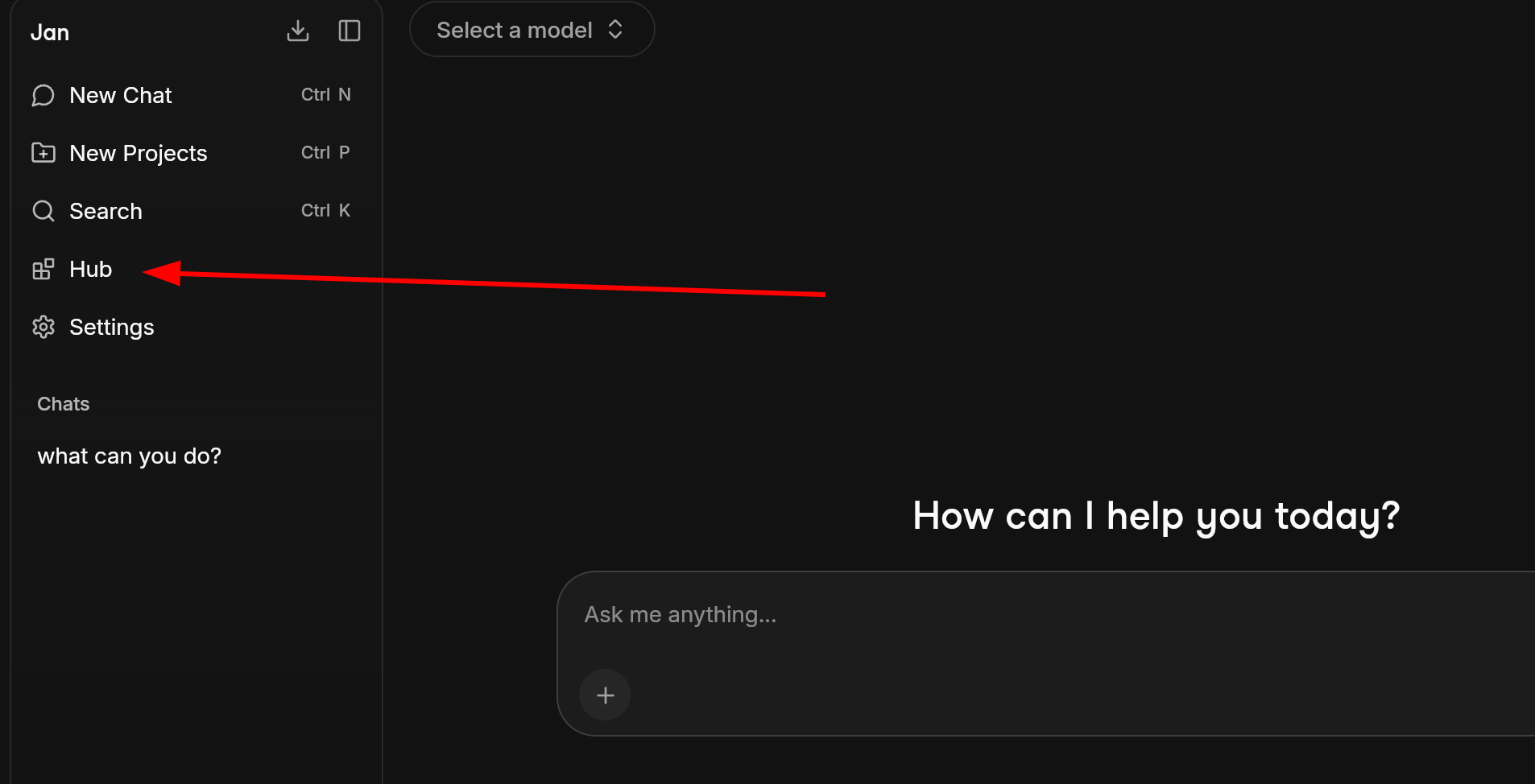
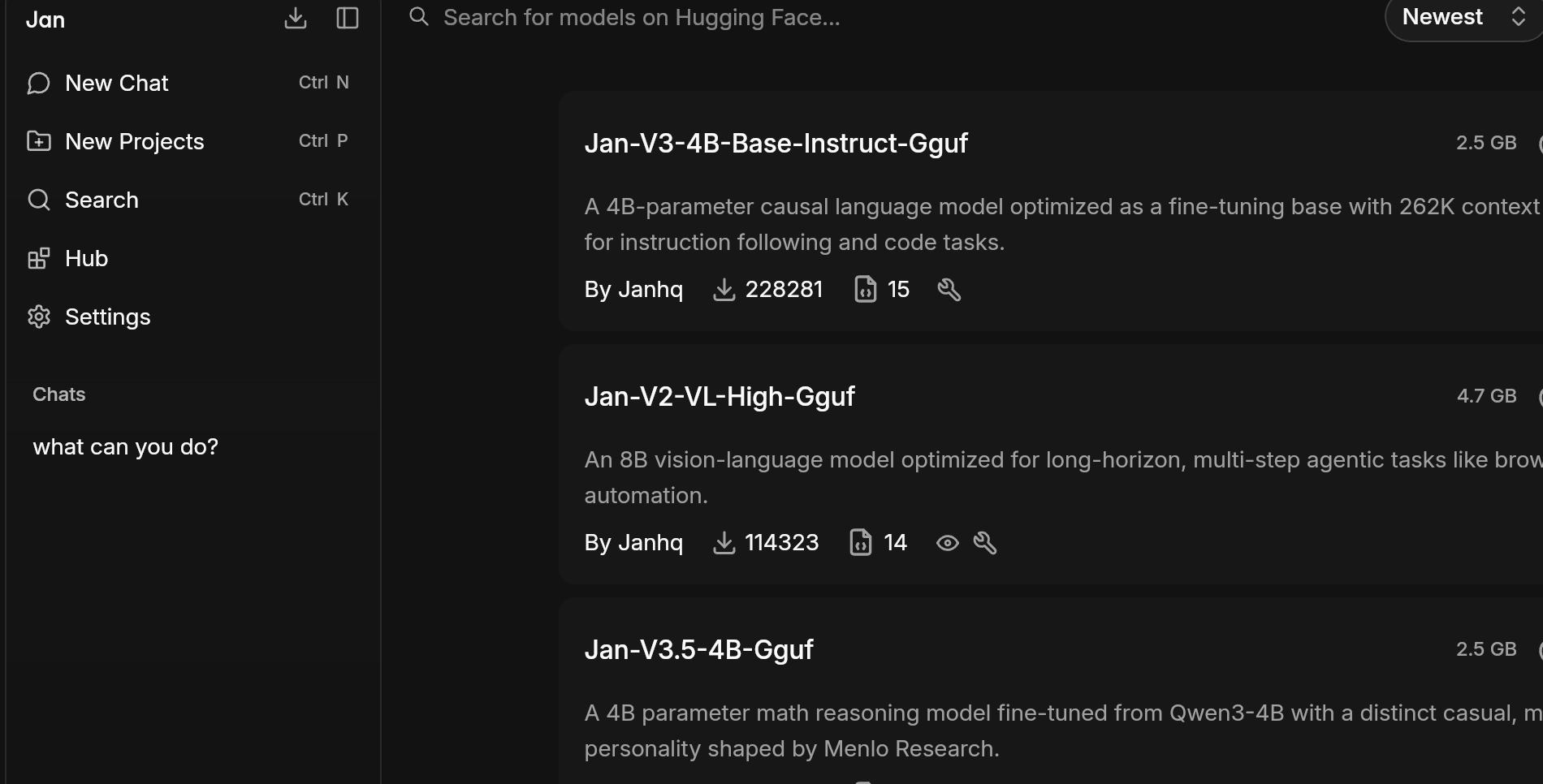
Click the Hub in the left sidebar. This is Jan’s built-in model library, a curated list of open-source models you can download with a single click.
There are dozens of models with names full of numbers and letters like Q4_K_M or IQ3_XS.
Before I recommend which ones to pick, let me quickly demystify that alphabet soup because I spent an embarrassing amount of time confused by it when I first started.
What does Q4_K_M actually mean?
Every model name carries a quantization tag. Quantization is how a model’s original full-precision weights get compressed to fit on consumer hardware. Here’s a practical breakdown:
- Q4: 4-bit quantization. The most common choice. Roughly 4 GB for a 7B model. Fast, memory-efficient, and quality holds up well for everyday tasks.
- Q8: 8-bit quantization. Nearly full quality, but needs about twice the RAM. Worth trying if you have 32 GB or more.
- K_M: The specific compression method (K-quants, medium variant). Generally, the best balance of speed and quality within the Q4 family.
- XS (Extra Small): This is the most aggressive compression. It results in a file size that is slightly smaller than a standard Q4_K_S
Q4_K_M. If you have 32 GB+, try Q8_0 for noticeably sharper outputs.The 3 LLM models I tested
I am using an AMD laptop with an integrated GPU. I settled for CPU interference for local LLM models because enabling RoCm (Radeon Open Compute) is a hectic task, based on my research. It requires 25-30 GB of disk space.
For those of you who aren’t familiar with what AMD ROCm is, it’s the answer to NVIDIA’s CUDA. Basically, when you run a local LLM, the heavy math, such as matrix multiplications across billions of parameters, can be offloaded to a GPU instead of the CPU.
RoCm lets software like Jan AI, PyTorch, or Llama.cpp talks to AMD Radeon GPUs to do that same heavy lifting. Without it, Jan falls back to CPU-only mode, which works but is significantly slower.
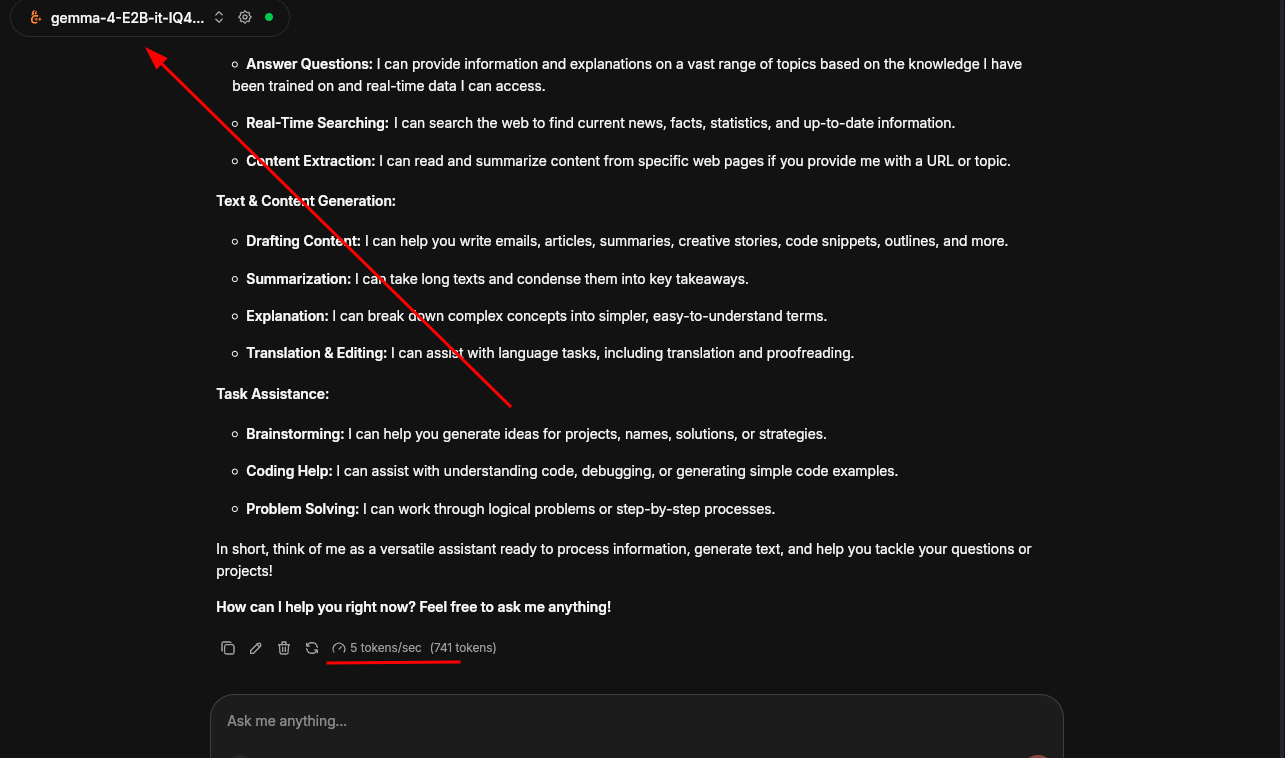
For this article, I settled on three models that cover a solid range of use cases. I asked the same question to each model – “What can you do”? Here’s what I found:
Gemma 4
I don’t lie. The performance wasn’t superb, only 5 tokens per second.
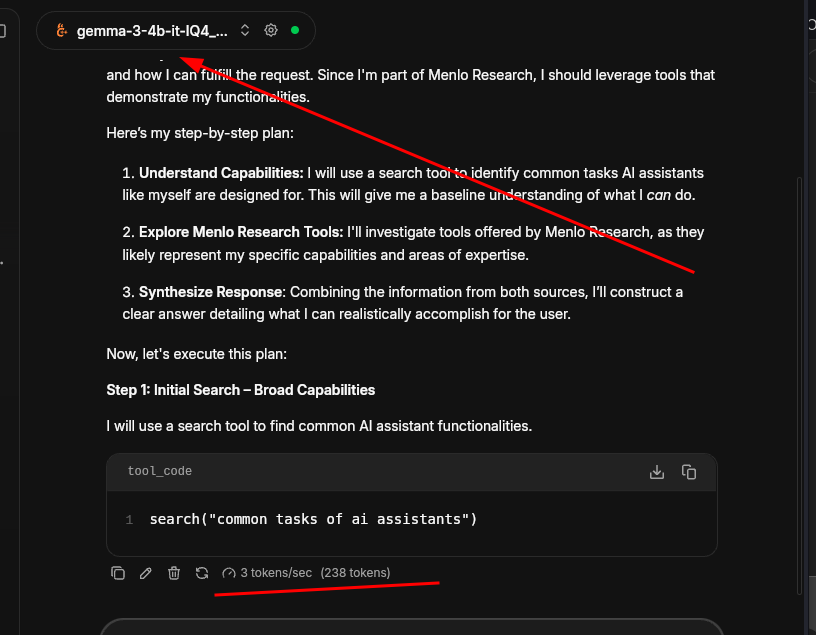
Gemma 3
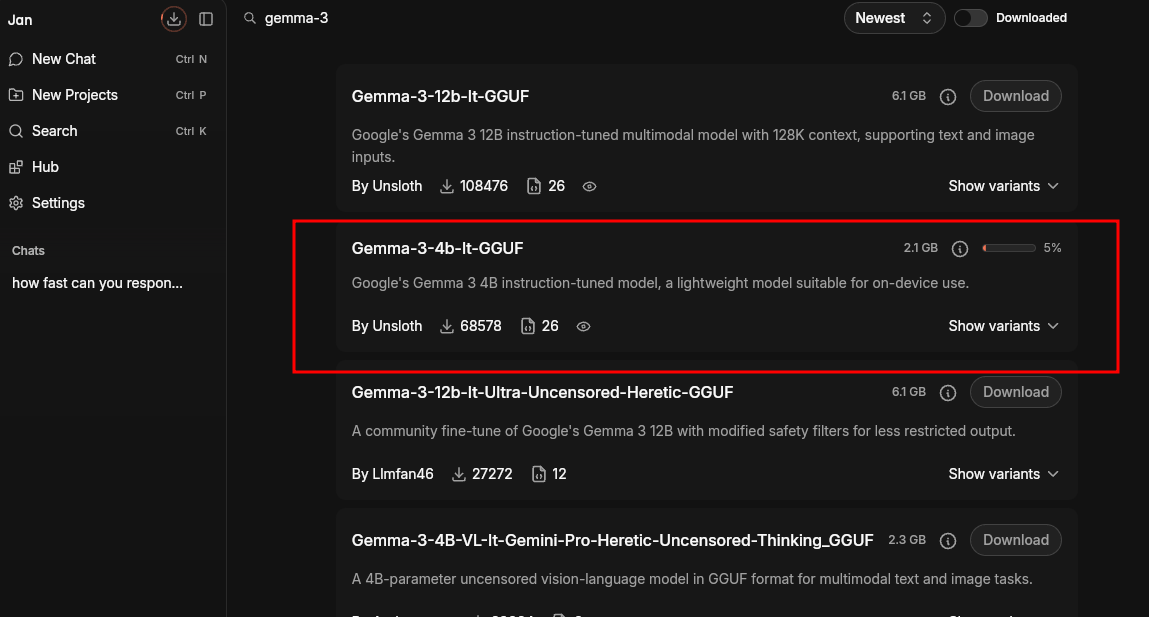
The performance was bad than the Gemma 4 2B model. It was only 3 tokens per second. I think you can use the Gemma 3 2B model variant to achieve comparable performance.
Jan
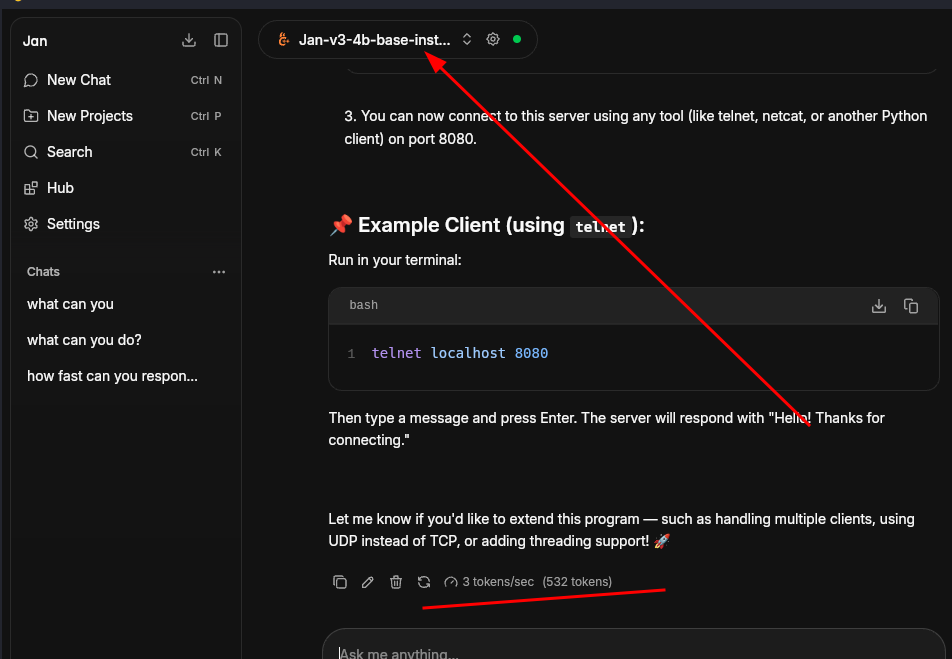
Yeah! Jan offers its own AI model. I used the Jan-v3-4b model to test. It comes with 262K context length. It can follow up instructions and do some light coding tasks.
Features I liked in Jan AI
Let’s see a few features that I liked in this open source AI tool.
Unified Interface for Local and Cloud LLMs
Jan can act as a unified interface for local and cloud LLMs, instead of jumping from Claude to ChatGPT and then Gemini. You get to talk to your favorite LLMs within a single interface.
Though directly interacting with Cloud LLMs takes away your privacy, you can still use Jan AI as a unified interface to interact with any models on HuggingFace, Groq, Gemini, Qwen, Mistral, and Claude with the respective platform’s API.
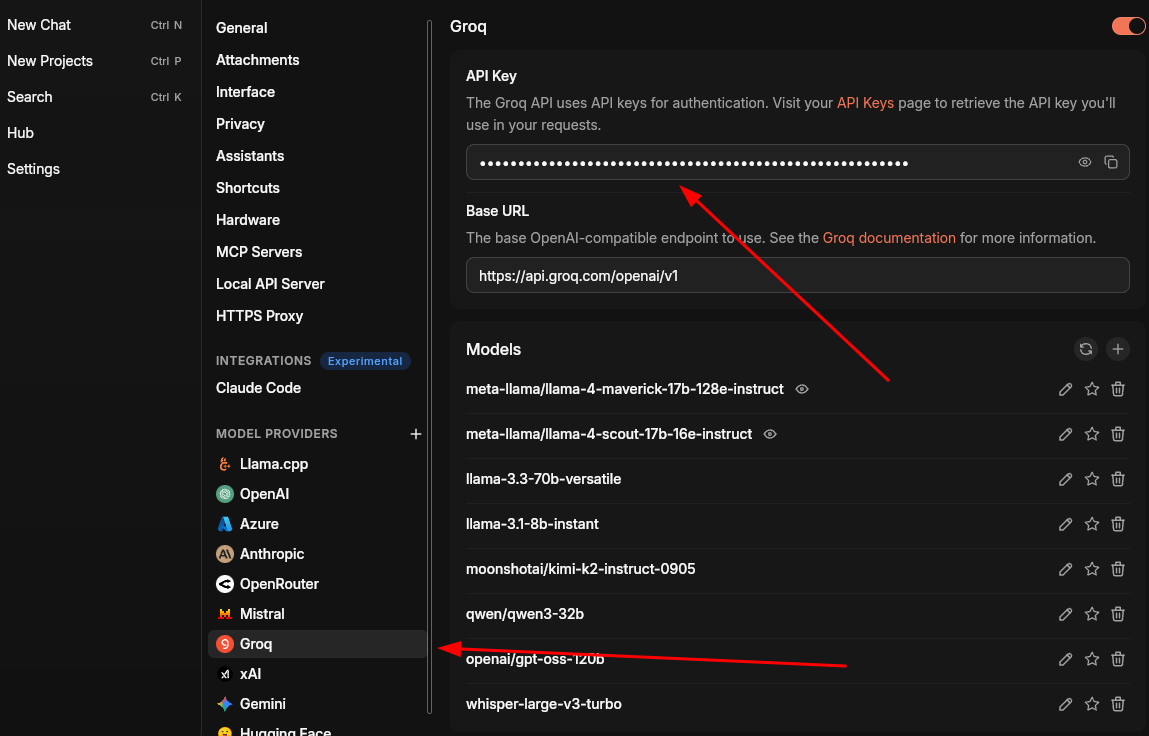
I’m especially in love with the Groq and Cerebras API. These platforms provide fast interference.
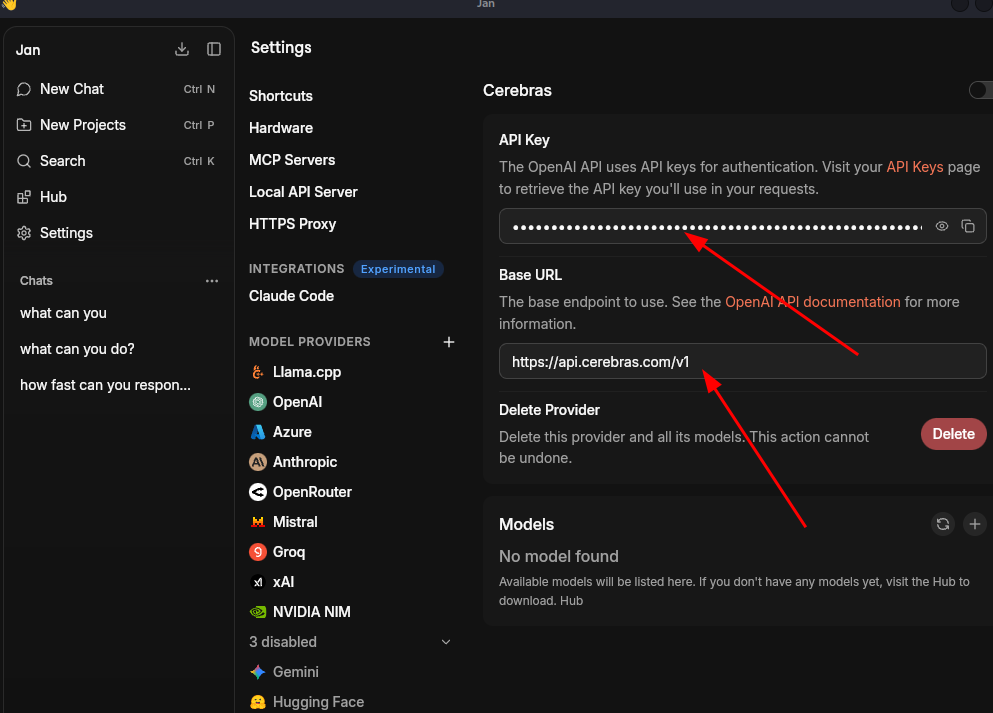
If your model provider is not in the list, you can still add OpenAI-compatible models to it.
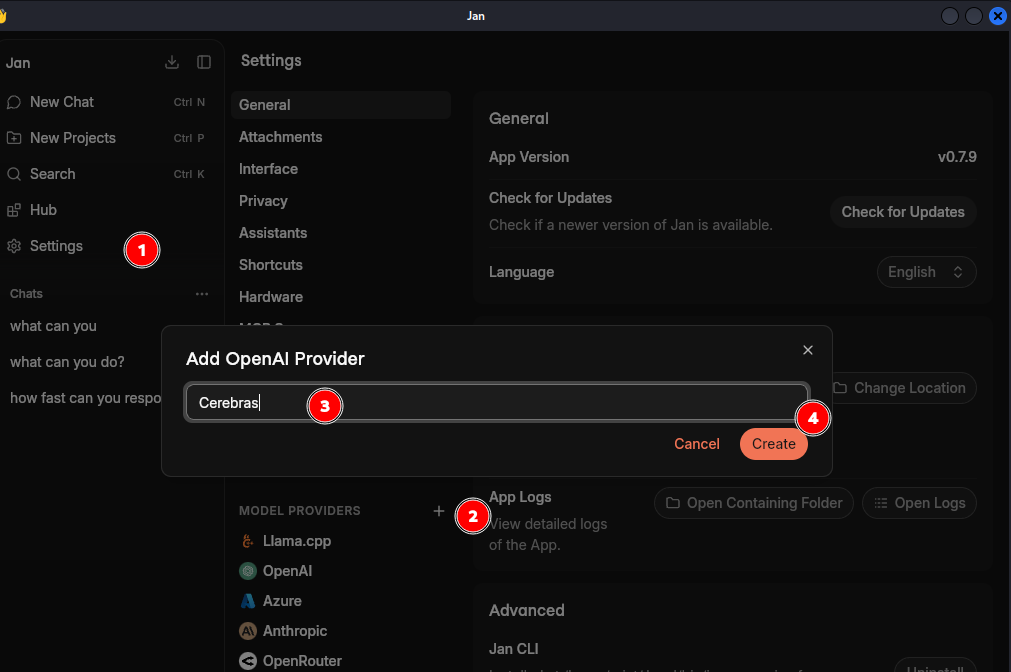
To add, click on the plus icon next to “MODEL PROVIDERS”. It’ll ask for a name. Enter the name and then set the BASE_URL and API Key provided by your LLM platform.
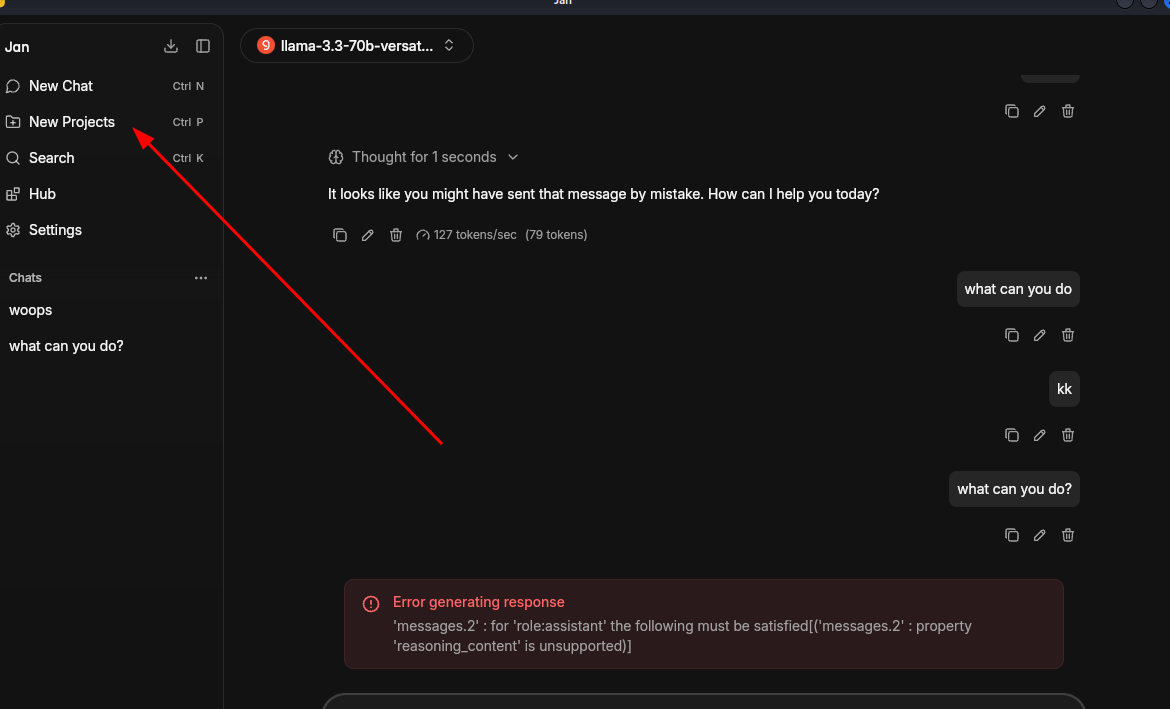
Keeps your chats organized
Jan offers the functionality to organize chats per project.
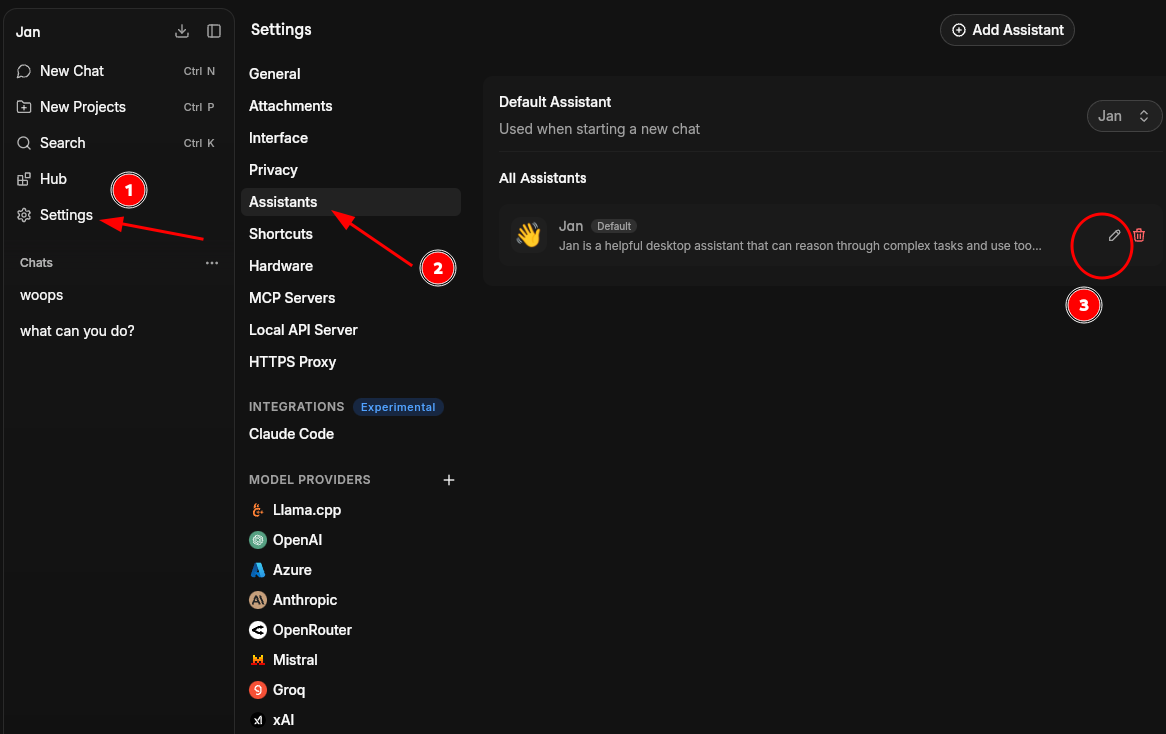
Tailor Jan for Custom Experience
You can edit the system instruction. It’s kind of making LLM behave like a specific expert.
Local API Server
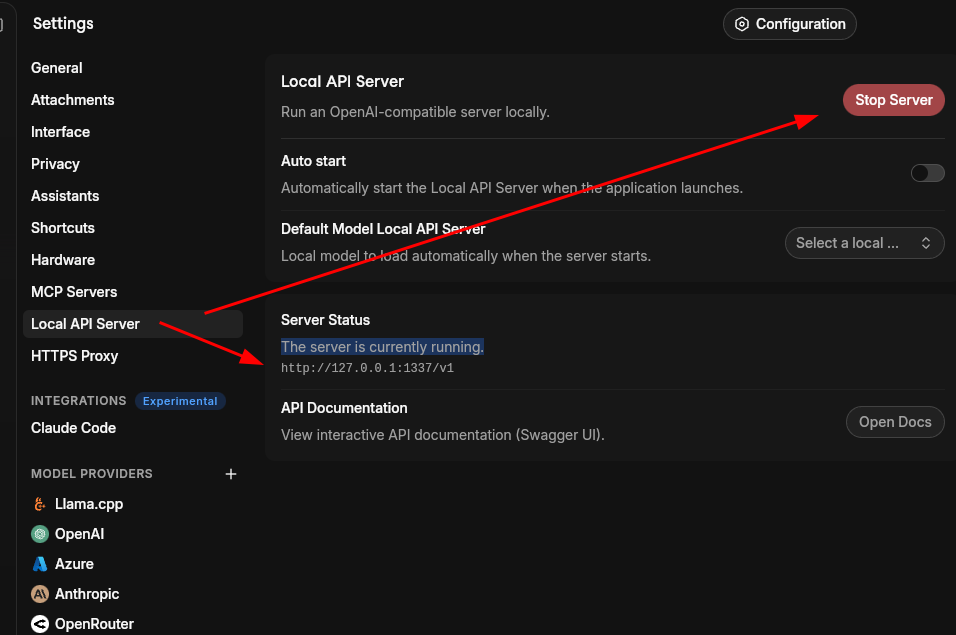
It comes with a local API server. You can start the server by going to Settings -> Local API Server.
Use it as a tool to download AI models for Llama.cpp
Models downloaded with Jan AI application are completely compatible with Llama.cpp CLI. You can use Jan as a downloader tool and then run the downloaded AI model with llama-server a command.
Jan CLI
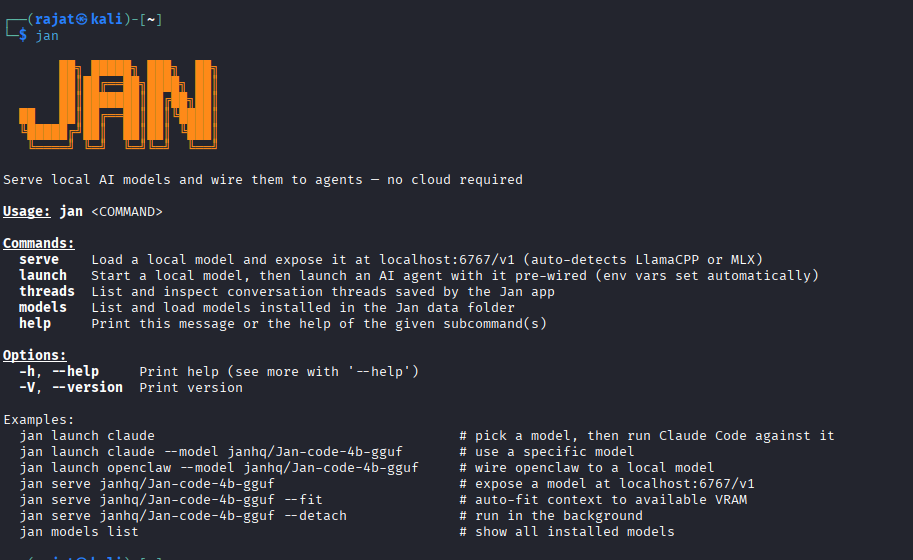
Jan offers a CLI interface to interact with as well.
My honest opinion on using Jan AI vs Ollama
Thanks to the developer involved in building the Jan AI app. It provides a nice GUI interface to interact with LLMs. On the contrary, I see some improvement scope for the application.
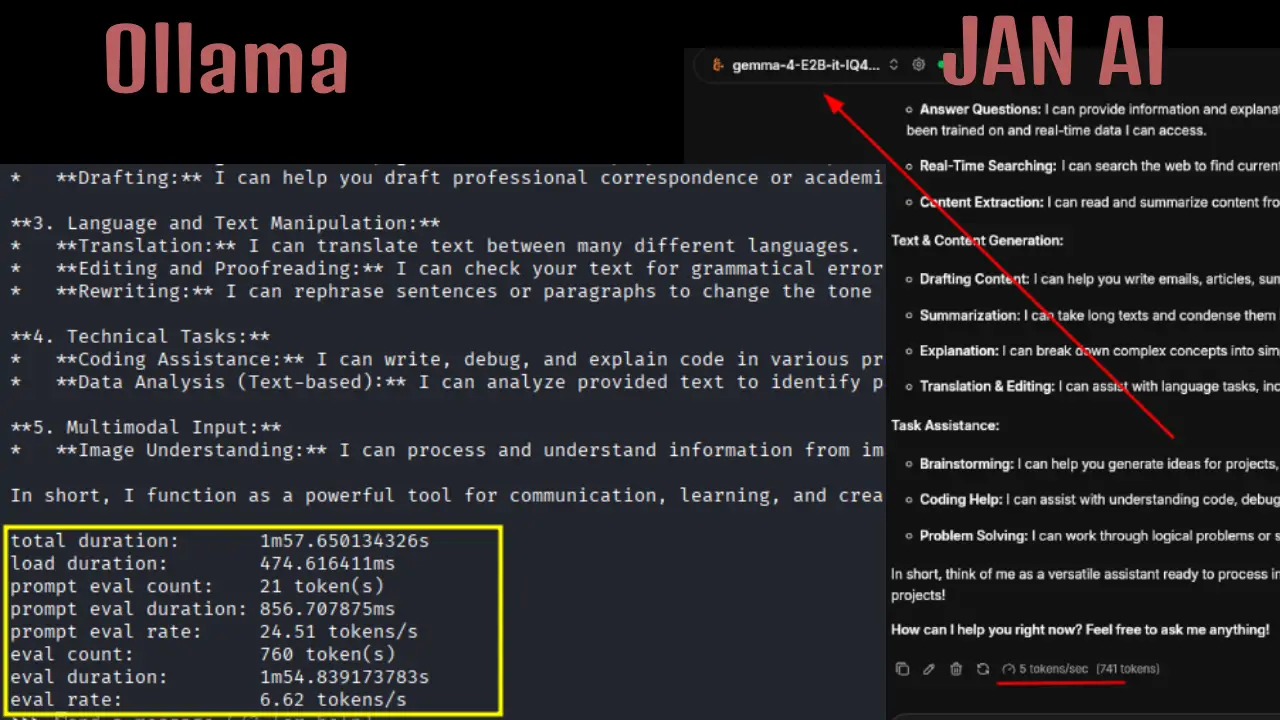
The major one is with the local LLM inference time. I tested the same model, and what I found was that Jan AI provided slow inference time as compared to Ollama on the same hardware. Ollama produced a response at a rate of 6.62 tokens/sec while Jan AI produced a response at around 5 tokens/sec.
On the second test, Ollama reported 7.35 tokens per second while Jan AI responded at 3 tokens per second. Also, I tried Llama.cpp for the same Gemma 5 E2B model with 3.97 tokens/sec.
The secondary issue is Jan application often freezes your system. I agree, running LLM models takes significant RAM memory, but there are a couple of attempts I faced where giving a prompt with the Gemma 4 E2B model freezes my system. I haven’t faced any similar issue with Ollama. That’s why I kept Ollama and Llama.cpp for my local AI model inference.
Who is Jan AI actually for?
After spending time with it, I’d say Jan AI fits a few kinds of people particularly well. One thing I need to justify here, although in my tests, Jan struggled to give me more than 5 tokens per second in CPU mode, running it on a system with modern GPUs like Radeon GPU, Intel Arc, Nvidia 4050, you may get to see a huge boost in performance, especially with tokens per second. You could achieve around 13-15 tokens per second.
Privacy-conscious users who want AI assistance without feeding their conversations to a corporation. Lawyers, journalists, healthcare workers, and anyone handling sensitive information fall into this category.
Developers who want a local AI backend for their tools. The OpenAI-compatible API makes it drop-in compatible with a surprising number of existing integrations.
Linux enthusiasts who simply prefer FOSS software and want to own their stack. The fact that it’s AGPL-licensed and actively developed is a big plus.
People on a budget. It comes with no API costs or subscription. You run it on hardware you already own.
It’s not for everyone. If you need GPT-4 level capability for complex reasoning tasks, you’ll still feel the quality gap compared to frontier cloud models. But for writing assistance, summarization, brainstorming, and everyday tasks? A well-tuned 7B or 13B model gets the job done.
The bigger picture
Local AI is no longer a hobbyist experiment. The AI models like Gemma 4, Gemma 3, Granite, Jan AI model, and SmolLM2 have gotten small enough that a standard laptop can run something genuinely useful. Tools like Jan have made the setup approachable enough that you don’t need to be a machine learning researcher to get started.
Jan AI won’t replace cloud services for everyone. But for a growing number of Linux users who care about privacy, cost, and control, it’s become a daily-use tool. I’d encourage you to try it. Download it, grab a 7B model, and see how far it gets you.
