
22 Things to Do After Installing Ubuntu 26.10 Stonking Stingray
Ubuntu works reasonably well out of the box, but a fresh installation still leaves plenty of room for improvement. A few tweaks, some essential software, and a handful of lesser-known settings can help you get a more comfortable, productive, and personalized desktop experience from day one.
In this guide, let’s look at some of the first things worth doing after installing Ubuntu 26.10.
Perform a System Update
Before installing new applications or customizing the desktop, it is a good idea to check for any available system updates. Ubuntu installation images are not updated daily, so there may already be security patches, bug fixes, and package updates waiting to be installed.
The easiest way is to launch Software Updater from the Activities Overview and let it handle the process.
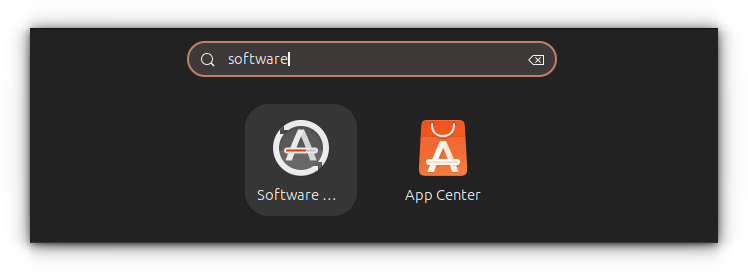
If you prefer the terminal, you can use the apt command.
sudo apt update && sudo apt upgrade -y
This command refreshes the package repository information and installs the latest available updates. Taking care of updates first helps ensure a stable and secure foundation before moving on to other post-installation tasks.
Install Media Codecs
Due to licensing and copyright restrictions in certain countries, Ubuntu does not include support for some popular media formats such as MP3, MPEG-4, and AVI out of the box.
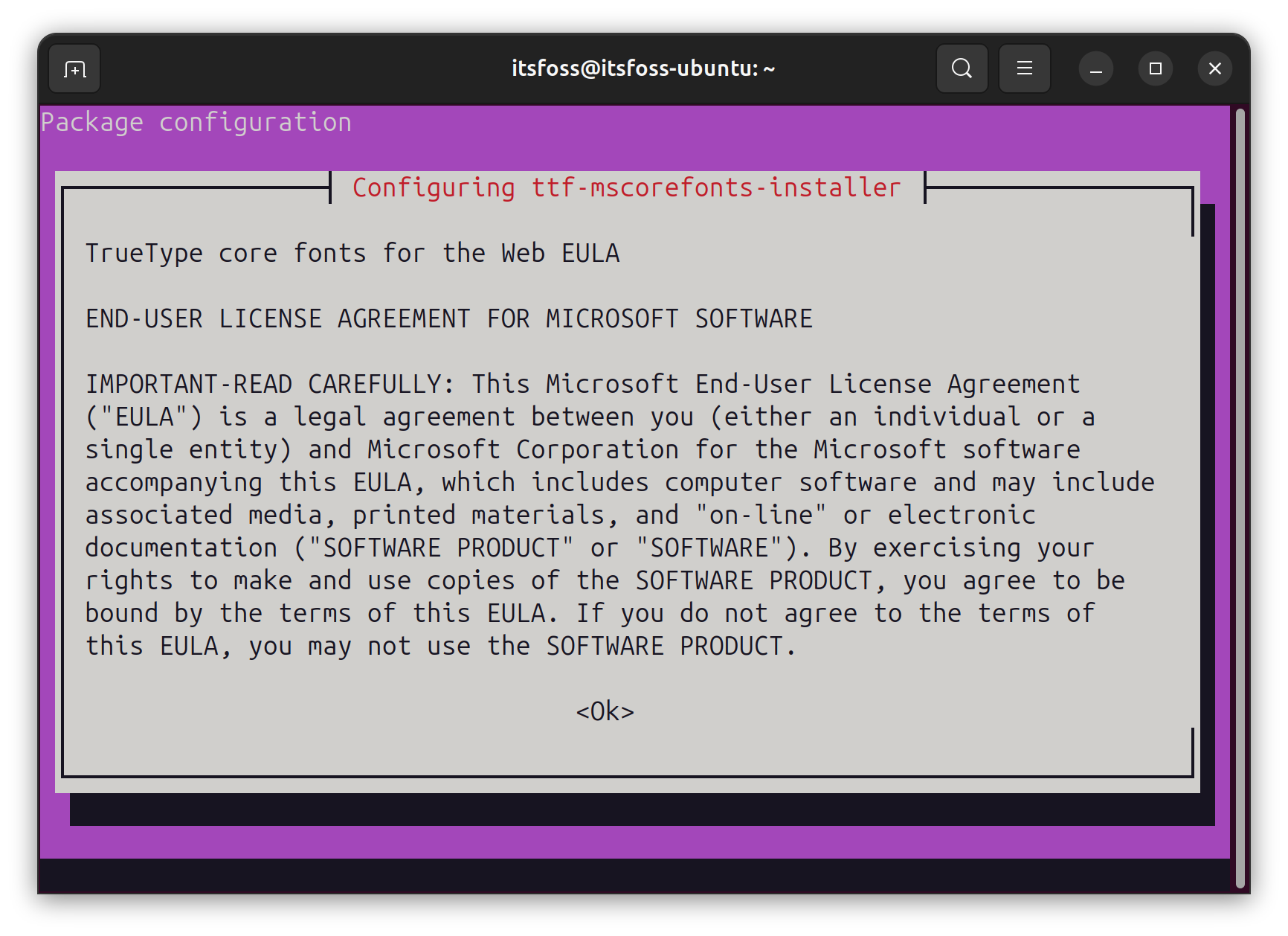
Fortunately, installing support for these formats is straightforward. The ubuntu-restricted-extras package bundles media codecs, Microsoft TrueType fonts, and a few additional components that improve compatibility with common audio, video, and office documents.
sudo apt install ubuntu-restricted-extras
kubuntu-restricted-extras.If you see the EULA or the license screen, remember to use the tab key to select between the options and then hit enter to confirm your choice.
Try the AI Voice Input
Typing isn’t always the fastest way to get text into a computer. Whether you’re taking notes, drafting an email, or quickly capturing an idea, speaking can sometimes feel more natural. Ubuntu 26.10 introduces Myna, an optional speech-to-text feature that brings local voice dictation directly to the desktop.
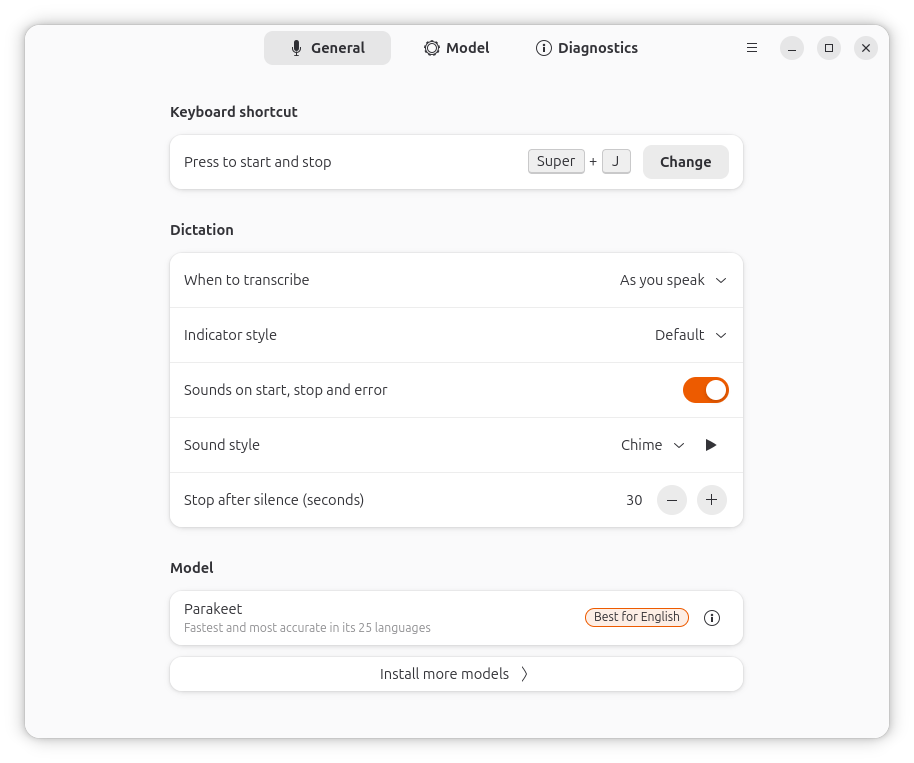
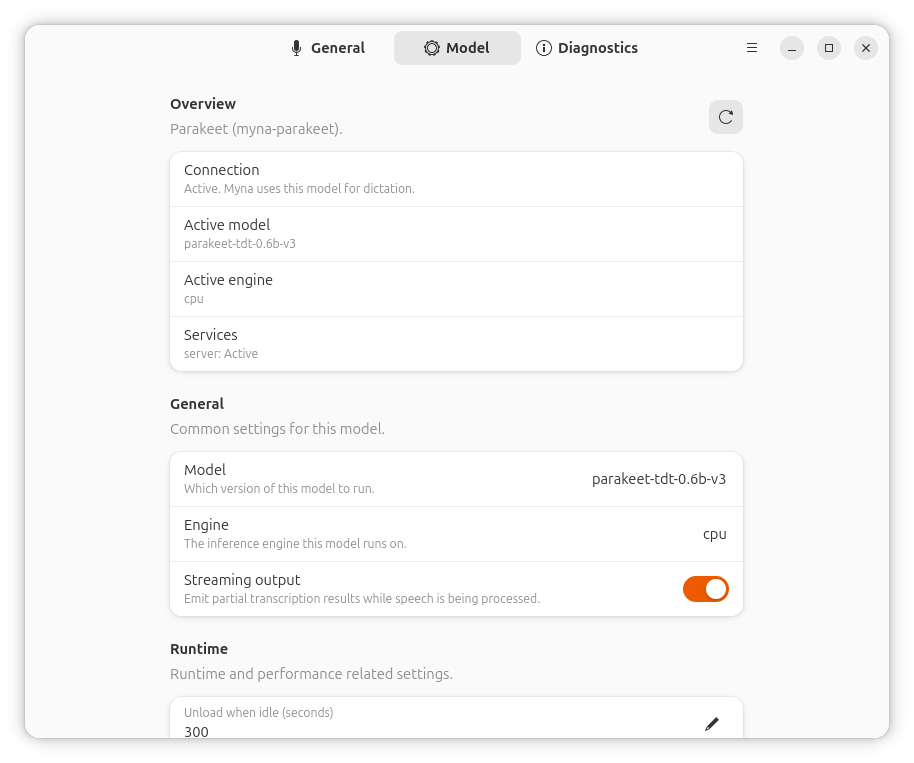
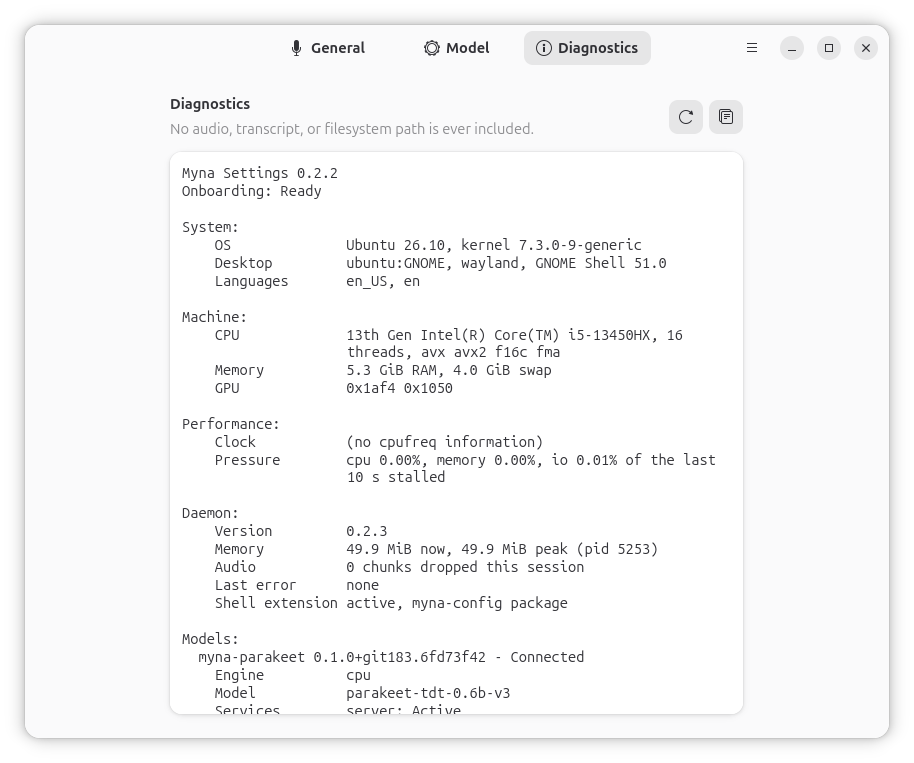
Myna AI Voice Input
What makes Myna particularly interesting is its privacy-focused approach. Speech recognition runs entirely on your machine, and once the required model is downloaded, no internet connection is needed for transcription. Simply place the cursor in a text field, press the configured shortcut, and start speaking. Do keep in mind that Myna is currently offered as a technology preview, so you should expect some rough edges while the feature continues to mature.
Change Wallpaper and Accent Colors
A different wallpaper and accent color can completely change the look of the desktop without installing any additional software.
To get started, right-click on an empty area of the desktop and select Change Background. From there, you can choose one of the included wallpapers or use the Add Picture button to select an image from your collection.
Change Wallpaper in Ubuntu
While you’re there, consider exploring the available accent colors as well. Choosing an accent color that complements the wallpaper can give the desktop a more cohesive and polished appearance. 🎨
Enable Flatpak support
Ubuntu promotes Snap as its primary universal packaging format, and you’ll find plenty of applications available through it. However, not every developer distributes their software as a Snap package. In the Linux desktop world, you’ll frequently come across applications that are available only through Flatpak.
For that reason, it makes sense to enable Flatpak support early on. Start by installing the required package:
sudo apt install flatpak
Once installed, add the Flathub repository, which serves as the primary source for most Flatpak applications:
flatpak remote-add --if-not-exists flathub https://dl.flathub.org/repo/flathub.flatpakrepo
After adding Flathub, restart the system to ensure everything is integrated properly. You’ll then be able to install and manage Flatpak applications from the command line.
We have a dedicated article explaining Flatpak support in Ubuntu. Give it a read, if you want more Flatpak setup requirements.
Familiarize Installing New Applications
At some point, you’ll want to go beyond the default applications that come with Ubuntu. The good news is that Ubuntu has one of the largest software ecosystems in the Linux world, making it easy to find and install both open-source and proprietary software.
Applications can be installed in several ways. Packages available in Ubuntu’s official repositories can be installed directly from the terminal:
sudo apt install <package-name>
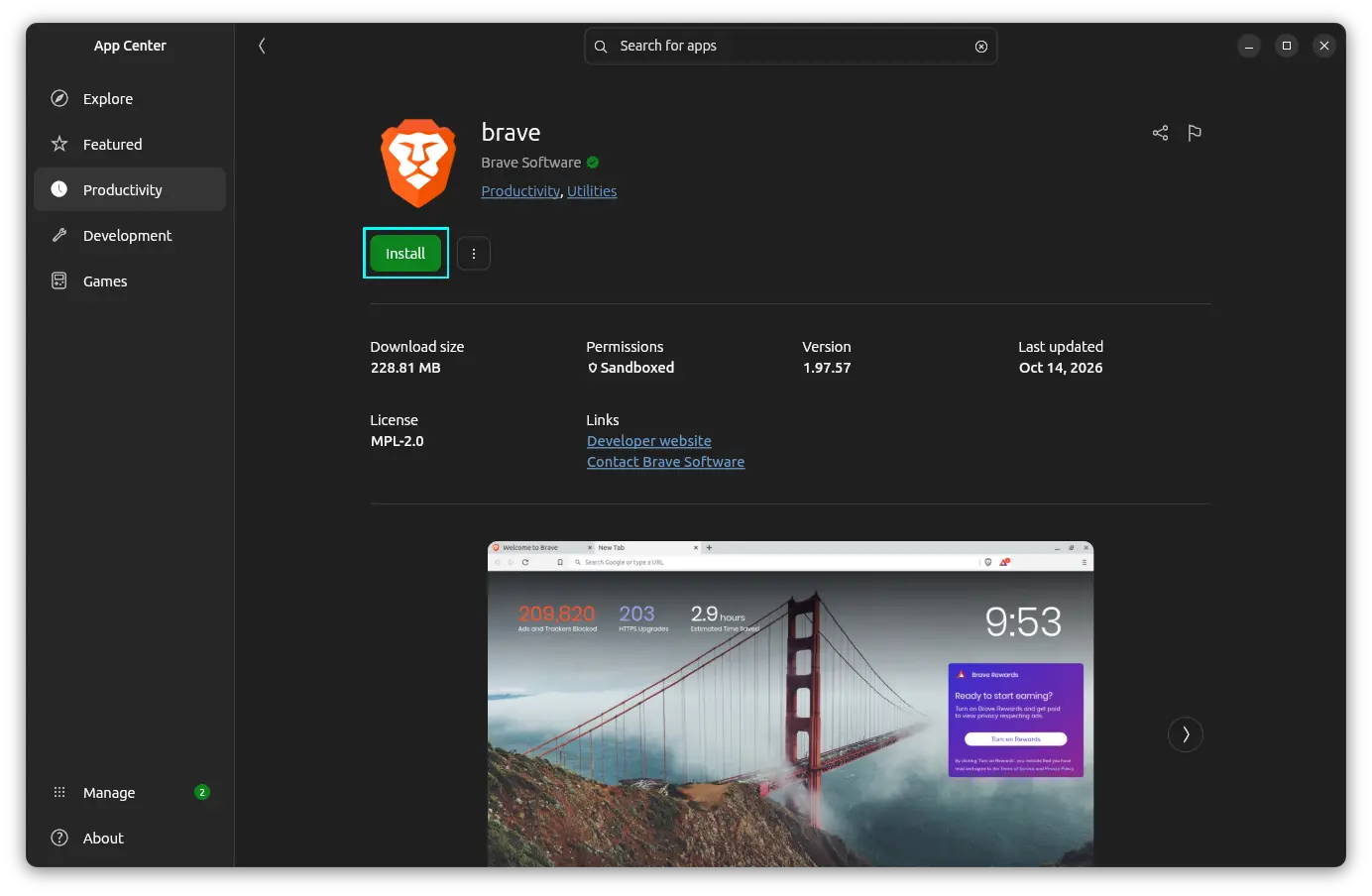
For those who prefer a graphical approach, open the App Center, search for the application you need, and click Install. Ubuntu’s App Center supports both DEB and Snap packages, though it generally prioritizes Snap applications when both formats are available.
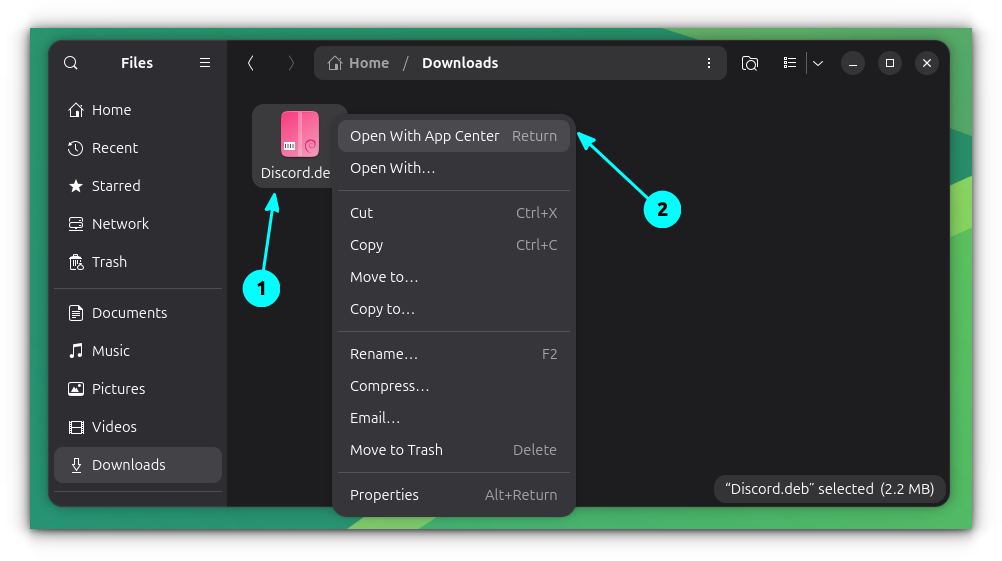
Many software vendors also provide Ubuntu packages directly on their websites as .deb files. After downloading one, right-click the file and select Open With → App Center. From there, simply click Install to add the application to your system.
Install Extension Manager
One of GNOME’s biggest strengths is its extension ecosystem. Many of the desktop tweaks that Ubuntu users enjoy, including custom docks, app indicators, and advanced tiling features, are powered by GNOME extensions behind the scenes.
While extensions can be installed manually, managing them quickly becomes inconvenient once you start experimenting with a few. The Extension Manager application provides a much cleaner way to browse, install, update, enable, and disable extensions from a single place.
sudo apt install gnome-shell-extension-manager
Add Your Favorite Apps to the Dock
The Dock in Ubuntu provides quick access to running applications and can also serve as a launcher for the programs you use every day.
Adding applications to the dock is simple. Open the application grid using the Show Apps button or press the Super key, then right-click the desired application and select Pin to Dock. Once added, applications can be rearranged by dragging and dropping them to your preferred position.
0:00
Pin application to Dock in Ubuntu
The dock itself is also highly customizable. You can change its position, adjust icon sizes, enable auto-hide, and tweak other behavior from the system settings to better suit your workflow.
Customize the Dock
Ubuntu provides you a Dock that host the pinned and opened application on the left edge of your screen. Since it is based on a customized version of GNOME’s Dash to Dock extension, there is plenty of room for customization.
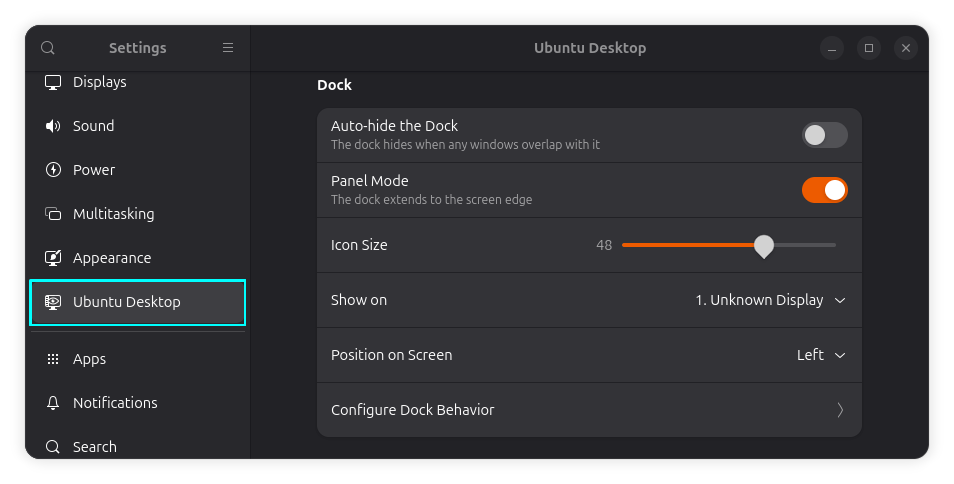
For basic adjustments, head to Settings → Ubuntu Desktop → Dock. Here, you can change the dock’s position, enable auto-hide, adjust icon sizes, and control how the dock behaves on your desktop.
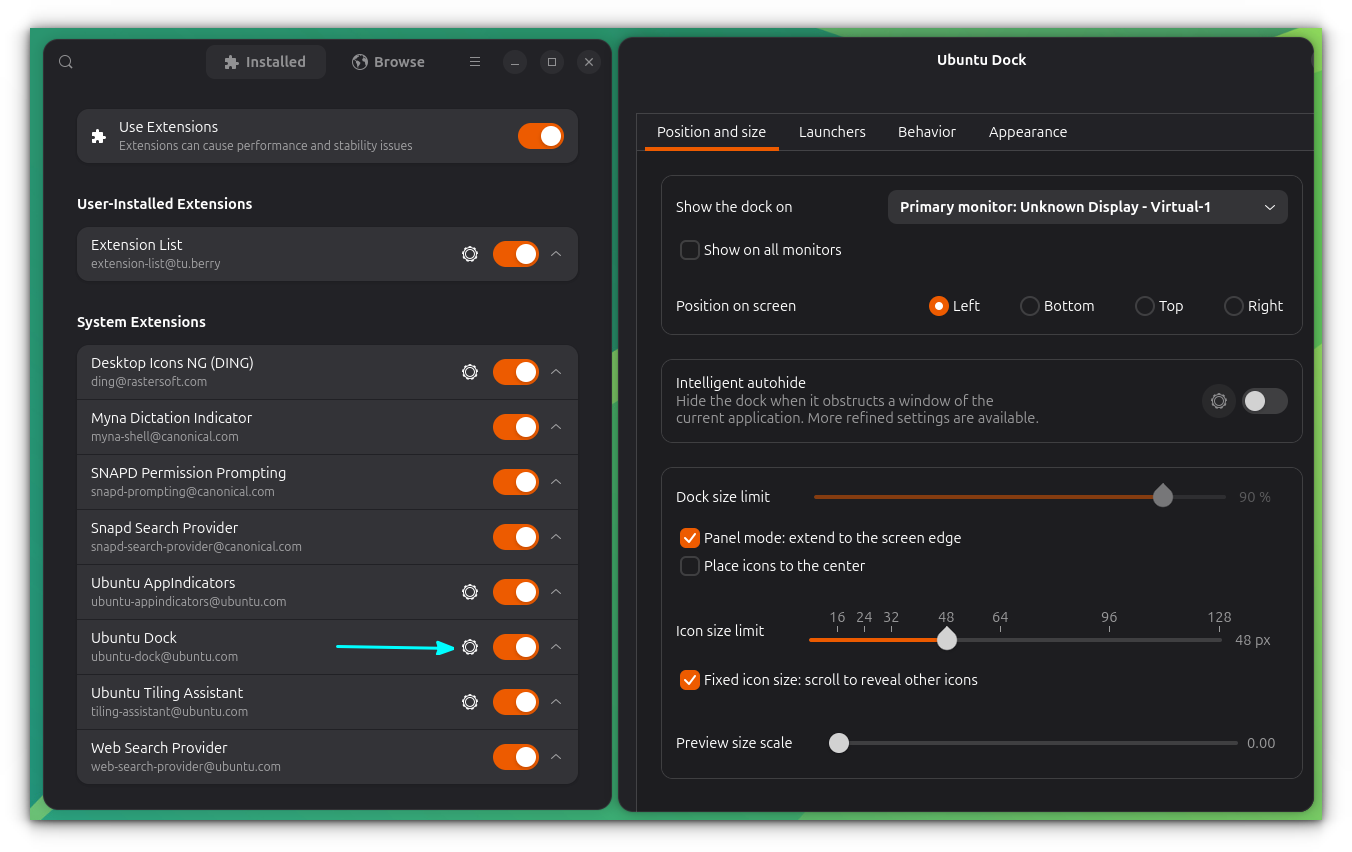
If you want more advanced options, open Extension Manager, select Ubuntu Dock, and access its settings. This exposes additional tweaks that are not available in the regular system settings, giving you greater control over the dock’s appearance and behavior.
Click to Minimize
Open Extension Manager, click the settings button next to Ubuntu Dock, and switch to the Behavior tab. Here, locate the Click Action option and change it to Minimize. Once enabled, clicking the icon of an open application will minimize its window.
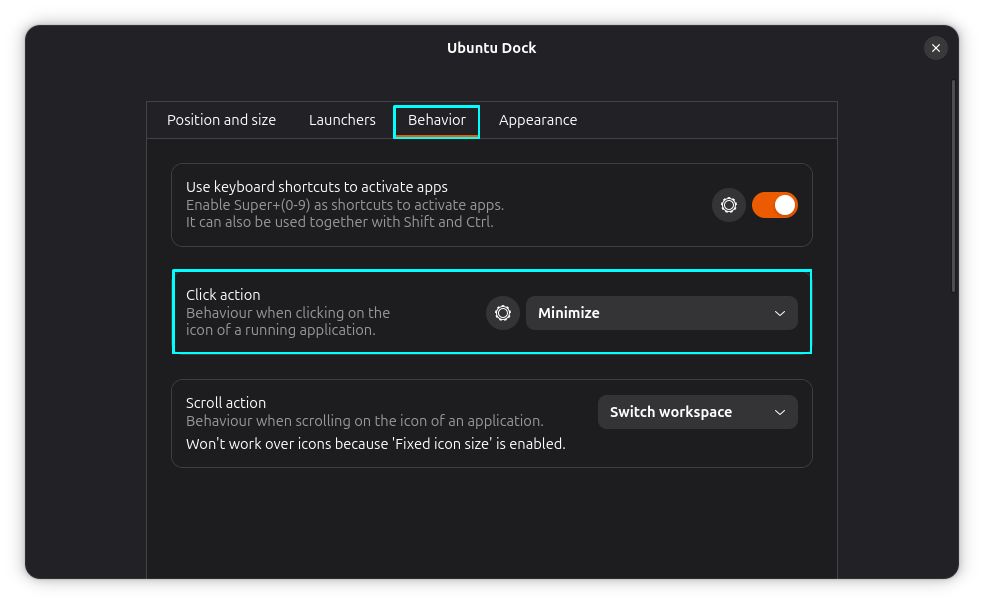
At this point, when you click on the icon of an opened app in the Dock, it will be minimized to the taskbar.
Or, you can set what I do on my system. Set the Click action to Focus, minimize or show previews.
This setting combines the best of both worlds. If an application has a single window open, clicking its dock icon minimizes it. If multiple windows are open, Ubuntu displays window previews instead, making it easier to switch between them.
Install Extensions
Extensions can add new features, improve existing workflows, or completely change how the desktop looks and behaves.
With Extension Manager installed, discovering new extensions becomes straightforward. Open the application, switch to the Browse tab, search for an extension, and click Install.
We have compiled a dedicated lists of productivity-focused and appearance-focused GNOME extensions, so that you get a good start.
Get Familiar with Tiling
Recent Ubuntu releases have significantly improved the tiling experience. Simply drag a window by its title bar to the top of the screen to reveal available tiling zones. Dropping the window into one of these zones automatically snaps it into place.
What makes the experience particularly useful is the tiling assistant. After placing a window, Ubuntu can suggest other open applications to fill the remaining screen space, making it easy to create an organized workspace without manually arranging every window.
Ubuntu Tiling
If you prefer keyboard shortcuts, the traditional tiling keybindings are also available. And because Ubuntu’s tiling functionality is powered by the Ubuntu Tiling Assistant extension, many aspects of its behavior can be customized through Extension Manager to better match your workflow.
Take Care of Your Wellbeing
Many of us spend hours in front of a computer without realizing how much time has passed. Whether it’s work, studying, gaming, or binge-watching, it’s easy to skip breaks and stay glued to the screen longer than intended.
The Wellbeing feature is designed to help with that. Similar in concept to digital wellbeing tools on mobile devices, it allows you to track screen usage and configure reminders that encourage healthier computer habits.
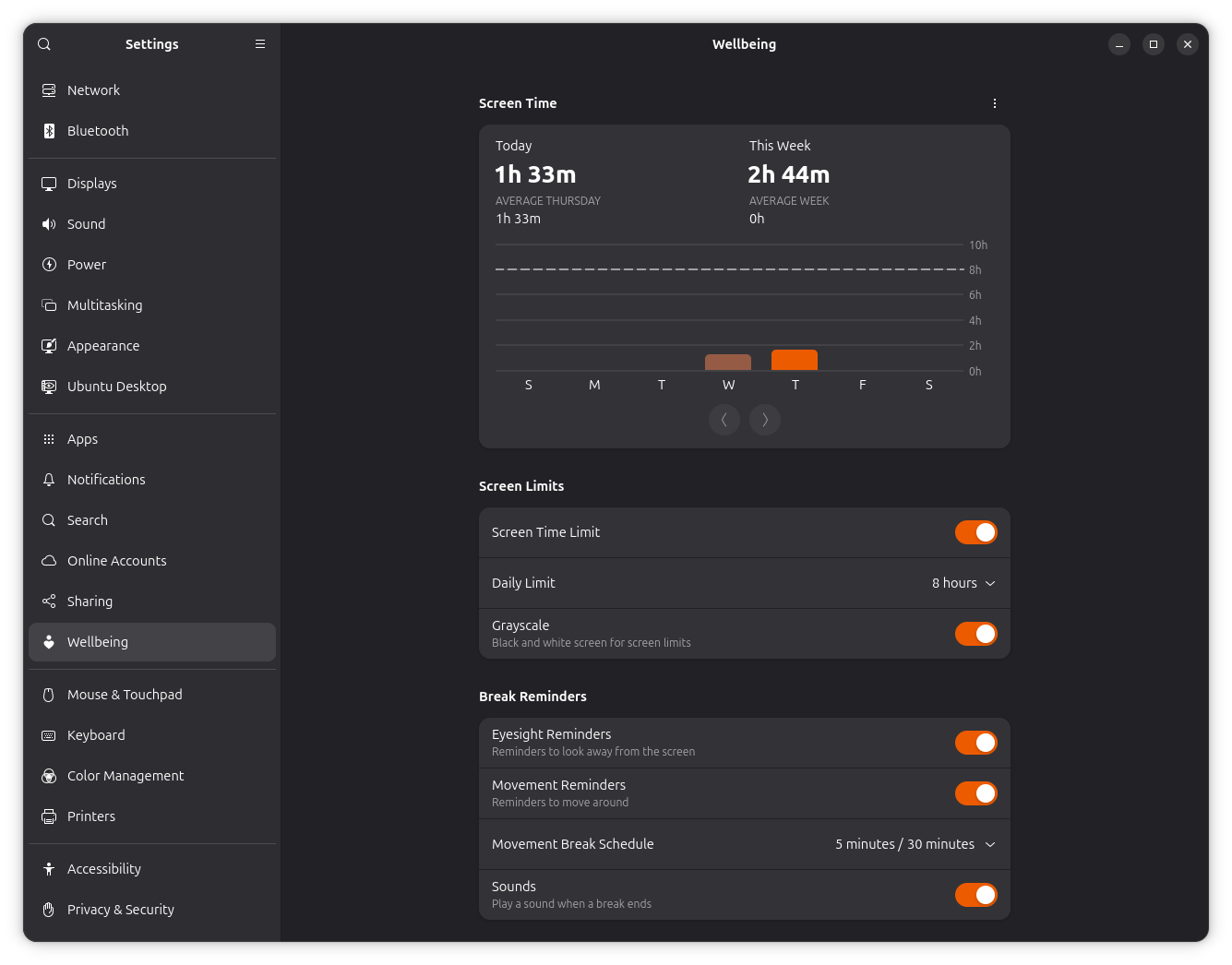
To get started, open Settings and navigate to the Wellbeing section. From here, you can set daily screen time limits, enable eyesight reminders, configure movement breaks, and even choose whether the display switches to grayscale once a screen time limit has been reached.
Use Your Monitor’s HDR Capabilities
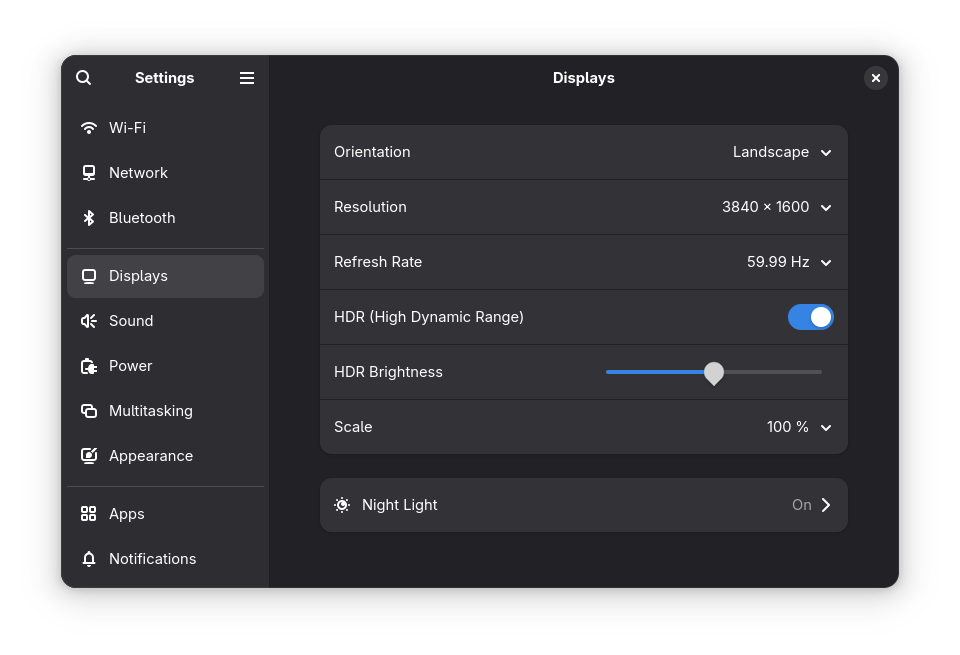
If you own a monitor with HDR functionality, then you can take advantage of the HDR support that works with displays of the BT.2100 standard. With this, you get perks like improved brightness, deeper contrast, and a wider color gamut for more vibrant visuals.
To enable this, you will first need to connect a compatible monitor. Then, go to Settings -> Displays page. If everything went well, then you will be shown the HDR and HDR Brightness options.
Show Battery Stats in Panel
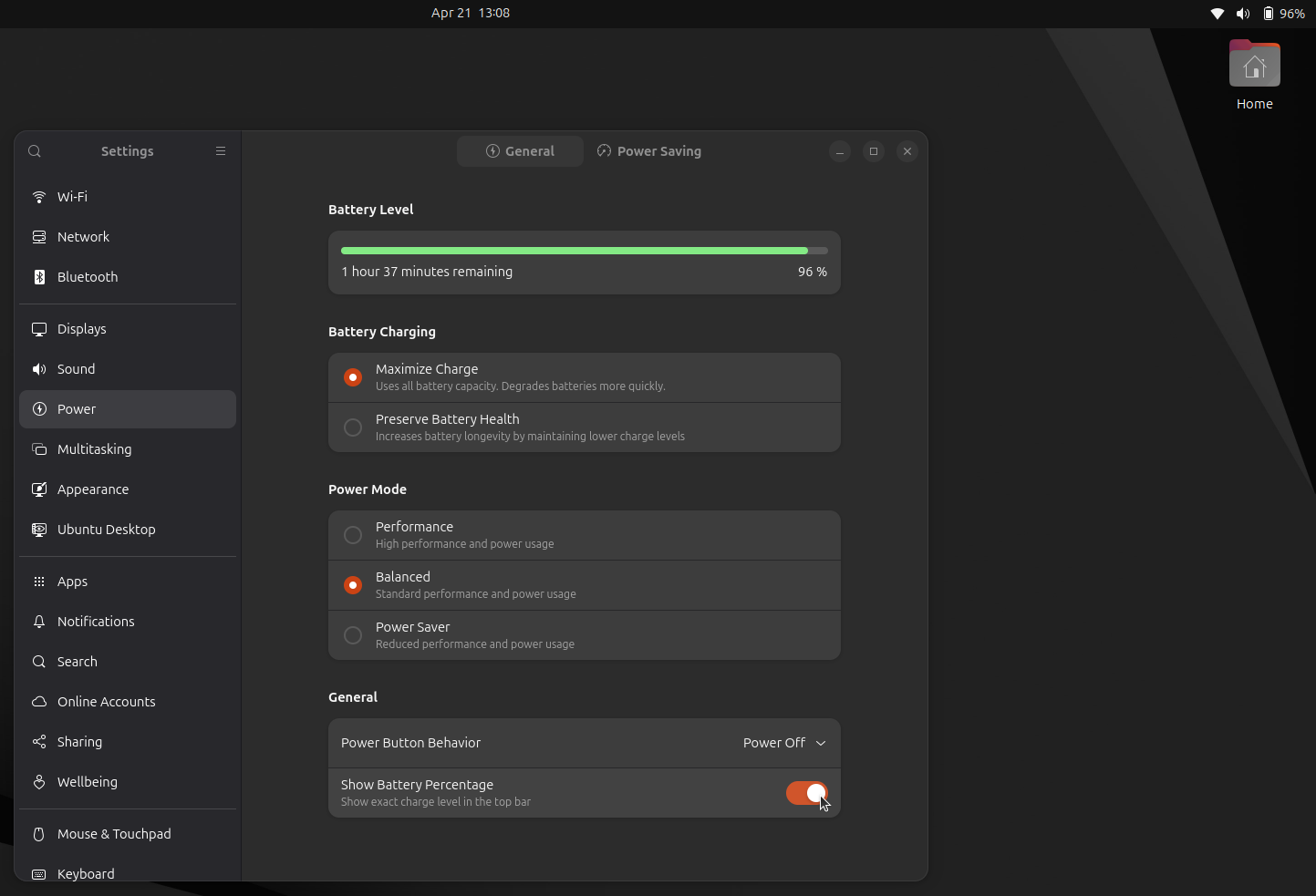
If you are a laptop user who is always on the go and cannot risk your device’s battery dying out, then enabling the on-screen display for battery percentage is a must-have for quick battery charge level checks.
To enable this, go to Settings -> Power, then go to the General page and enable the Show Battery Percentage option.
That is not the only way you can spice up the top panel. There are some nice customizations that you can add.
Disable Automatic Screen Blank
Ubuntu enables automatic screen blanking by default to save power when the system is idle. While that makes sense for many users, it may not be ideal if you frequently step away from your desk, follow long-running tasks, or keep information visible on the screen for extended periods.
Similar to the previous suggestion, go into the Power settings, but instead of General, go into “Power Saving” and uncheck the “Automatic Screen Blank” option. You can also tweak the delay time before the screen goes dark if you prefer this behavior.
Hide the Home Folder
Ubuntu places a Home folder icon on the desktop by default. While some users appreciate the quick access, others prefer a cleaner desktop with an unobstructed view of their wallpaper.
0:00
Hide Home Folder from Desktop
If you’d rather keep the desktop free of extra icons, right-click on an empty area of the desktop and select Desktop Icons Settings. From there, disable the Show Home Folder option.
Set What Shows in the Search
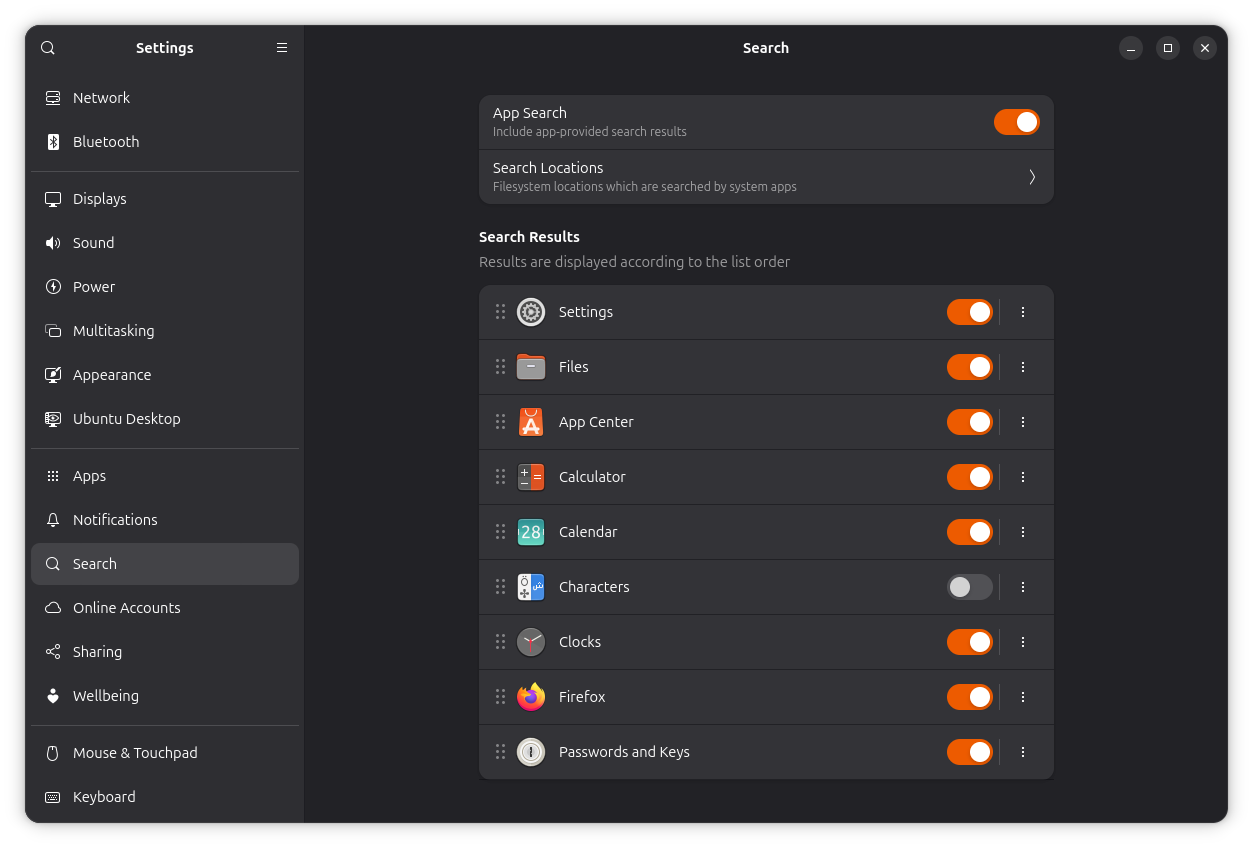
When you perform a search using GNOME Search, it include more than just applications and files. Categories such as characters, emojis, settings, and other providers may also appear, which can make the results feel a bit cluttered depending on how you use your system.
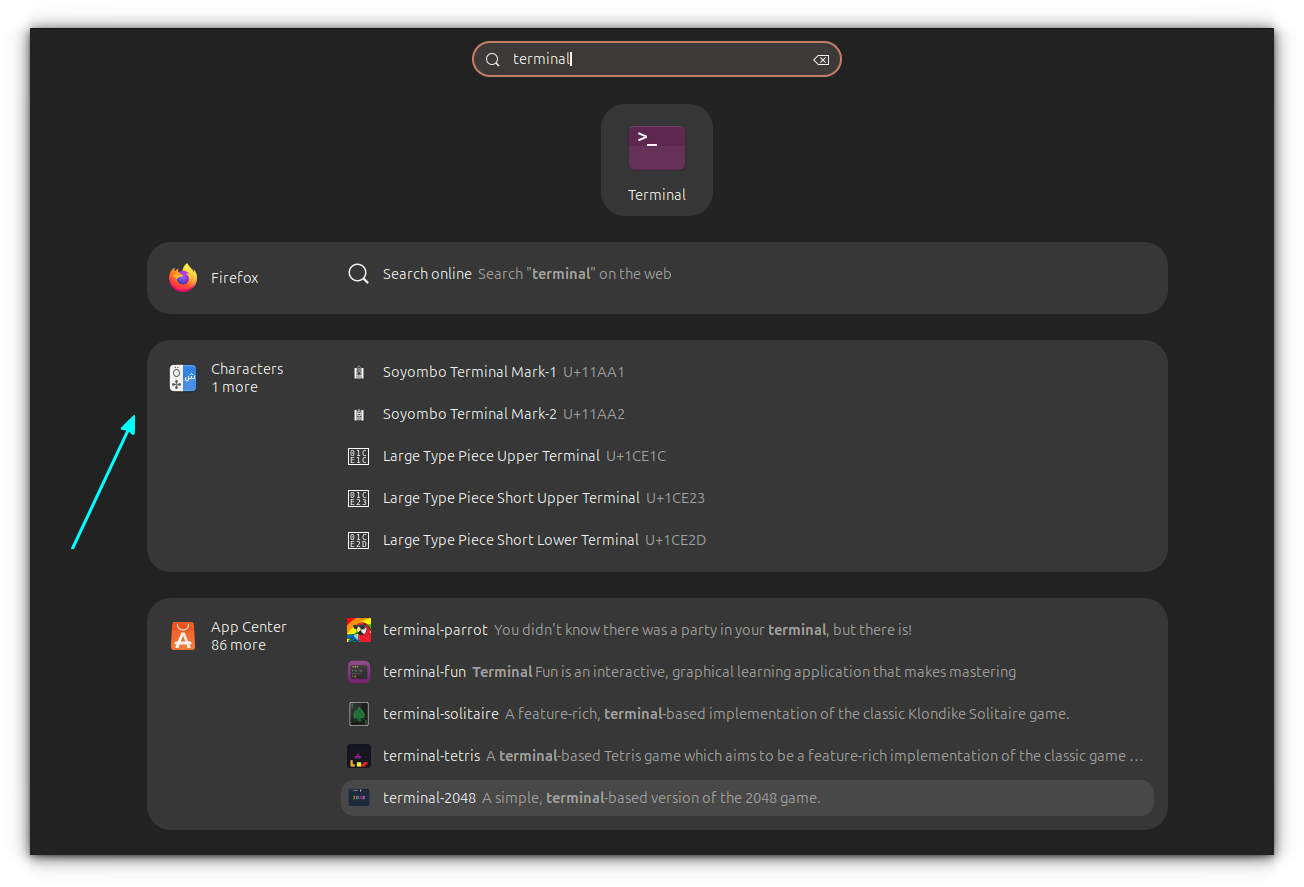
To customize this behavior, open Settings → Search. From here, you can disable search providers you don’t use and reorder the remaining ones based on priority. For example, if you never search for emojis through GNOME Search, you can disable the Characters provider entirely.
Install Curl and Git
Ubuntu does not come with curl or git installed by default. A bit curious, because curl is commonly used to download files, interact with web APIs, and fetch installation scripts directly from the terminal. Git, on the other hand, is the most widely used version control system and is often required when working with source code, cloning repositories, or following developer-focused guides.
You can install both packages with a single command:
sudo apt install curl git
Even if you don’t need them immediately, having these tools available can save time later. Many open-source projects assume that curl and git are already installed and use them throughout their installation and setup instructions.
Learn Keyboard Shortcuts
Keyboard shortcuts are one of the easiest ways to become more productive on Ubuntu. While almost everything can be done with a mouse, knowing a handful of shortcuts can make launching applications, managing windows, and navigating the desktop significantly faster.
The good news is that GNOME makes discovering shortcuts easy. In most modern GNOME and GTK applications, pressing Ctrl + ? opens a dedicated shortcuts window that neatly organizes all available keyboard shortcuts. Spending a few minutes exploring these can reveal useful actions that might otherwise go unnoticed.
0:00
Get Keyboard Shortcuts
If you’re new to Ubuntu, it’s also worth checking out dedicated lists of Ubuntu desktop shortcuts and terminal shortcuts.
Some Cool Accessibility Settings
Accessibility settings are often associated with specific needs, but several of them can be genuinely useful for everyone. Ubuntu includes a number of small quality-of-life features that can make interacting with the desktop more comfortable and efficient.
Locate the Cursor
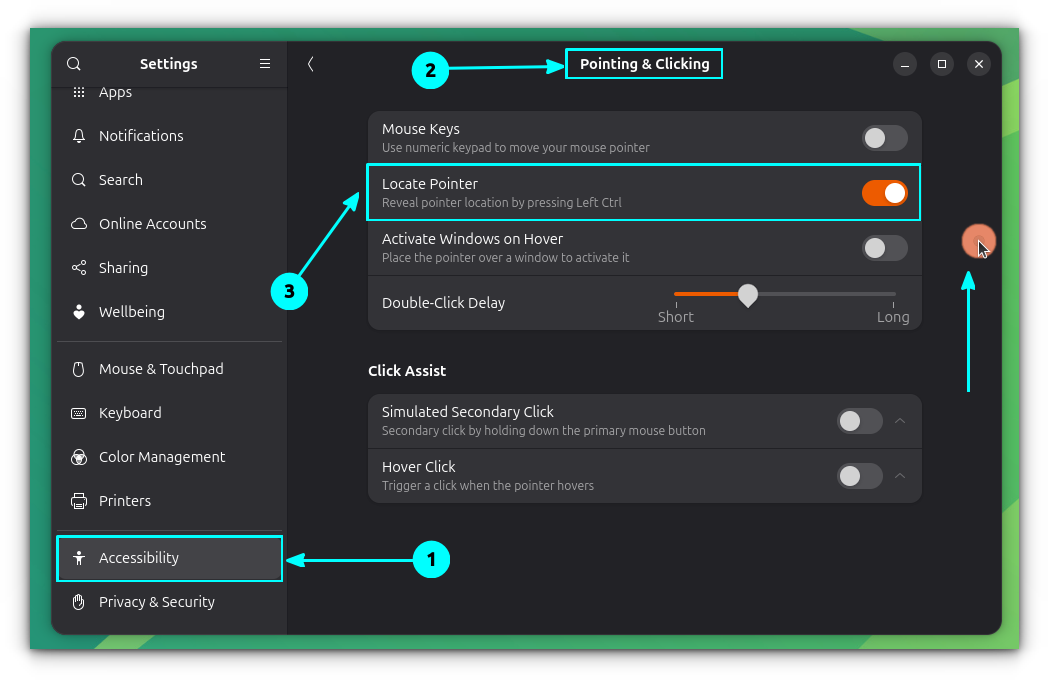
If you work with multiple monitors or frequently have several windows open, there will eventually be a moment when the mouse pointer seems to disappear into the clutter. Instead of wasting time hunting for it, GNOME includes a built-in feature that highlights the pointer on demand.
Open Settings → Accessibility → Pointing and Clicking and enable Locate Pointer. Once enabled, pressing the left Ctrl key triggers a ripple animation around the mouse cursor, making it instantly visible on the screen.
Reduce Motion Animations
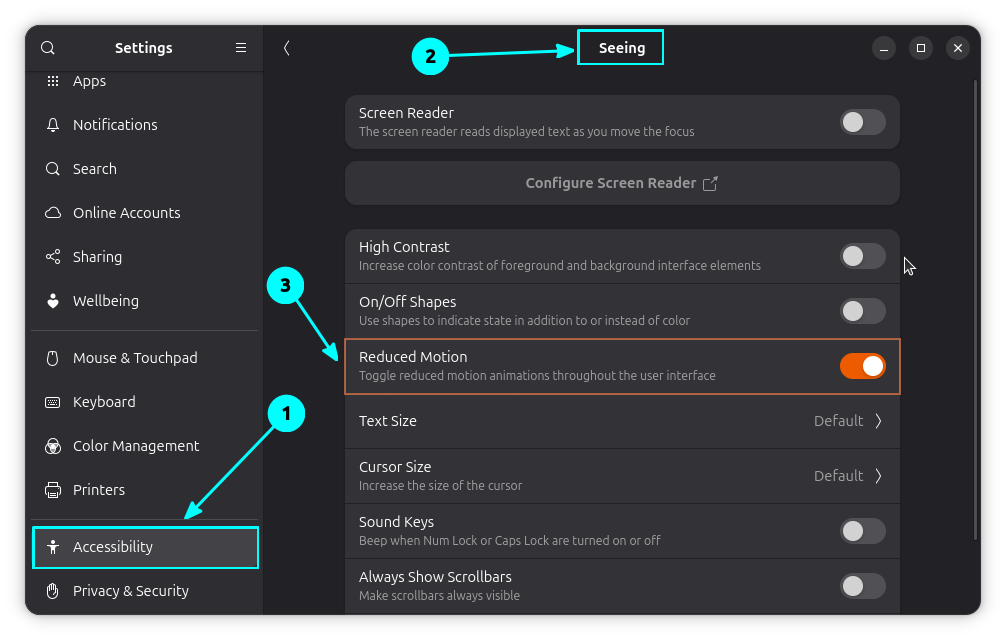
GNOME’s animations generally look polished on modern hardware, but they are not essential to the desktop experience. If you prefer a more immediate feel or use older hardware, reducing animations can make the interface feel slightly more responsive.
To enable this setting, head to Settings → Accessibility → Seeing and turn on Reduced Motion. GNOME will minimize many of its transition and animation effects throughout the desktop.
Don’t expect dramatic performance improvements, especially on newer systems. However, on less powerful hardware, or if you simply prefer a snappier and less animated interface, this small tweak can make the desktop feel a bit more streamlined.
Get Overamplification
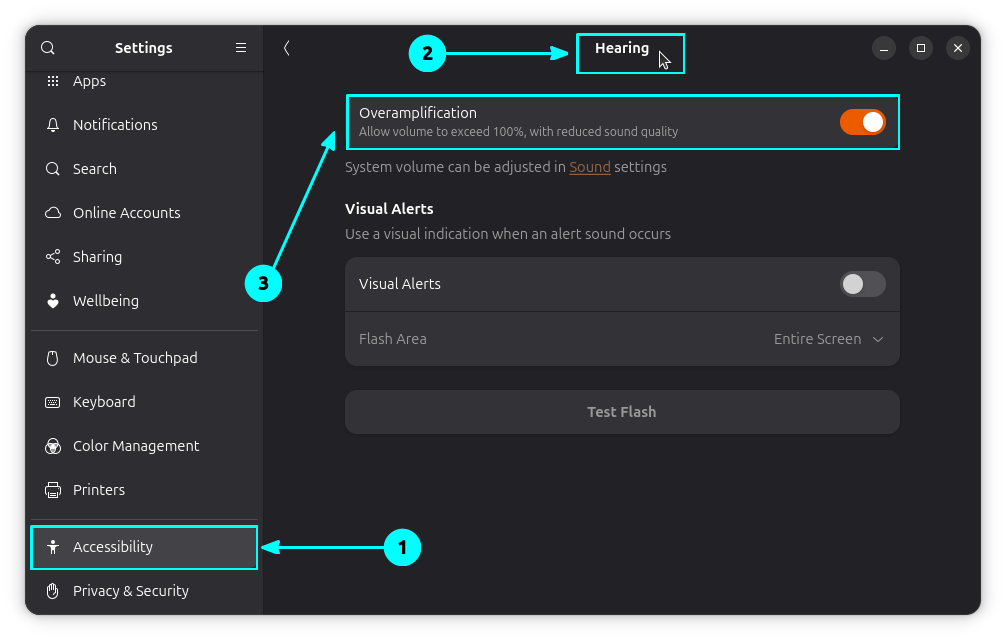
Ubuntu offers an accessibility feature that can boost audio output beyond the normal limit.
To enable it, open Settings → Accessibility → Hearing and turn on Overamplification. Once enabled, the system volume can be increased above 100% when needed.
Keep in mind that this is achieved through software amplification, so pushing the volume too high may introduce distortion or reduce audio quality. Still, it can be a useful option when dealing with particularly quiet recordings, low-volume speakers, or headphones that need a little extra boost.
Wrapping Up
One of the things I appreciate about Ubuntu is that it works well with its default settings while still offering plenty of ways to tailor the experience. You don’t need to apply every tweak mentioned here. Pick the ones that match your workflow and ignore the rest.
If you’re new to Ubuntu, start with the essentials and explore gradually. Over time, you’ll discover which settings, extensions, and tools genuinely improve your day-to-day experience, helping you build a desktop that feels truly your own.
