
Easily Install Binaries in Linux Terminal With This Tool

Let’s be honest. Installing packages from their GitHub repositories can be a pain, especially if you use different Linux distros, BSD and macOS.
You have to go to the release pages of the tool’s GitHub repo, look for the appropriate binary file for your distribution, your system architecture (x86/ARM), get it, extract it and run it to install it.
If that feels like a lot to you, you can use eget.
Provided the repository, Eget searches through the project to find the latest binaries and downloads and extracts them. After that, the user only needs to use the sudo privileges to move the executable to a directory in $PATH, and all works well.
Eget: Making installing binaries easier
Eget works in a simple way that doesn’t require a lot of tinkering at all. For a basic demonstration, I will attempt to install Cmatrix, a replication of the famous letter rain from The Matrix.
I know that cmatrix is available from the default repositories of the most distributions; still, I wanted something simple and could not think of anything better 😉
First, I need the location of the GitHub repository, which in this case is abishekvashok/cmatrix. The command then becomes:
eget abishekvashok/cmatrixThe executable is downloaded and can be run from right here, but then it would be an issue to run them like a regular terminal program. So I move the downloaded binary to a directory in the $PATH, which in most cases, /usr/local/bin/ should work. So:
sudo mv cmatrix /usr/local/binFinally, we try to see if it works:
cmatrix0:00
Now that you know how it works in general, let’s see what other options the tool provides.
While it works most of the time, there are some cases in which it doesn’t quite get there. For example, I tried to install the Kew terminal music player with it, and it couldn’t find the binaries but even then, the utility far outweighs the few instances of failure.
eget additional options
To see the options that Eget has, you can enter this command:
eget --helpThe most useful flag is the one that allows you to move the downloaded and extracted file to a directory directly, not requiring you to manually move it later:
eget --to=[needed location] [project repo]To only download a specific version of the program, you can specify it:
eget --tag=[version number] [project repo]You can even download pre-releases instead of proper releases if you want the cutting edge software:
eget --pre-release [project repo]If you would only like to download the binaries and not extract them, you can do so by using:
eget --download-only [project repo]If you have a file with a list of repositories that you want to install in a file, you can even do that:
eget --download-all [file name]To only upgrade a program, i.e., only to download it if there’s a new version of it, use the following command:
eget --upgrade-only [project repo]There are some more interesting options, all of which can be found with the aforementioned –help flag.
Configuration
To make the installation even easier, you can edit the configuration file and include all the options that you need from Eget. This includes the options that were mentioned in the section above.
For example, you can add a new default value to the target where the file must be installed, instead of it being “./”, which is the working directory of the command. You can edit the parameters globally or even for repositories specifically.
Say I want to configure the target directory to /usr/local/bin and activate the upgrade only option globally, and for the specific repository of Cmatrix, I want to verify the hash and also download the source. My config file, located at ./.eget.toml will look like:
[global]
    upgrade_only = true
    target = "/usr/local/bin"

["abishekvashok/cmatrix"]
    verify_sha256 = true
    download_source = true
There are far many more global and repository specific parameters you can vary.
How to get Eget
You cannot install eget to install eget, obviously 😆
You need to rely on curl to download files in the terminal:
curl https://zyedidia.github.io/eget.sh | shThen all you need to do is to move the downloaded executable to a directory in $PATH, for which again, I am using /usr/local/bin:
sudo mv eget /usr/local/bin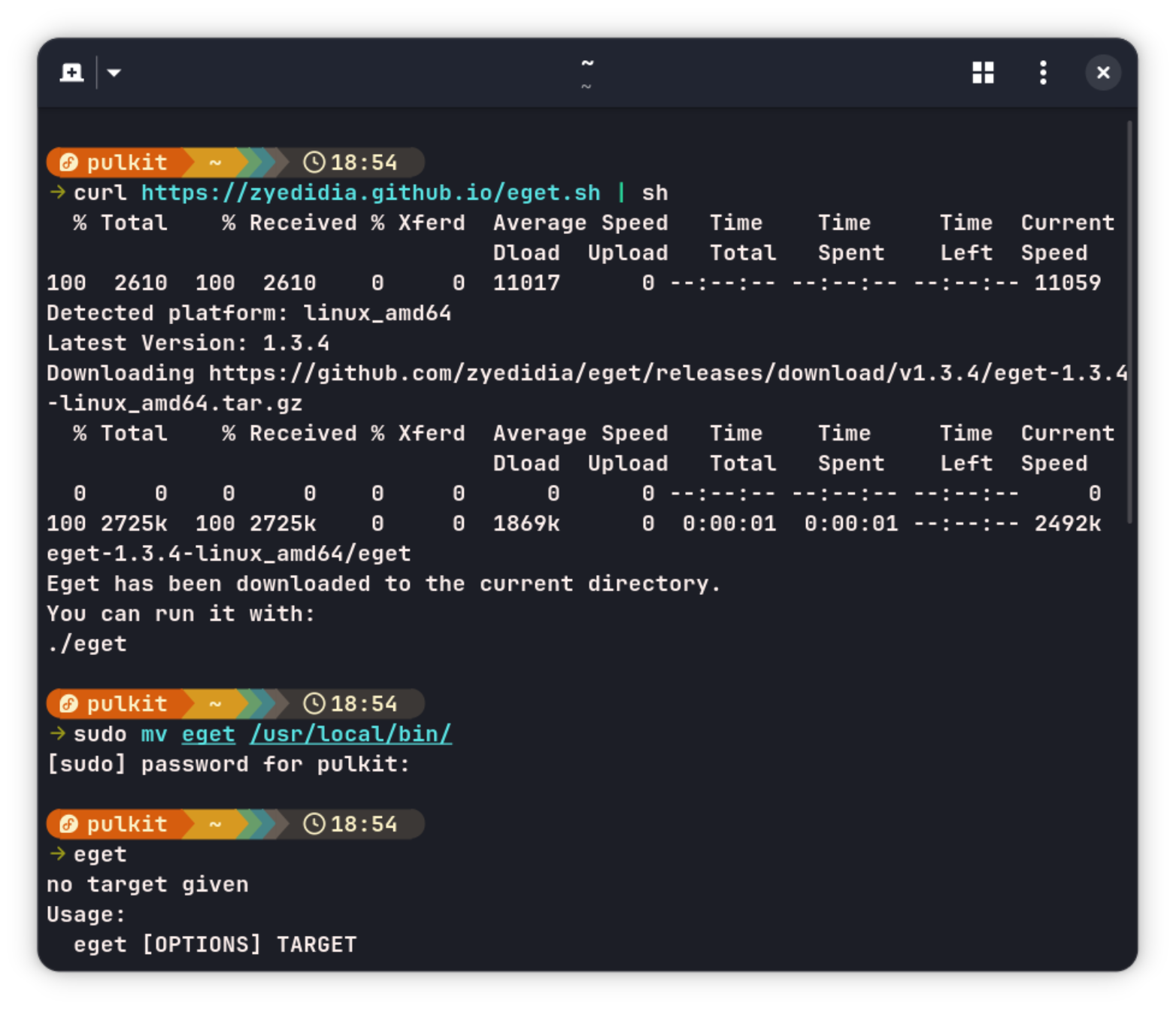
And just like that, it is ready to be used.
Conclusion
More than end users, eget is helpful for application developers. If you provide simple, static pre-built binaries for your tool, eget can be handy. Instead of confusing the end users with various installation instructions for all kind of systems, you could recommend them to use eget without worrying about which commands to use for the installation.
It could also be a hood option for off-beat distributions that don’t have dedicated package managers yet or don’t have lots to offer from their repositories.
Let me know what you think of eget. Is it worth a try? Does it solve a problem for you? The comment section is yours.