
I Found a Simple Open WebUI Alternative for Running Ollama Models in a Web Browser
Running local AI models has become surprisingly accessible. Install Ollama, pull a model, and you can start chatting with it in minutes. That’s exactly how I began my journey with local AI.
Using an LLM directly in terminal is okayish but it limits your ability. That’s why there are so many frontends available for Ollama, providing you with a graphical, chatGPT-like interface. This way, you can easily revisit an earlier answer, copy code snippets, or have an extended discussion with a model.
Of the so many GUIs, Open WebUI is like the de facto Ollama front-end. I don’t know about you but I find it difficult to set up.
I also looked at options like LibreChat, AnythingLLM, and LobeChat. They all felt geared toward users who wanted an all-in-one AI platform rather than a lightweight companion for a local Ollama UI.
This is the ‘problem’ that I think OrionChat solves…by its simplicity.
OrionChat: Web-based chat interface for Local LLMs
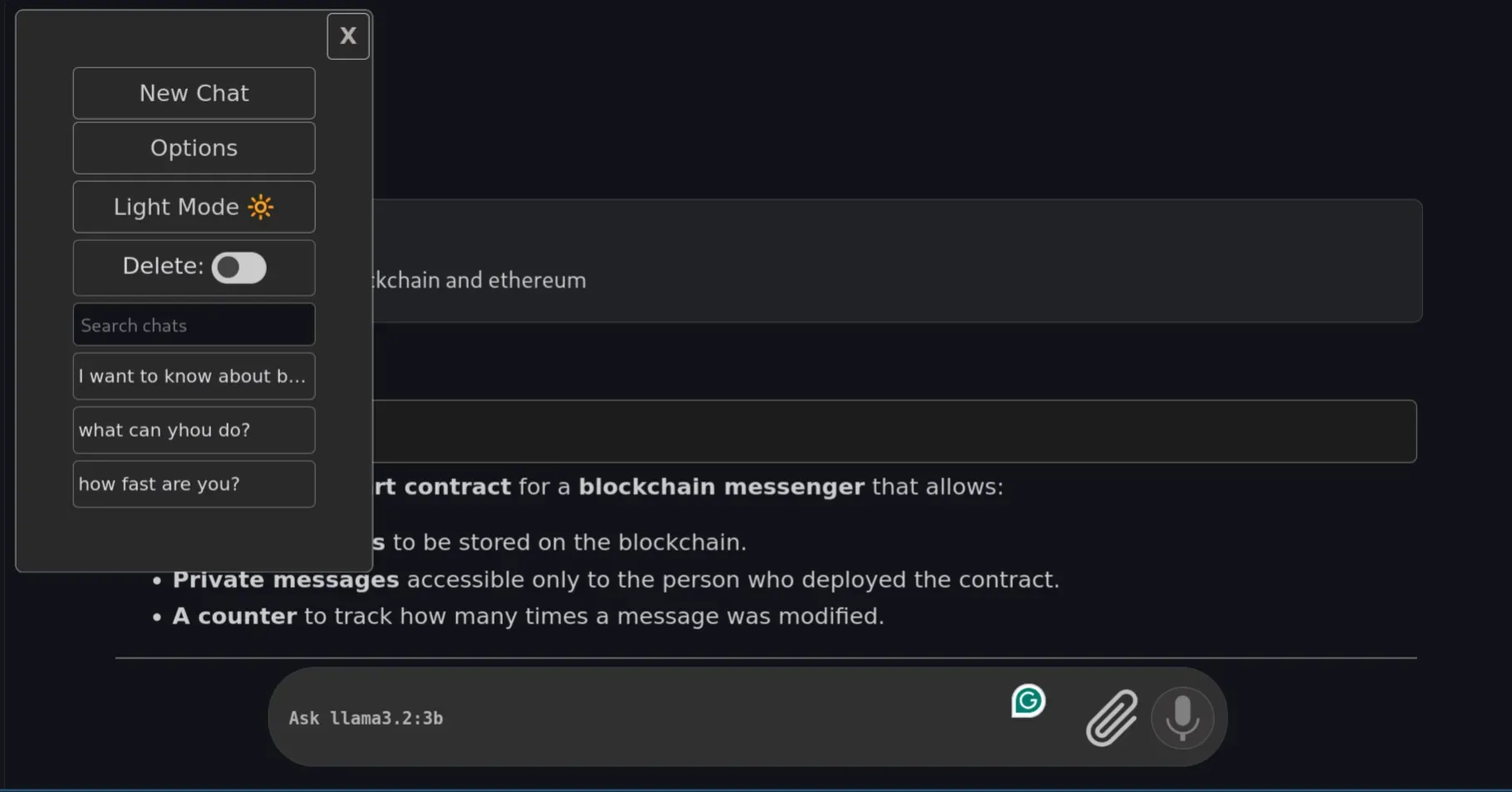
OrionChat is a free, open-source, web-based chat interface. It isn’t built exclusively for Ollama. Instead, it can also talk to OpenAI, Google Gemini, Claude, Groq, Cerebras, and a few other providers.
But for this piece, I only care about one thing: how well it works as a front end for models running locally through Ollama.
It doesn’t attempt to become an entire AI platform, no automation, agents, scheduled tasks. Instead, it provides a clean chat interface, model selection, and a responsive interface.
Once the models are downloaded, OrionChat simply detects them. I particularly liked this design because it doesn’t introduce another layer of model management.
Installing OrionChat
Getting OrionChat running took me less than five minutes. There’s no need to even run a Docker daemon.
Step 1: Clone the repository
Clone and move into the project folder.
git clone https://github.com/EliasPereirah/OrionChat.git
cd OrionChat
Step 2: Serve the files
Python makes this trivial if you already have it installed, which most Linux systems do:
python -m http.serverStep 3: Open OrionChat
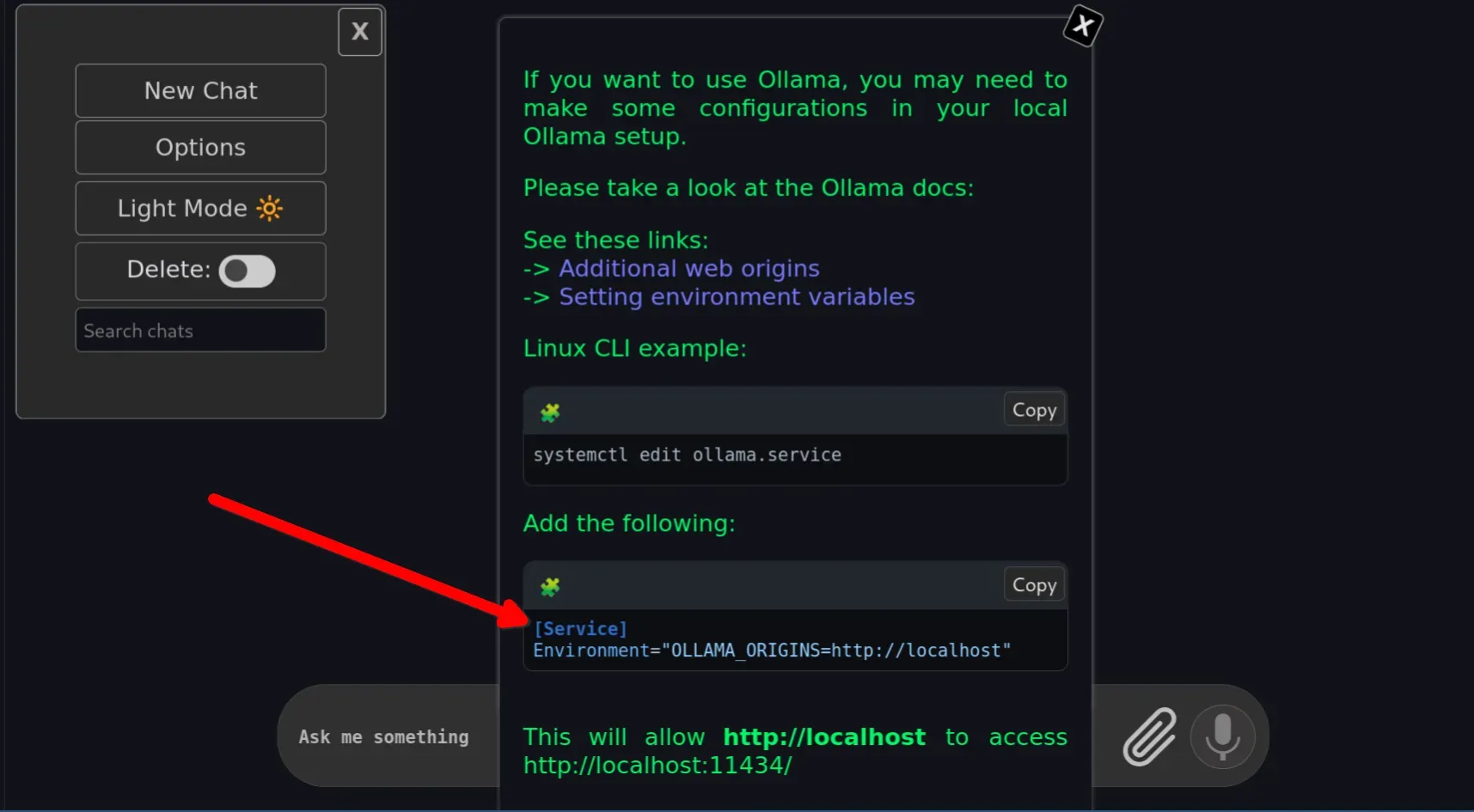
Head to http://localhost:8000 in your browser. OrionChat’s interface should load right away.
Letting Ollama talk to OrionChat
This is the part I actually got stuck on the first time. By default, Ollama only accepts requests from its own trusted origins, and a browser-based frontend like OrionChat doesn’t automatically qualify. Every request gets silently blocked until you explicitly allow it.
Step 1: Check how you’re running Ollama
If you installed Ollama via the official install script, it’s almost certainly running as a systemd service. If you just launch it manually with ollama serve, skip to Step 3.
Step 2: Edit the Ollama service
You need to add the origin override to ollama.service systemd unit file.
sudo systemctl edit ollama.serviceIn the editor that opens, add this under the [Service] section:
[Service]
Environment="OLLAMA_ORIGINS=http://localhost"
Save, then reload and restart Ollama:
sudo systemctl daemon-reload
sudo systemctl restart ollama
Step 3: Or, if you run Ollama manually
Skip the systemd steps entirely and just set the variable inline when you launch it:
OLLAMA_ORIGINS=http://localhost ollama serveStep 4: Confirm it worked
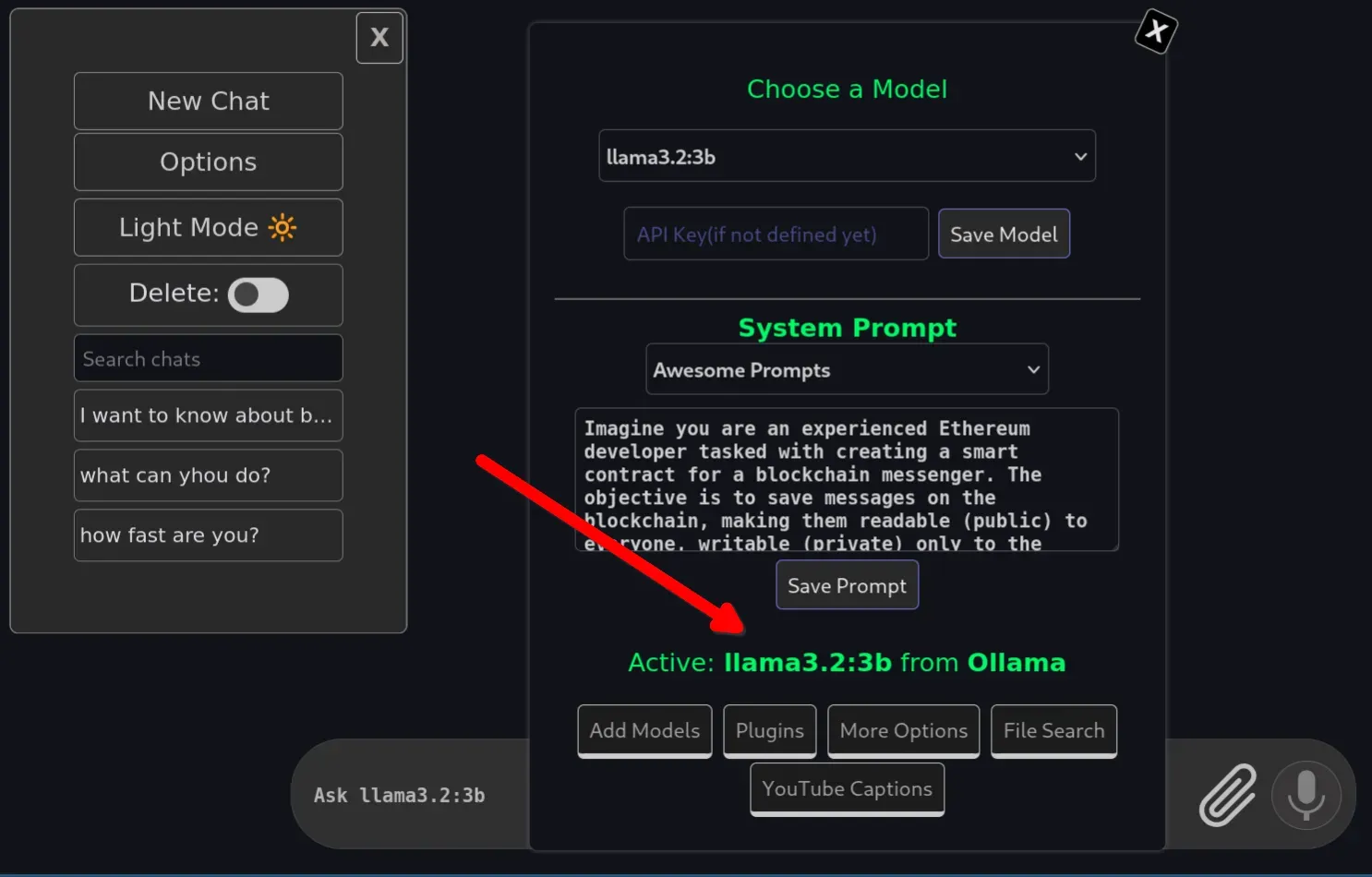
Refresh the OrionChat tab in your browser. It should now connect to Ollama and start listing your locally installed models. You can choose your default Ollama model and start prompting.
It provides an option to upload files and to use the microphone with Ollama models. This is a really nice feature you can’t use in CLI mode.
My wxperience running Ollama models with OrionChat
Want to go from Gemma to Qwen? A couple of clicks. Want to try Mistral instead? Select it and keep going. For someone who regularly experiments with different models, this alone is worth the five-minute setup.
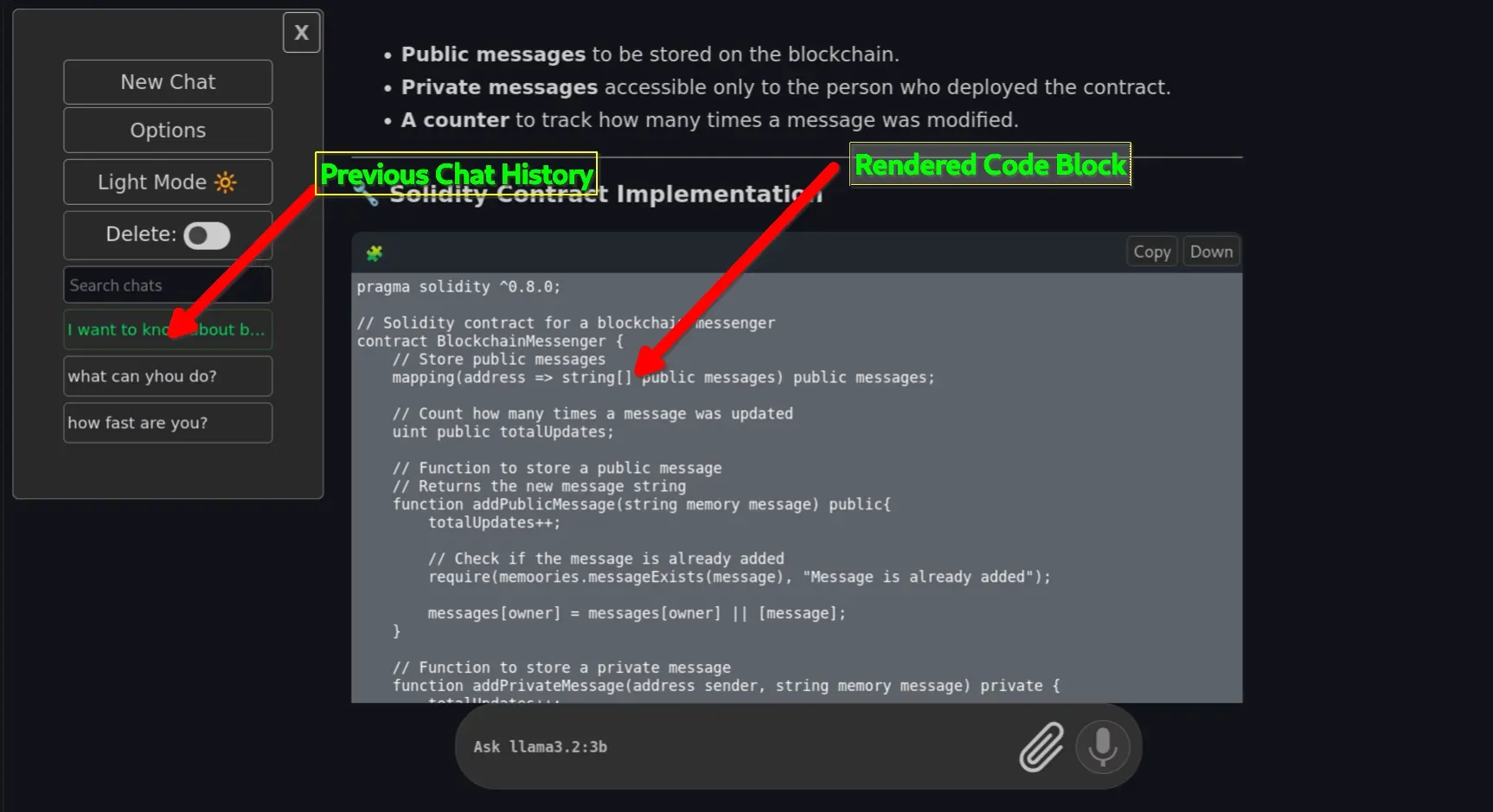
Starting a conversation feels exactly like using any modern AI chatbot. Code blocks render properly. Markdown formatting looks clean. Tables show up as tables instead of a mess of pipe characters. Long conversations stay easy to navigate because everything lives in an actual interface instead of a scrolling terminal buffer.
Copying responses feels natural too, no highlighting text in a terminal and fighting with line wrapping. For anyone who asks a lot of questions to local LLMs, that alone noticeably improves the day-to-day experience.
Also, unlike other Ollama UI alternatives, OrionChat is not an Electron wrapper hiding a browser inside your app menu. It lives in a web browser 😉
Final Thoughts
Ollama already made running local models easy, and for quick tests, the terminal is perfectly adequate. But if you’re talking to local models for hours every week, a proper interface makes a real difference.
OrionChat hits a sweet spot for me. It doesn’t require a complicated deployment, and doesn’t try to become an all-in-one AI platform. It focuses on doing one thing well: giving Ollama a pleasant place to live outside the terminal.
After using it for a while, I found myself opening OrionChat first and reaching for the CLI only when managing or updating models themselves.
If you’ve been relying purely on the Ollama CLI and occasionally wish it felt a bit more like ChatGPT, OrionChat is worth the five minutes it takes to try.
If OrionChat isn’t quite your fit, Open WebUI, Enchanted, Chatbox, LibreChat, and NextChat are all solid alternative Ollama frontends, each trading off simplicity against features differently. Worth trying a couple to see which matches your workflow.
