
I Really Want to Love This Markdown Editor, But One Thing Holds It Back
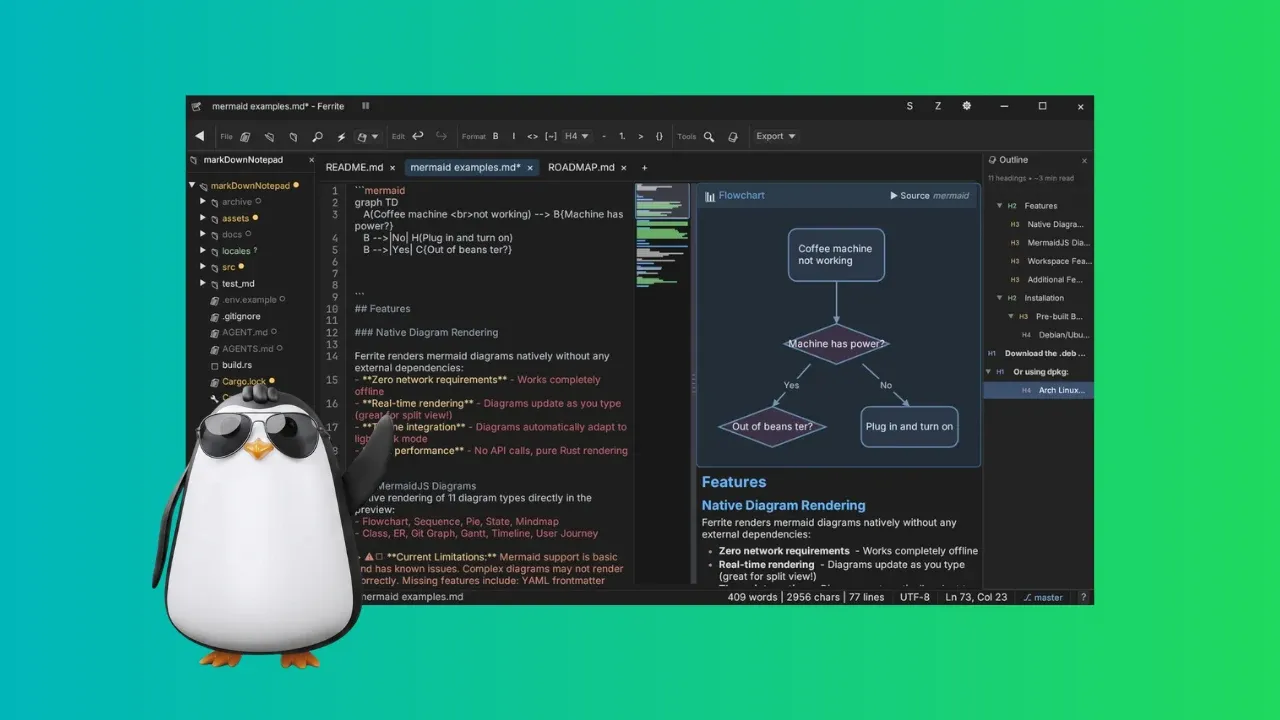
From the Git repo’s README to blogs, Markdown is everywhere in the tech world in general.
I have been using Markdown for years. That’s what I use for writing the articles here. While I often write directly in the CMS, I also manage personal notes, drafts and work on documentation in dedicated Markdown editors on my computer.
Over the time, I have used a number of Markdown editors on my Linux system. But I keep on exploring new ones, a force of habit, as it keeps me aware of the new tools in the field.
Recently, I came across a new Markdown editor called Ferrite. I tried and found that it mentions all the features I wanted:
- Folder view
- Dual pane
- Focused view
- Editor tool bar
- Git status
- Built-in terminal
There are many more features, like code folding, syntax highlights, mini-map overviews, diagrams, and more.
Basically, Ferrite is like an IDE but for Markdown (or should I say text) files.
I’m adding this disclaimer because whether to use AI-generated code is a matter of principle for a lot of you.
Meet Ferrite, Markdown editor for developers
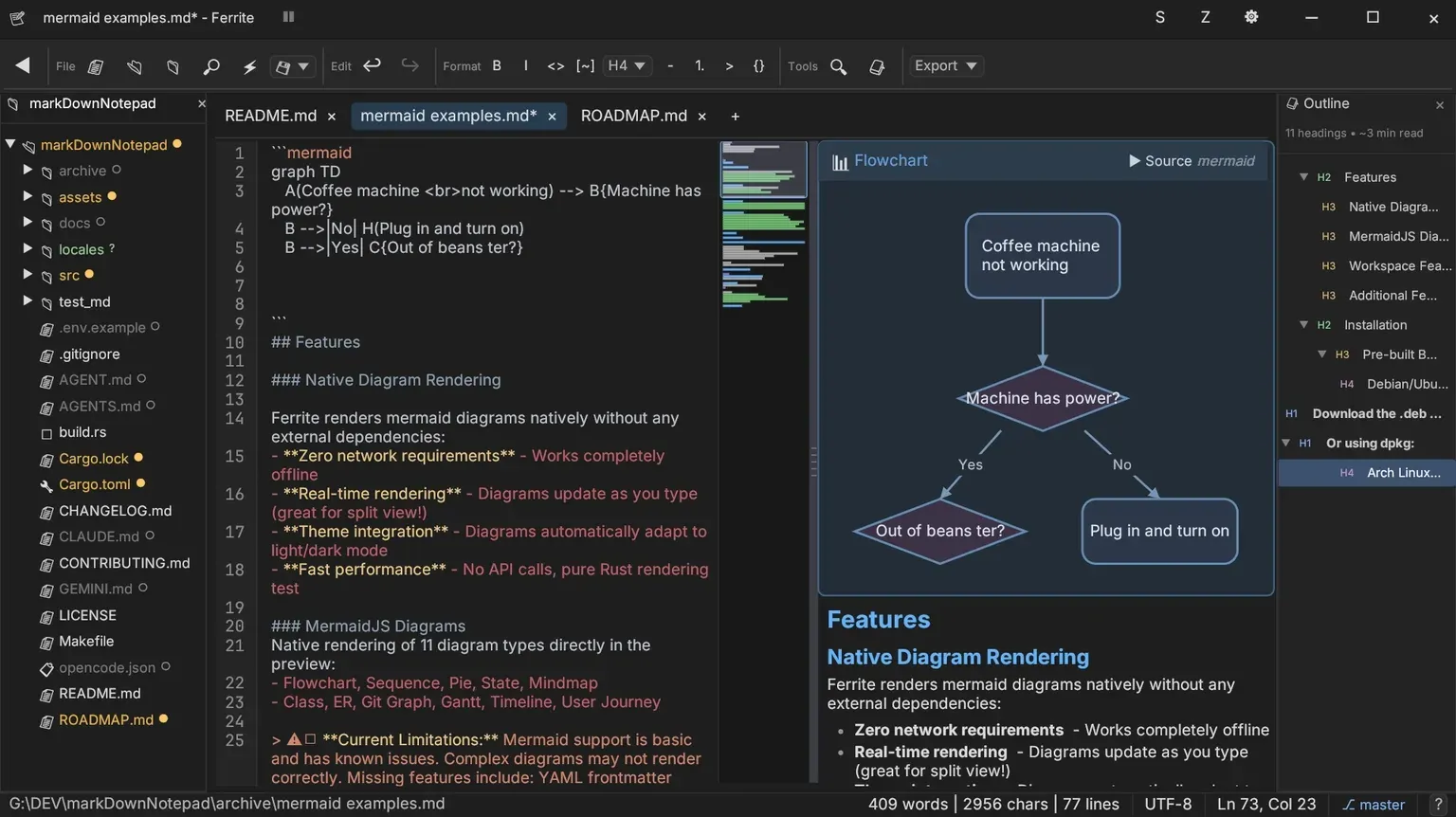
Written in Rust, Ferrite a text editor primarily for Markdown but with good support for JSON, YAML, and TOML files. Basically, various text files developers and devops deal with.
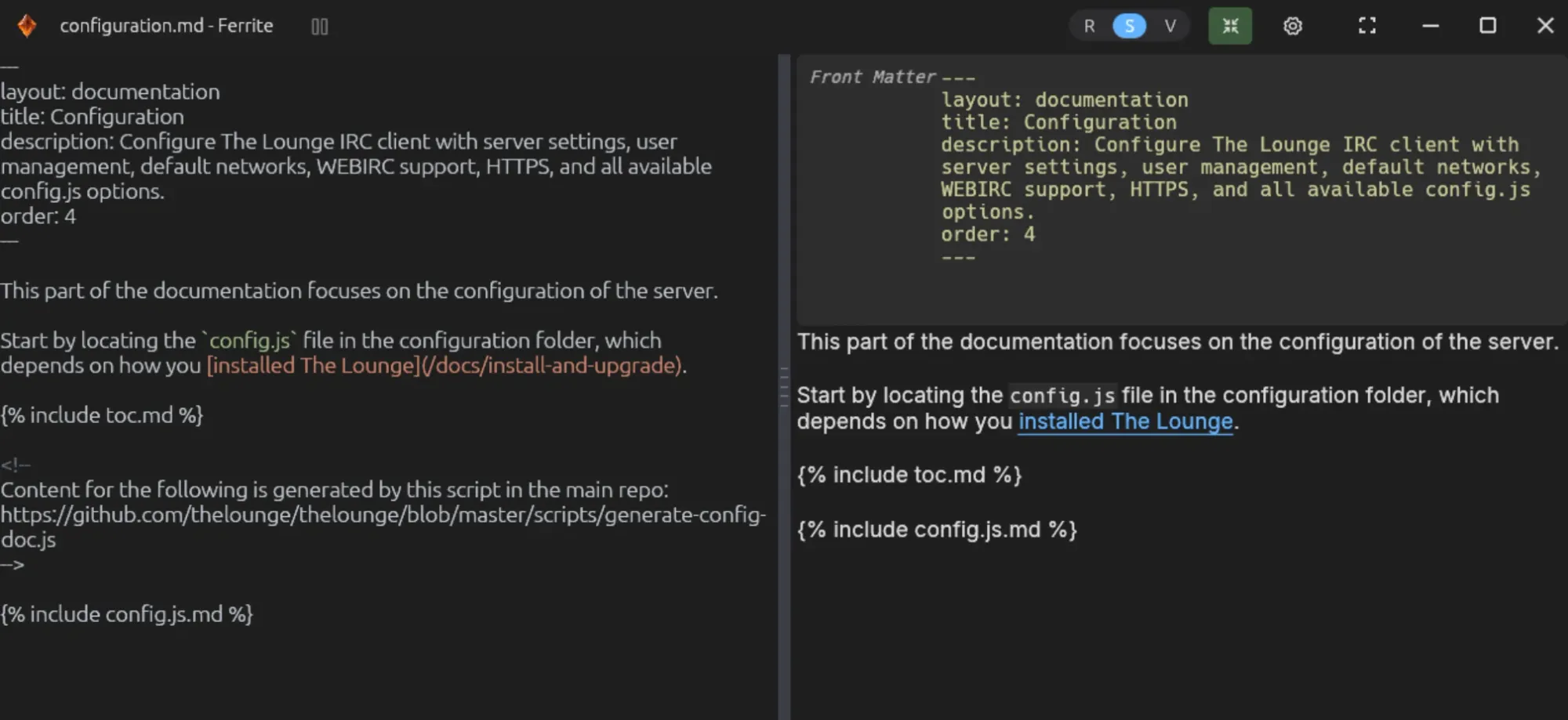
For markdown file, you can view it in raw mode (with synax), rendered view (only shows rendered markdown), and split view (shows raw text and rendered view side by side).
For other files, it just displays them with a mini-map overview and highlighted syntax.
There is zen mode for focused work.
Ferrite also allows you to create flowcharts, wire diagrams, mind maps etc.
In fact, Ferrite has a huge list of features. You can export files as PDF and HTML, run shell and Python codes from the editor itself, has a command palette, supports Wikilinks, can view PDF and CSV files and much more.
Basically, it’s a Markdown editor specially created for developers.
Why I liked it
Lately, I found myself in situations where I had to edit technical documentation hosted on GitHub. The flow is standard. I fork the repo, clone it on my system, checkout to a new branch, make my changes, push it to my forked repo and then create a pull request to the upstream branch.
This is the usual code contribution flow, applies to collaborative documentation, too.
Now, since this is a dev-like workflow, a text editor that behaves like IDE is perfectly suited for this.
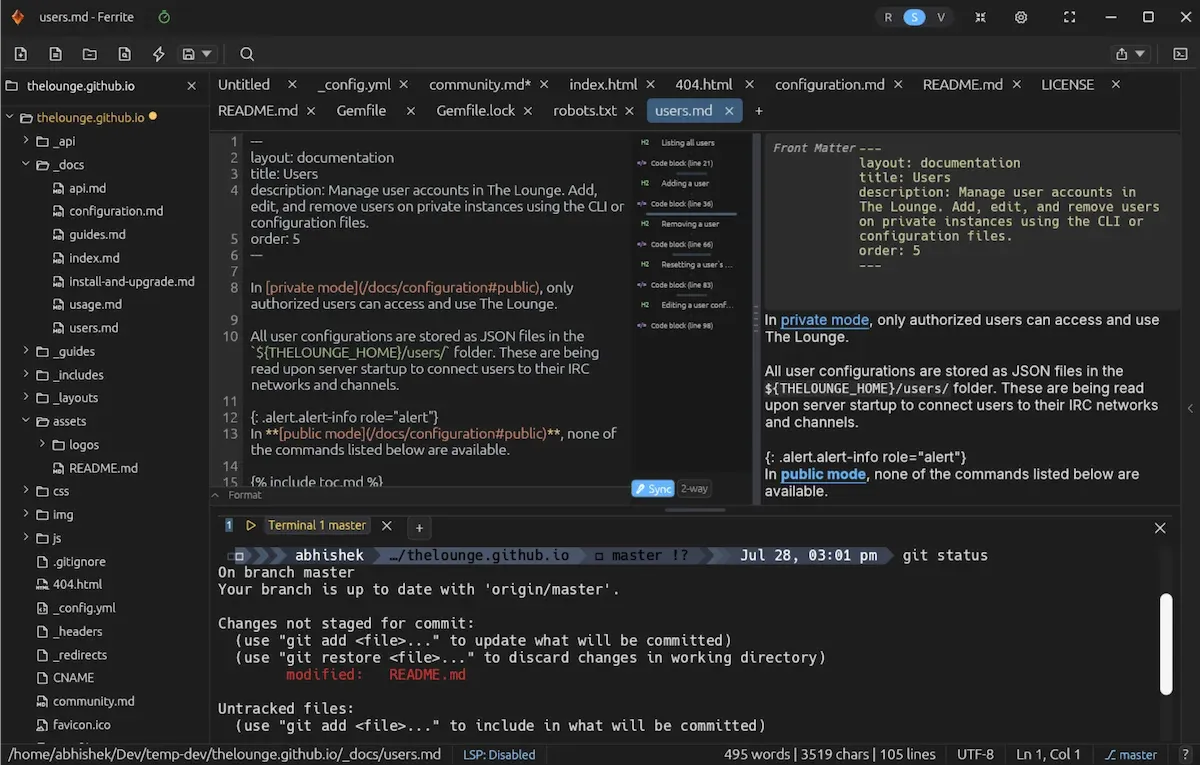
Ferrite’s built-in terminal gives me instant access to the command line for quick commit and push. It also shows the locally modified files if you are in a git repo.
For this kind of workflow, though I could use VS Code with extensions, it’s an overkill. And I prefer to separate code and text files.
I used Ghostwriter, but it’s a simple Markdown editor and I found myself switching between tools. This is when I came across Ferrite and it looked like it could be the perfect fit as it ticked (almost) all the checkboxes for me.
It’s not perfect
Like most things in life, Ferrite is not perfect as well. I came across a few quirks after regularly using it for the past few days.
There is a dedicated button to sync the raw and rendered views when you are in the split view mode. This way you should be able to scroll on one side and see the impact on the side pane.
This feature works, but not perfectly. There is a lag that cannot be unnoticed.
0:00
Sync issue between raw and rendered views
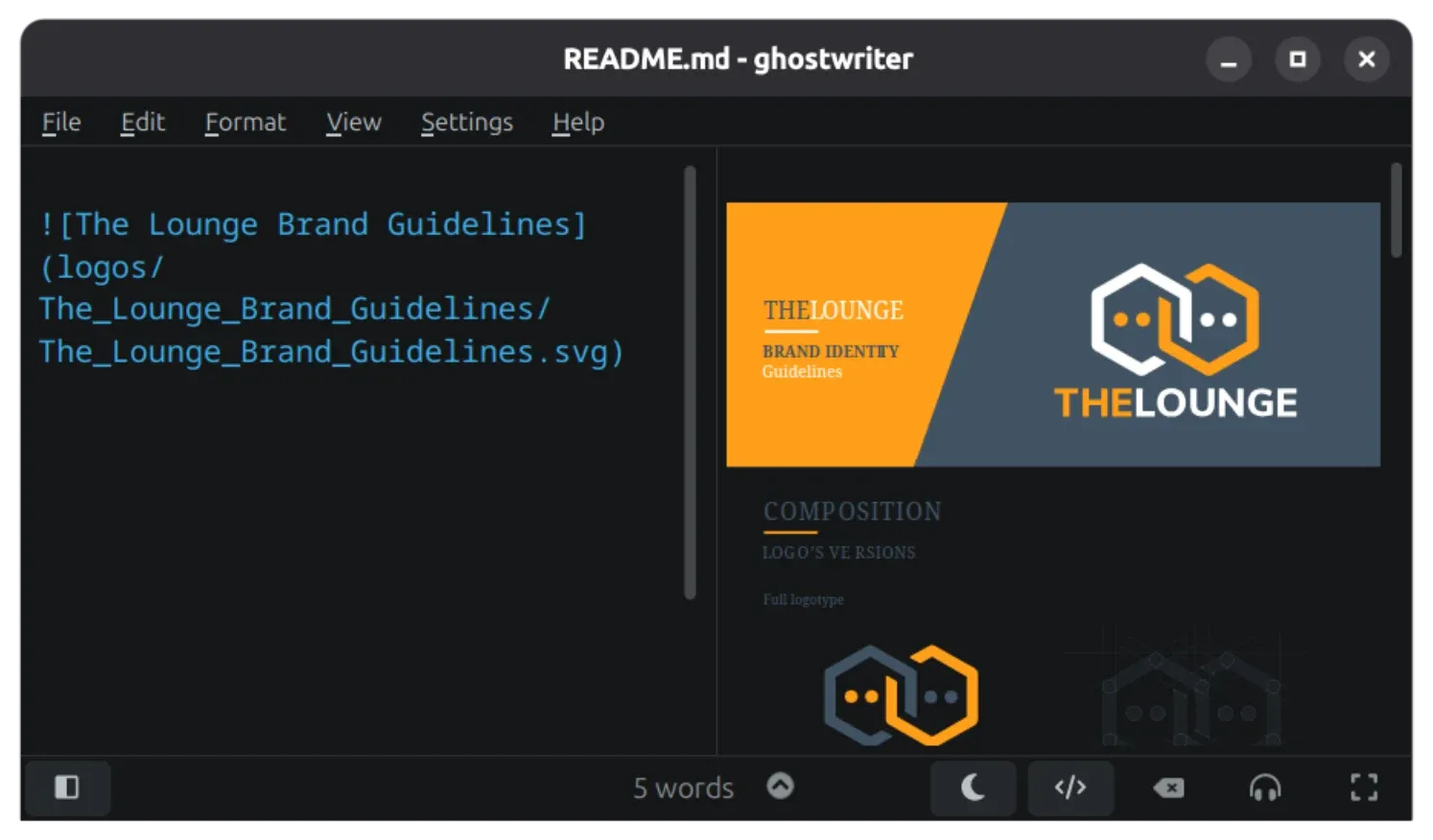
Then, it doesn’t display images in the rendered view. This is a huge disappointment for me.
Take a look at the screenshot below:
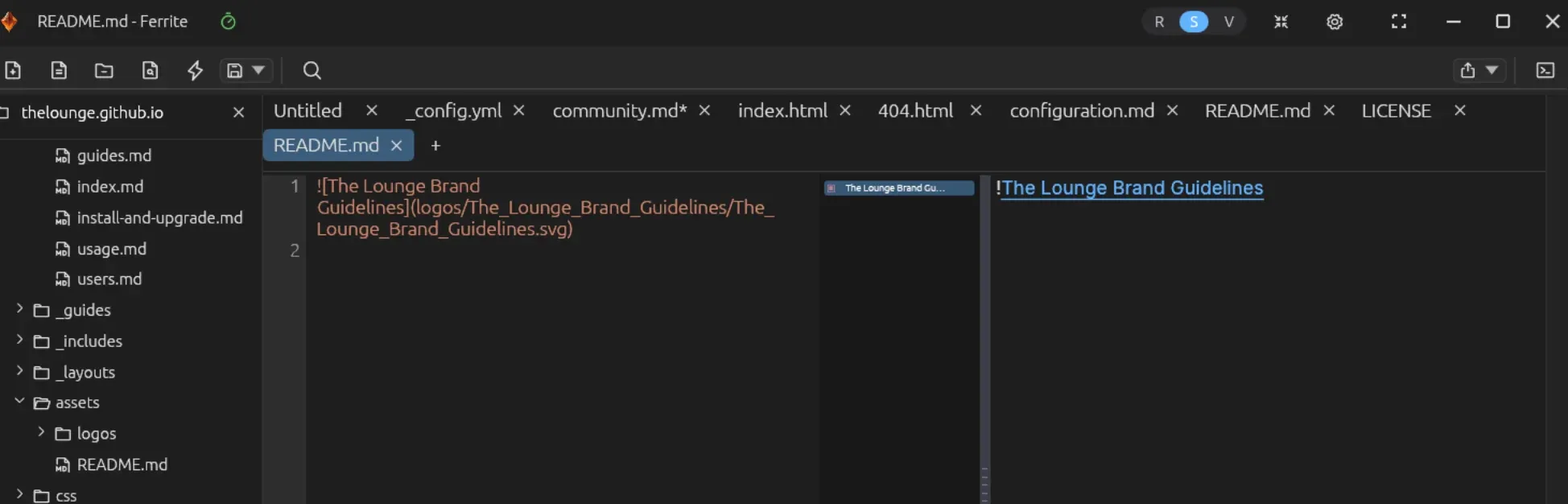
I understand that relative path is crucial for image display in Markdown. But those paths were correct and the image was displayed properly in the Ghostwriter editor:
Also, Ferrite has way too many features. It’s like an IDE and if you have ever used an IDE you would know that IDE gradually become too complex with all kinds of settings and tweaks and busy interface.
Sometimes, simplicity also becomes a feature.
Should I use it or not?
Frankly, I did not notice the “100% AI developed” when I started using Ferrite last week. I liked what I saw, used it and fit very well for my current needs. I made notes, something I often do when I try a new tool, so that I can write articles and reviews on those tools later.
And when I started writing this article and went through the details, I learned that the project mentions explicitly that it is fully developed with AI.
That puts me in a dilemma. On one hand, it seems like a good piece of software. 1.7K GitHub stars are proof of its popularity. On the other hand, “100% AI” label is kind of offputting.
What would you do?
