
Reverse WSL? I Tried This New Tool to Integrate Windows Apps in Linux
Microsoft’s WSL allows people to use Linux inside Windows. It integrates well in the system allowing people to use Linux command line Windows. Linux GUI apps can also be used, which helps for editing config file in GUI-based editors.
Now reverse the situation. How about using Windows applications on Linux? Sure, WINE and Bottles are there but I came across a new tool that combines container technology with Remote Desktop Protocol (RDP) to give you native-app feel for Windows software on Linux.
I am going to share my experience with Winpodx for running Windows software on Linux in this article. But first, lets briefly understand its mechanism.
How Winpodx Works
Under the hood, Winpodx relies on open-source tools like Podman, FreeRDP, and the dockur/windows project to spin up a lightweight, isolated Windows environment. This way, it runs a specialized Windows instance inside a background container. Then, instead of rendering a full virtual machine interface, it uses FreeRDP to seamlessly stream individual Windows applications directly to the Linux desktop, making them behave like native apps.
This setup allows Windows applications to launch and blend into the underlying Linux desktop with minimal overhead.
If needed, we can also access the full Windows desktop environment, which I will cover in a later section of this article.
Installing Winpodx
Before beginning the installation, there are a few important resource requirements to keep in mind. On its first launch, the installer will automatically download a full Windows ISO, which requires a fast and stable internet connection.
Second, because this setup runs a complete Windows operating system in the background, it is resource-intensive. To avoid performance issues, the host system should meet the following requirements:
- Storage: A minimum of 50+ GB of free disk space. The installer explicitly recommends at least 64 GB of free storage space for a safe and stable setup.
- RAM: At least 4 GB needed for the Windows container itself, alongside enough remaining host memory to keep the Linux system running smoothly. So, your system must have at least 16 GB of RAM for it to function smoothly.
If your system meets these requirements, install Winpodx using its universal installer script. Ensure curl is installed, open the terminal, and run:
curl -fsSL https://raw.githubusercontent.com/kernalix7/winpodx/main/install.sh | bash
The script will automatically configure the necessary packages and background containers.
To use the graphical configuration tool (winpodx gui), I needed to manually install the Python bindings for Qt. On an Arch Linux system, install this additional package via pacman:
sudo pacman -S pyside6
💡Tip: Managing the container after a reboot
Although Winpodx is designed to auto-start the background environment when you click an app icon, you might see a warning that the “pod is not started” after a fresh reboot.
If that happens, or if you just want to ensure everything is ready before you begin working, you can manually fire up the container using this command:
winpodx pod start --wait
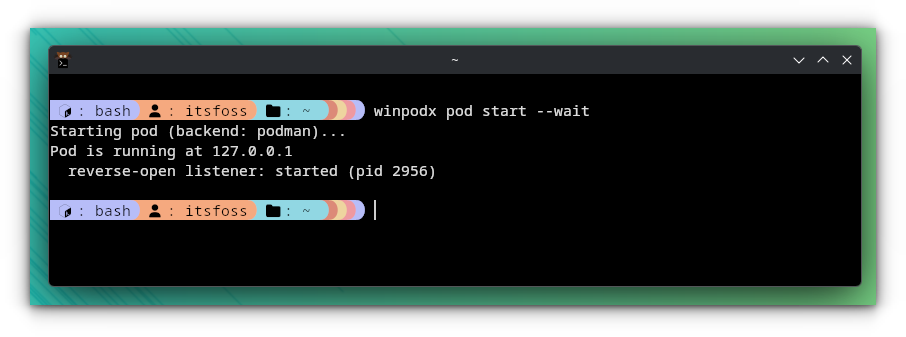
Once the command finishes executing, the containerized Windows environment will be fully active and ready to launch apps or open the configuration GUI.
Exploring the features of Winpodx
Let me share some of the major features of this application that I tried.
Using Microsoft-specific pre-installed Windows apps in Linux
Microsoft Windows 11 comes with a number of default applications like notepad, paint, calculator etc.
This is the core feature of the tool. Applications installed inside the Windows container can be made available directly in the Linux system menus. Naturally, applications that aren’t installed yet inside the container won’t show up or be accessible to run.
To see what we have available, first, list the installed Windows applications using the command:
winpodx app list
This will output a list of the apps inside Windows that are ready to be integrated into Linux.
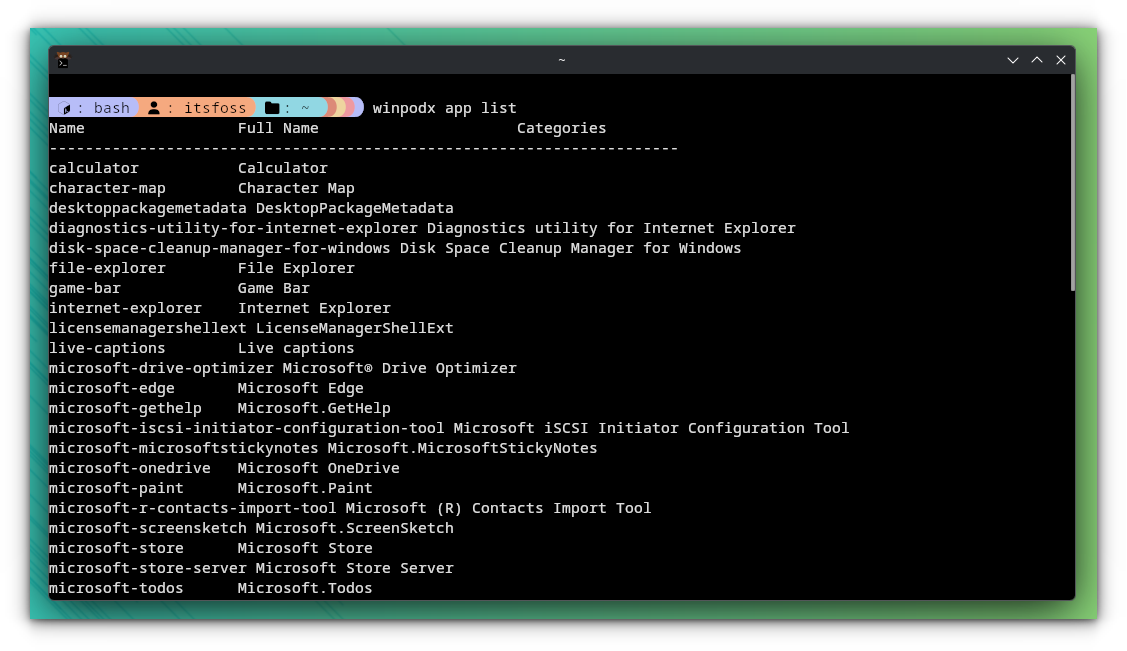
You can be selective:
winpodx app install app-name
Or, add them all to the host system, run:
winpodx app install-all
This command automatically generates and registers .desktop files for all the compatible Windows apps so they populate the application launcher of the Linux system.
Regardless of whether they show up in the desktop environment’s menu, you can always bypass the GUI and launch any Windows application directly from the Linux terminal using:
winpodx app run <app_name>
Where <app_name> is the exact name of the application as it appears in the winpodx app list output.
Get full Windows desktop
Winpodx gives you the option to run the full Windows guest desktop interface. While this isn’t necessary for launching standalone apps, it becomes essential when you install new applications inside the guest Windows environment or tweak system configurations.
To launch the full Windows desktop, use the following command:
winpodx app run desktop
Windows Desktop
Alternatively, the same Windows desktop is accessible directly via a web browser. Connect to it by opening your favorite browser and navigating to port 8007:
http://127.0.0.1:8007
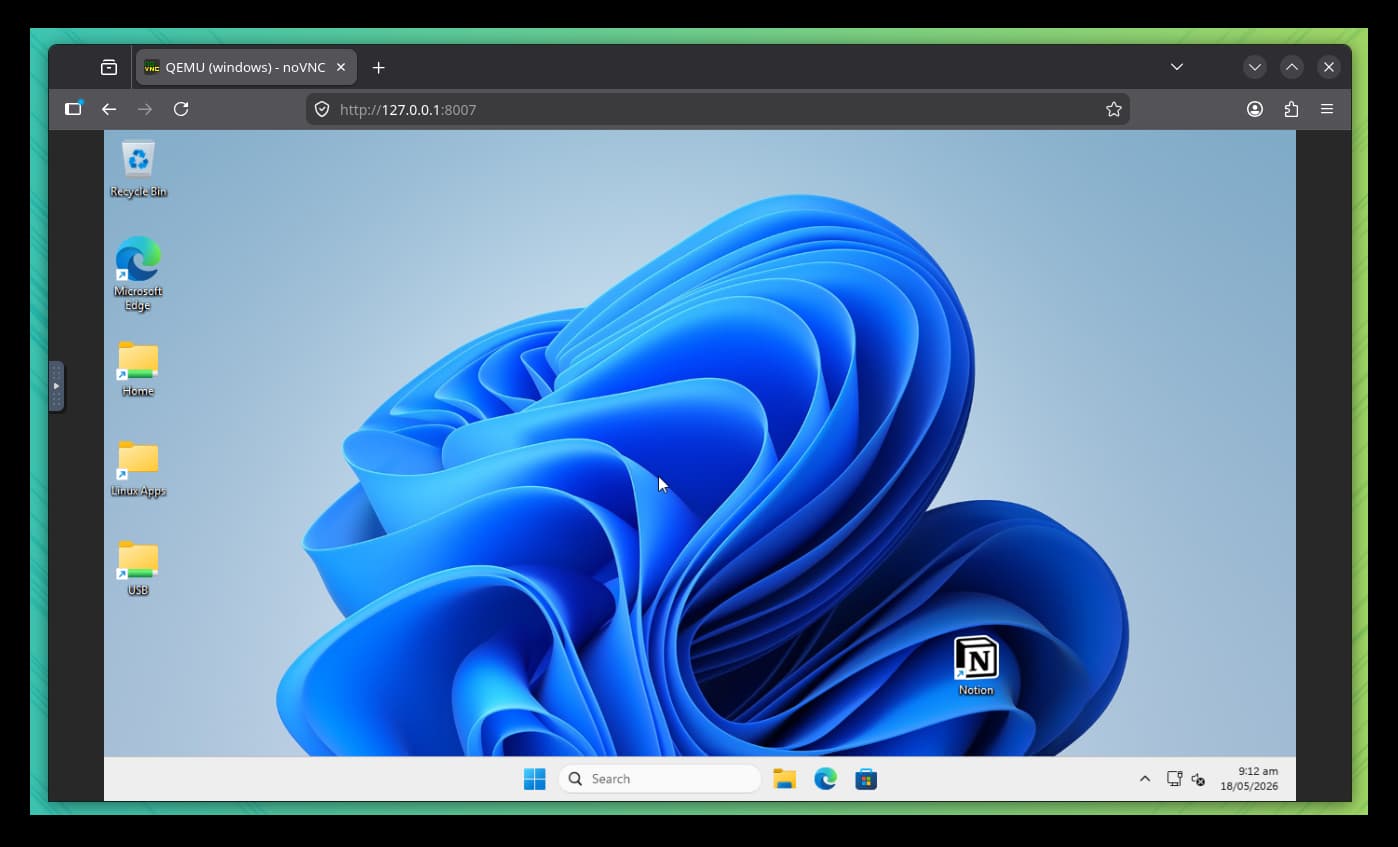
I recommend downloading the installer file to the host system and then accessing the installer from the guest system.
Accessing Linux files in Windows
The guest Windows environment is integrated with the host system so that we can seamlessly access the Linux files from within the Windows container. This tight integration is precisely what sets this tool apart from a traditional, isolated Windows Virtual Machine.
The primary use case for this is opening and modifying Linux files directly with Windows applications. For example, you can use Windows Notepad or a specific Windows-only IDE to edit code or text stored on the Linux drive.
Opening Files
Secondly, this shared file system allows us to manage, organize, and work with the host files natively from within the guest Windows session, making cross-platform workflows incredibly smooth.
Managing everything from GUI
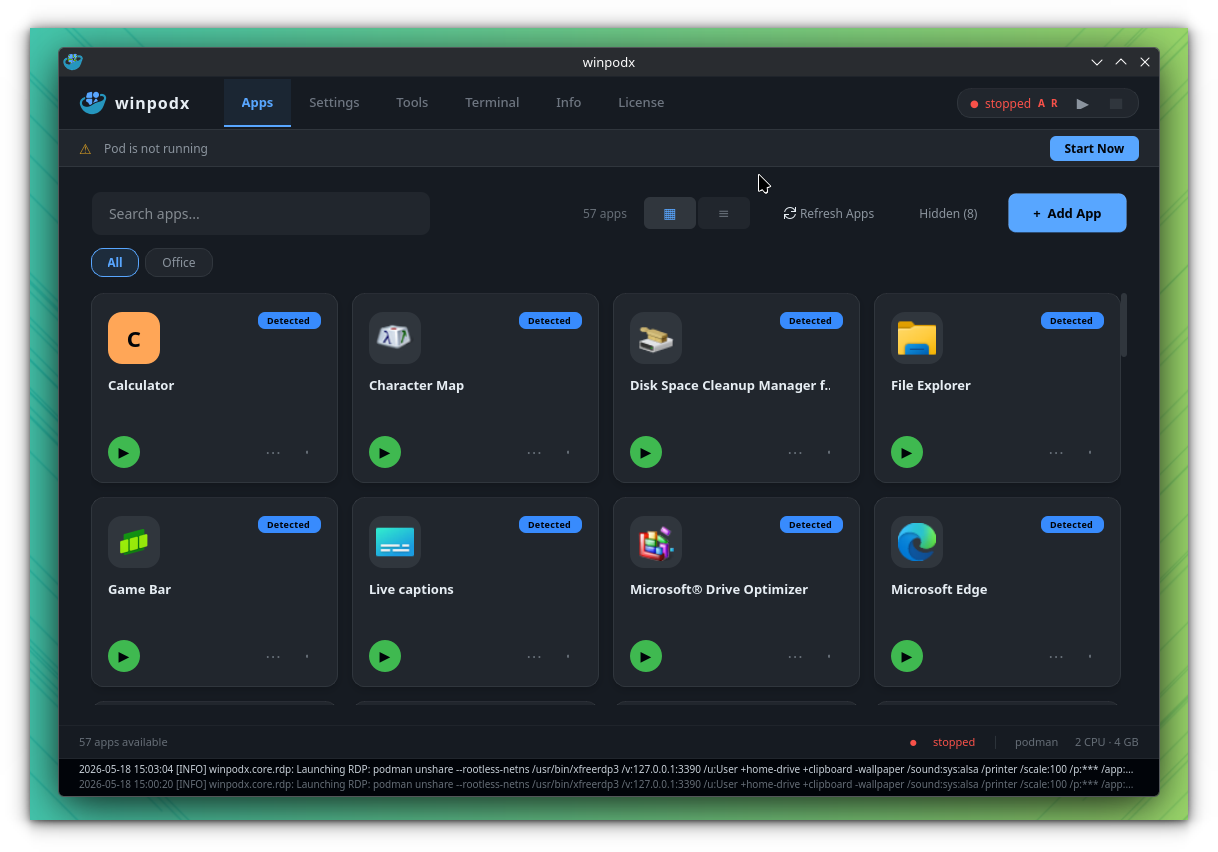
Winpodx includes a clean, graphical configuration tool built with Qt. This utility provides a central hub to manage the containerized setup without relying solely on the command line. We can use it to quickly launch a full desktop session, adjust system-level preferences, and monitor the container’s status.
To open this Qt settings window from the host machine, simply run the following command:
winpodx gui
Install Windows Apps
You can install Windows-only applications inside the containerized Windows session using standard .exe installers.
Run full desktop (or web interface) of Windows, download exe file and complete the program’s installation wizard. You know the drill of installing an application on Windows, I hope.
After that. register the app with Winpodx so it can be launched from Linux. For that, open the Qt settings application:
winpodx gui
Inside the GUI, click on the Add App option and fill out the profile fields for the new program. If not sure of the exact executable path of the app, its always available in the properties of the application’s shortcut file inside the Windows environment.
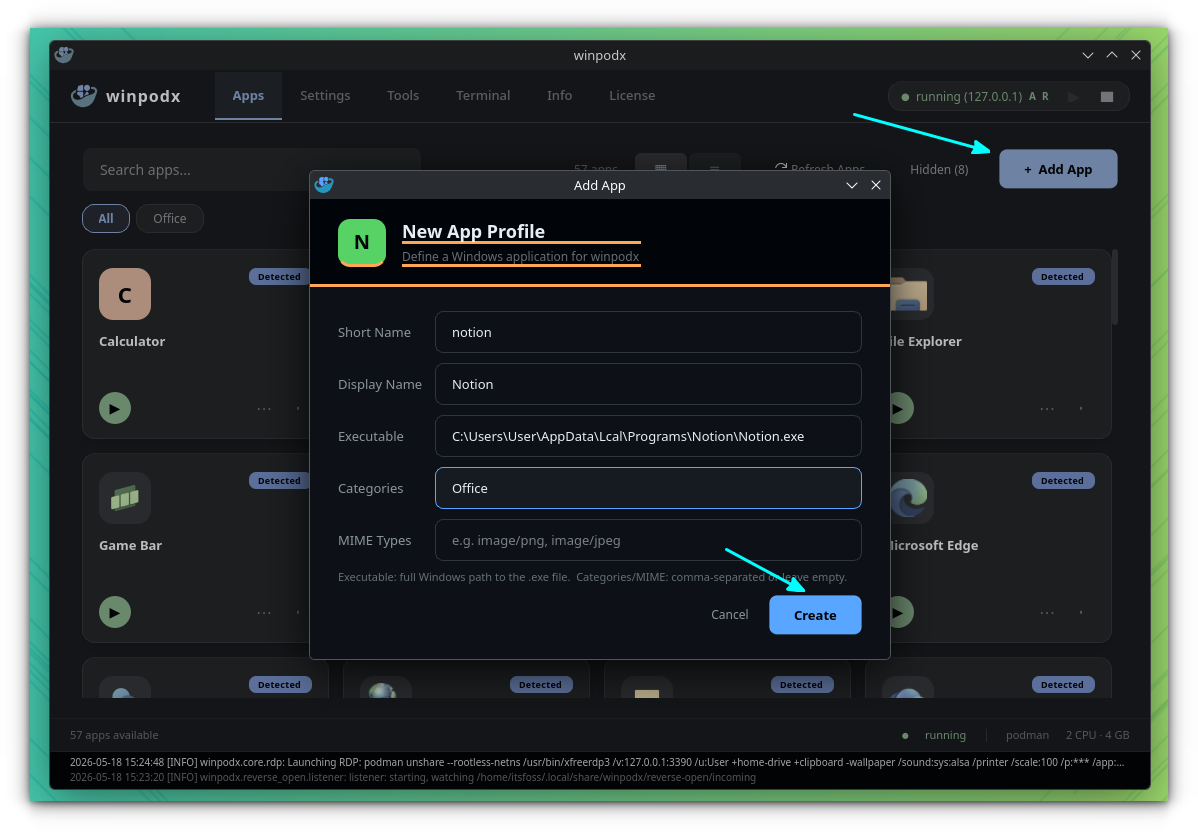
After saving the app profile in the GUI, verify that Winpodx recognizes it by listing the available applications:
winpodx app list
Once it appears in the list, register and install the shortcut to the Linux desktop environment using the following command:
winpodx app install <appname>
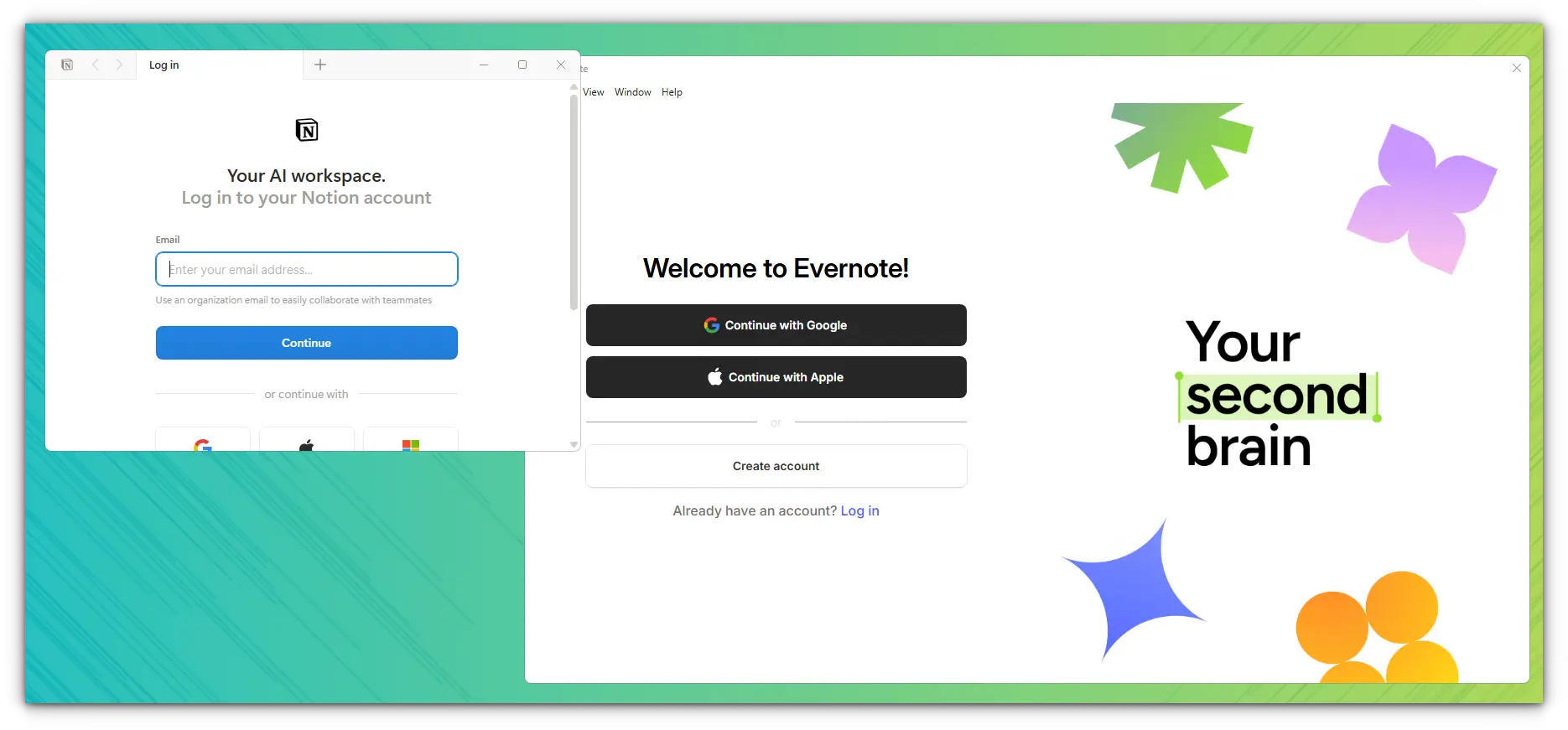
For example, I installed the Notion desktop client, and integrated it into the system using:
winpodx app install notion
Opening Windows files in Linux apps
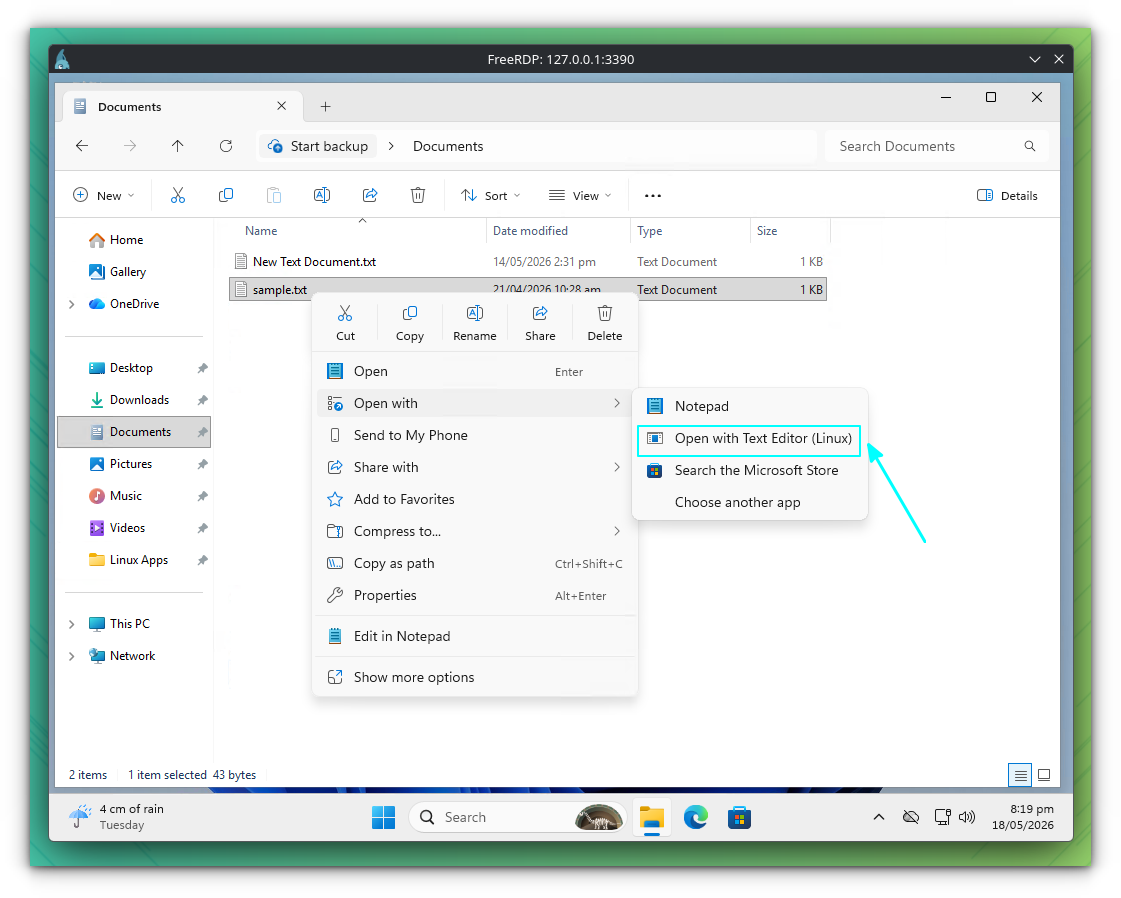
Winpodx features a Reverse Open capability.
This is incredibly useful if you plan to work inside the full Windows Desktop environment frequently but still prefer your host Linux workflows for specific tasks.
For example, if you double-click a .txt or .md file inside the Windows guest, you can right-click it, head to the “Open with…” menu, and select a native Linux application like your host’s text editor.
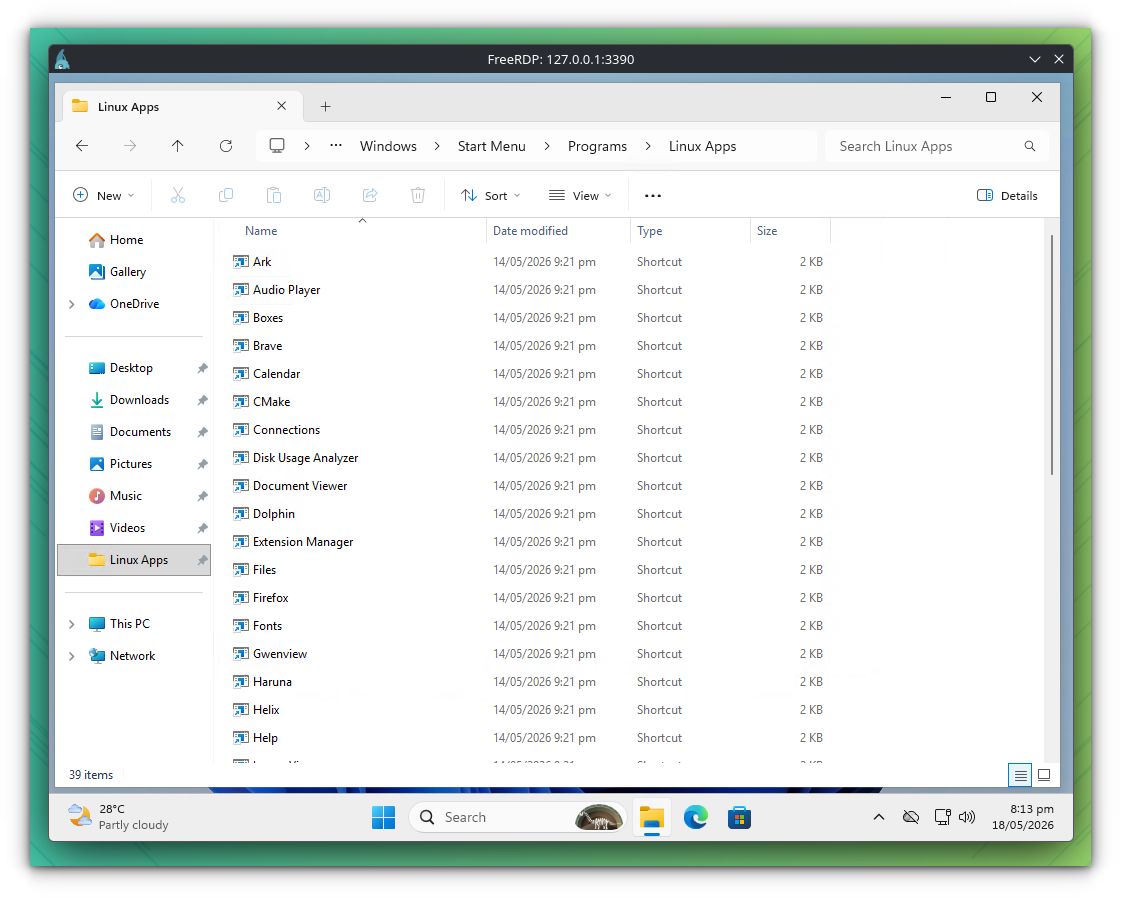
There is a dedicated “Linux Apps” folder, pinned to the sidebar of the Windows File Explorer, that contains a list of Linux apps available.
Uninstalling Winpodx
If you decide that Winpodx isn’t the right fit for your workflow, the project provides a dedicated uninstaller script to clean up its files, configurations, and containers. Depending on how thoroughly you want to wipe the data, there are two options:
To remove the Winpodx files but preserve the underlying Windows container data run:
curl -fsSL https://raw.githubusercontent.com/kernalix7/winpodx/main/uninstall.sh | bash -s -- --confirm
This is useful if you plan to reinstall later or want to keep the data intact
To completely wipe everything, including the massive Windows container, the virtual disk image, and all configuration directories, use the command:
curl -fsSL https://raw.githubusercontent.com/kernalix7/winpodx/main/uninstall.sh | bash -s -- --purge
The uninstaller script handles the Winpodx ecosystem and its containers, but it will not touch your system package manager.
Any core packages installed during the initial setup like Podman or optional dependencies like pyside6 will need to be uninstalled separately using your distribution’s package manager.
Winpodx for the win(dows)?
Winpodx offers an innovative solution for accessing Windows applications on Linux system, provided you have a high-spec machine with plenty of resources to spare.
During testing, I occasionally encountered minor input lag and screen artifacts.
However, despite these occasional graphical hiccups, the majority of the applications remained functional and usable.
It is worth noting the contrast in cross-platform integration. Because of Linux’s incredibly small resource footprint, running Linux GUI applications inside Windows (via WSL) is a much lighter process.
Conversely, running a full Windows environment on top of Linux via containers is naturally a heavy, resource-intensive operation. As development continues, the project will hopefully achieve better optimization and smoother performance in future updates.
Did you find this tool interesting? Will you give it a shot on your system, or do you prefer sticking to a traditional Windows dual-boot? Let us know your thoughts in the comments below!
