
Ziggity is a Helpful Tool for Power Users Who Still Use Git Manually
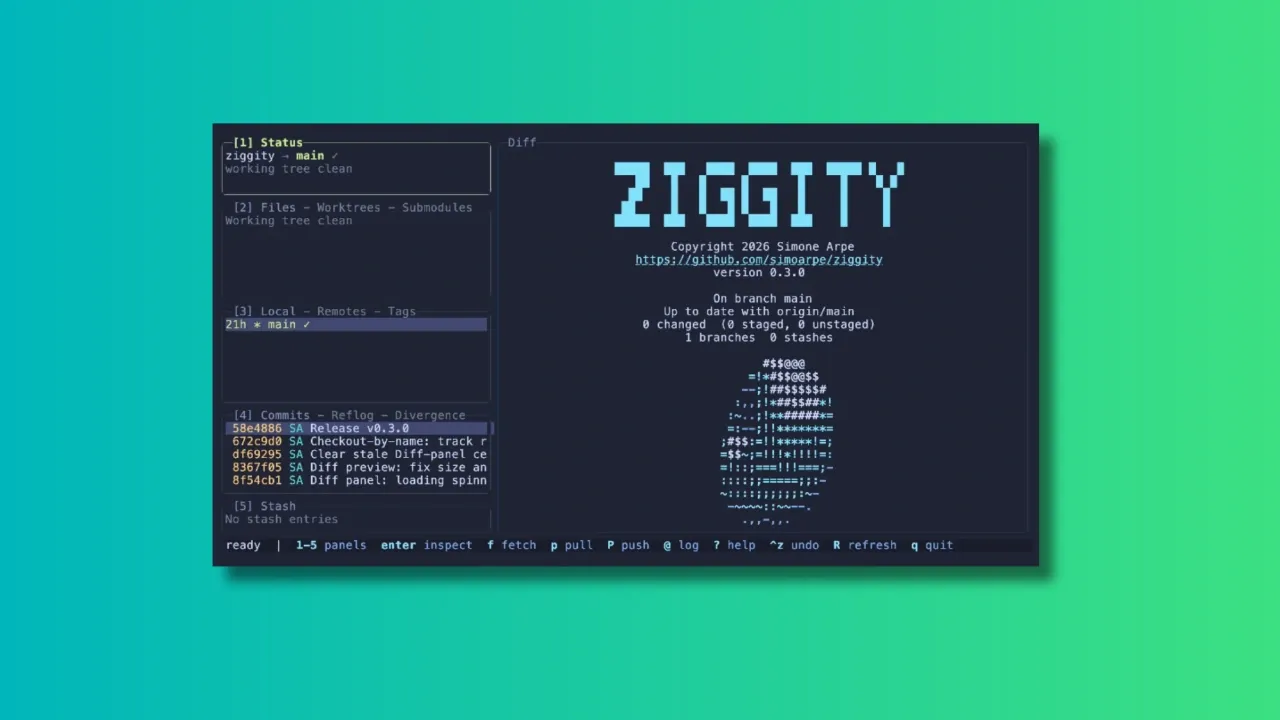
In the age when people are not even looking at the code generated by AI, I am reviewing a terminal-based client that gives full visibility and control over your git repositories. Because not everyone has handed over all the critical thinking to AI, I presume.
Over the years, many Git clients, both GUI and TUI, have emerged to make working with repositories easier. Tools like lazygit have become popular among terminal users, and Ziggity is another addition to the world of terminal-based Git interfaces.
What Makes Ziggity Special?
Let me show you some of the main features of Ziggity.
Ziggity Is Small and Quick to Launch
One of Ziggity’s main selling points is its lightweight design. It compiles into a single static binary, and the footprint stays small by design rather than by tuning.
The project also leans entirely on the Git installation already on your system instead of bundling something like libgit2, which keeps the binary itself down to a couple of megabytes. The project’s own benchmarks, run on a Mac against lazygit, put Ziggity’s process startup at a few milliseconds against tens of milliseconds for lazygit, with a noticeably smaller resident memory footprint once things settle.
Of course, benchmark numbers will vary depending on your hardware, your repository size, and the machine’s other workload at the time.
Git Operations Don’t Get in Your Way
Speed at launch is one thing, but a responsive interface while you actually work matters just as much.
Ziggity handles potentially slow operations such as fetching, pulling and pushing away from the main interface. This means you can continue browsing your repository, checking diffs, or reviewing commits while the operation runs quietly in the background.
A spinner in the Status panel is the only indication that something is happening, and a short one-line summary appears once the task wraps up. If it fails, that’s when you actually get interrupted with a dialog.
The same philosophy carries over to longer, multi-step operations such as merges, rebases, autosquash, bisect sessions, and applying patches. Rather than dropping you back into a raw terminal and asking you to press a key to “return” to the app, something anyone who has used git clients will recognize, Ziggity simply keeps its interface up the whole time.
Even authentication is handled without leaving the app. If a push over HTTPS needs a username and token, Ziggity opens an in-app prompt, masks the token as you type, and retries the operation once you’re done. There’s no dropping to an external credential helper, and if a saved keychain is configured, it’s reused automatically the next time around.
First-Class Mouse Support
Terminal applications are usually associated with keyboard-only workflows, and Ziggity absolutely supports that. But if you are more comfortable with mouse, you can very well use it.
You can click on any panel to focus it, click a row to select it, and use the scroll wheel across lists, diffs, dialogs, and even the commit graph. In the staging view, you can click directly on a line and stage just that line with a keypress.
Ziggity also supports proper text selection. Click and drag over a diff, a commit, or any other panel, and the selected text lands straight on your clipboard, with color codes stripped out and indentation preserved. This even works over SSH, since it relies on the OSC 52 clipboard mechanism rather than anything terminal-local.
A Better Way to Look at Git Diffs
Diffs are where you spend a good chunk of your time reviewing changes, so a clear way to read them matters.
Ziggity supports comparing branches and commits with a single keystroke.
The diff view also does word-level highlighting. Instead of painting an entire changed line red or green, Ziggity picks out the specific words that changed within a line, so a one-character edit in a long line doesn’t get buried.
For long lines, think Markdown or documentation files, you can toggle soft wrapping on demand instead of having to scroll horizontally. The word-level highlighting keeps working correctly even once a line wraps across rows.
History Navigation That Understands What You Want
The commit graph is a real rendering of git log --graph, in git’s own colors, and it loads without freezing the interface. By default it shows your current branch and its upstream so you immediately see what’s incoming, and there’s a shortcut to widen it to every branch or jump straight back to HEAD.
There’s also a dedicated Divergence view that separates your outgoing commits from incoming ones relative to upstream, and history-editing actions are deliberately disabled there so you can’t accidentally try to rewrite commits you haven’t even pulled yet. Commit hashes are color-coded by push state, so commits that haven’t left your machine, and are therefore safe to rewrite, stand out at a glance.
A More Flexible Way to Stage Changes
Staging changes is a routine part of the Git workflow, and Ziggity gives you a few ways to handle it without overcomplicating things.
You can work directly from the staging view and use the mouse to select individual lines before staging them, which gives you finer control when a file contains several unrelated changes that shouldn’t land in the same commit.
It’s a small feature, but a genuinely useful one if you care about keeping commits focused rather than staging an entire file at once.
Checkout by Name, Without the Detached HEAD Surprise
Press the checkout shortcut, start typing any ref, and pick from live suggestions.
If you type the name of a remote branch, Ziggity checks it out with tracking set up automatically, landing you on a proper local branch rather than a detached HEAD. Existing local branches switch normally, and tags or commits detach, because that’s the only thing that makes sense for them.
This is a small but real usability improvement over some other terminal Git clients, where typing a remote branch name in the checkout prompt can leave you in a detached state with no local branch created.
Writing Commit Messages Gets Some Extra Help
Ziggity puts real thought into the commit message experience. Its built-in editor nudges you toward the 50/72 commit message convention with live, configurable limits, and it supports prepare-commit-msg hooks including hooks that derive a ticket number from your branch name.
There’s also optional AI-assisted commit message generation from your staged changes. Rather than locking you into one provider, Ziggity calls out to a configurable external command, so you can point it at whatever model or subscription you already use.
Installing Ziggity
Ziggity is easily installable via Homebrew. If you have Homebrew set up on your system, use the command below to install it:
brew install simoarpe/ziggity/ziggityOther than that, Ziggity offers prebuilt binaries for several architectures. You can download the appropriate binary from the official GitHub releases page.
Extract and copy the binary to a folder that is in your PATH. You can then run Ziggity from the terminal using the command:
ziggity
Wrapping Up
Terminal-based Git clients are not new, and there are already some excellent options available for those who prefer managing repositories without leaving the command line.
Ziggity enters this space with a focus on staying lightweight, staying out of your way during slow operations, and getting small usability details like checkout behavior and force pushes right.
The project is still a relatively new addition to the TUI Git client space, but it already offers a solid set of features. Whether it can replace an established tool like lazygit will ultimately depend on your workflow and the features you rely on.
Have you tried Ziggity yet? Or do you already have a favorite Git client for the terminal? Let us know your thoughts in the comments.
