
7 Features I Like in Ptyxis (The New Default Ubuntu Terminal)
Ptyxis is a modern terminal emulator built with GTK4 and libadwaita. It provides a cohesive look for the GNOME desktop, making it feel like a natural part of the system.
The application was specifically developed to meet the needs of modern software development workflows. In my opinion, its standout feature is the seamless container support for tools like Podman, Distrobox, and Toolbox.
Ptyxis is rapidly gaining popularity across the Linux community. It has already become the default terminal for many modern distributions, including Fedora and the upcoming Ubuntu releases.
As I have been using it for some months now, let me share some of my favorite features in this new terminal. I hope you like them as much as I do.
Tabs and Overview
The first thing you notice when opening Ptyxis is the tabs and overview system. While other emulators like GNOME Terminal or Kitty use a standard tab bar, Ptyxis introduces a visual tab selector that feels very similar to the GNOME Activities overview.
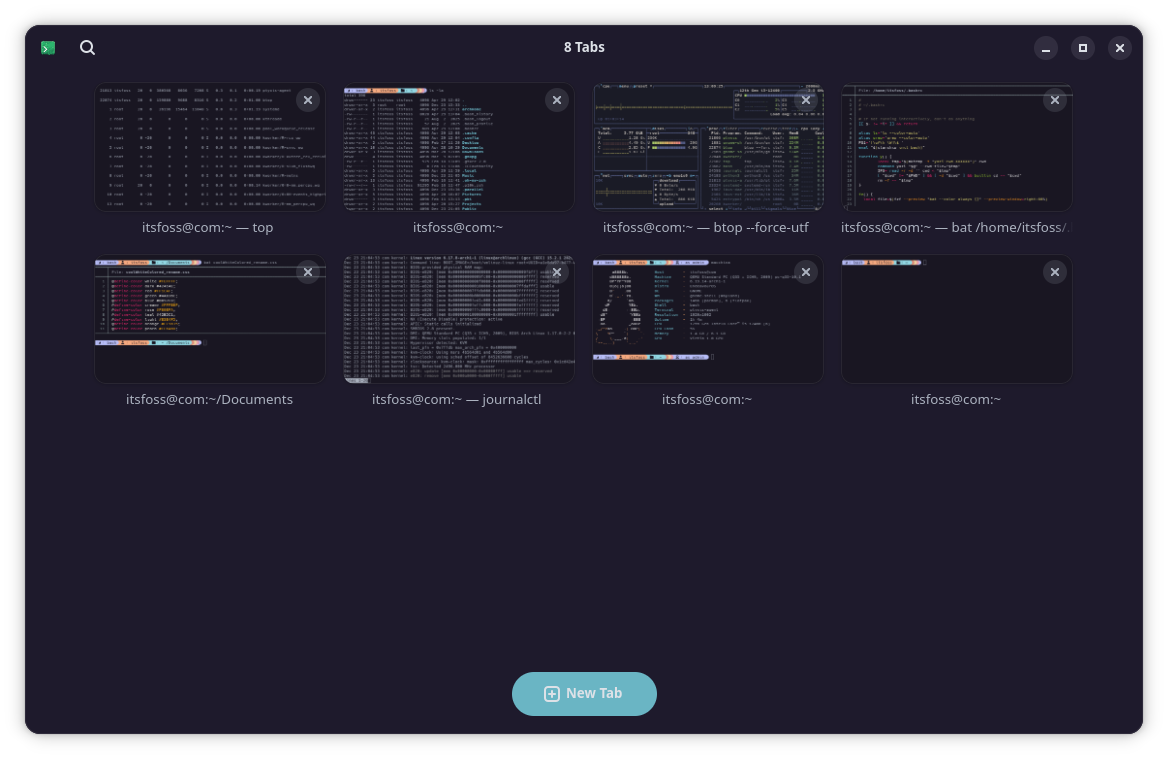
If you have multiple tabs open, you can simply click the Show open tabs button in the top-right of the title bar.
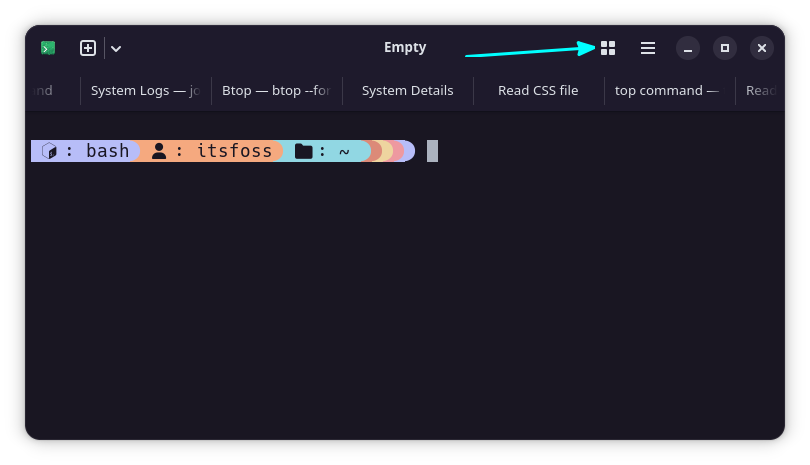
This opens an interface where each tab displays its title alongside a small preview, making it easy to see exactly what is running before you click back into a full view.
The flexibility here is excellent because you can drag and drop tabs in the overview to rearrange them.
Rearrange tabs by drag and drop
You can also pin important tabs to keep them visible at the top of the list at all times.
Pin tabs in overview
My favorite feature, however, is the ability to easily custom name your tabs and search through them later. By right-clicking a tab in the overview and selecting “Set title,” you can choose to either prepend a name to the default process or create a completely custom title.
Renaming a tab in Ptyxis
Once your tabs are named, you can use the search button in the top-left of the title bar to find exactly what you need. This is incredibly helpful when you are managing a large number of active sessions simultaneously.
Search for Tabs in overview
Color Schemes
A standout feature of Ptyxis is the support for a wide range of preset color schemes. You can access these options by opening the preferences window through the three-dots menu in the top-right of the title bar.
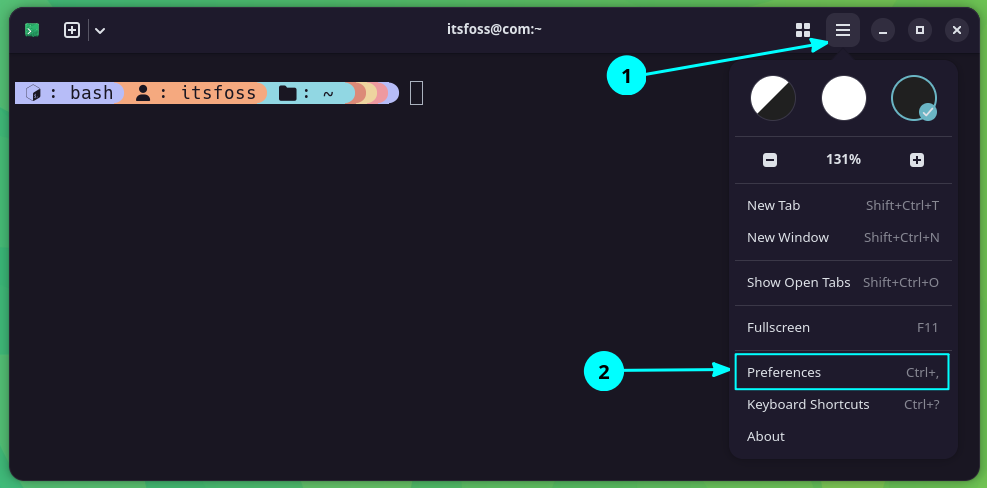
Once inside the Appearance tab, click on the “Show all palettes” option to see the full list. The interface provides a neat preview for each selection, and your chosen theme is applied immediately.
All color schemes in Ptyxis terminal.
In my opinion, the way these colors adapt is impressive. The scheme is applied intelligently to the tab bar as well, ensuring the entire terminal maintains a cohesive and professional look.
Among the vast list of options, I have a few specific favorites that I think look incredible. Omni, Pixiefloss, and Tomorrow Night, Ubuntu are all excellent choices that provide a very modern feel.
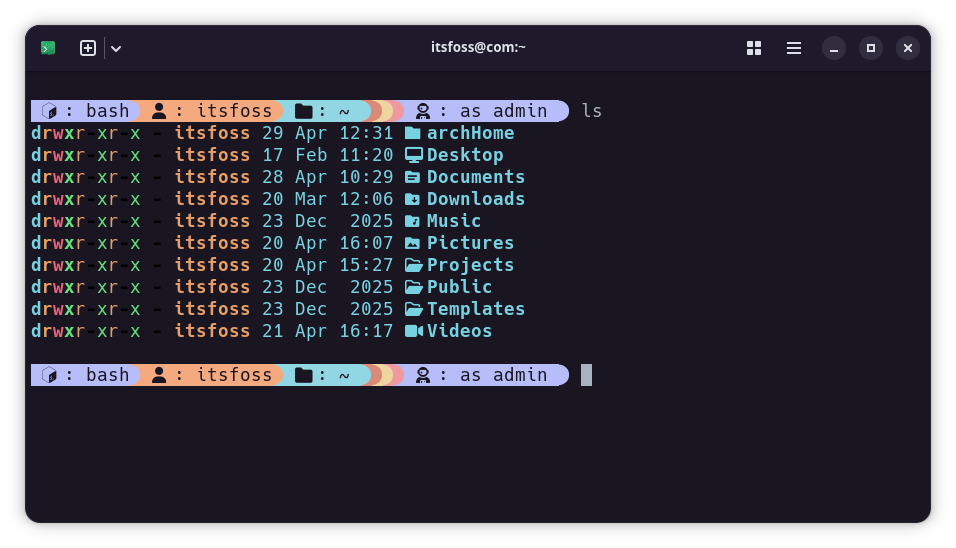
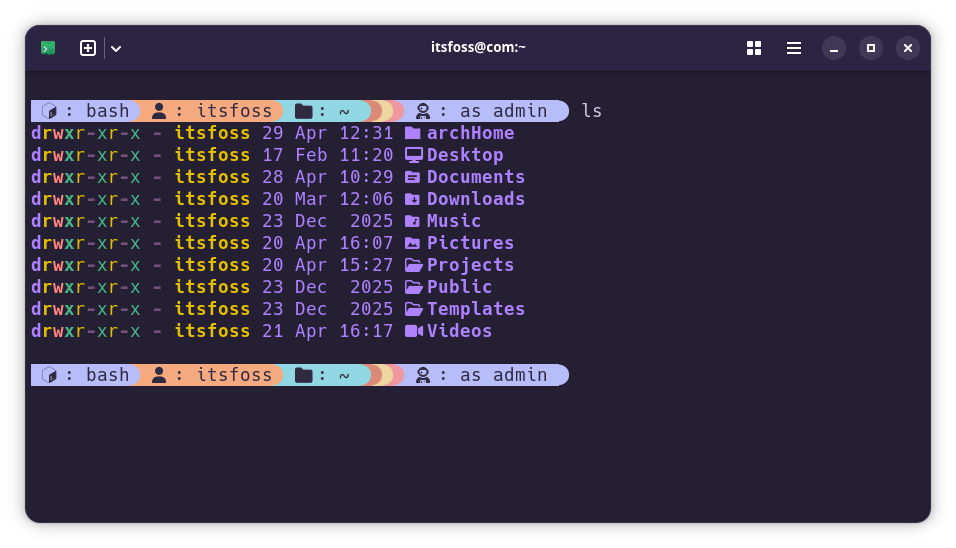
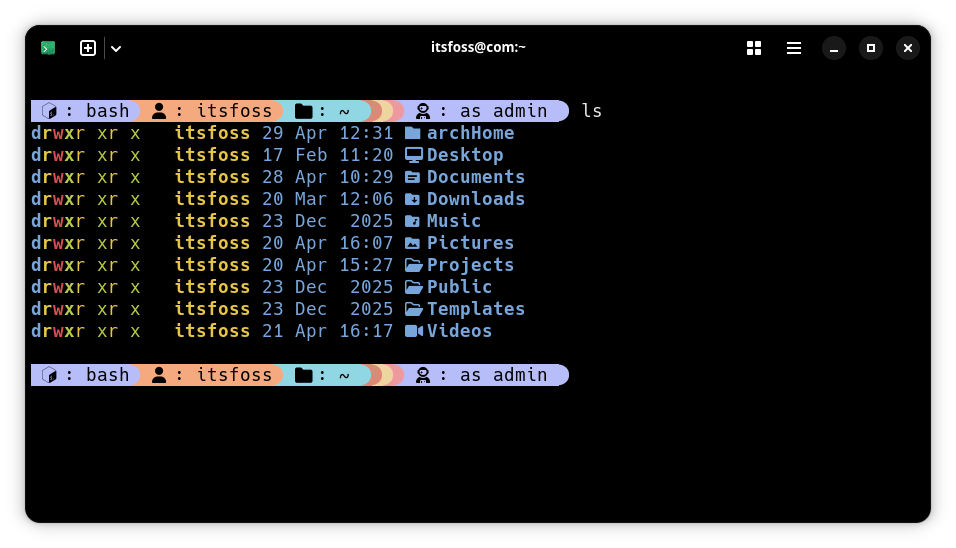
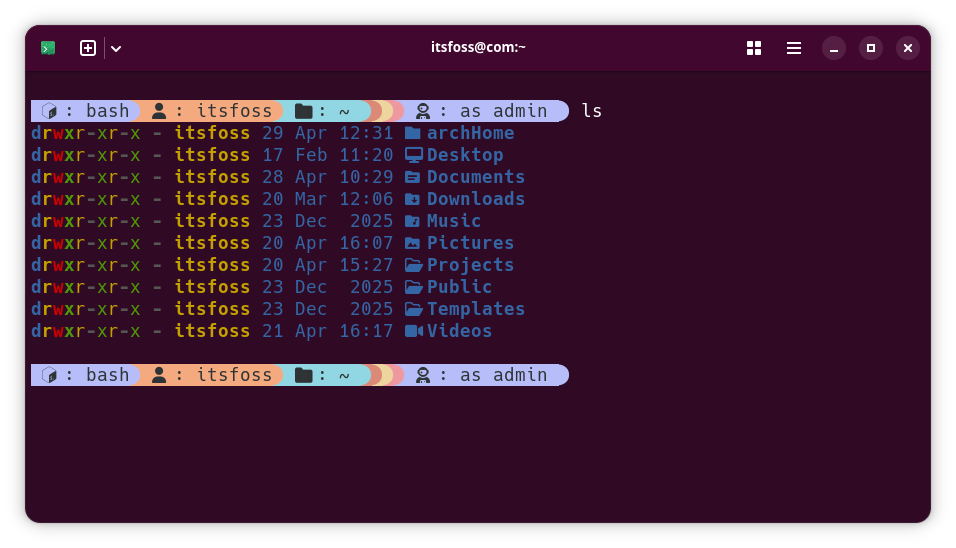
Themes applied in the order: Omni, Pixiefloss, Tomorrow Night, Ubuntu
Scrollback Search
The ability to search through what appears on your screen is a massive help during long sessions. While tools like grep are great for text files, you often need to find specific information directly within the shell scrollback.
For example, if you have displayed a massive log file using the cat command, you can quickly find what you need without re-running the command. By pressing SHIFT + CTRL + F, a search interface opens at the bottom of the terminal.
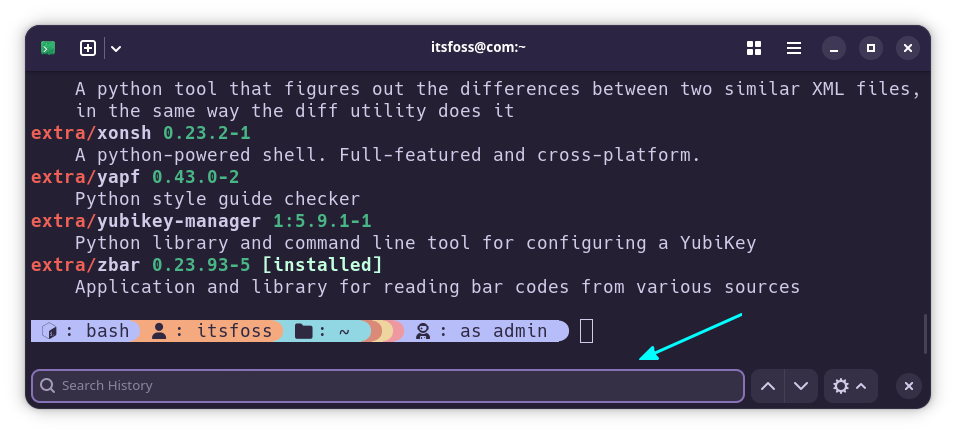
The extra search filters provides better matching. You can choose to match case, match whole words, or even use regular expressions to narrow down your results.
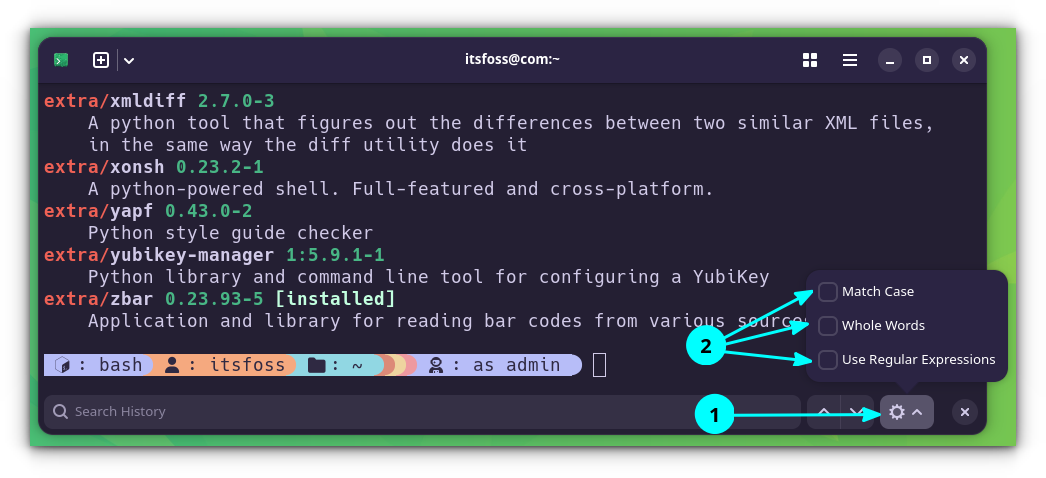
The interface includes simple navigation buttons to move up and down through your search matches. This makes it incredibly easy to jump between different instances of a term within a long output.
Searching in the Scrollback contents
Container Support
This is the flagship feature of Ptyxis. The terminal works directly with container technologies like Podman, Distrobox, and Toolbox to make your development workflow much smoother.
If your system has containers using these platforms, Ptyxis detects them automatically and provides a dedicated way to access them. You can simply click the dropdown button in the top-left of the title bar and select a specific container from the list to launch it instantly.
Enter a container using Dropdown menu
The ptyxis-agent coordinates with your system to handle the discovery and management of these environments. For example, if you are using Distrobox, Ptyxis will execute the proper run commands for you behind the scenes.
Profiles
Okay. This is not new. Almost all modern terminals support the profile feature and yet I think that profiles are the most underrated feature that many people often ignore.
How do they help? Let’s say you want to try a new shell like ZSH, you can create a specific profile for it instead of changing your entire system shell. You could also create a dedicated profile for a terminal multiplexer like Zellij.
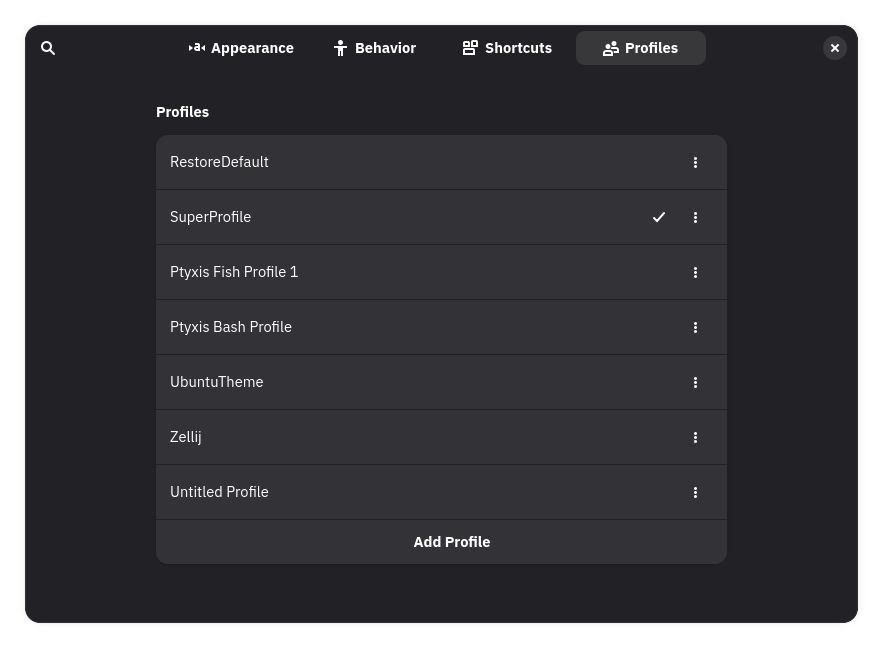
Ptyxis has excellent support for profile creation and management. You can find these options in the Profile section of the Preferences window.
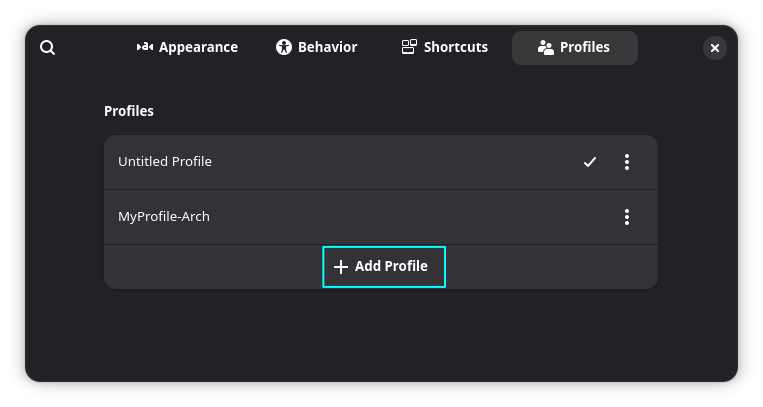
By default, you will only see an Untitled Profile, but you can use the Add Profile button to create something new. The profile creation dialog is vast and offers many different options.
You can set specific color schemes, choose a custom shell, or even assign a default container to a profile. For example, I can create a profile that automatically opens my Ubuntu Distrobox container every time I launch it.
Once your profiles are set up, you can set one as the default for all future terminals. Alternatively, you can quickly switch between your different profiles using the dropdown menu in the title bar.
Context Awareness
Ptyxis can intelligently identify your current context, such as active root privileged windows or SSH connections. This provides immediate visual feedback about the environment you are working in.
For example, if you run a command using sudo, the title bar of the terminal turns red to notify you of the changed privilege level. If you log in as the root user, the title bar remains red until you finally log out.
0:00
Ptyxis titlebar color change for previlieged windows.
Some hidden gems
Apart from the major features I mentioned above, Ptyxis also has a few more tiny functions that deserve attention. The Shortcuts option in the Preferences window allows you to alter existing keyboard combinations or add new ones for various terminal actions.
The Shortcuts page in the Preferences window allow you to change the existing shortcuts or add new shortcuts to various terminal actions.
An advanced addition is the Terminal Inspector. This tool allows you to monitor exactly what is running in the terminal at any given moment, which is a massive advantage for developers.
Ptyxis terminal inspector
You can use the inspector to track underlying shell processes, monitor mouse pointer locations, and even peek at OSC (Operating System Command) hyperlinks. It is a specialized feature that makes debugging terminal-based applications much easier than before.
I can see why Ubuntu and Fedora made it default
Ptyxis is a good upgrade from the classic GNOME Terminal. While the container integration might not be for everyone, the app has significantly improved many day-to-day features that improve the overall experience.
What do you think about this new terminal emulator? Will you use it as your main terminal, or are you sticking with your current favorite? Share your opinions in the comments section!
