
This New Terminal is Absurd (But Totally Fun)
There is no dearth of terminal emulators for Linux users. Most people stick with the default terminal, while some have their own preferred ones.
I like Kitty and I am pretty happy with it. But then I came across a new Rust-based terminal that grabbed my attention.
No, it’s not because it’s written in Rust. It’s because the terminal has a rat as the mouse cursor.
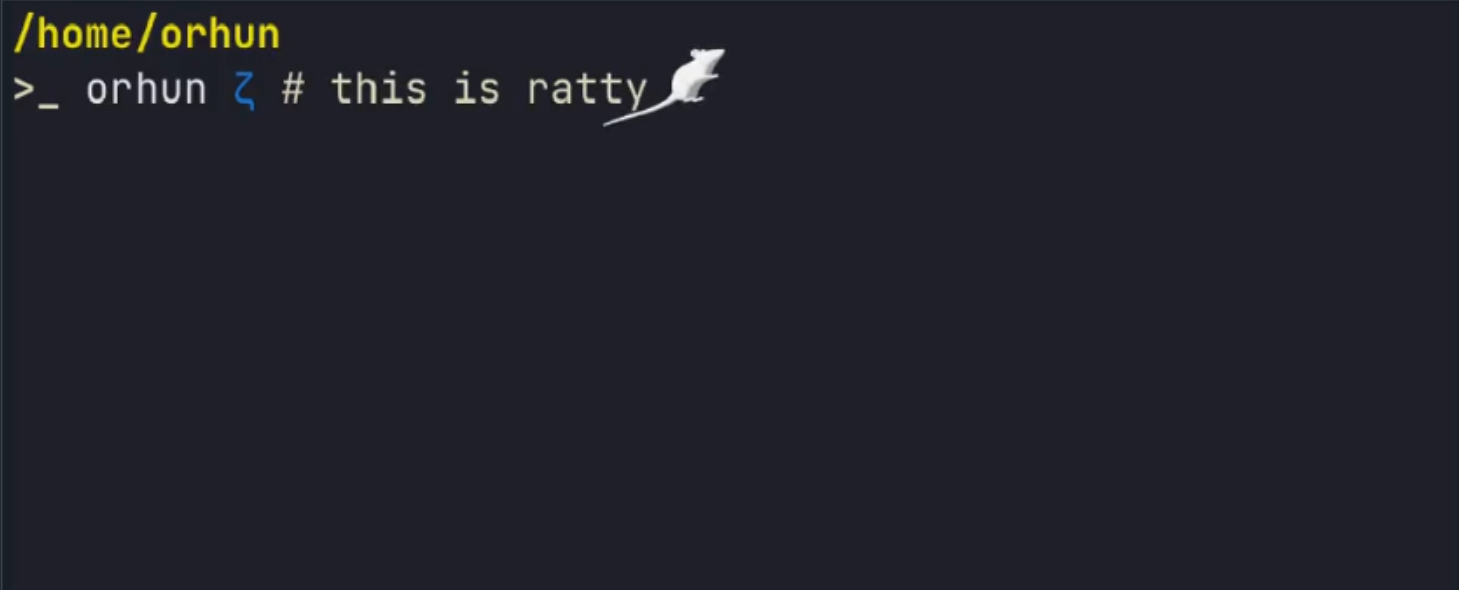
Sounds weird, right? But Ratty shows the unusual capabilities of a terminal.
What is Ratty, again?
Ratty is a modern terminal emulator written in Rust that brings a unique twist to the command line. Unlike traditional terminal environments, Ratty is GPU-rendered.
It supports viewing 3D models directly inside the terminal window, and a lot more!
The design is inspired by TempleOS, giving it a retro look while still maintaining modern performance.
Let’s take a look at this cool project and see what makes it stand out in the crowded field of terminal emulators.
Amusing features of Ratty
Ratty stands out by merging traditional terminal functionality with modern graphics rendering. Here are some of the most notable features I noticed in this experimental project.
Customizable 3D Cursor
Ratty uses terminal protocols, Ratatui and the Bevy game engine to create a 3D representation for the cursor. Instead of a traditional block or line, the cursor can be a 3D rat or other customized objects.
Rotating 3D Cursor
When you install Ratty, you get a spinning rat as the cursor by default. This 3D object moves along with your text input, providing a unique visual experience that blends a game engine’s rendering capabilities with a standard terminal workflow.
3D Mode
Ratty includes a dedicated 3D Mode that transforms the entire terminal into a canvas within a 3D scene. In this mode, the terminal window is no longer static. You can pull, warp and view your terminal output from different angles!
3D Mode in Ratty
To enter 3D mode, you can use the keyboard shortcut CTRL+ALT+Enter.
Additionally, there is a “Mobius mode” accessible via CTRL+ALT+M. This twists and bends the terminal output to form a continuous Mobius strip, showcasing the project’s integration with the Bevy game engine.
Mobius Mode
While you are in 3D Mode, you can press the Super+CTRL+ALT+Up to increase warp and Super+CTRL+ALT+Down to reduce warp.
Increase and decrease warp
Inline 3D Objects
This feature allows developers to register 3D assets and anchor them to specific text cells in the terminal. Because they are anchored to the cells, the 3D models move seamlessly as the text scrolls or changes position.
Inline 3D. Credit: orhun/ratty
To make this work, the project uses a dedicated Ratty Graphics Protocol. This protocol handles the communication between the terminal data and the 3D engine to ensure the models stay synced with the text on your screen.
Builtin Image Support
Ratty also supports the Kitty Graphics Protocol, which allows it to display standard images directly in the terminal window.
This compatibility means that tools like fastfetch or yazi can show real images and icons alongside your text. By supporting this established protocol, Ratty ensures that modern terminal utilities work as expected while still offering its own specialized 3D features.
Live 2D to 3D Split Pane Drawing
Ratty includes a 3D drawing demo that showcases its unique rendering capabilities. This feature uses a split-pane workspace where you can draw on a traditional 2D canvas on the left side of the terminal.
2D to 3D split pane editing. Credit: orhun/ratty
As you draw on the flat surface, Ratty instantly generates a live 3D preview of your creation on the right side. The preview rotates in real-time, allowing you to see how your 2D input translates into a 3D object without leaving the terminal environment.
Interactive Document Mode
Ratty also features a document editing mode inspired by TempleOS. This mode allows you to type standard, editable text directly alongside embedded 3D objects.
Because these 3D models are animating in real-time on the same screen as your text, the terminal functions more like a spatial document editor than a simple command prompt. It provides a unique way to interact with data where text and 3D assets coexist in the same workspace.
Installing Ratty
The best way to install Ratty is using Cargo, the Rust package manager. It’s a Rust application, after all.
cargo install ratty
For Arch Linux users, there is a package available in the official repositories. You can install it by running:
sudo pacman -S ratty
If you prefer not to compile from source, prebuilt binaries are available for direct download on the GitHub releases page.
It is important to note that Ratty requires a GPU to function properly. If you are trying to run it inside a virtual machine, it will not open unless you have configured GPU passthrough settings.
⚠️ Troubleshoot
I installed Ratty on Arch Linux and noticed it was missing from the application menu. I had to manually create a desktop entry. Here’s how you can do the same.
Create a file at ~/.local/share/applications/ratty.desktop with the configuration provided below, the terminal will appear in your app launcher just like any other program.
[Desktop Entry]
Name=Ratty
Comment=A GPU-rendered terminal emulator with inline 3D graphics
Exec=env TERM=xterm-kitty ratty
Icon=utilities-terminal
Type=Application
Terminal=false
Categories=System;TerminalEmulator;
While this manual method worked for me, if you know of an alternate solution or a more official way to handle the menu entry, feel free to mention it in the comments.
Configuring Ratty
Ratty can be configured using a TOML file located at ~/.config/ratty/ratty.toml. If the directory and file do not exist yet, you can create them using the following commands:
mkdir -p ~/.config/ratty
cd ~/.config/ratty
touch ratty.toml
Once you have created the file, you can copy and paste the default configuration template provided by the project. This allows you to customize the behavior and appearance of the terminal to suit your preferences.
You can find the default config file for Ratty here.
Impressive?
Clearly, Ratty is an experimental project focused on pushing the boundaries of terminal development and testing innovative ideas. Because it uses a game engine for rendering, it is currently heavy on system resources.
Orhun, Ratty creator, explicitly notes that it is not intended as a “daily driver” for standard productivity and hopes to optimize the performance in the future.
The use of 3D sprites and game-like graphics inside a terminal may not appeal to everyone. However, it offers unique possibilities for designers and developers who want to see their assets living directly inside source files or within the terminal workspace.
What is your impression of Ratty? Share it in the comments please,
