
Firefox Can Do All This? 21 Features Most Users Never Touch
Firefox is my daily driver, my main browser. I have been using it for years and I also pay attention to the features it adds with new releases.
I find it surprising that many people use it just for browsing websites but not utilizing many other features it offers. Trust me, you will be surprised by just how much power and convenience is packed into this browser beyond simple web surfing.
From clever productivity hacks to handy built-in tools, it is packed with features that can help enhance your online experience. You don’t need to visit third-party websites for several day-to-day tasks.
Let me share these “lesser known” (if I may call that) features of my favorite open source browser.
Tab Split View
For a long time, the lack of a native split-screen viewing mode was a notable gap in Firefox’s feature set. However, modern ultrawide monitor users can now view two tabs simultaneously side-by-side without needing to arrange separate OS windows.
While the feature is currently limited to splitting two tabs at once, rather than tiling multiple layouts, the implementation is clean and works exactly as intended.
To use it, simply hold CTRL key and click on the two tab titles you want to view together. Right-click either of the selected tabs, and choose Open in Split View from the context menu.
Once active, you can easily swap their positions or resize the dividing line to allocate more screen real estate to a specific page.
Split tab in Firefox
PDF Viewer and Editor
Firefox offers more than just viewing PDF files. It allows annotating PDF documents with tools such as adding highlights, hand-drawings and texts. The browser also enables signing PDF documents and inserting images within PDF files.
Editing PDF in Firefox
One of its most interesting features is merging multiple PDF documents directly within the application. To do this, navigate to the Pages view, click on the Plus button to select additional PDF files.
Ensure that the last page of the current document is selected for appending. Once all PDFs are added, save the file to create a merged PDF without relying on external websites.
Merge PDF in Firefox
This capability makes Firefox an attractive option for managing and editing PDF documents, as it provides a convenient and accessible way to annotate, sign, and merge files.
I mostly use Firefox as the PDF viewer, because it can highlight and comment PDFs, that is accessible everywhere, like inside my Obsidian PDF viewer.
Built-in Color Picker
Web developers and designers frequently spot colors they want to capture while browsing. Having a color picker built directly into the browser eliminates the need for third-party extensions.
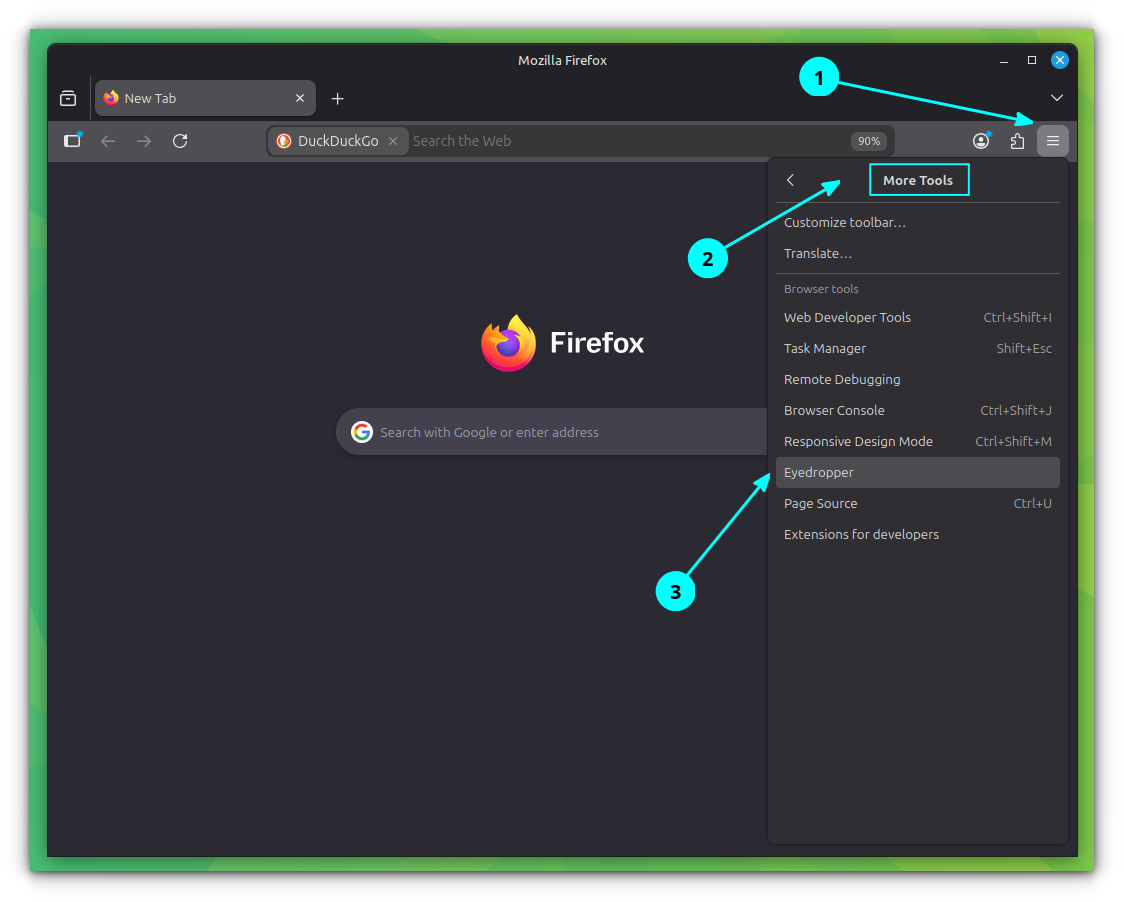
Firefox includes a native Eyedropper tool that allows you to easily pick colors from any webpage. To access it, open the main Firefox application menu, navigate to More Tools, and select Eyedropper.
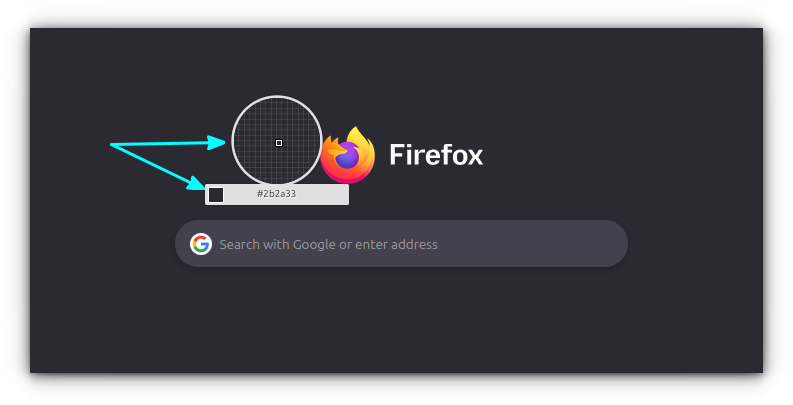
Once activated, your cursor transforms into a magnified circle with a precision pointer at the center, making it easy to isolate specific pixels. Simply hover over the exact color you want to capture and left-click. Firefox will instantly copy the corresponding hexadecimal color code directly to your clipboard.
If you find yourself using this tool frequently and want to bypass the menus, you can add the Developer item directly to your main Toolbar.
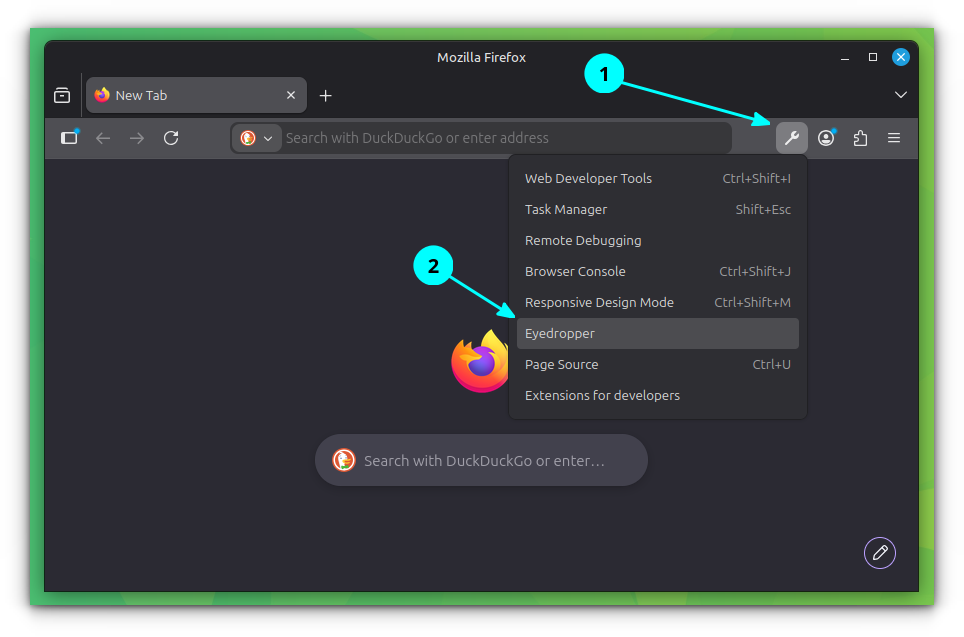
This gives you one-click access to the Eyedropper whenever you need it.
Screenshot Tool
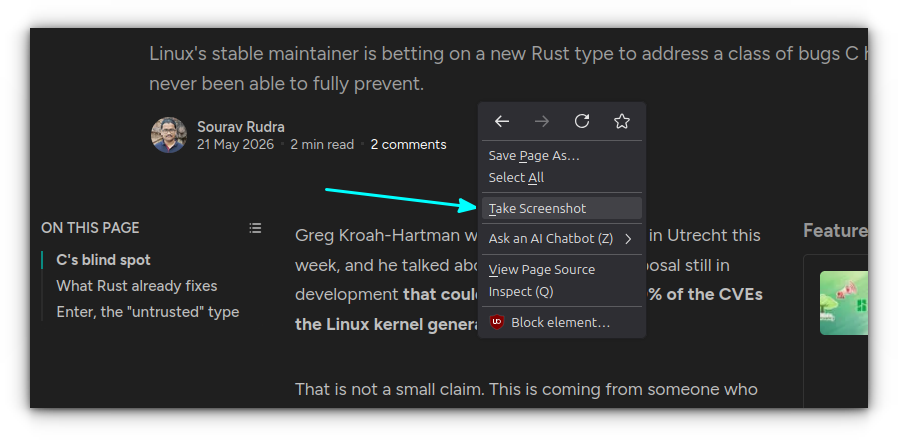
Firefox features a powerful, built-in screenshot tool that removes any need for separate screen-capture extensions or external utilities. To activate it, simply right-click on an empty space within any webpage and select Take Screenshot.
One of the tool’s best feature is its ability to intelligently align to individual DOM elements on a page. For instance, if you hover your cursor over an image, a specific text block, or a column, the tool automatically snaps its bounding box to perfectly capture that exact element.
Taking screenshot in Firefox
Click on the Download button to save that selection as a PNG file.
Beyond element snapping, the tool offers great flexibility:
- Click and Drag to manually select a specific region of the page.
- Save Visible button to capture exactly what is currently shown on your screen.
- Save Full Page is the standout capability. It captures the entire webpage from top to bottom, even the portions buried far below the fold.
I absolutely loved the full website screenshot, which allow us to capture everything all the way to the very bottom of the page. This is best used when you enable Firefox’s reading mode.
Whenever I find an important article, I usually take a full screenshot in reading mode and then annotate the important parts later! It is such a cool feature.
Text and Websites Translation
Newer versions of Firefox have the capability to translate website contents to your favorite language. While translations cannot always be top notch, as far as I read, those are decent and get the job done well enough.
It provides a considerable amount of languages to translate to and from, making it easy to parse international sites.
Translating an It’s FOSS article from English to Spanish
Also, when you go to Menu -> More Tools -> Translate, you can translate specific words or sentences of your choice to other languages.
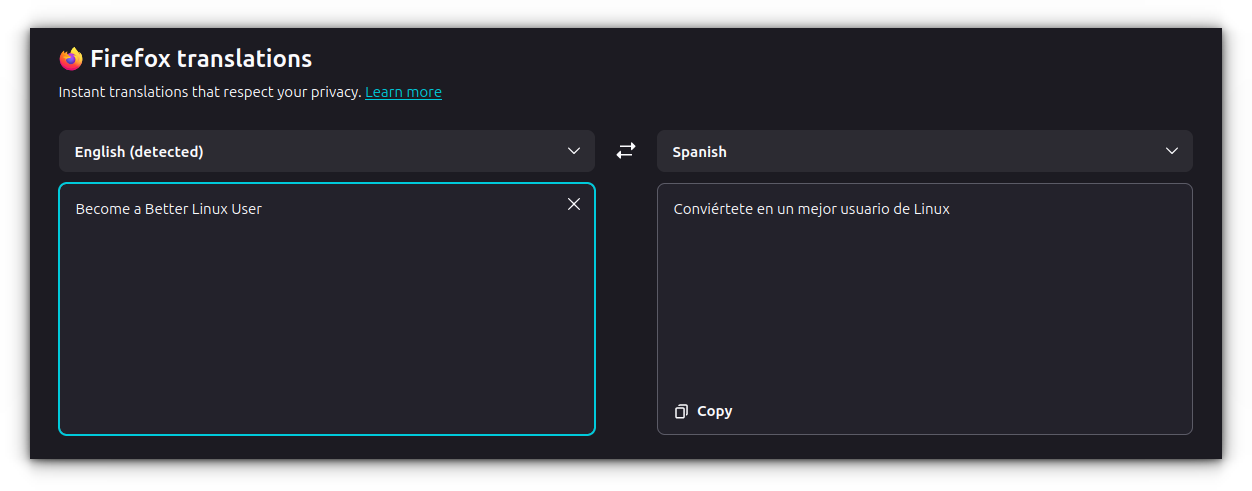
This is incredibly handy when you don’t need the whole page converted but just want to figure out a specific phrase.
Reading Mode
Firefox has a reading mode, which removes most of the distracting components and gives you a nice readable text. It really cleans up the page, stripping out messy blocks and sidebars so you can just focus on the content.
Article in Read Mode in Firefox
It takes this even further, too! You can adjust the font, the width of the text, and line spacing by using the Text and Layout settings right inside the reading mode.
Font and Layout settings in Firefox Read Mode
Also, you can set a different reading theme like Sepia, Dark, or Light depending on your environment and what’s easiest on your eyes.
Theme settings in Firefox Read Mode
There is a read it aloud feature as well, which is useful when you want to listen to the article while multitasking.
When you are on articles that can be read in a reader mode, a reader mode button appears on the address bar adjacent to the URL of the article.
Click on it to enter the reading mode, and simply click on it again when you want to exit.
AI Summaries
AI summaries are helpful when you are in a hurry and want to know what an article is all about without reading the entire piece word for word.
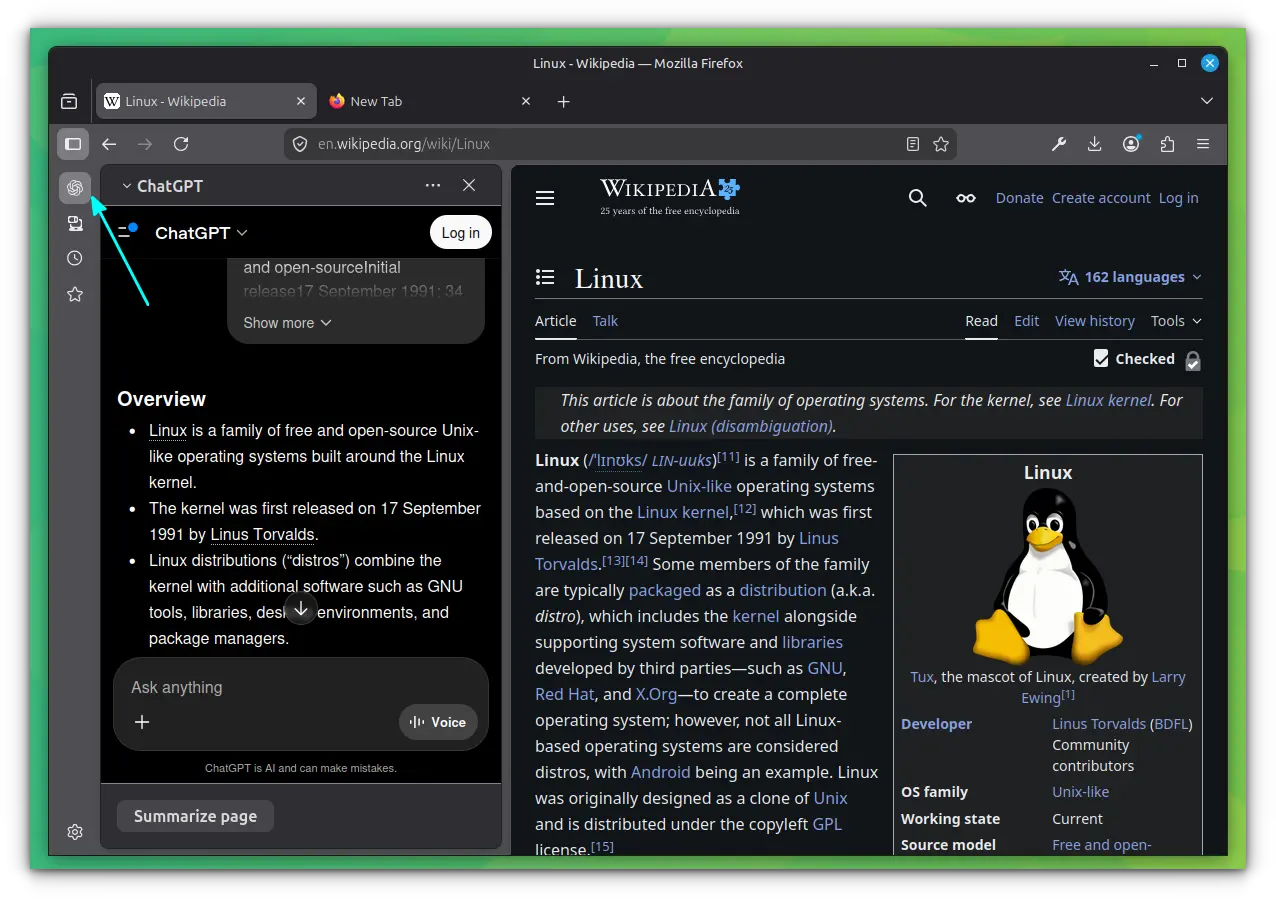
Firefox now includes an AI button that allows you to quickly summarize contents and get AI help right inside your browsing workflow. A major advantage here is flexibility.
It lets you choose from and connect to multiple different AI service providers rather than locking you into a single model.
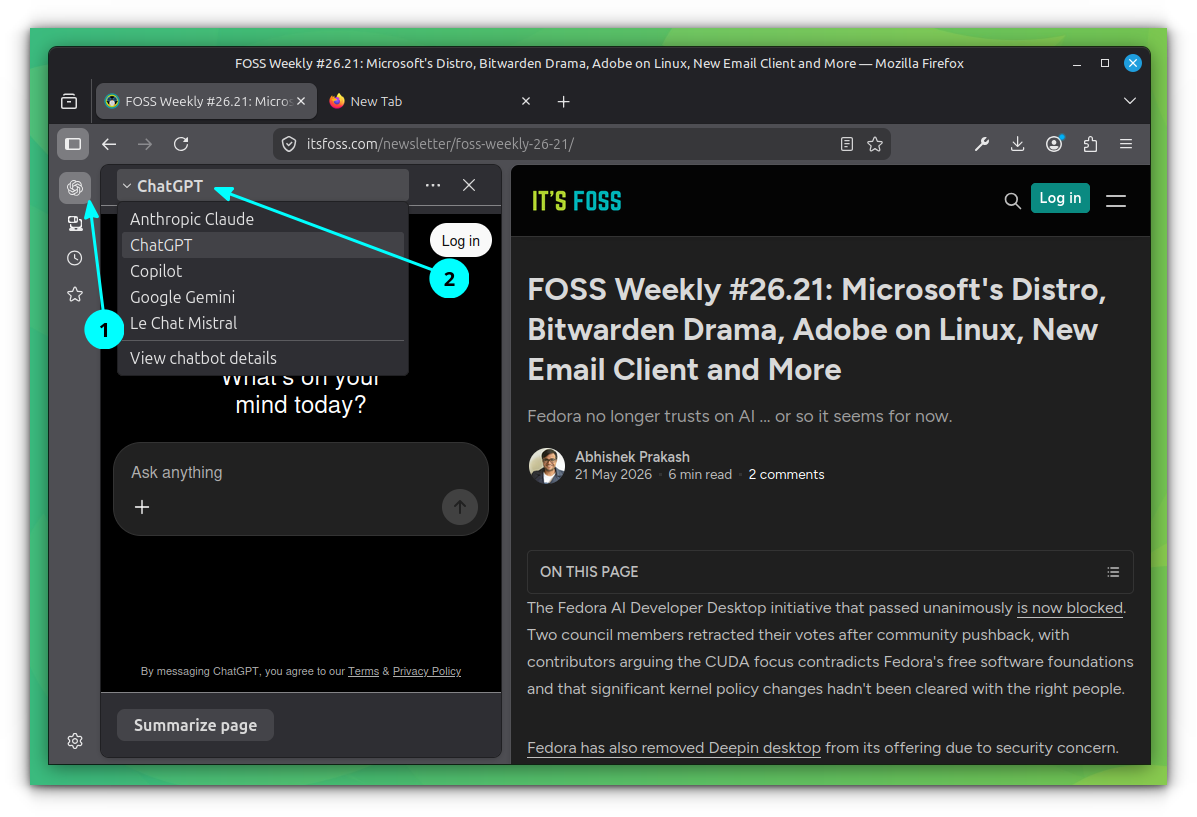
You can sign into your existing accounts with these chat services, which means you can seamlessly access your chat history and previous conversations while you work.
Link Previews
Firefox uses small local models to create link previews and keypoints of links.
You can enable this feature in the General Settings under the Browser settings section. Once you toggle it on, it will take a few seconds for the initial setup.
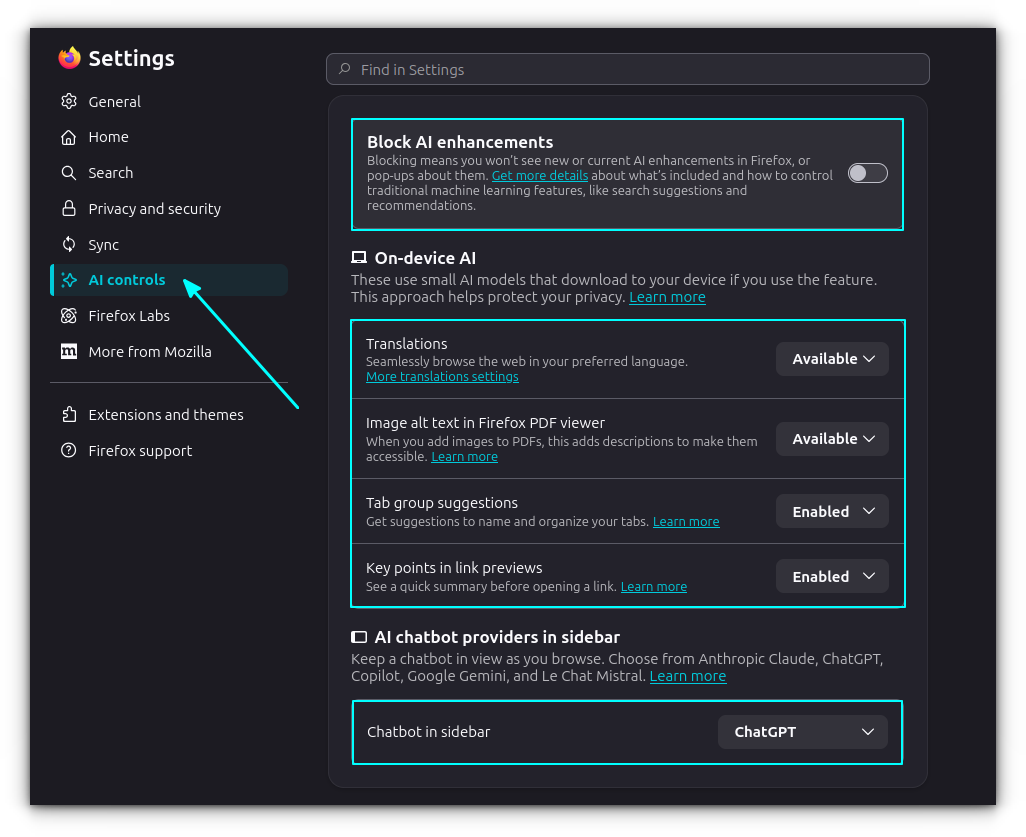
You will also see a noticeable increase in memory usage when it’s running, which happens because a small model is executing entirely locally on your machine rather than sending your data to a cloud server.
Once it is up and running, you can simply left-click and hold on any link for a second to pull up a quick preview of the destination page along with its core keypoints.
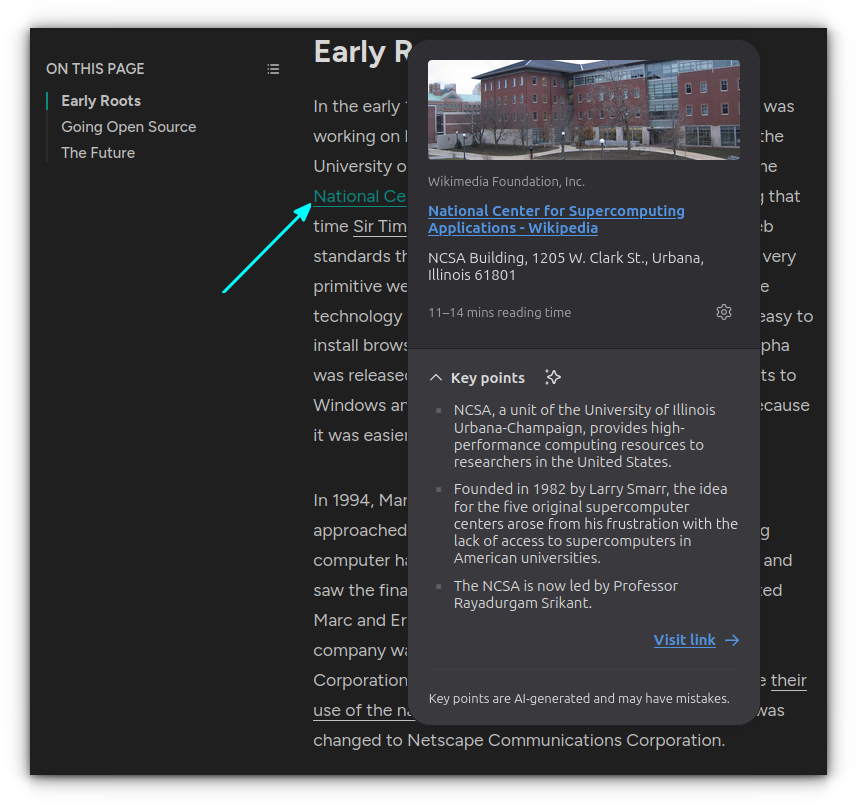
If you want to tweak how these features behave, there is now a dedicated settings section specifically for AI-related configurations inside the main Firefox Settings menu.
Tab Group and AI
Firefox offers a powerful tab grouping feature to help you manage numerous open tabs efficiently.
You can manually create tab groups, for instance, by gathering all “It’s FOSS” links into an “It’s FOSS” group and assigning it a distinct color.
Manually group selected tabs
Even more interesting is the AI-powered tab grouping. If you have many tabs open and want to organize them quickly, Firefox’s AI can assist with the heavy lifting.
To use this feature, right-click on any tab and select the “Add tab to a new group” option. Choose “Suggest more of my tabs”.
Wait for the AI to analyze your open tabs. If related tabs are found, the AI will present a selectable list. You can then toggle which tabs to include in the group, provide a name for the group, and click “Done” to finalize it.
AI powered tab grouping
Picture in Picture Mode
Firefox makes it super easy to watch videos without getting distracted. Picture-in Picture (PiP) mode lets you shrink your video down to a little window that floats on top of everything else.
Watching video in Picture-in-Picture mode
To turn it on, head to the Firefox settings and look in the “General” section under “Browser”. You’ll find an option to enable PiP mode there.
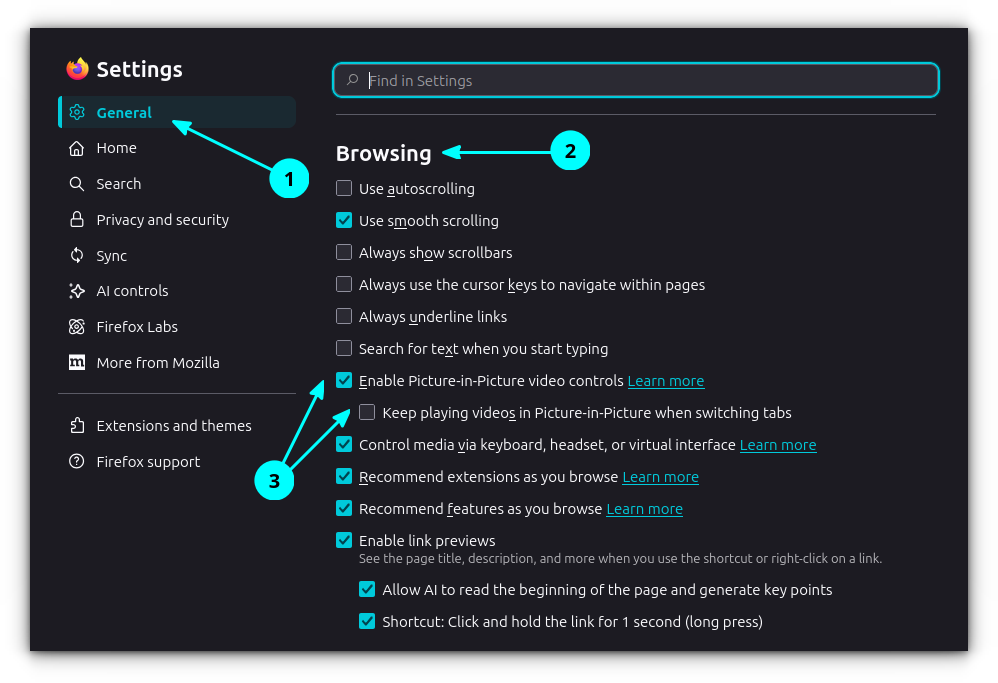
You can also choose to automatically switch videos to PiP when you switch tabs. This is handy if you want to keep a video playing while you work on something else.
Switch to Picture-in-Picture mode on tab change
My personal favorite way to use PiP is during online courses; it keeps the video right there in my view while I code alongside searching documentation in tabs.
Vertical Sidebar
Firefox gives you the option to switch up your tab layout with a handy vertical sidebar.
To turn it on, just right-click anywhere on the tab bar and choose “Turn on vertical tabs”.
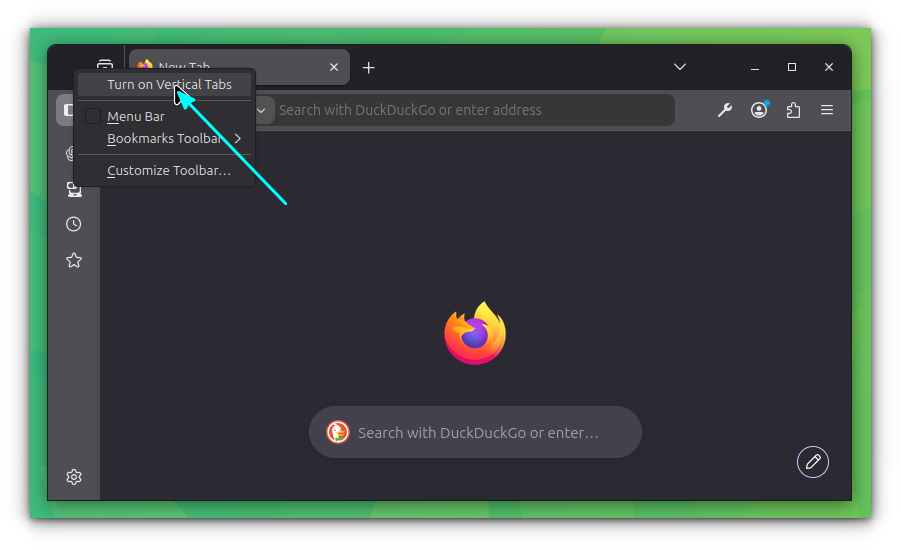
Then, click the settings icon at the bottom of the sidebar. From there, you can customize it to expand and collapse when you hover your mouse over it.
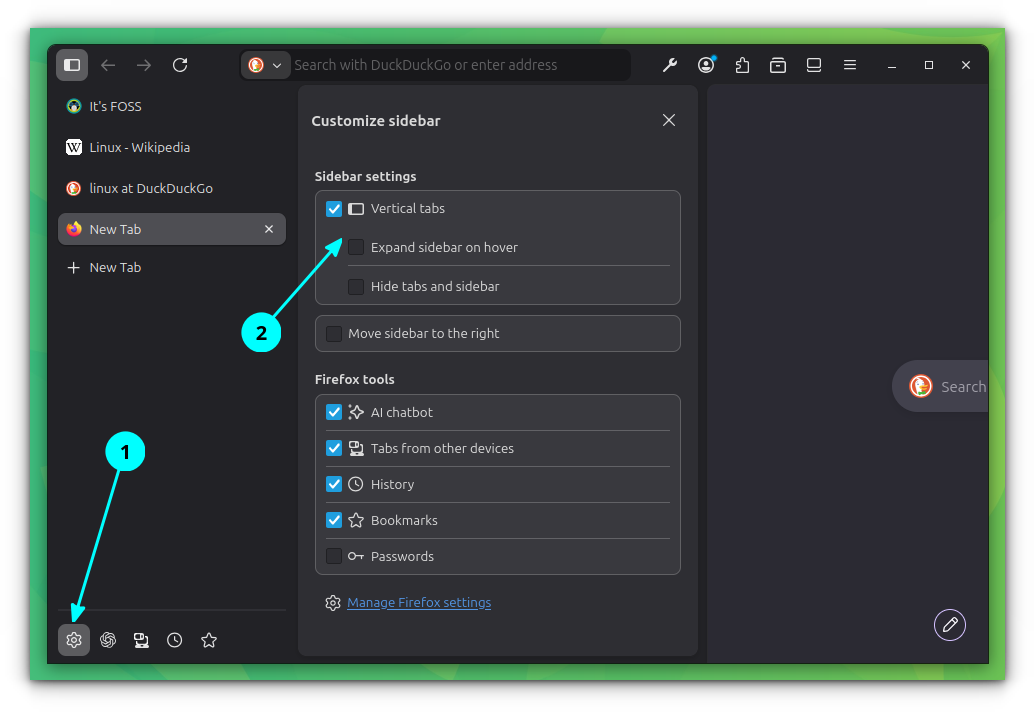
I personally find this layout helps me keep track of a lot more tabs without feeling cramped. Plus, it looks pretty cool!
Quick Forget
To quickly erase browsing history of a short period, Firefox has a quick solution, Forget!
You can access this feature by clicking on the Forget toolbar item in your browser’s toolbar. You have to add it first to the toolbar by customizing the toolbar.
From there, you have three options to choose from:
- Forget the last 5 minutes: Removes your browsing activity from the past 5 minutes.
- Forget the last 2 hours: Removes your browsing activity from the past 2 hours.
- Forget the last 24 hours: Removes your browsing activity from the past 24 hours.
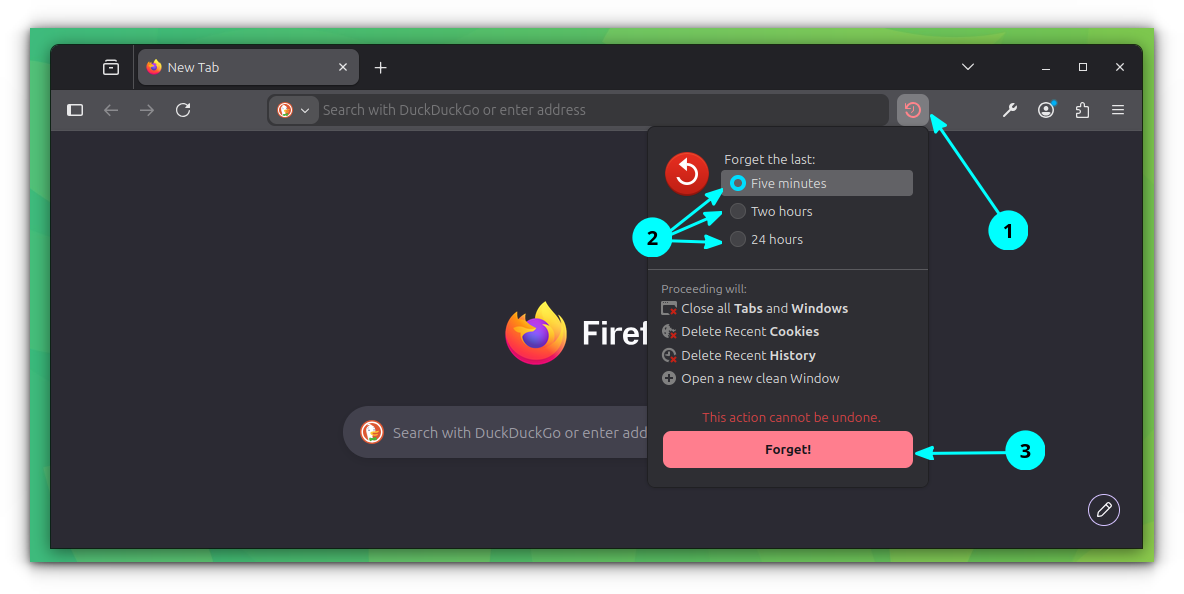
Keep in mind that once you clear your history, it cannot be undone, and you will be logged out where ever you signed in.
Browsing History Dashboard
The Firefox View dashboard is like a personal history book for your browsing. It gives you more than just a simple list; it lets you see all your recent activity in detail!
Here’s what you can do with it:
- Get a clear view of every site you visited, including tabs from other devices.
- Organize your history based on which sites you visit most often or those that are important to you.
- Easily remove specific browsing history if you need to clean up your online activity.
Per site history in Firefox View
These are some of the cool features I use frequently, that make Firefox View a great way to keep your browsing organized and in control!
Multiple Profiles
Firefox natively supports using multiple profiles, which makes it incredibly easy to manage your home and work browsing in completely separate environments.
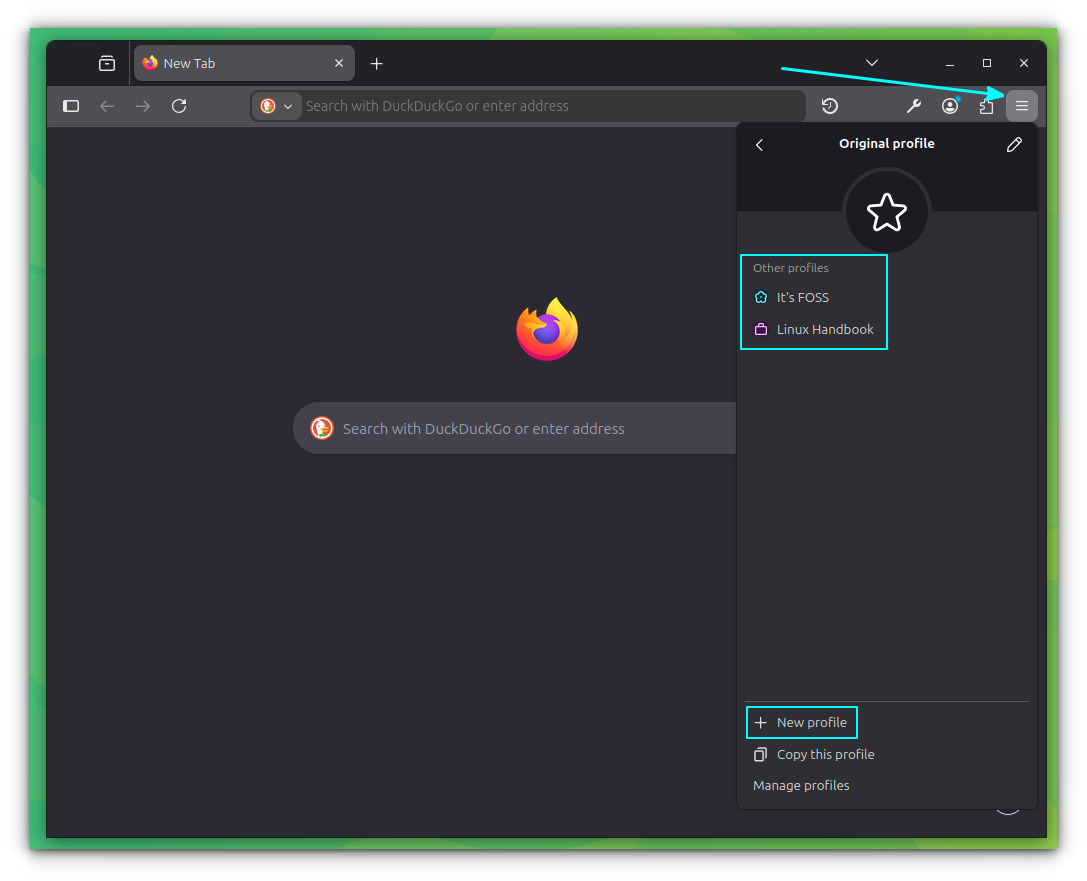
Profiles can be created by going to the main Menu and selecting Profiles -> New Profile. From there, you just give the profile a name, select a distinct color theme if you want to visually distinguish it, and click on Done Editing.
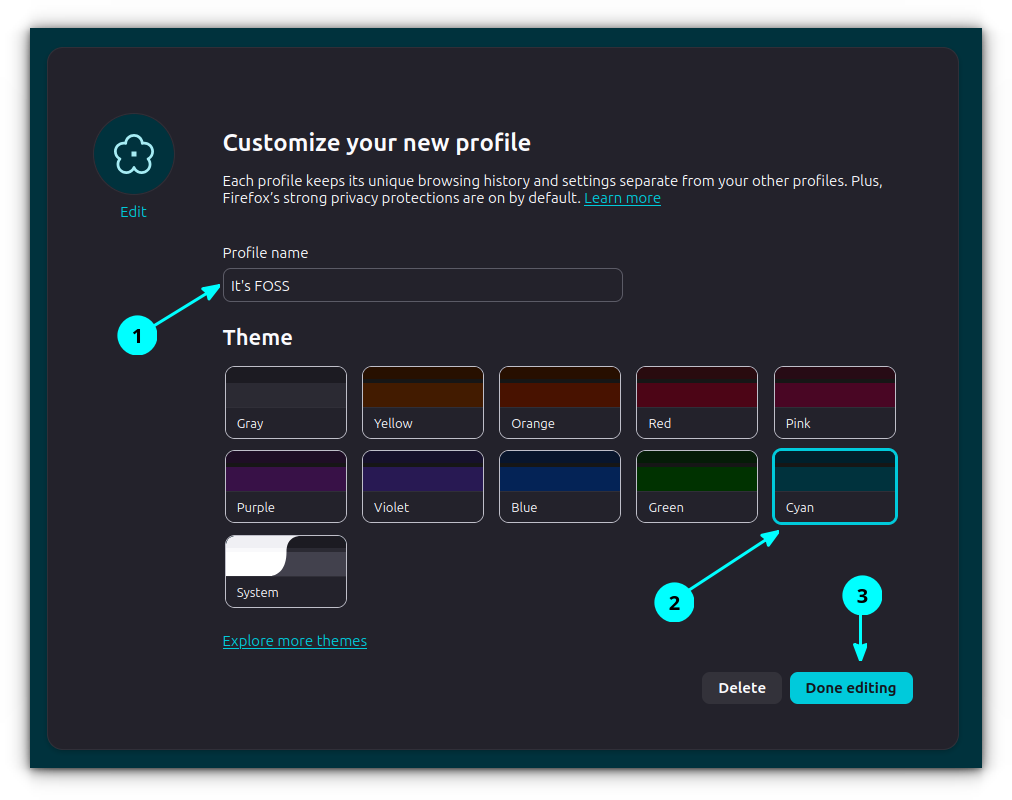
Creating multiple profiles and switching between them is incredibly seamless with Firefox, allowing you to keep your cookies, history, and extensions completely isolated between your different workflows.
Task Manager
With the built-in task manager, you can easily view exactly which tab is consuming your memory, CPU, and other system resources. Being able to sort sites according to these metrics is incredibly useful.
Especially when you are running heavy AI tabs and video streams together and need to track down what’s lagging your system.
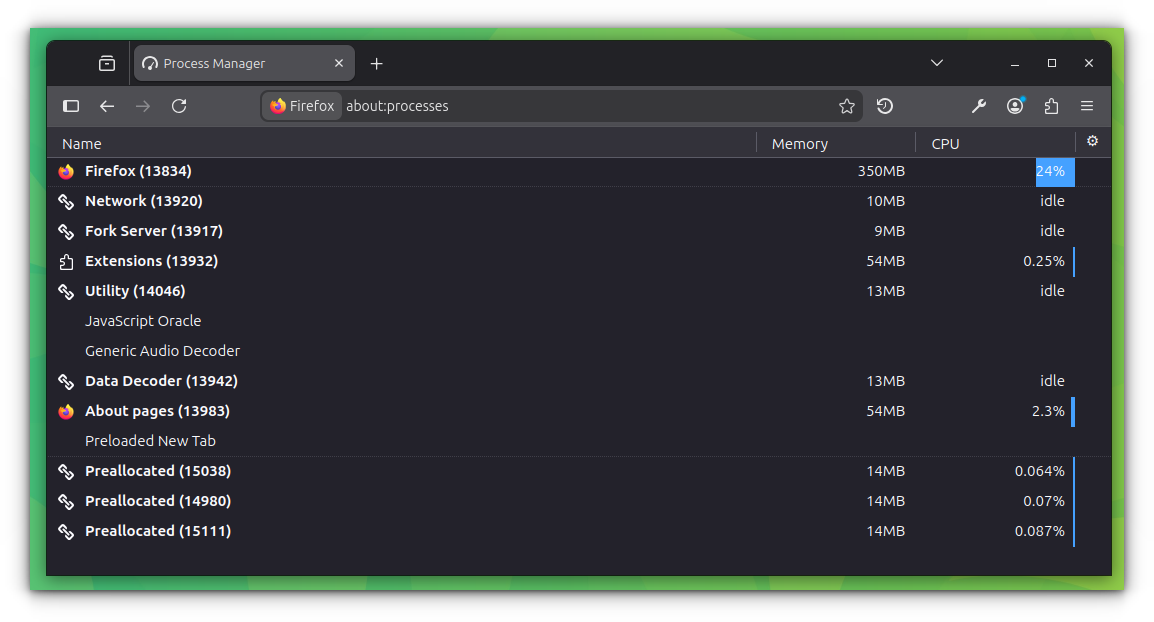
To pull up the task manager instantly, you can use the keyboard shortcut Shift + Esc. It is also available via the main application menu if you prefer using your mouse.
Copy Link to Highlight
A feature that was absent for a long time, Firefox now supports link to highlights!
You can select a part of the text on a webpage, right-click on the selection, and select Copy Link to Highlight.
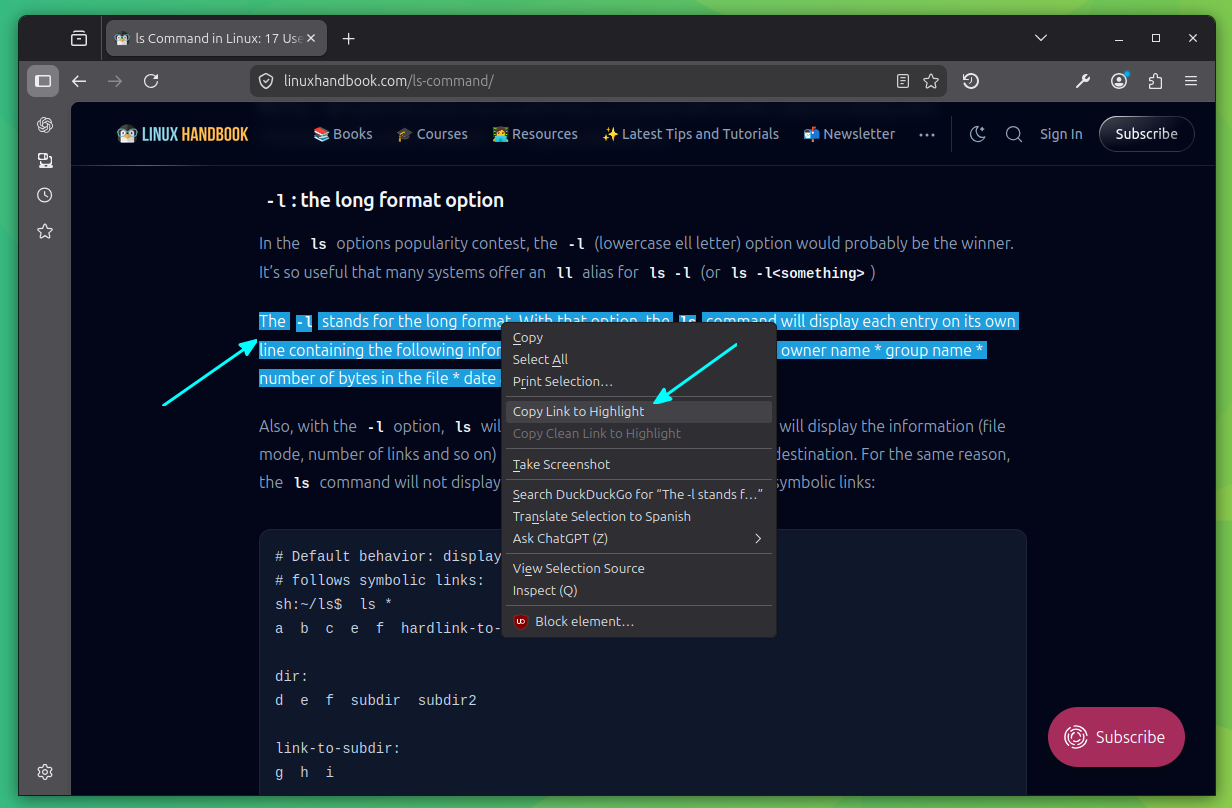
When you share this link with others, it will take them directly to that exact spot on the page and they can see the highlighted text instantly in the shared article!
It’s incredibly convenient for pointing people straight to the most relevant information without making them scroll through a massive page.
Keyboard Based Controls
Did you know that there’s more to the Firefox address bar than meets the eye? By pressing a few key combinations, you can access a set of powerful actions that can help you customize your browsing experience.
To get started, press CTRL+L to focus on the address bar. Next, enter > and press a space. You’ll see that an Actions criteria is enabled.
This feature offers several useful actions, including Open a private window, Restart Firefox, etc.
To access these actions, simply use the keys as shown in the table below:
| Key Combination | Use case |
|---|---|
> space | Opens the Actions interface |
^ space | History search |
% space | Search among tabs |
* space | Search among bookmarks |
Using various keyboard actions
Built-in Game
Are you looking for a fun way to pass the time while waiting for your internet connection to kick in? You’re not alone! Many browsers have hidden games that can keep you entertained.
Google Chrome has its popular Dino game, and Microsoft Edge has Surf. But what about Firefox?
The answer is yes, Firefox does have a game mode! But it’s not as obvious as the others. To find it, follow these steps:
Go to Menu -> More Tools -> Customize Toolbar. Drag all the items in the bottom of the toolbar to the overflow section. What remains will be the Flexible spacer.
Play Game in Firefox
And that’s when the magic happens! Click on the small game button in the bottom. The interface transforms into a ball game, where you can bounce the ball and have fun.
It may not be as flashy as some other games, but it’s a cool way to pass the time while waiting for your internet connection to stabilize.
Experimental Settings
Now, let’s see some experimental settings. Be cautious when using these, as these are either in experimental stage or cause unexpected issues.
Get a rounder corner
Firefox has an experimental feature that allows you to round off the corners of your browser, giving it a more cohesive look across all devices and operating systems, like GNOME desktop.
However, be cautious when using this feature, as it may cause unexpected issues or affect other parts of your system. To enable it, follow these steps:
Open Firefox and type about:config in the address bar. Press Enter to access the experimental settings page. You’ll be warned that changing these settings can have serious implications. So proceed with caution!
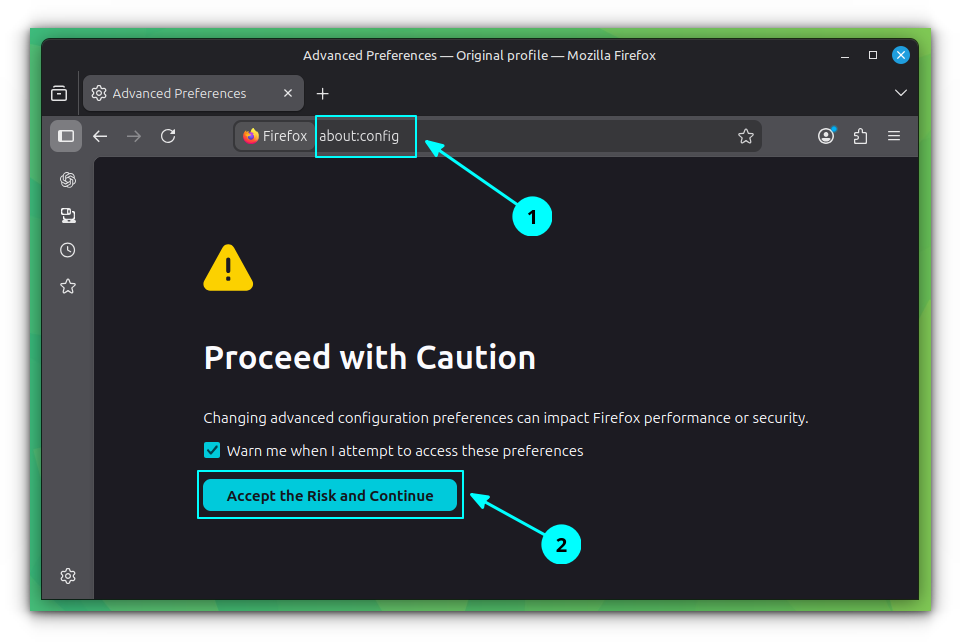
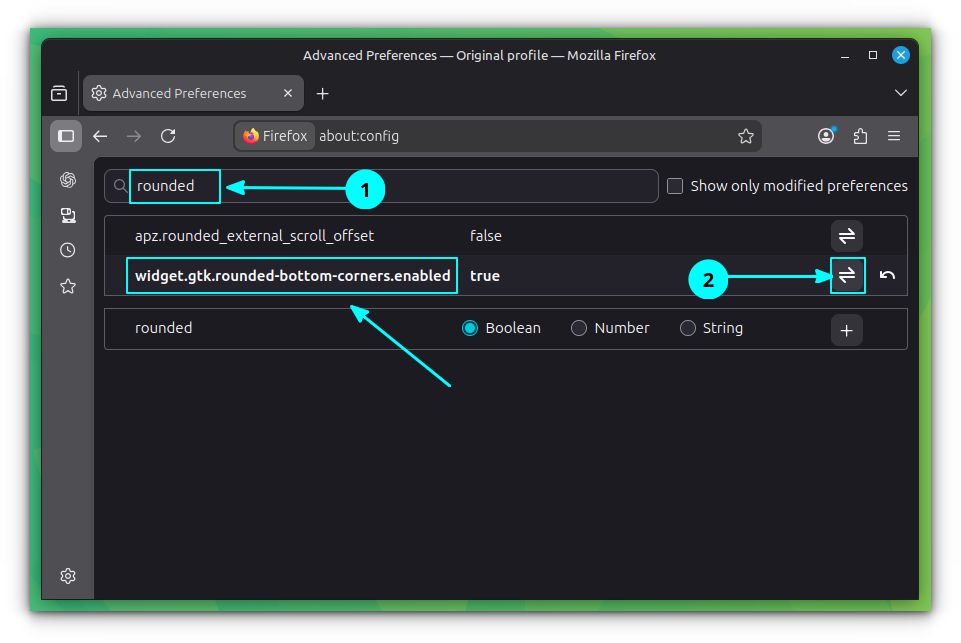
In the search bar, enter rounded and find the setting called widget.gtk.rounded-bottom-corners.enabled. Toggle its value to true to enable rounded corners.
Now, go to Menu -> More Tools -> Customize Toolbar and disable the titlebar, as shown below.
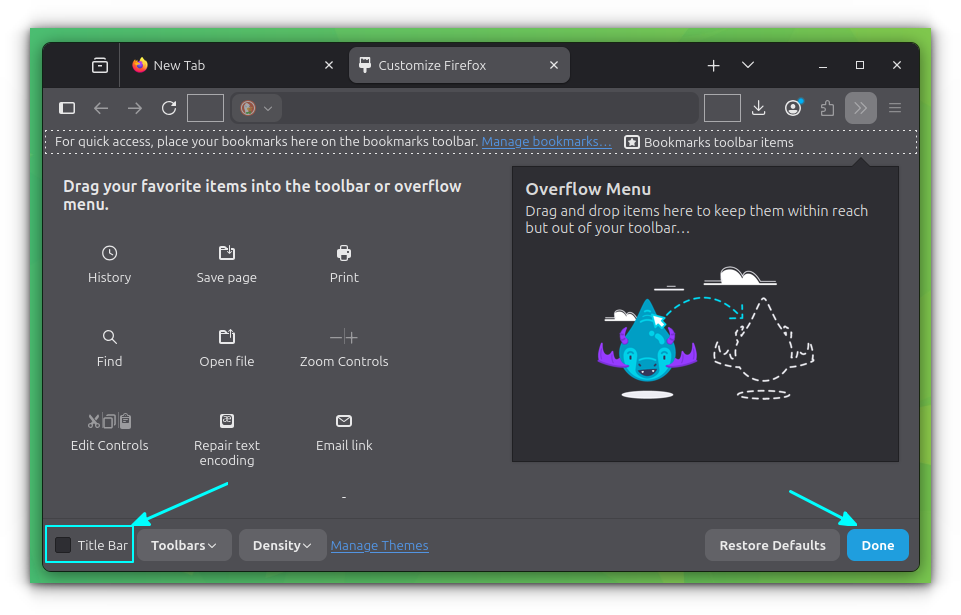
After making this change, close and restart Firefox.
Customize Keyboard Shortcuts
Want to take control of your browsing experience with custom keyboard shortcuts? Firefox allows you to do just that!
To get started, open Firefox and type about:keyboard in the address bar. This will bring up the experimental page for keyboard shortcut settings.
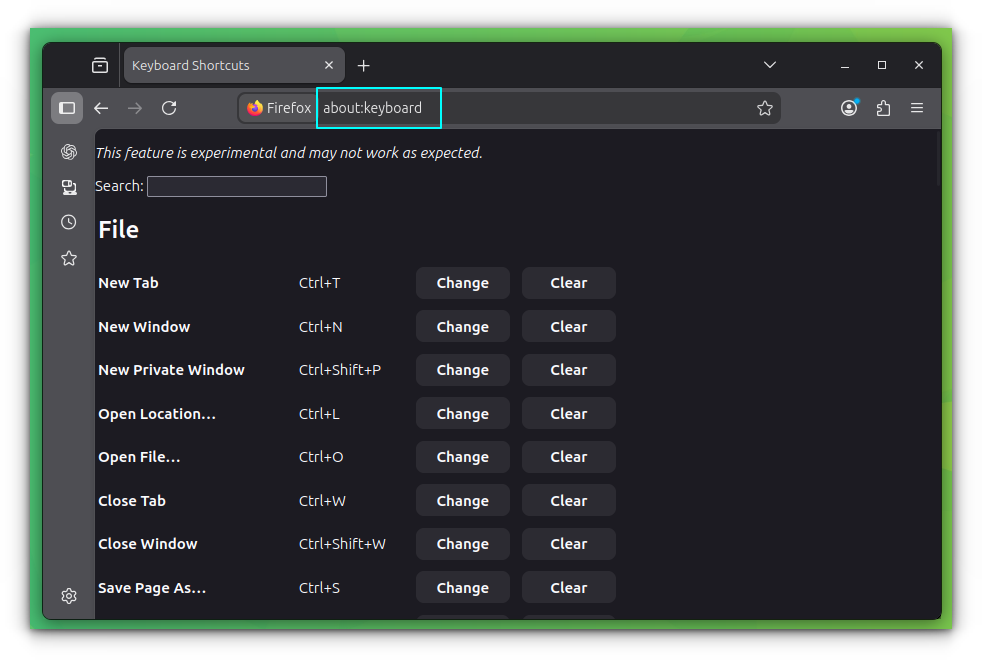
From here, you can alter key combinations for actions, remove existing keybindings and make any other changes you like.
Firefox Labs
Want to get a sneak peek at some cutting-edge features before they’re widely released? Firefox has a section called “Firefox Labs” right in the settings menu.
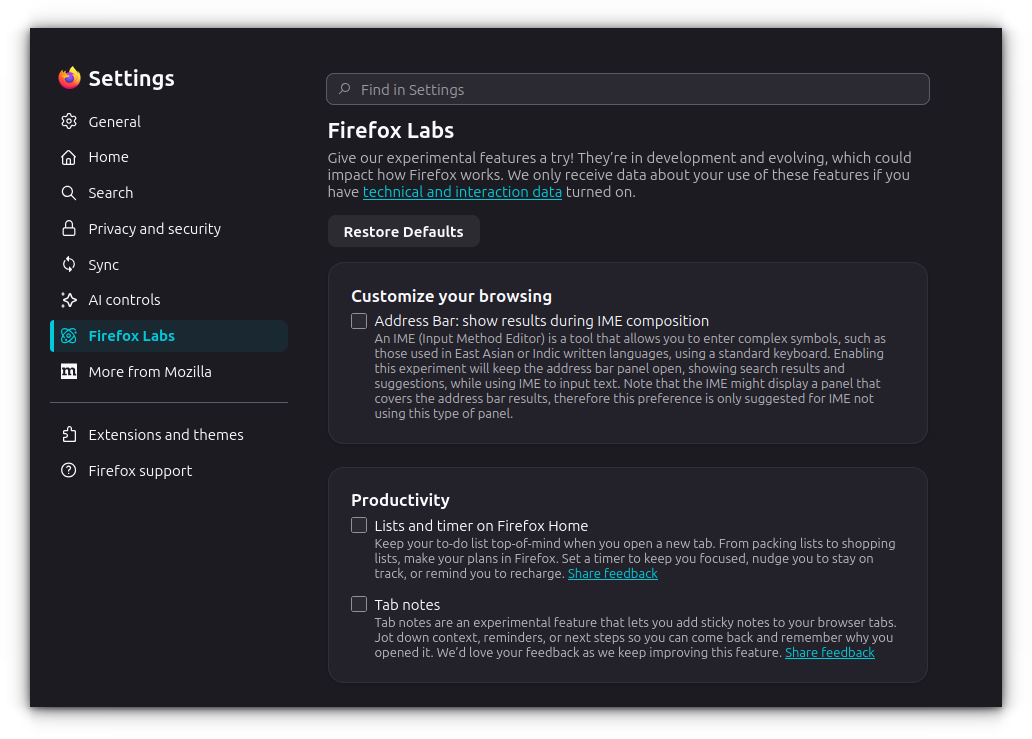
This is where you can experiment with experimental features that are still under development. Don’t worry, your usage data isn’t automatically shared just for trying
these out. It only gets sent if you have technical and interaction data turned on in Privacy settings.
I’m currently running Firefox 151, and there are a few cool new features I can try.
Tab Notes seems really handy, but the List and Timer features are also pretty neat. They remind me of the homepage widgets in Vivaldi.
Wrapping Up
As you can see, Firefox is packed with a surprising number of features that go far beyond basic browsing, making your daily online tasks smoother and more efficient.
You don’t need to go to Google Translate and copy paste text there. Simple right click works. Need quick screenshot, that’ there. PDF reading and editing capabilities are additional blessings.
I can go on and on but I have to stop somewhere. So I stop here and I also let you explore lesser known features of DuckDuckGo search engine. I have a feeling that if you liked this article, you’ll like that one too.
And don’t forget to share your favorite Firefox feature in the comments below.
