
I Gave Desktop Email Clients Another Shot and This New App Delivered
If you are someone who has to tackle many emails throughout the day, an email client is most likely part of your workflow. For the uninitiated, these desktop applications let you manage one or more email accounts from a single place without having to open a browser tab for each one.
Think of them as a local home for your inbox that comes equipped with the necessary tools for composing, organizing, and syncing your content. 📥
I had one of my earliest experiences with these through Thunderbird, which I used at a previous workplace. It did the job well enough at the time, and I have no real complaints about it from back then.
Eventually I drifted toward just using the web apps of whatever email service I was on. So, when I came across Aerion, I thought to myself, why not give email clients another shot?
Aerion: A Home For Your E-Mails
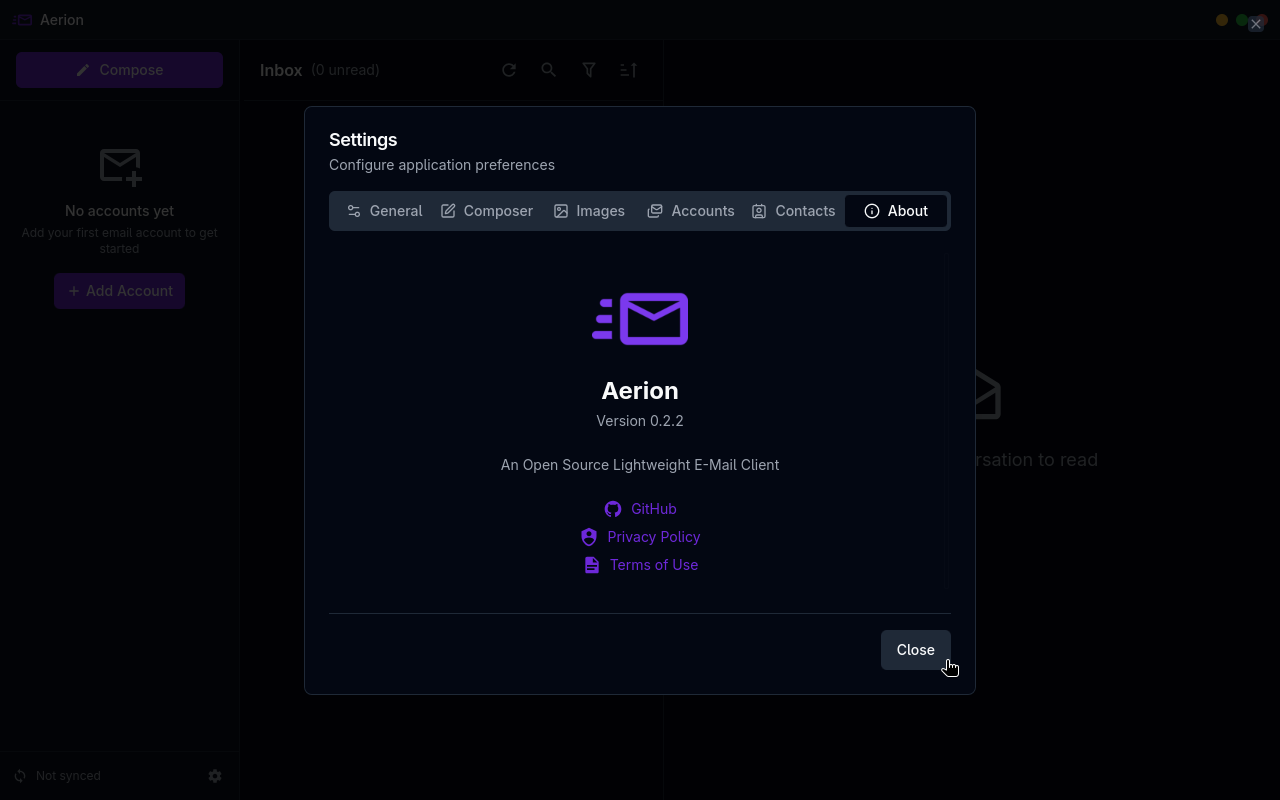
This is an open source, lightweight desktop email client maintained by a team of developers that is sponsored by 3DF, which covers the infrastructure and human resource-related costs.
The project takes inspiration from GNOME’s email client Geary, with a focus on being resource efficient and offering a clean interface without the baggage that tends to weigh down the older solutions on Linux.
Before you blurt out “Electron!,” know that Aerion uses Wails and Svelte under the hood. It also comes with a CASA Tier 2 certification, which was assessed by TAC Security, a Google authorized assessor under the App Defense Alliance.
This means that the app’s codebase has been scanned and verified against the OWASP ASVS standards by an independent third party. For a small indie project that handles your email credentials and account access, that is a big reassurance.
Feature-wise, it covers the essentials like support for multiple accounts, conversation threading, a WYSIWYG composer powered by TipTap, contact sync (via CardDAV, Google, and Microsoft), multiple color themes, and keyboard navigation with vim-style shortcuts.
For email providers, Aerion works with Gmail, Microsoft 365/Outlook, Proton Mail (via paywalled Proton Bridge), iCloud Mail, GMX Mail, and generic IMAP/SMTP setups.
Yahoo, Fastmail, Zoho Mail, AOL Mail, and Mail.com are listed as well, though these were marked as untested at the time of writing.
I Used It
Getting started meant adding my Gmail account, and that process was smoother than I expected. Aerion hands you off to the browser for the OAuth flow, where you go through Google’s usual permissions and disclaimers routine, at the end of which you land back in Aerion, authenticated and ready to go.
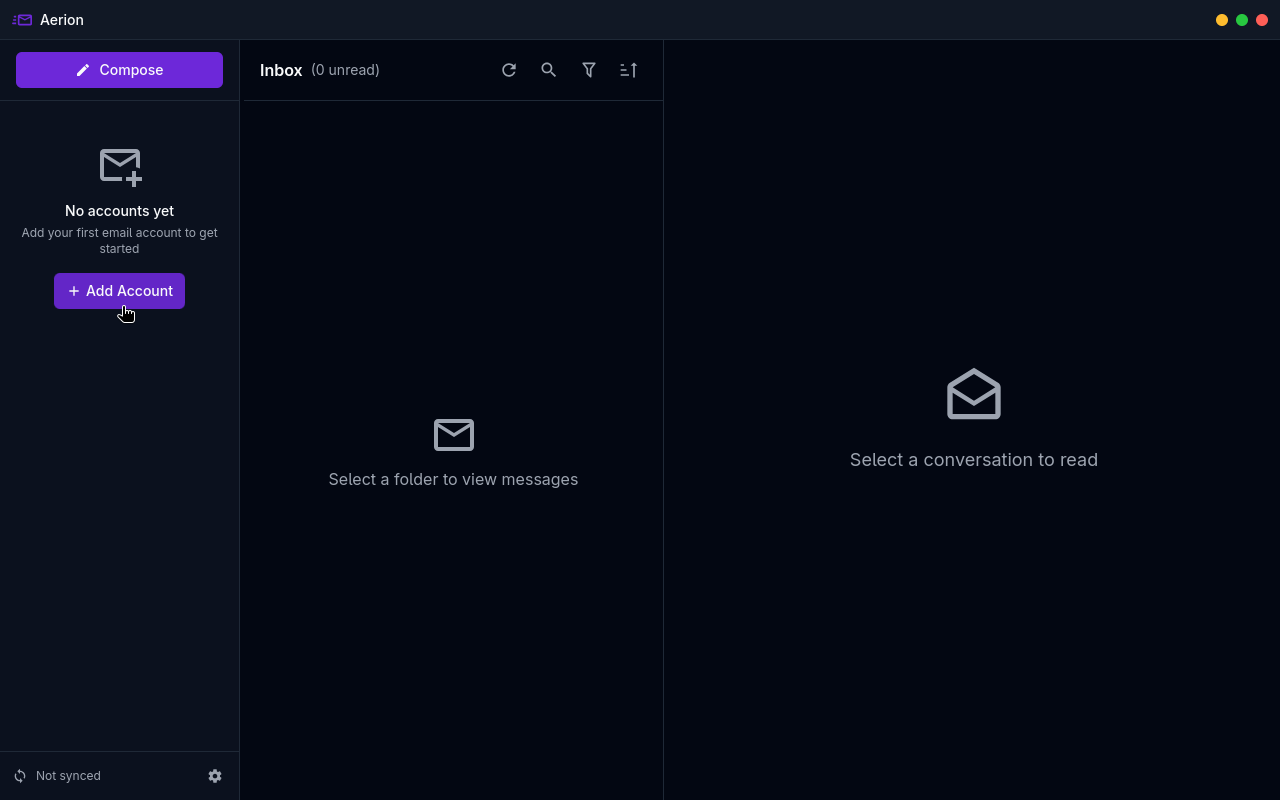
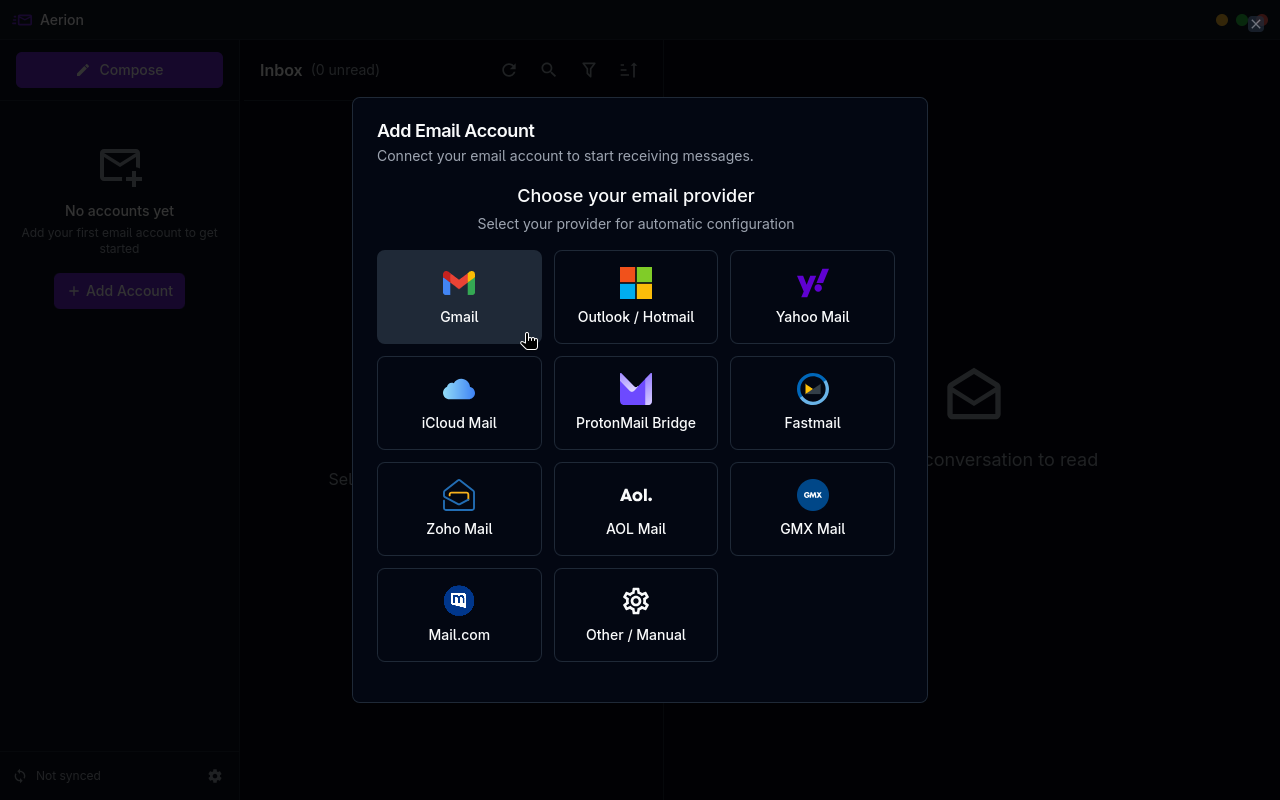
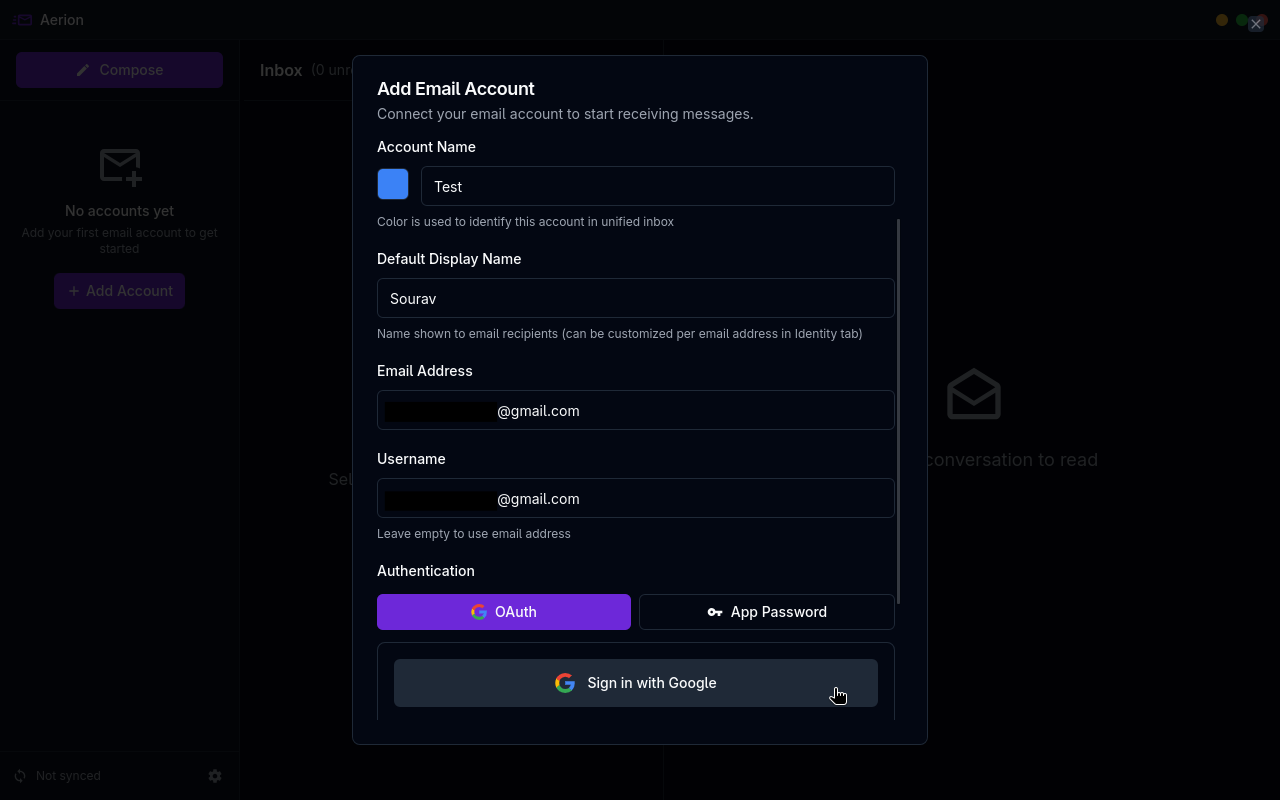
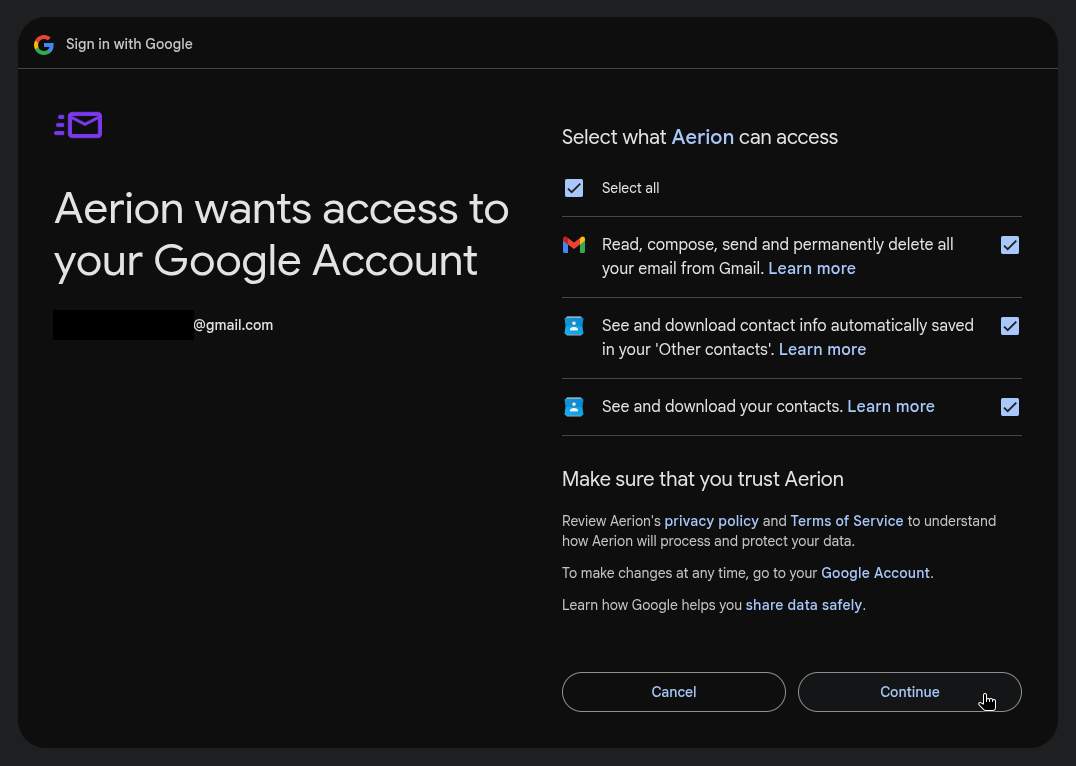
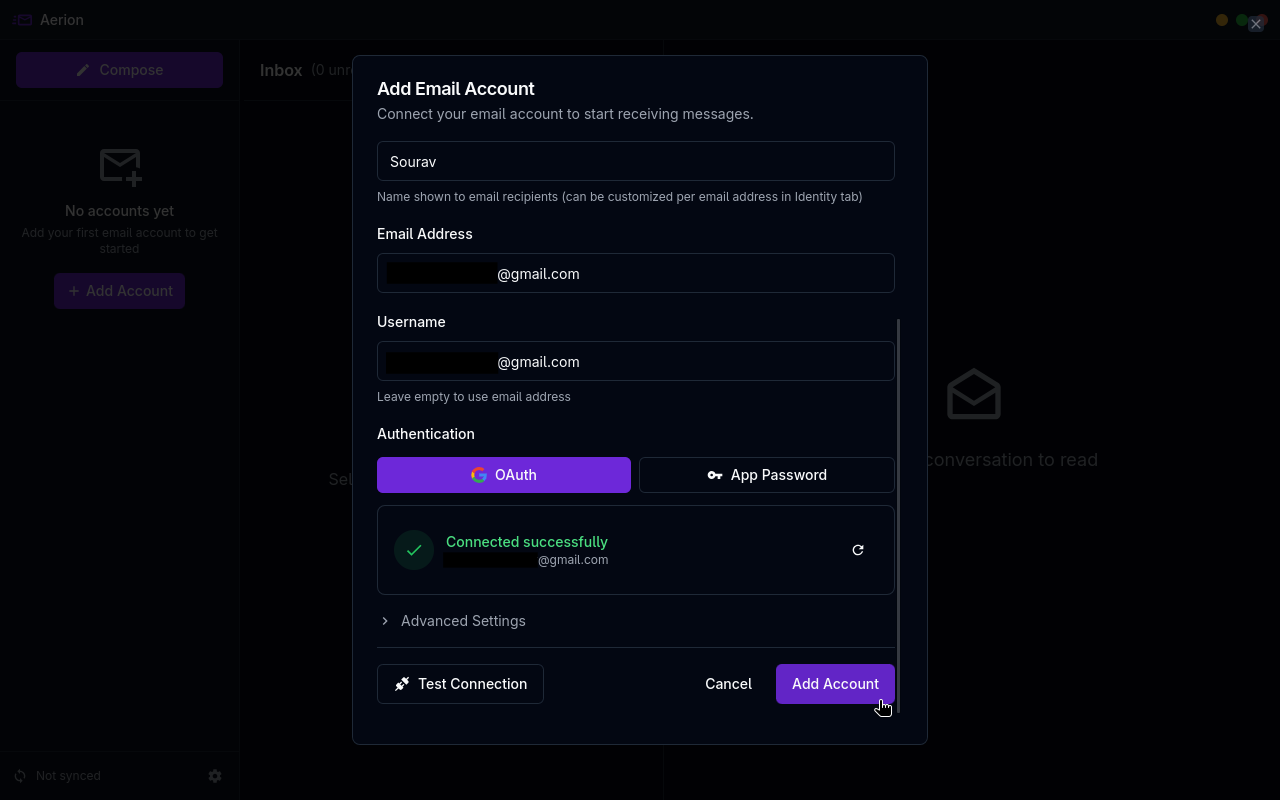
Adding a new Gmail account to Aerion.
There’s a nasty catch here, though. If you accidentally click somewhere outside the “Add Email Account” window while it is open, the whole thing closes and discards whatever progress you made. You won’t get any warning or confirmation popup; it will just f*ck right off.
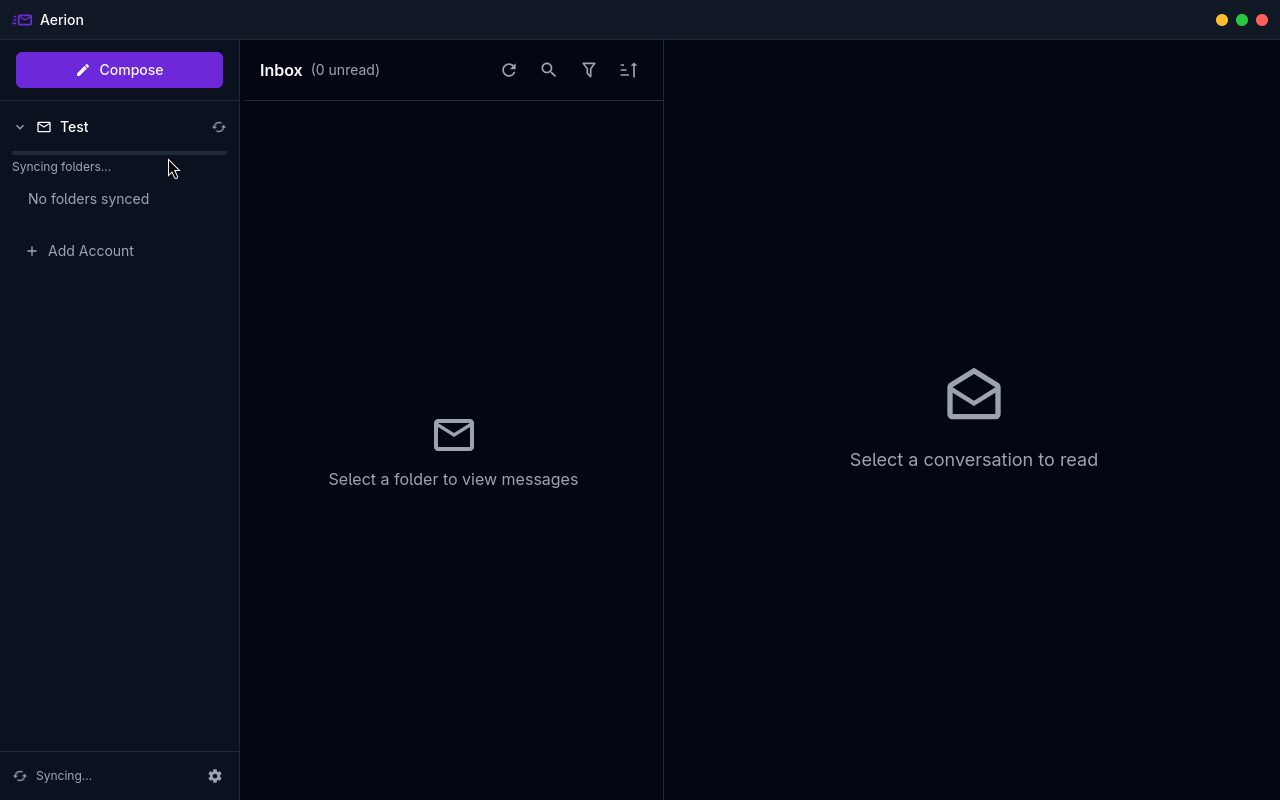
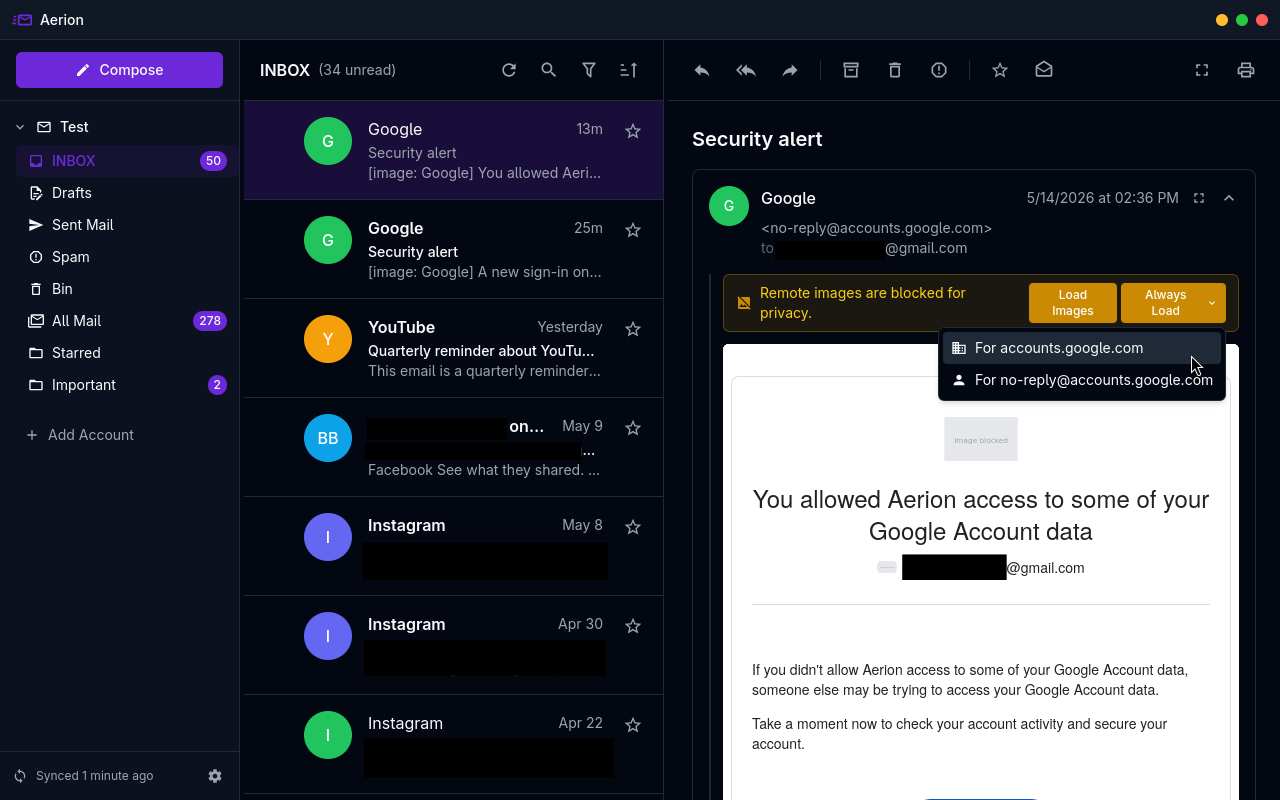
Mails being fetched on the left, a filled inbox on the right.
When Aerion finishes fetching your emails, you will notice that remote image loading is blocked by default. You can manually allow loading per email or add specific domains to an allowlist to avoid having to do it every time.
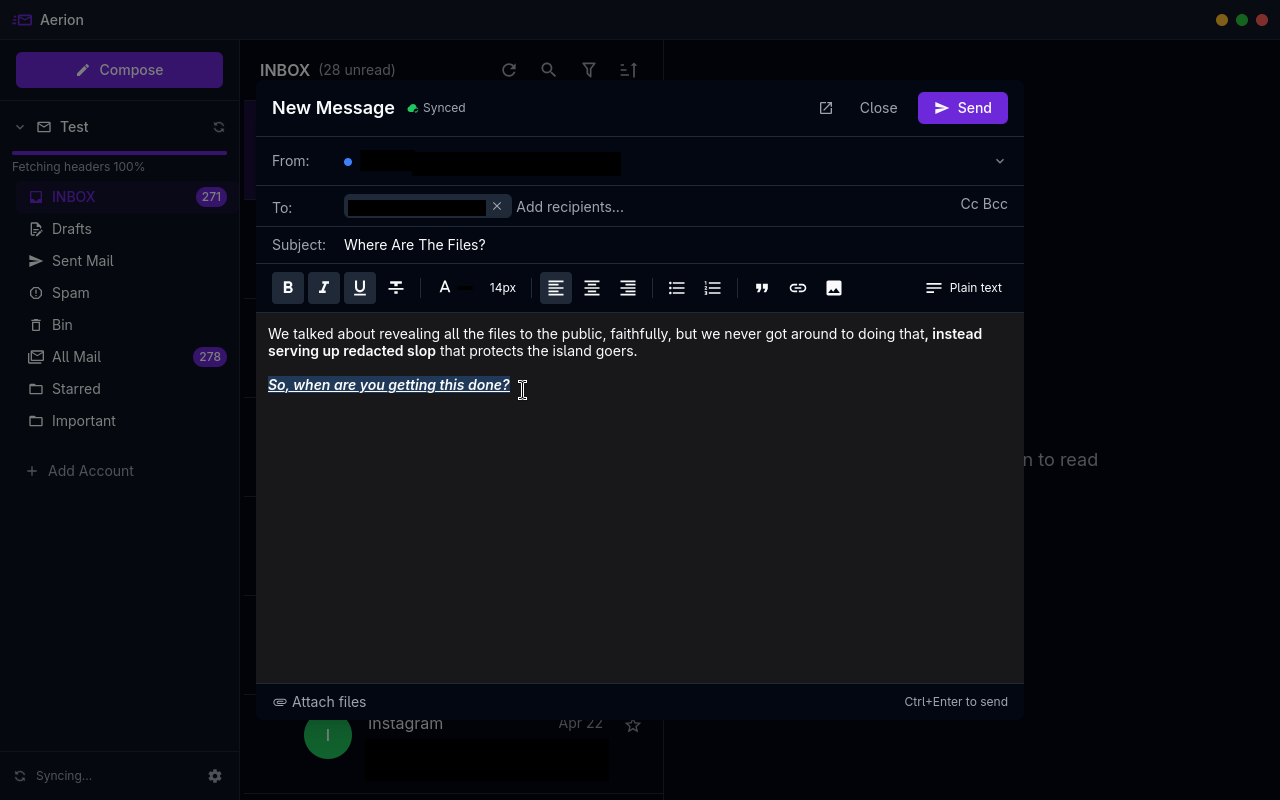
With Gmail connected, I spent some time sending and receiving mail, and the basics work as you would want them to. The composer has all the tools you need to put together a well-written email, and new messages are delivered with proper sync happening with the Gmail servers.
Below is a quick example of me sending a test mail from Aerion to my Proton Mail account. It landed without issue, showing up in Gmail’s sent folder and in the Proton Mail inbox.
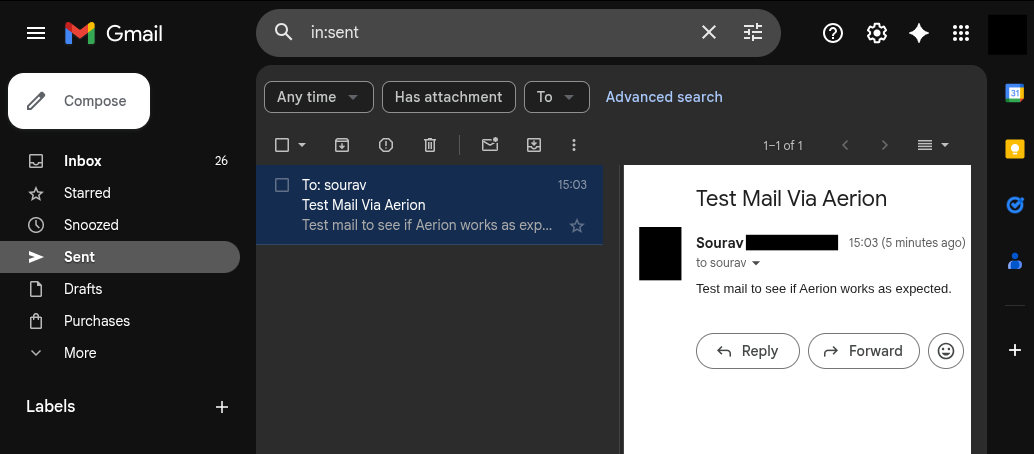
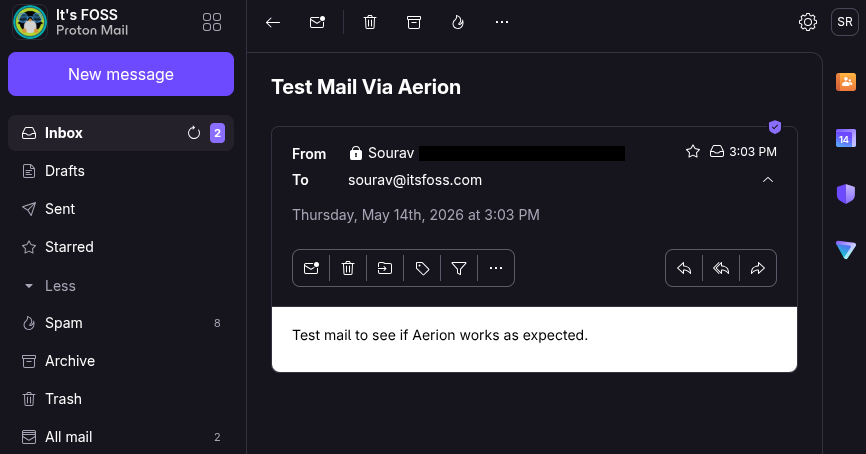
Checking the mail I sent using Aerion on the web apps for Gmail and Proton Mail.
Where things got a bit less clean was with notifications and sync. When I received new mail, I received no notification in Aerion’s interface or GNOME’s notification dropdown.
I had to manually hit the sync button to get the mail to appear, though Aerion does auto-sync in the background. The catch is that there is no way to configure how often it syncs, at least for Gmail, so if you are used to mail showing up the moment it lands, adjust your expectations accordingly.
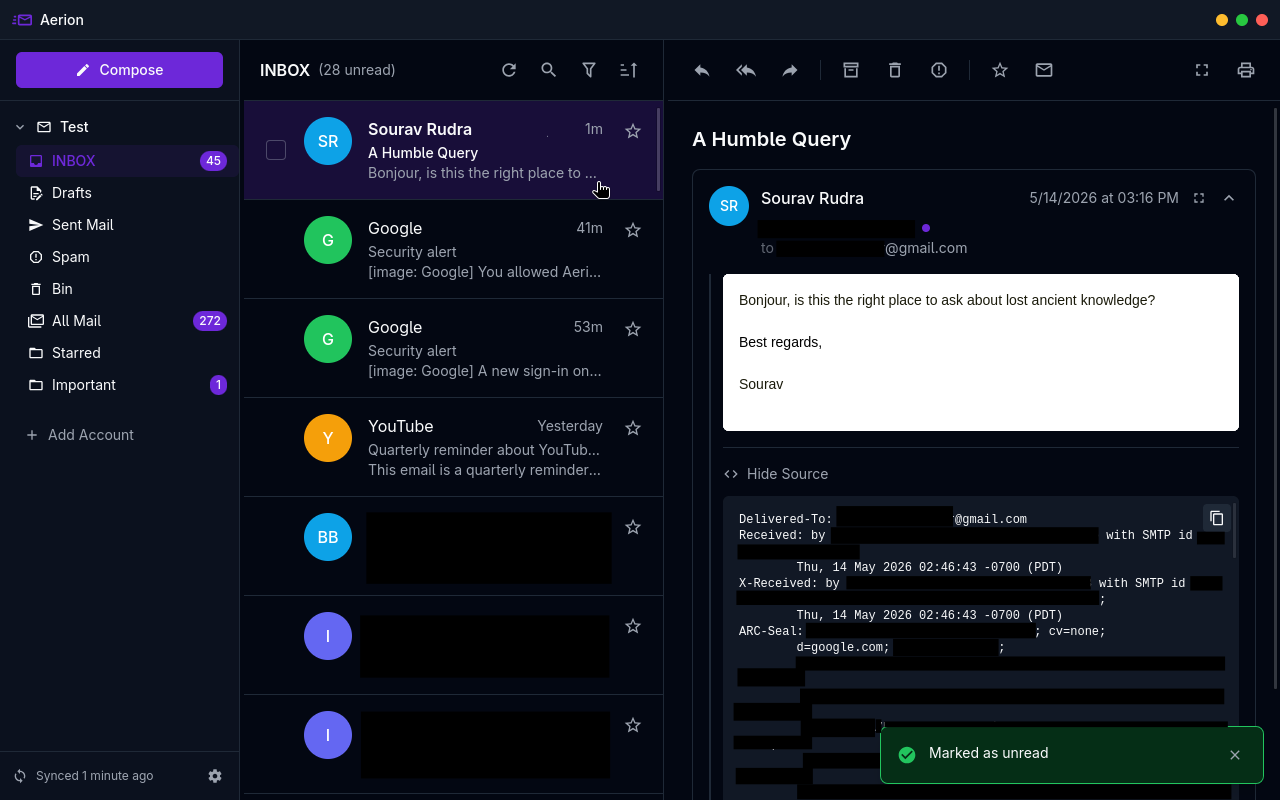
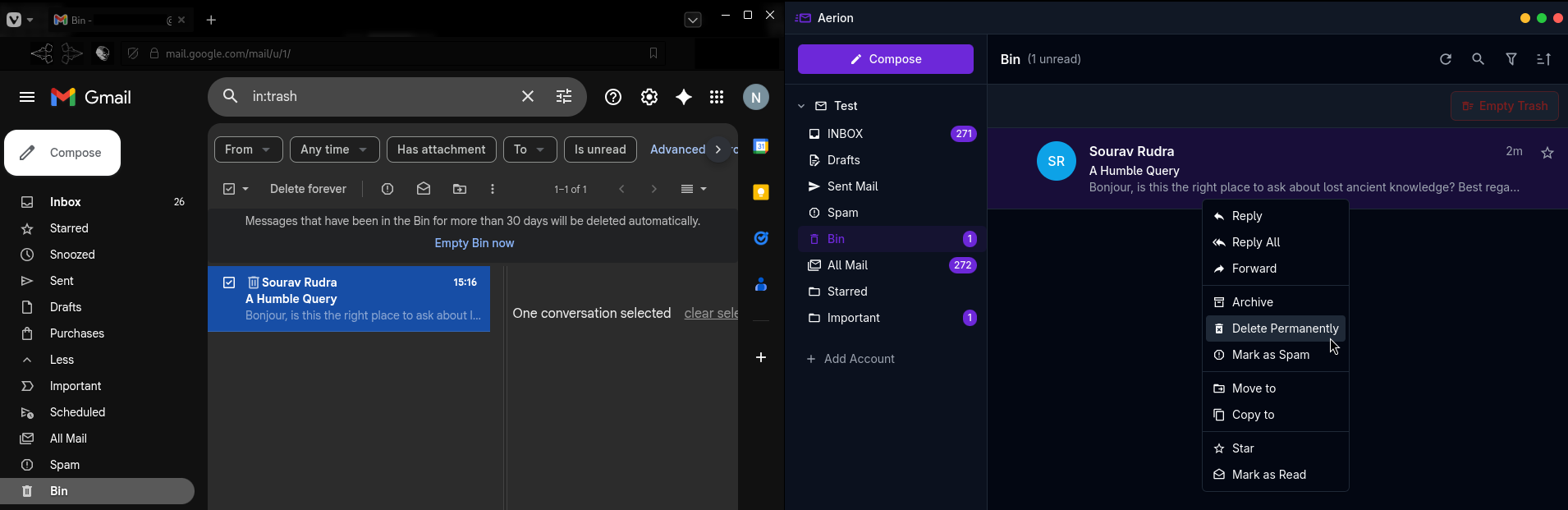
And if you like keeping your mailbox clean, Aerion has you covered. You can mass delete emails that land in the “Bin” first, or you can go the extra step and permanently wipe them to free up cloud storage. Either way, the changes reflect on Gmail’s servers without issue.
Though there’s one more inconvenience that some of you might not like. Before you can start using Aerion, you are asked to agree to its Terms of Use and Privacy Policy.
The terms are fairly standard. It is pre-release software, so bugs and shifting features are part of the deal, there are no warranties, and the whole thing is provided under the Apache 2.0 license.
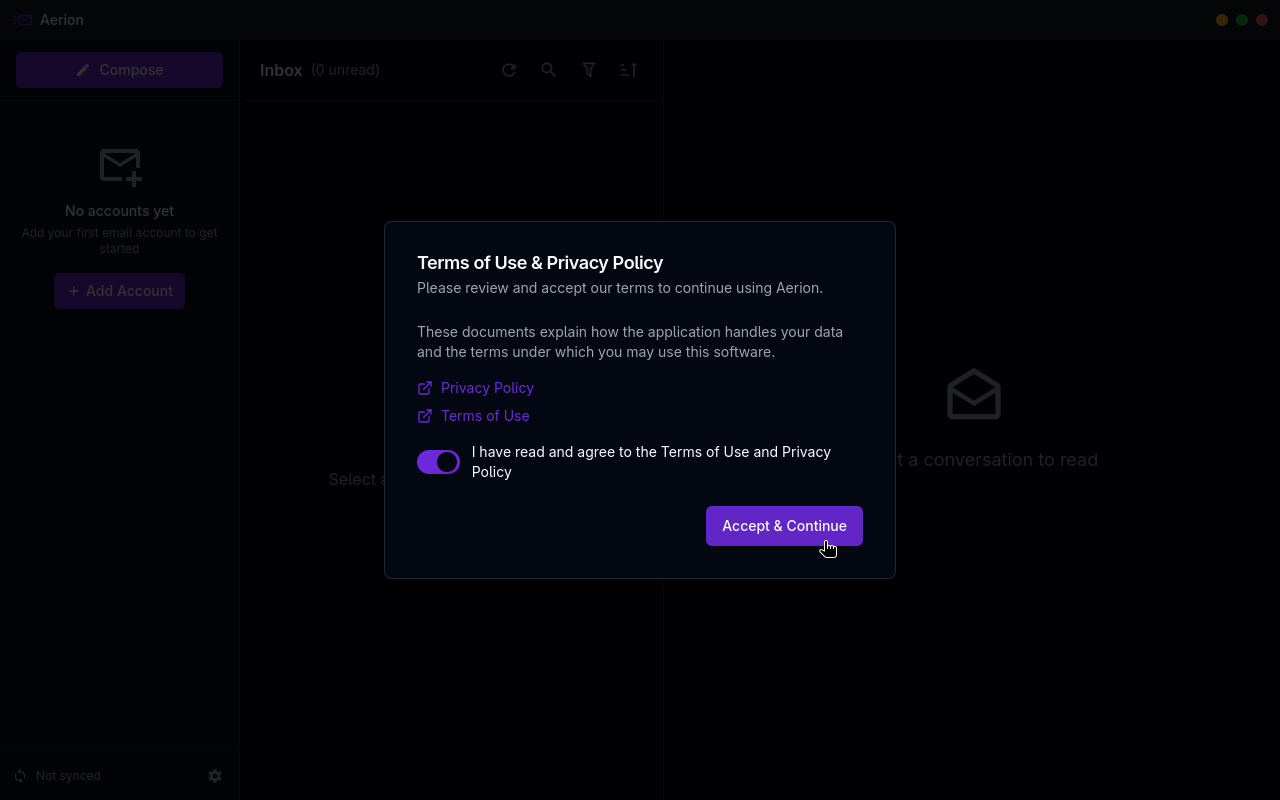
On the privacy side, things are more reassuring. Aerion does not collect or transmit any of your data to external servers, so no telemetry, no analytics, and no ads to worry about. When it connects to Google or Microsoft APIs, that access is limited strictly to the email functionality you configured.
Install it Now
People running Linux-powered distributions can get Aerion from Flathub. Those on platforms like ARM64, Windows, and macOS will have to visit the releases page to get the relevant packages.
If neither of the options are your thing, then you could always build from source.
