
I Moved My Photos from OneDrive to Ente Photos, and I’m Not Going Back
Backing up photos and videos is something most people think about only after losing something they can’t get back. Local storage is still the most secure option, as long as the files are encrypted and access to the storage medium is under your control.
The catch is that local storage doesn’t help much when you need to pull up a file on the go. Being away from home and needing quick access to a specific photo or video is the kind of situation it fails to handle.
Services from big tech players like Google Photos and Microsoft OneDrive fill that gap well enough, and for a while, OneDrive was my go-to.
But, seeing how aggressively Microsoft has pushed its Copilot offering across its product lineup, I thought to myself, ‘it won’t be long before some new Copilot-powered feature is rolled out that messes around with images and videos.’
That’s why I went searching for new options. Initially, Proton Drive (partner link) looked like an option, but I wanted something outside the Proton ecosystem, so I ended up on Ente Photos.
What is Ente Photos?
It is an open source, end-to-end encrypted photo storage service that was started in 2020. The goal, as the Ente team puts it, is to help people preserve their memories with privacy without relying on services that treat your data as a resource to be mined.
Beyond Photos, they also offer Auth, a cross-platform two-factor authentication app that backs up your 2FA secrets in an encrypted format, and Locker, which is aimed at storing sensitive documents and files securely.
We got the chance to speak with Vishnu Mohandas, the founder of Ente, back in 2024, where he told us about his vision for building a privacy-respecting alternative to the likes of Google Photos and iCloud Photos.
Quite some time has passed since, and I finally got around to trying it out and, in the process, moved away from yet another Big Tech service.
I made the switch
Before I could do anything, I had to get my files from OneDrive, and boy does Microsoft keep things painfully slow there. Downloading files from the web version of OneDrive meant it would zip the folders first, then begin the download process.
That wouldn’t have worked for me, as I had over 200 GB of files to download.
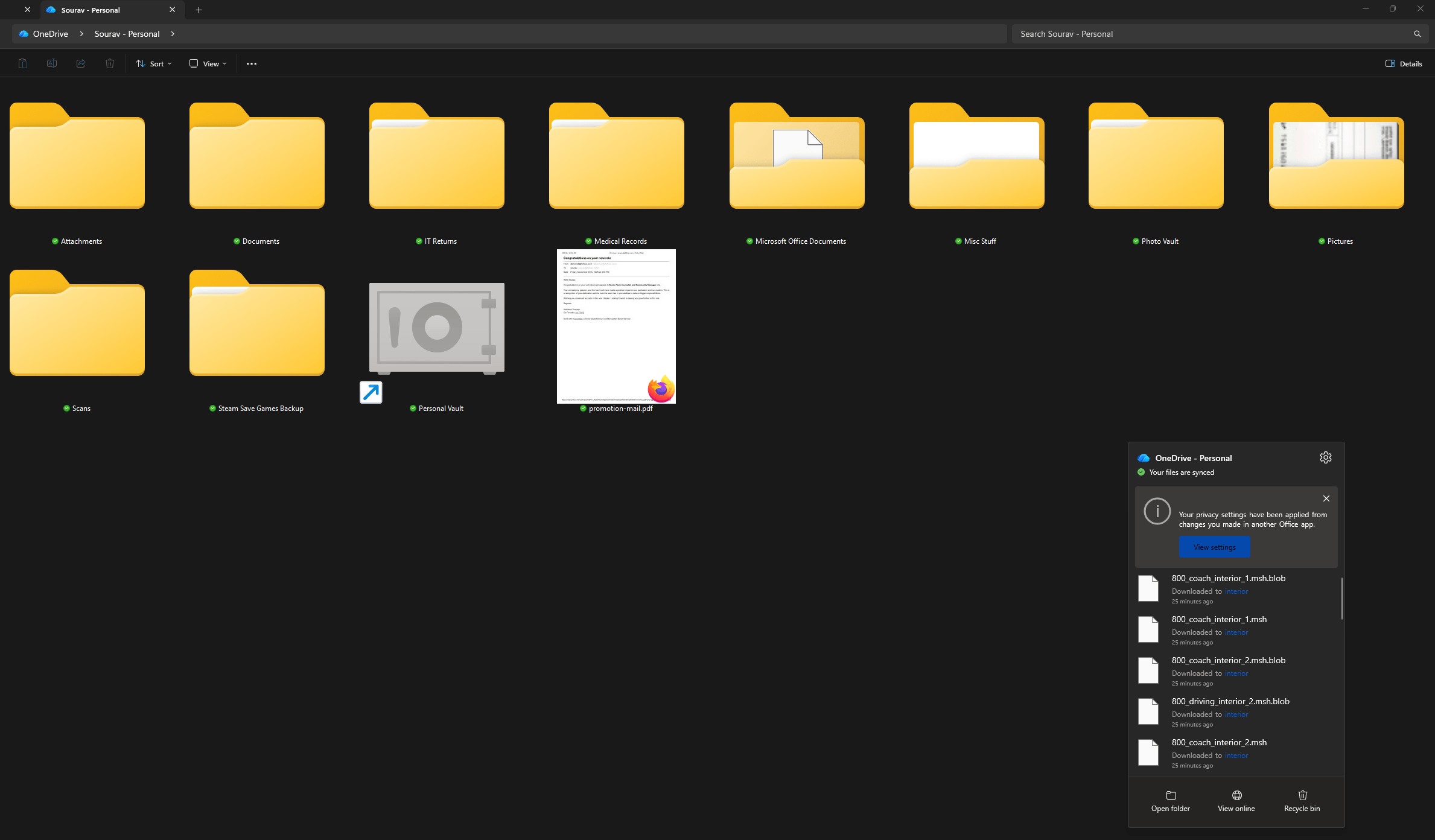
To fix the painfully slow downloads, I had to install the OneDrive client on Windows 11 and configure it to keep a local copy of the files on my device. This got me my files much faster than the website, and the download was complete in a few hours.
These were a mix of different file types, most of which ended up on an external hard disk, with the photos and videos kept separate for the move to Ente Photos.
Moving on to the migration, I already had an Ente account, so I logged in and picked the 200 GB paid plan, which cost me ₹4788 annually. Keep in mind that Ente charges in USD/EUR globally, so what you end up paying in your local currency will depend on conversion rates and your payment method.
There is also a free tier that offers 10 GB of storage permanently, which is a good way to test things out before committing.
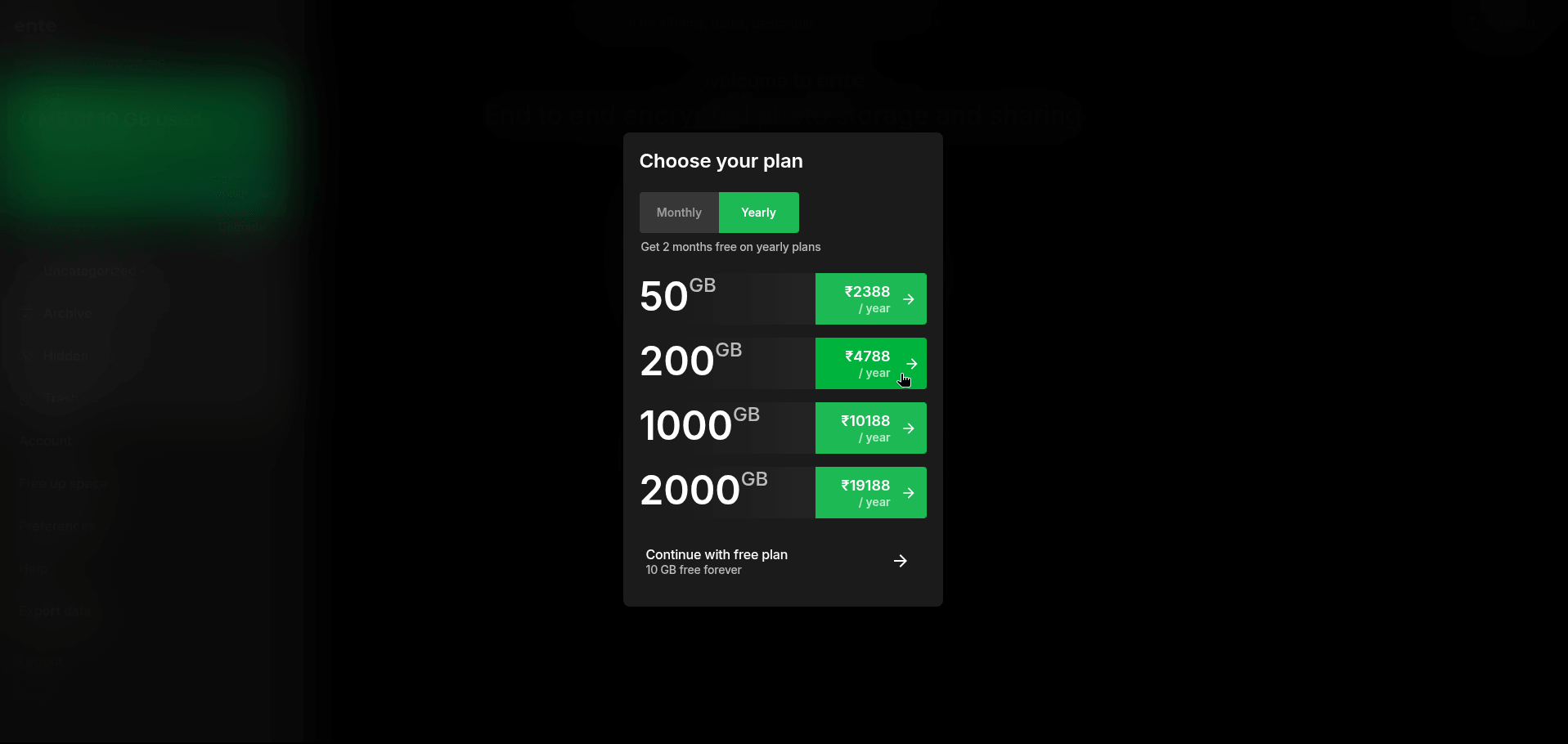
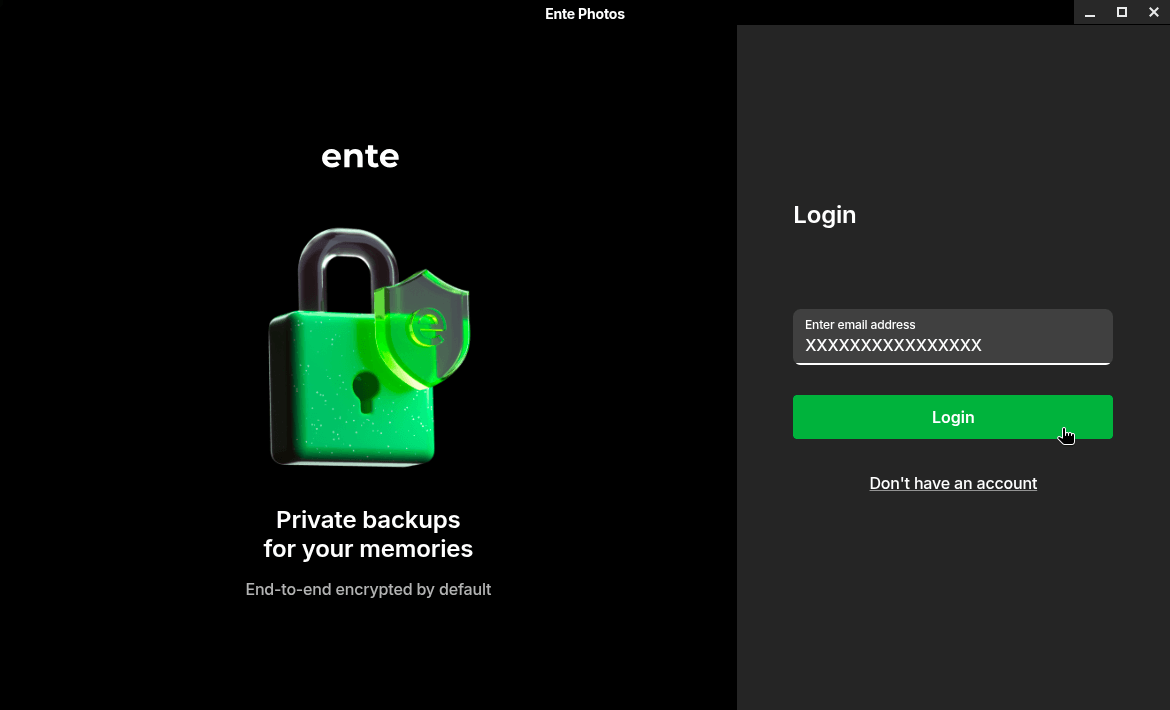
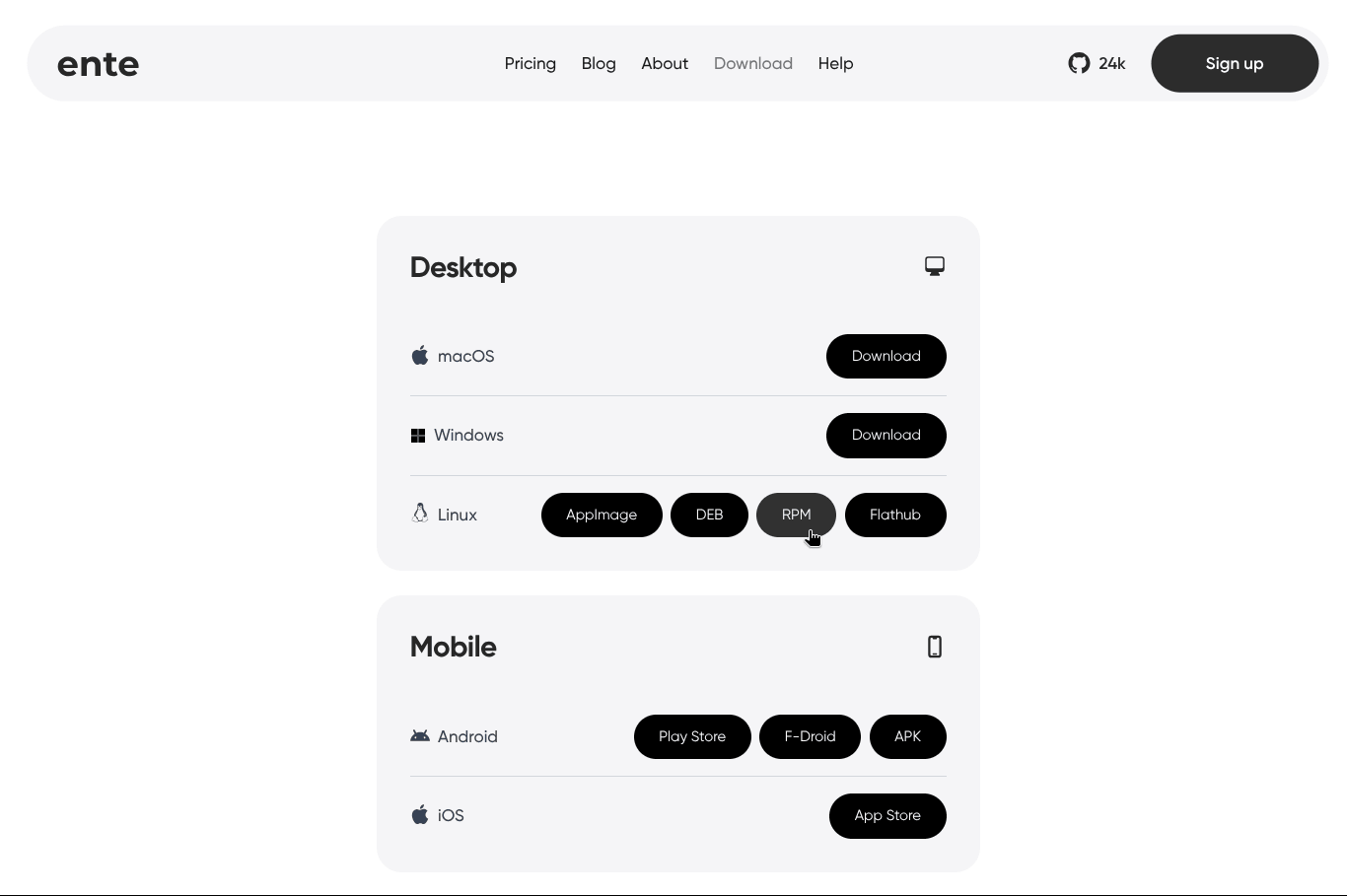
From left: You will find the Ente Photos INR prices, the login screen, and the Linux packages.
After everything was set, I started exploring the Linux client on my Fedora Workstation daily driver.
The sidebar menu showed me how much storage quota I had (200 GB ofc), along with buttons to access uncategorized content, hidden content, the trash, my account, any watched folders, a tool to free up space, and the preferences menu.
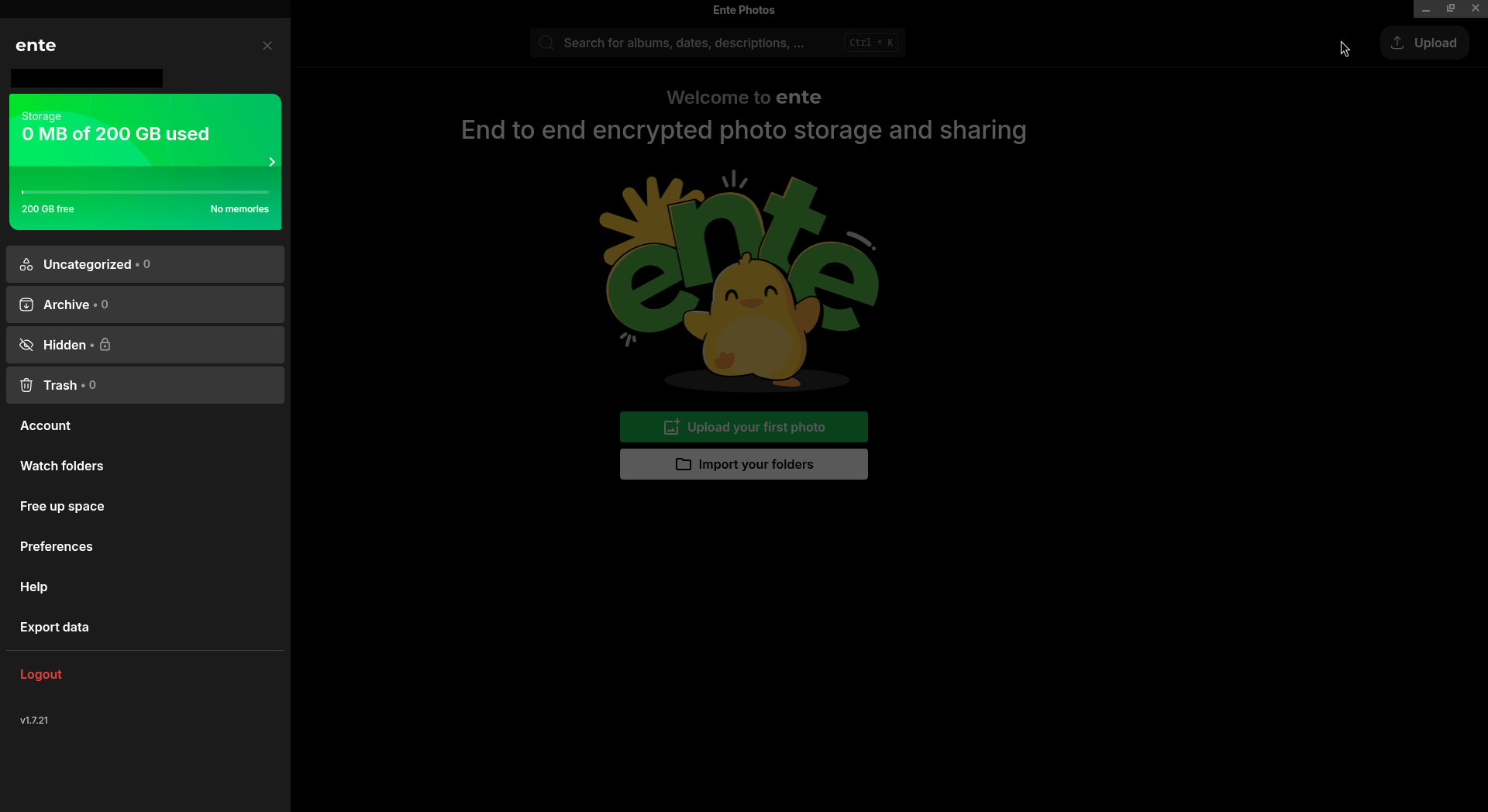
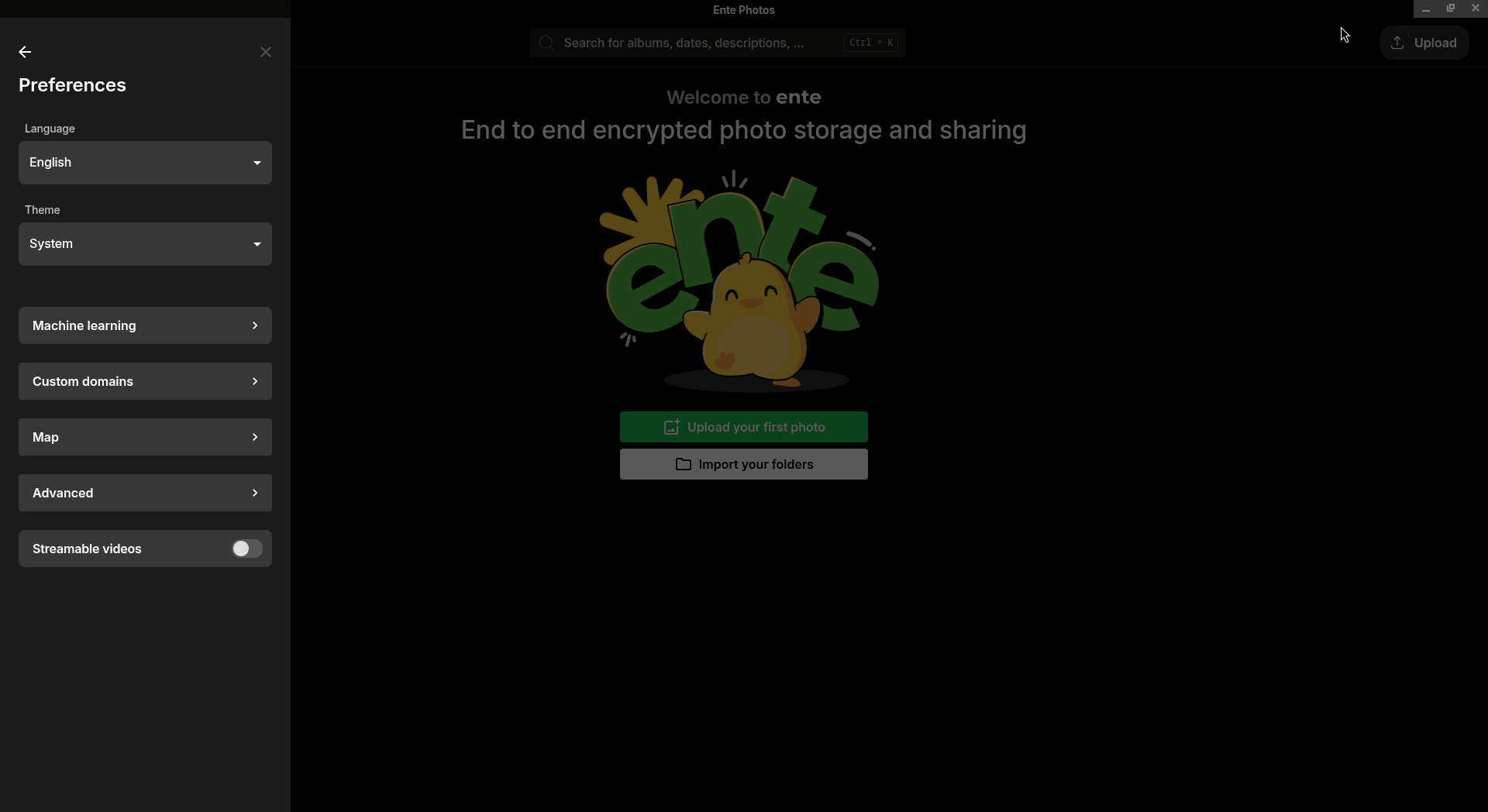
The sidebar menu on the Ente Photos Linux client.
The preferences menu had options to change the interface language, set the theme between System, Light, and Dark, and enable the Machine Learning feature, which lets Ente Photos run on-device processing for face recognition and other ML-powered features.
There were also options to make the client run at startup, point it to a custom domain for self-hosted setups, and configure the app lock.
I then began the file uploads, which took a very long time. There were 21,000+ items to be uploaded, and that happened mostly because Ente Photos encrypted the files on-device before sending them to the servers, which adds overhead that services like OneDrive simply don’t have to deal with.
It is the price you pay for actual end-to-end encryption, and honestly, a fair one. 🤷
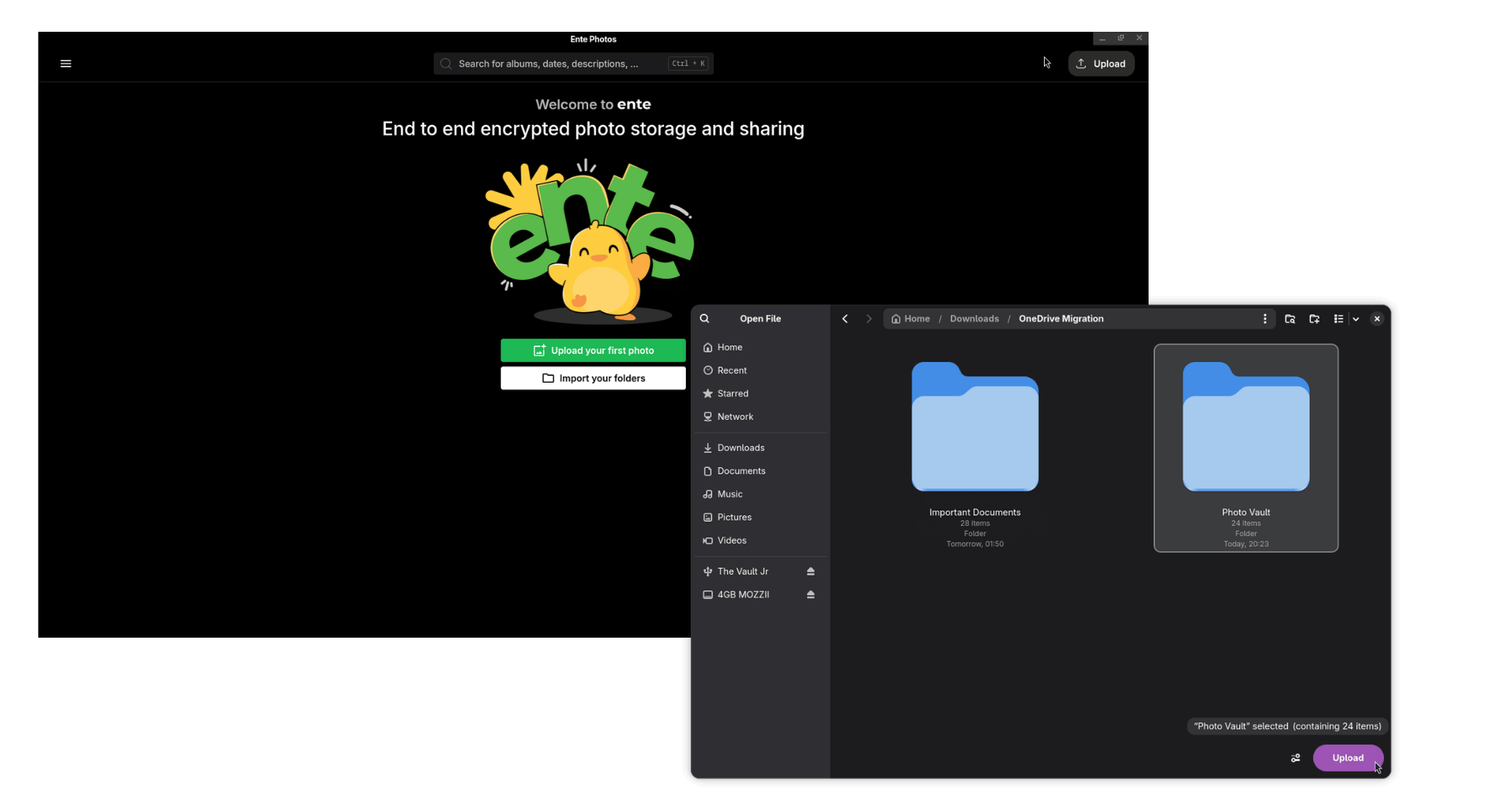
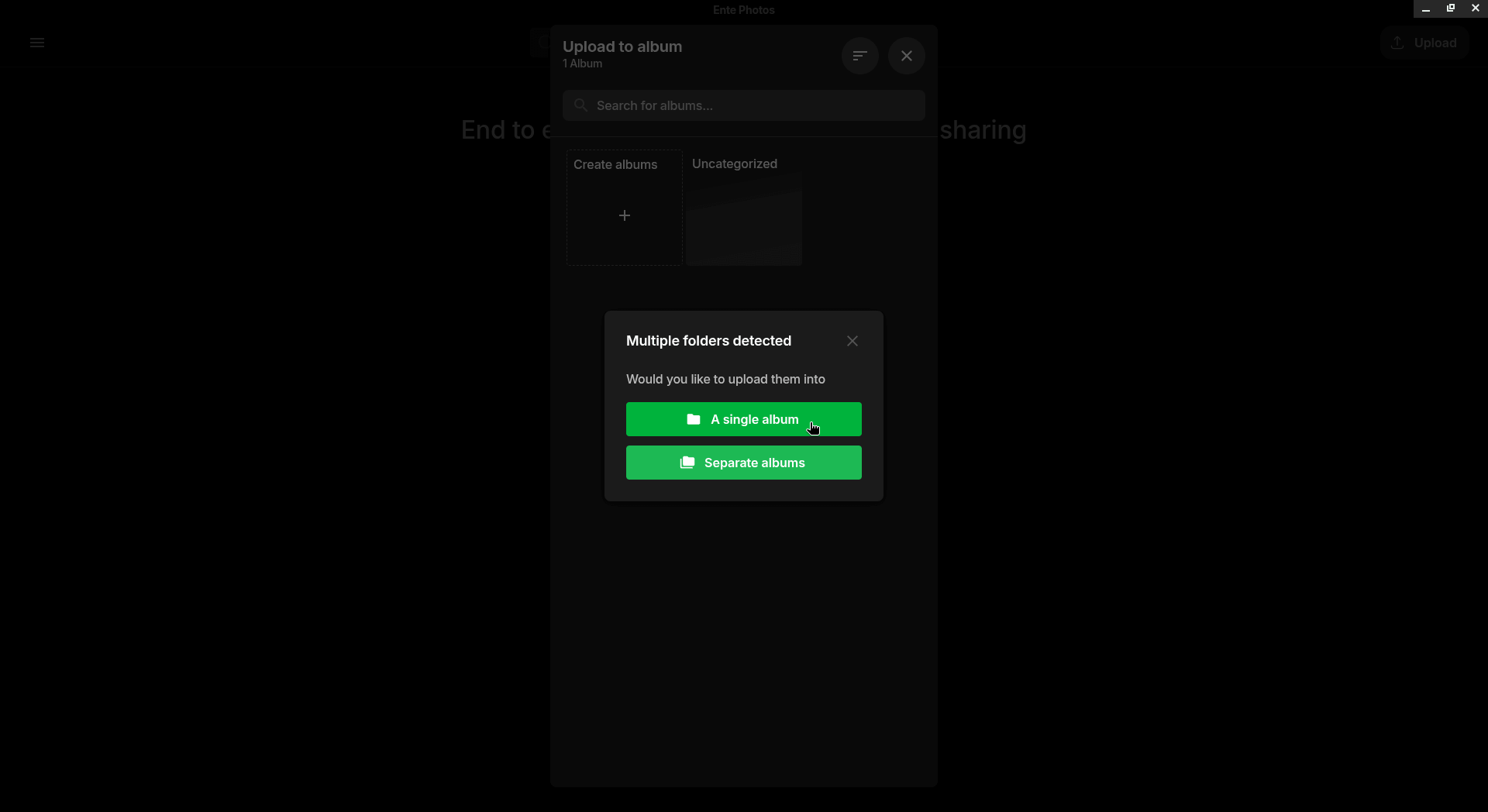
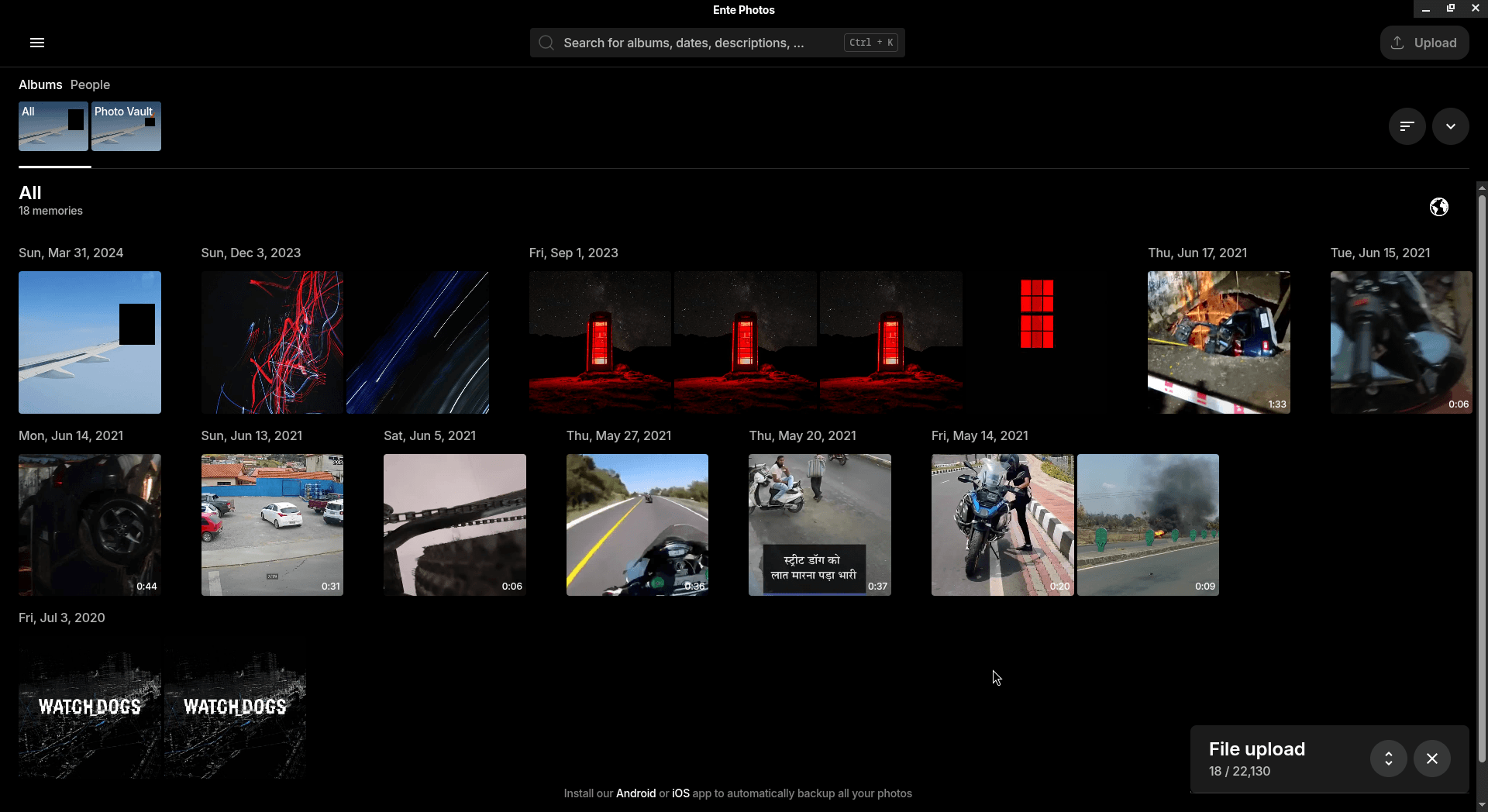
The file upload flow on the Linux client of Ente Photos.
Though, I did miss the folder-based organization that OneDrive had. As a general-purpose cloud storage service, OneDrive lets you build out a full folder and subfolder hierarchy for any type of file, whereas Ente’s offering focuses more on photos and videos.
It did ask me during the initial upload whether I wanted separate albums, but I mistakenly went with the single album option (as you see above).
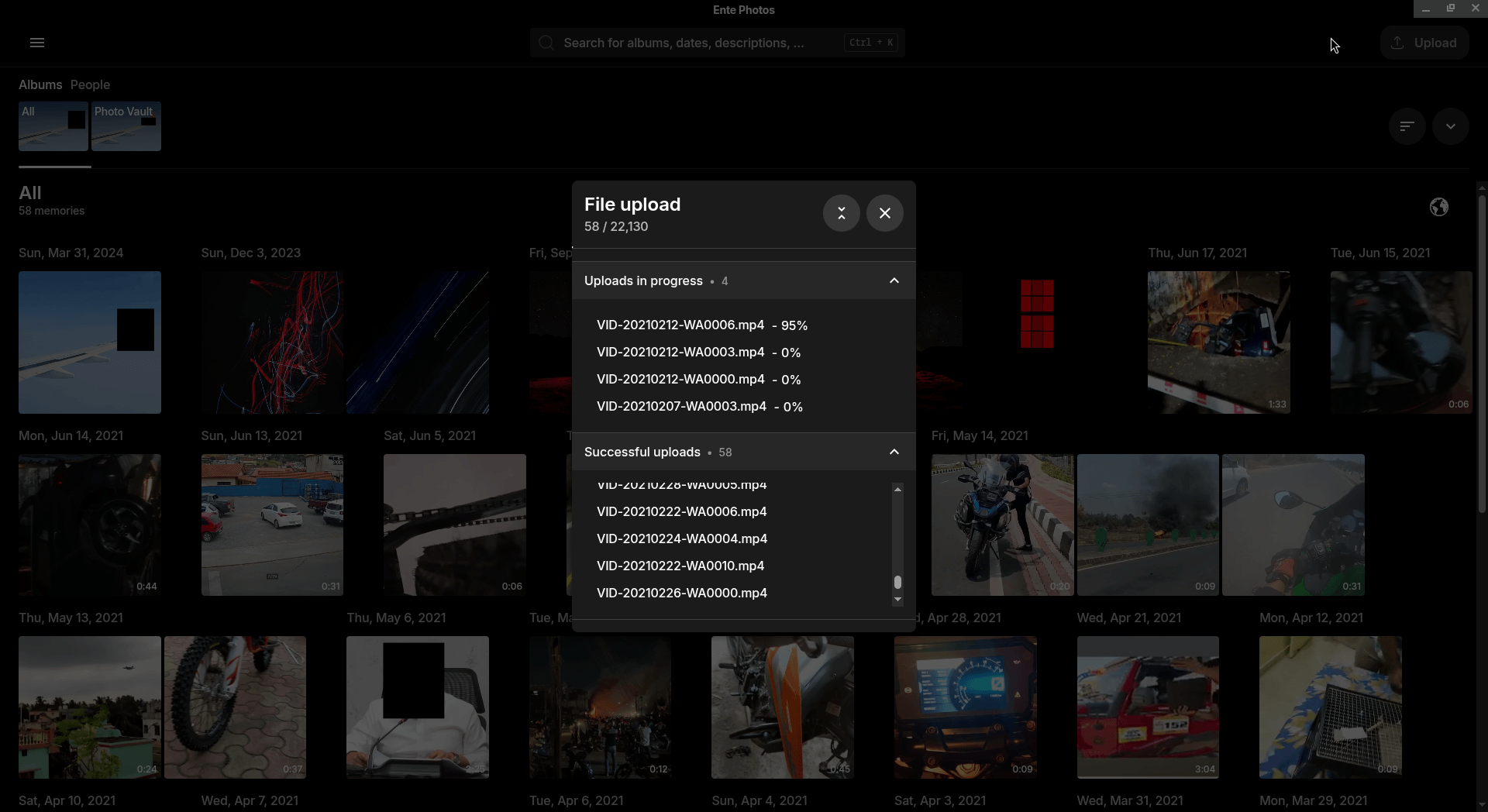
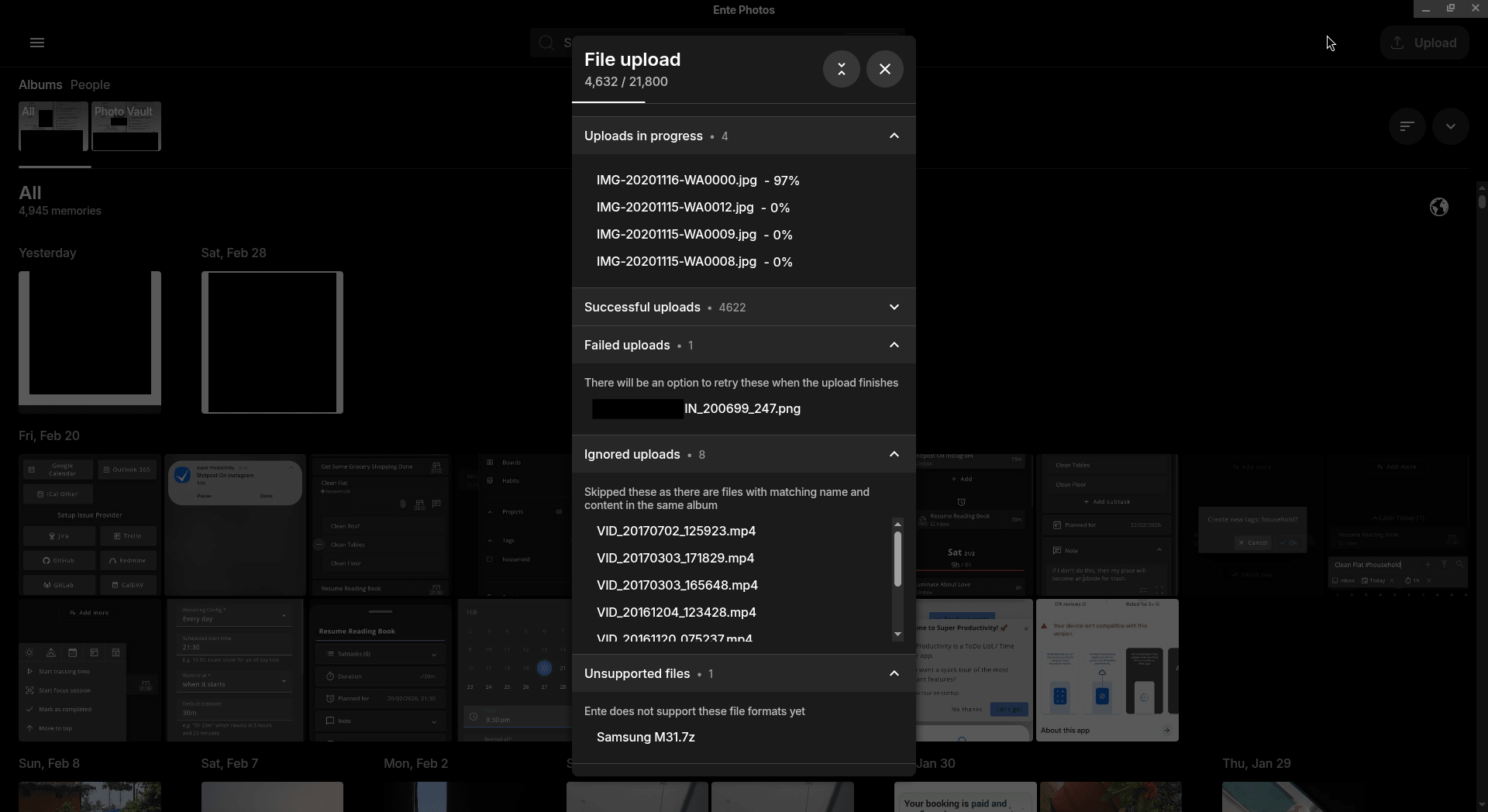
The file upload progress tracking works well.
Tracking active uploads was working as expected. Ente Photos shows a dedicated interface element in the bottom-right corner that, when clicked, breaks down everything: currently uploading files, successful uploads, ignored uploads where matching files were already found, unsupported files, and failed uploads.
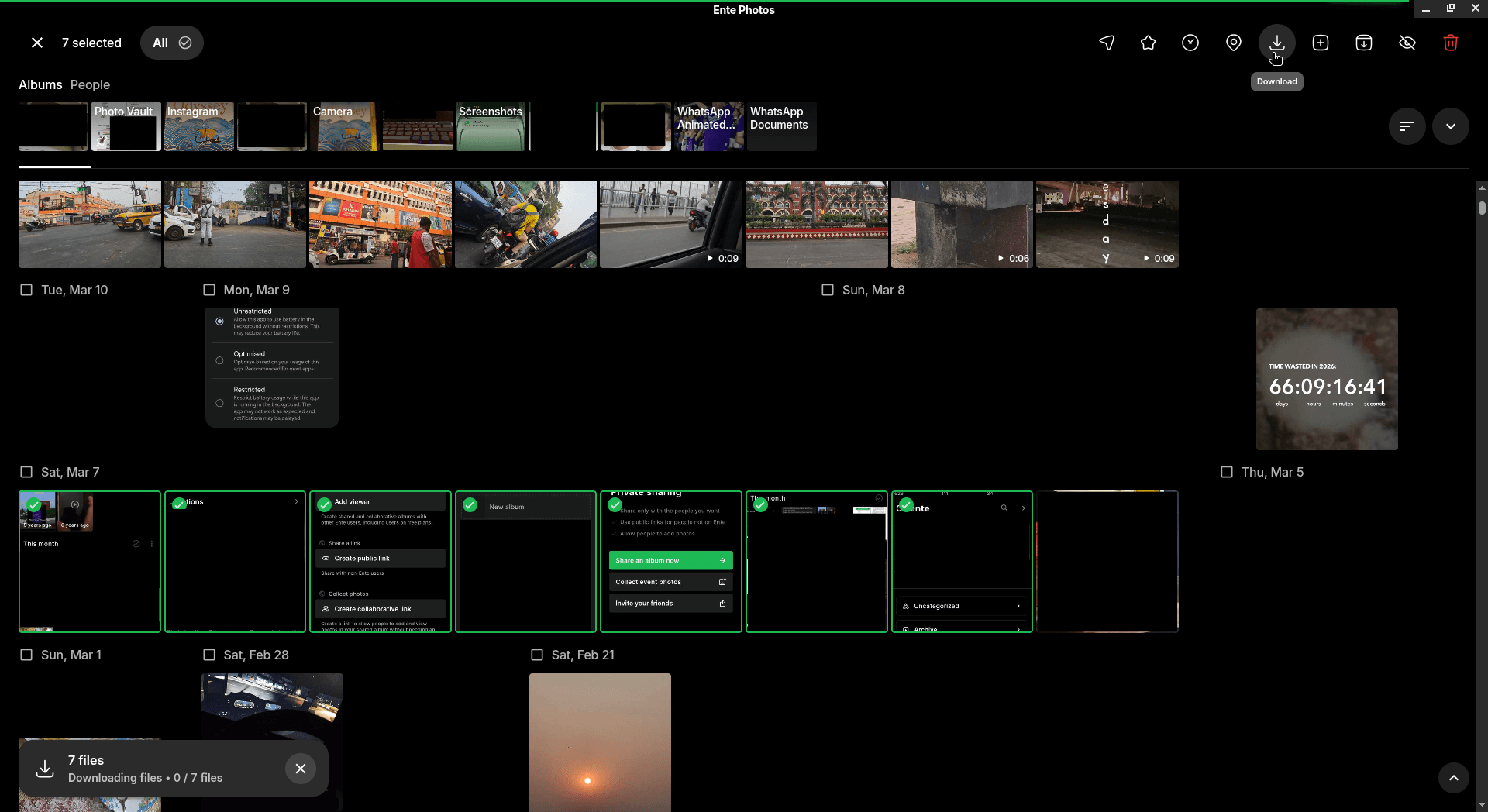
I could also select multiple images and videos to share them as a link with others, favorite them, fix the timestamps, edit the location, download them, archive them, hide them, or even delete them.
I used the download option, and it worked as expected, with a slightly slow processing time because I was connected to a VPN. Overall, the Linux client didn’t disappoint, and doesn’t feel like an afterthought. It feels like something that was built for the platform.
The mobile app
I then moved to testing the Android app for Ente Photos on an Android 16-powered smartphone, and the experience over there was on par with the OneDrive client. Or even better, I would say, as the interface didn’t feel overwhelming or jampacked.
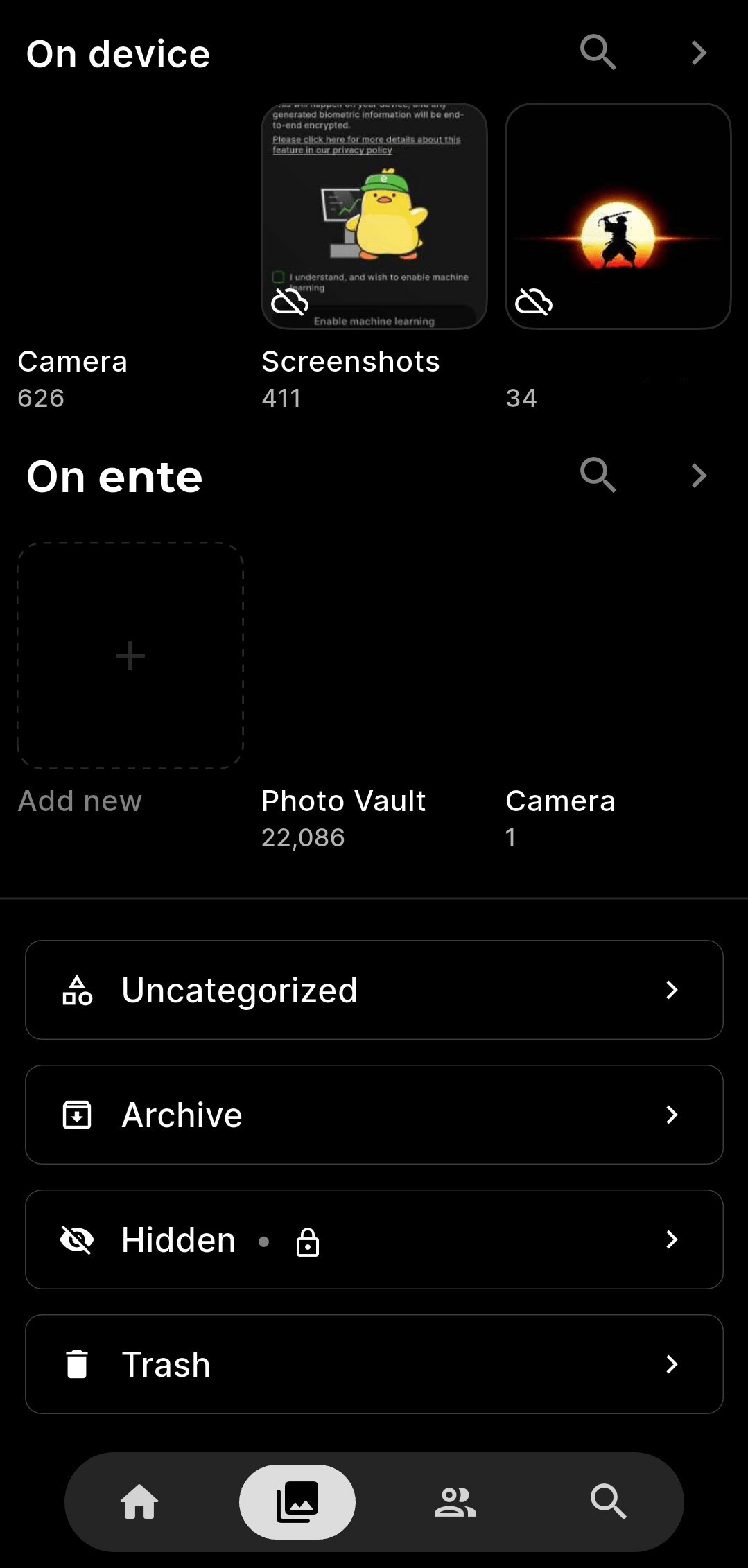
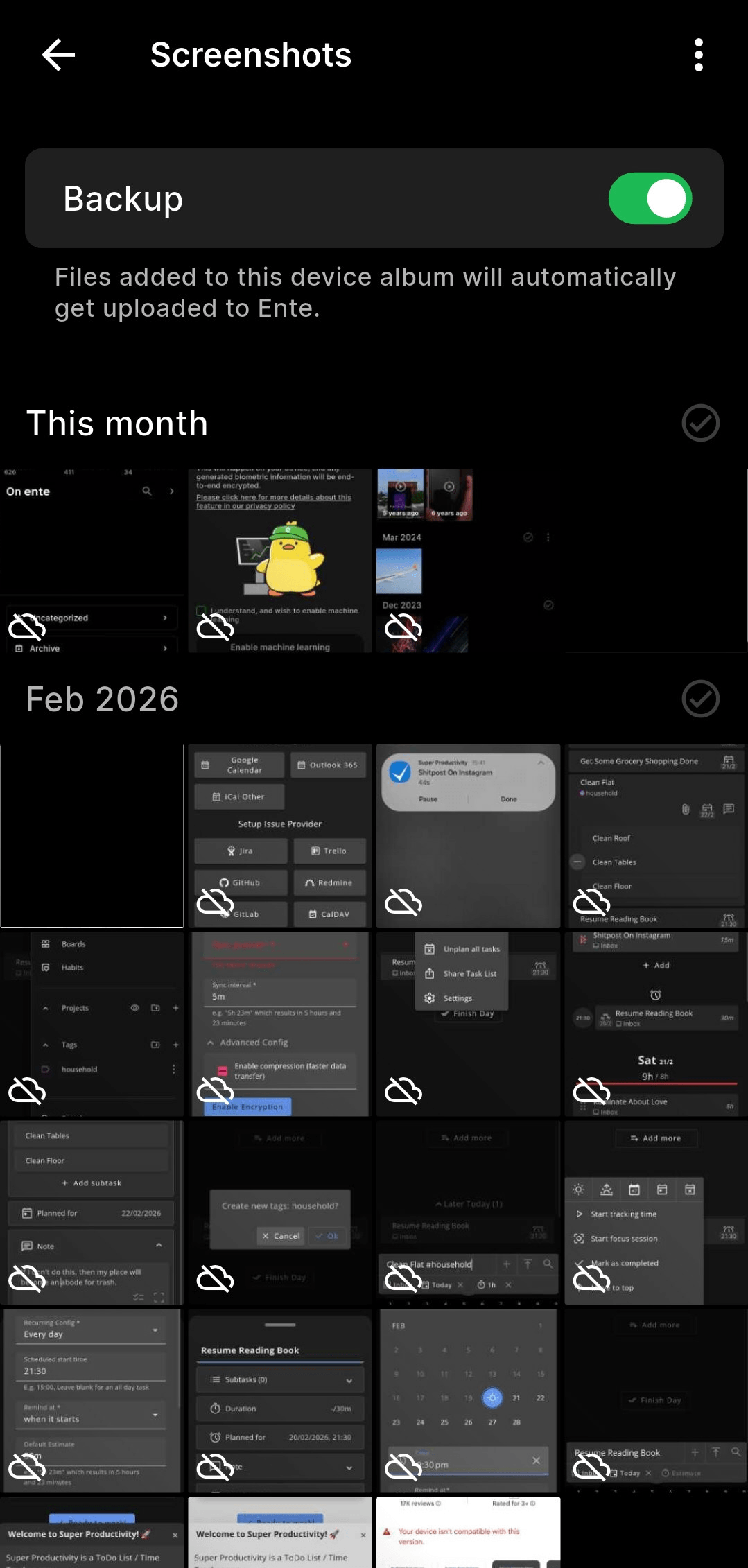
I just had to configure which folders I needed backed up, and Ente Photos did the rest. It just runs silently in the background, backing up as new content is added, and there’s even an option to configure so that only new content is backed up, preventing any unnecessary clutter from ending up on your cloud storage.
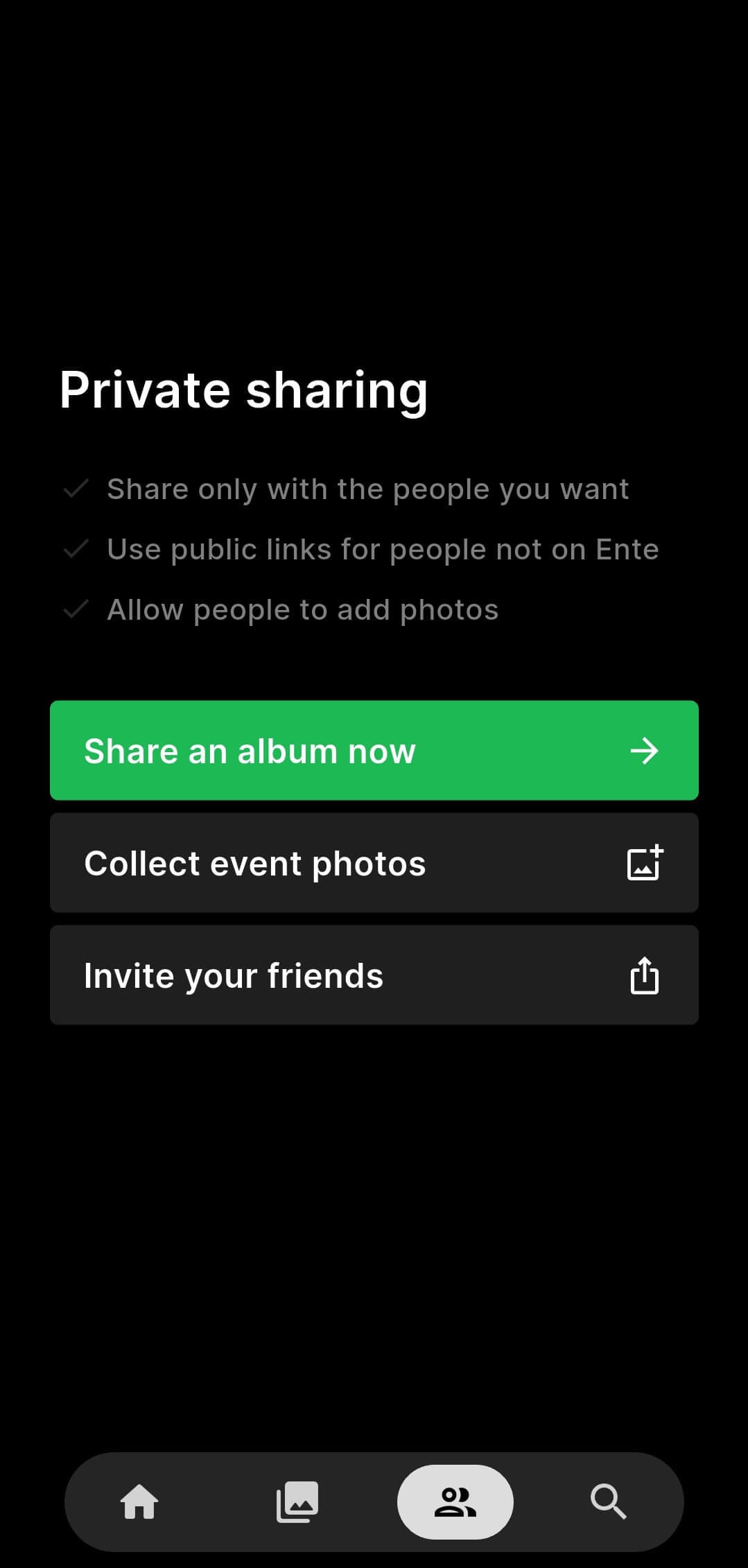
There’s also a private sharing option, which lets you generate end-to-end encrypted links to any album, which recipients can open without requiring an Ente account (if creating a public link).
You can also password-protect the link and set it to expire after a certain period of time.
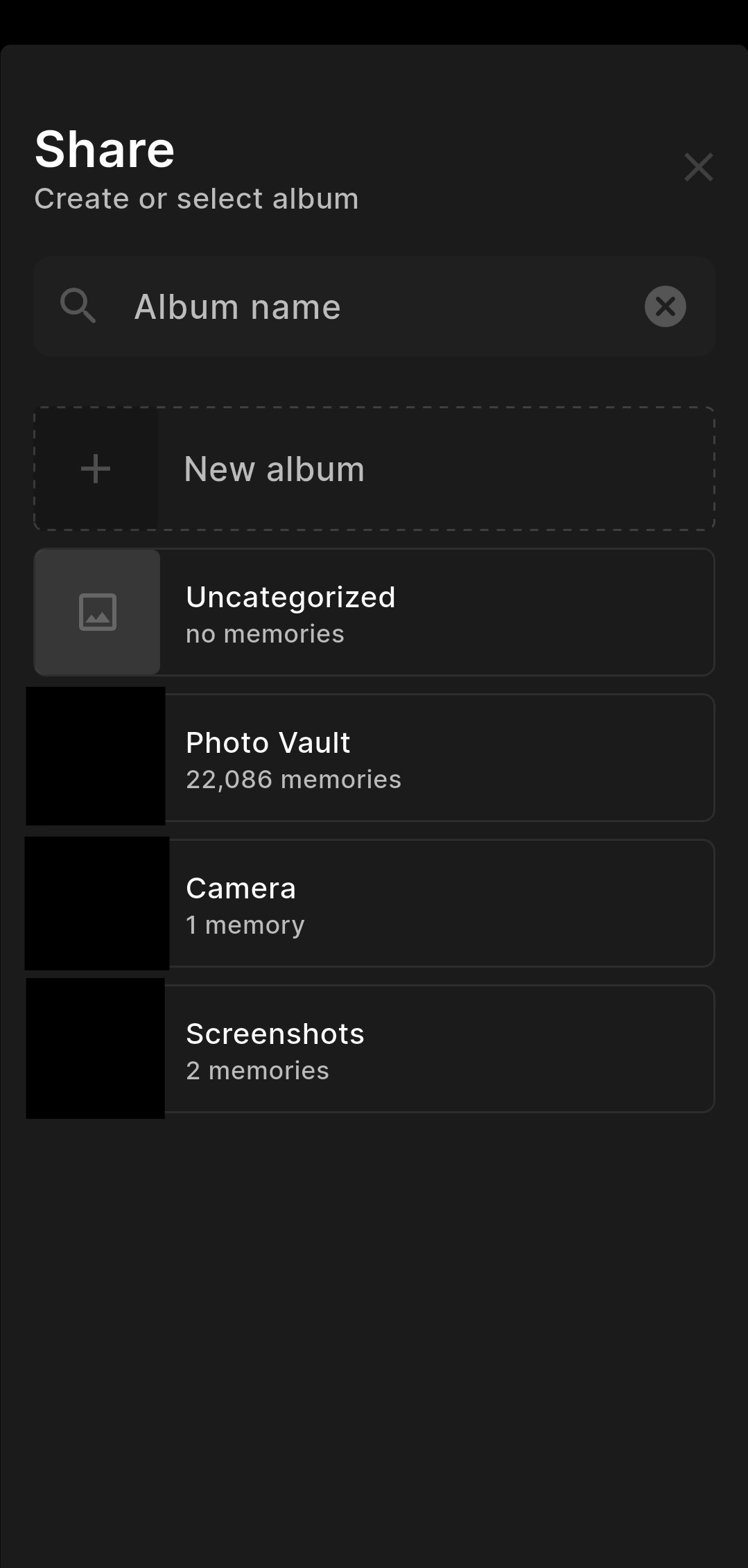
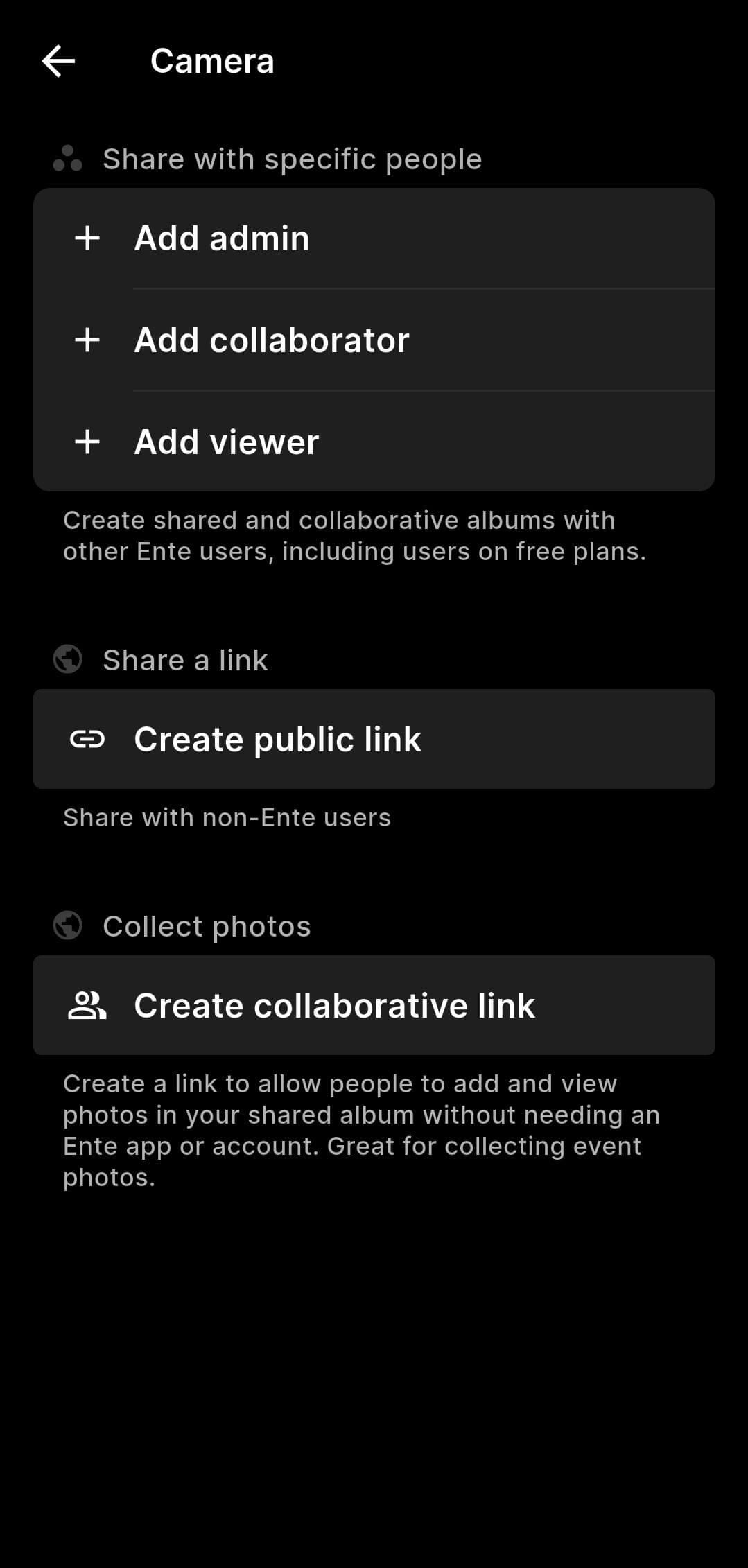
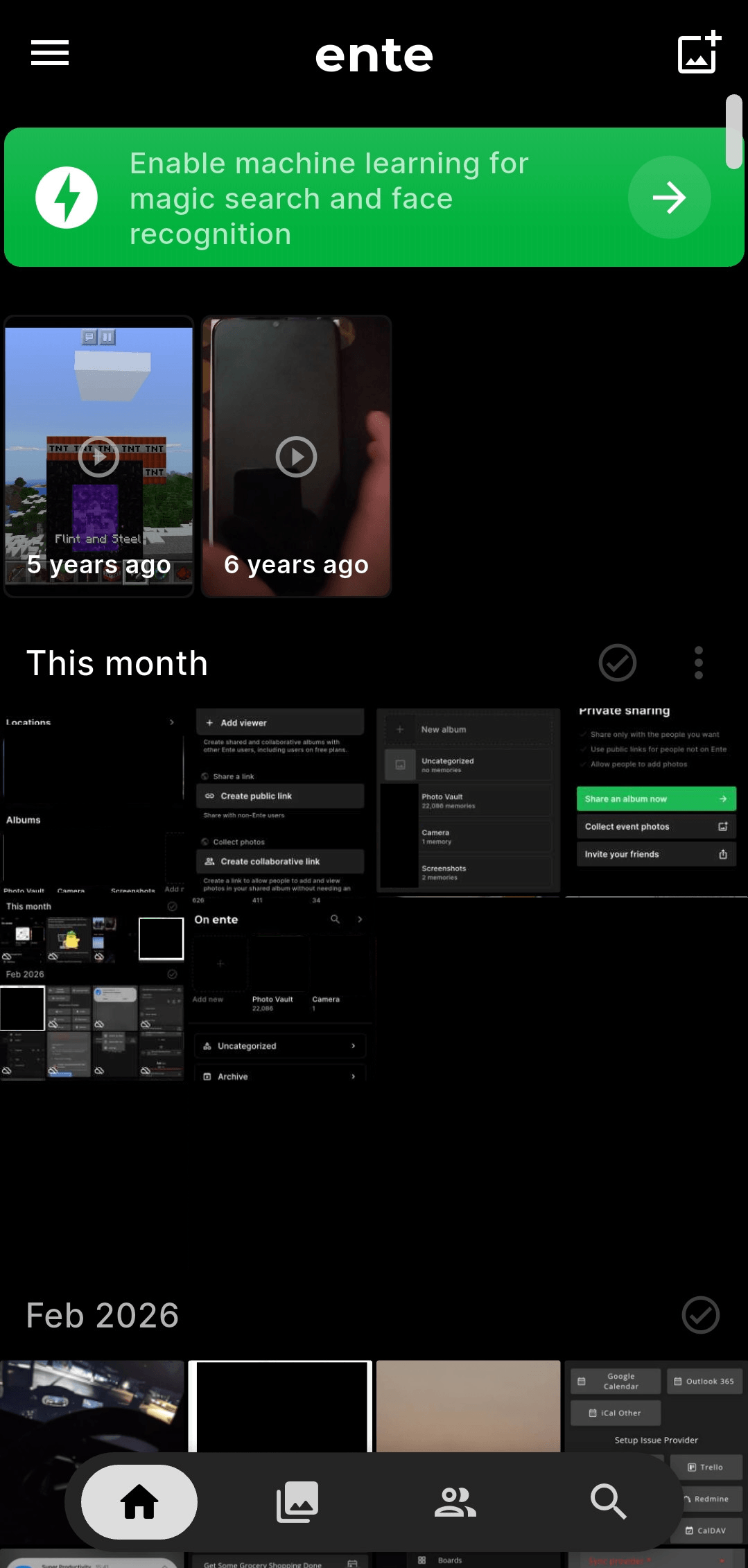
The mobile app also has a handy search function (even the Linux client had that; I forgot to test it lol) and the machine learning features, which are disabled by default, so you are always in control of whether Ente runs any on-device processing on your photos.
As of writing this, the mobile app has been extremely reliable in my day-to-day use, and its memories feature is like the cherry on top, giving me a nice trip down memory lane every now and then.
But keep this in mind…
Ente Technologies, Inc. is incorporated in the United States, its servers are located in Europe, and its Indian operations run through a subsidiary registered in Bangalore. They operate in three different regions, with three different sets of rules to follow.
In practice, that means Ente can be compelled by authorities in any of those regions to hand over account metadata, things like your identity, billing information, and access logs.
Your files are a different matter entirely. End-to-end encryption (E2EE) means the files are encrypted on your device before they ever reach the servers, so not even Ente can read them.
For me, that is what the switch ultimately came down to.
