
I Spent Time With GeForce NOW to See If It’s Gameable on Linux
Linux gamers are used to being treated as second-class citizens, and Ubisoft recently gave everyone a fresh reminder when they pulled Linux and Steam Deck support from For Honor.
They blamed anti-cheat limitations, even though the game’s anti-cheat software had supported Linux for years.
Meanwhile, cloud gaming has been slowly building up as an alternative, even for people who can’t afford to build a gaming rig thanks to inflated RAM and storage prices. While growth hasn’t been anything remarkable, people who can afford a subscription have been signing up for such services.
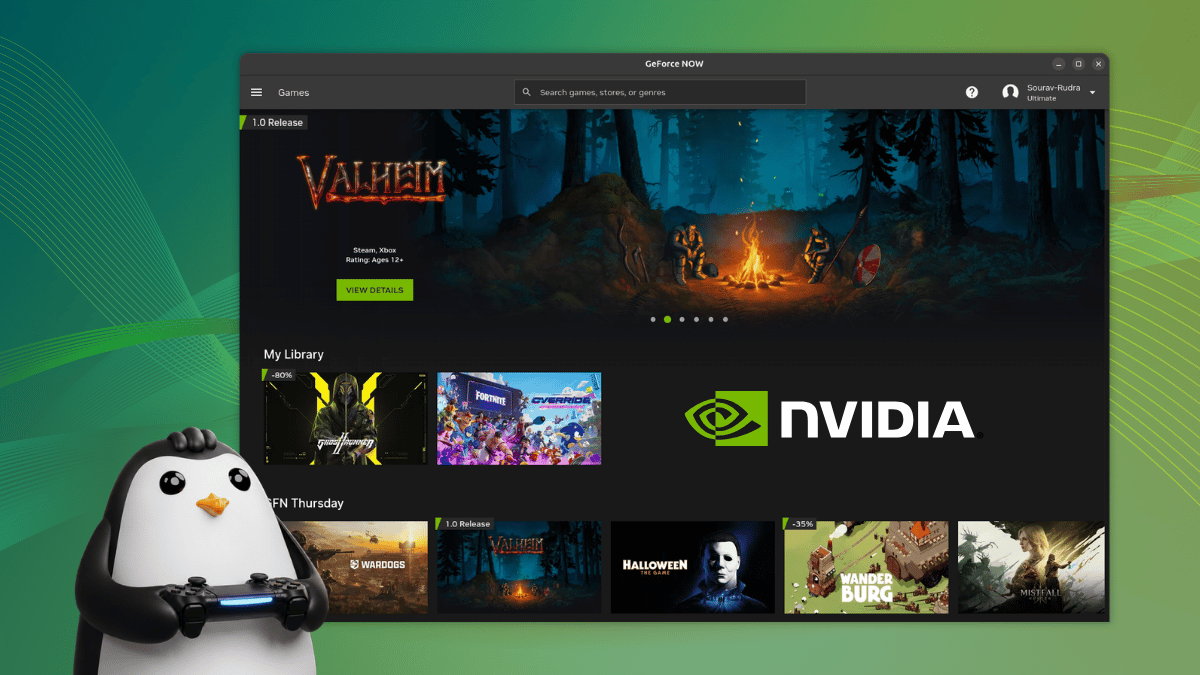
Geforce NOW is one such name that has managed to carve out its slice of the market, recently moving its native Linux app out of beta and into general availability, officially supporting Ubuntu at launch.
Geforce NOW on Linux
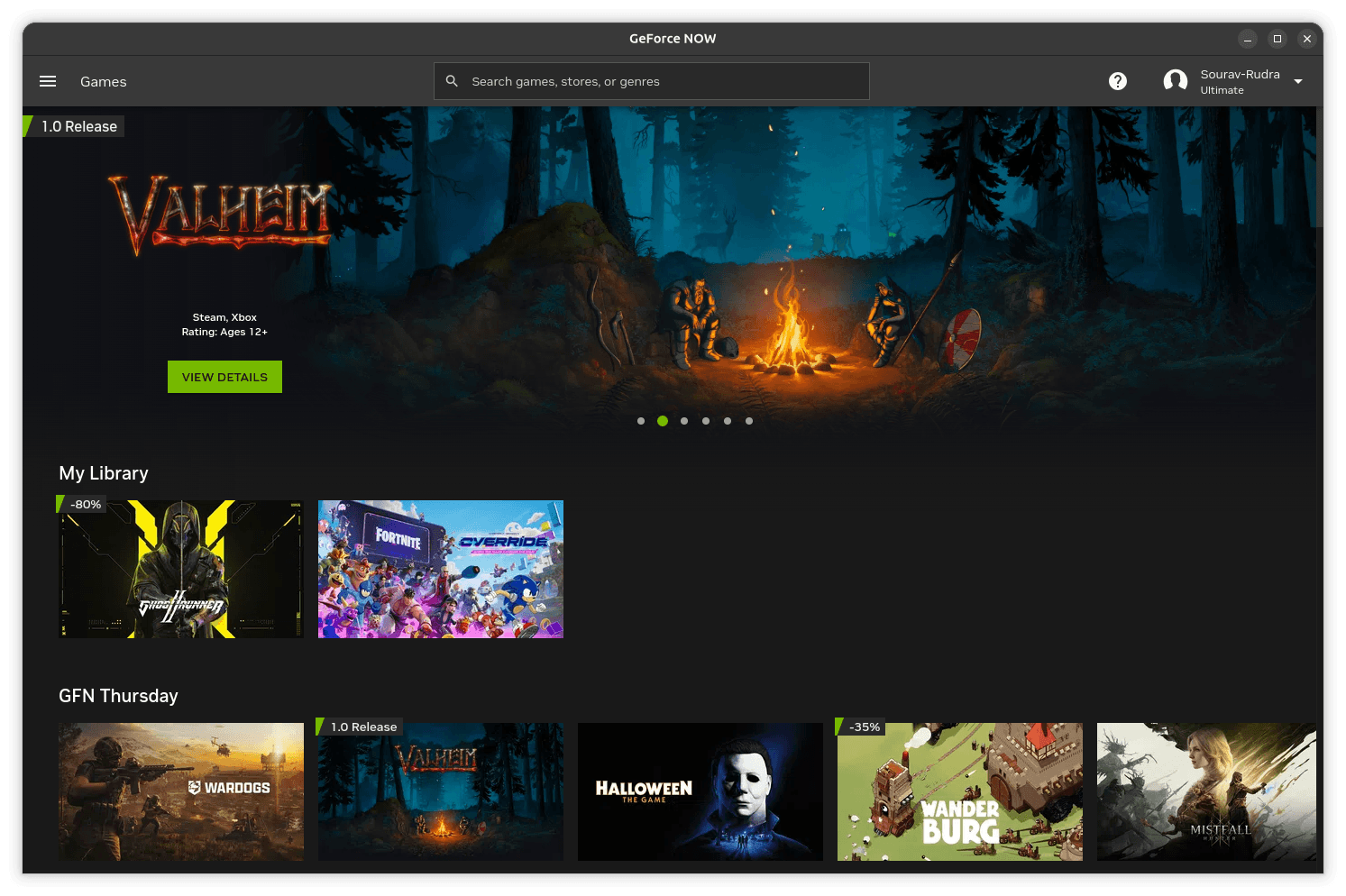
Instead of storing games locally, like when using a game launcher like Steam or Heroic, GeForce NOW streams them from NVIDIA’s RTX GPUs in the cloud. This way, a laptop or desktop gets GeForce RTX-level rendering without needing to have any of that hardware itself.
Games come from your existing library, not NVIDIA’s own store. Link Steam, Epic, GOG, or PC Game Pass, and you can launch anything you already own. All updates and installs are handled on the cloud gaming rig you get access to via the service.
Setting it up
Contrary to what the official system requirements say about using the Xorg session on NVIDIA GPUs, I managed to get the GeForce NOW client running on the Wayland session of Ubuntu 26.04 LTS.
My laptop has a GeForce RTX 3050 with 6GB of VRAM, and the system was running with NVIDIA’s proprietary drivers rather than the open source Nouveau. Don’t worry if you have a less powerful GPU on board, as the app only needs a local GPU to decode the incoming video stream, not render the game itself.
While I kept my testing limited to Ubuntu, I have a feeling this app can run on other Linux distros too.
💬 Why not test it and let us know in the comments below?
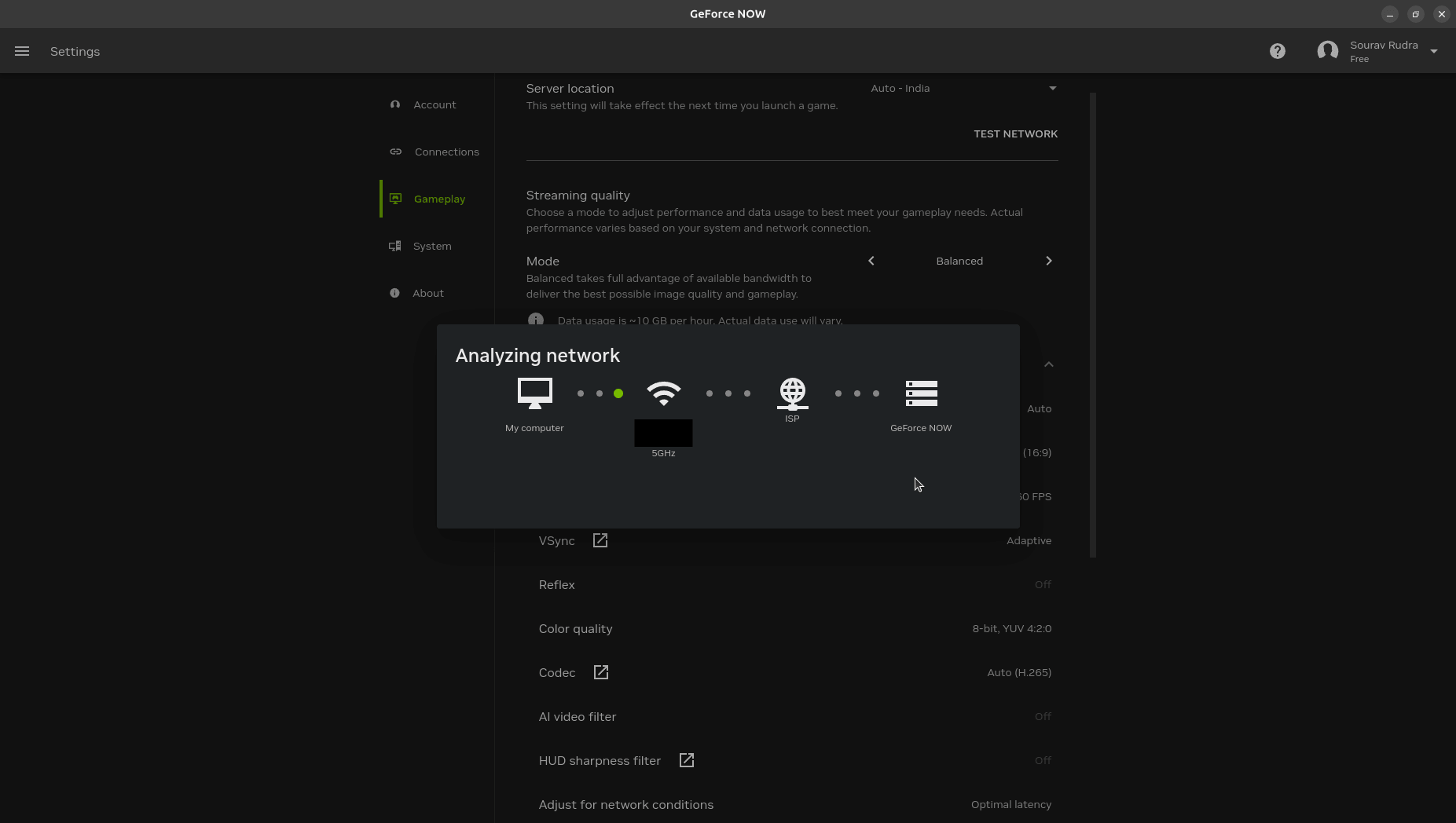
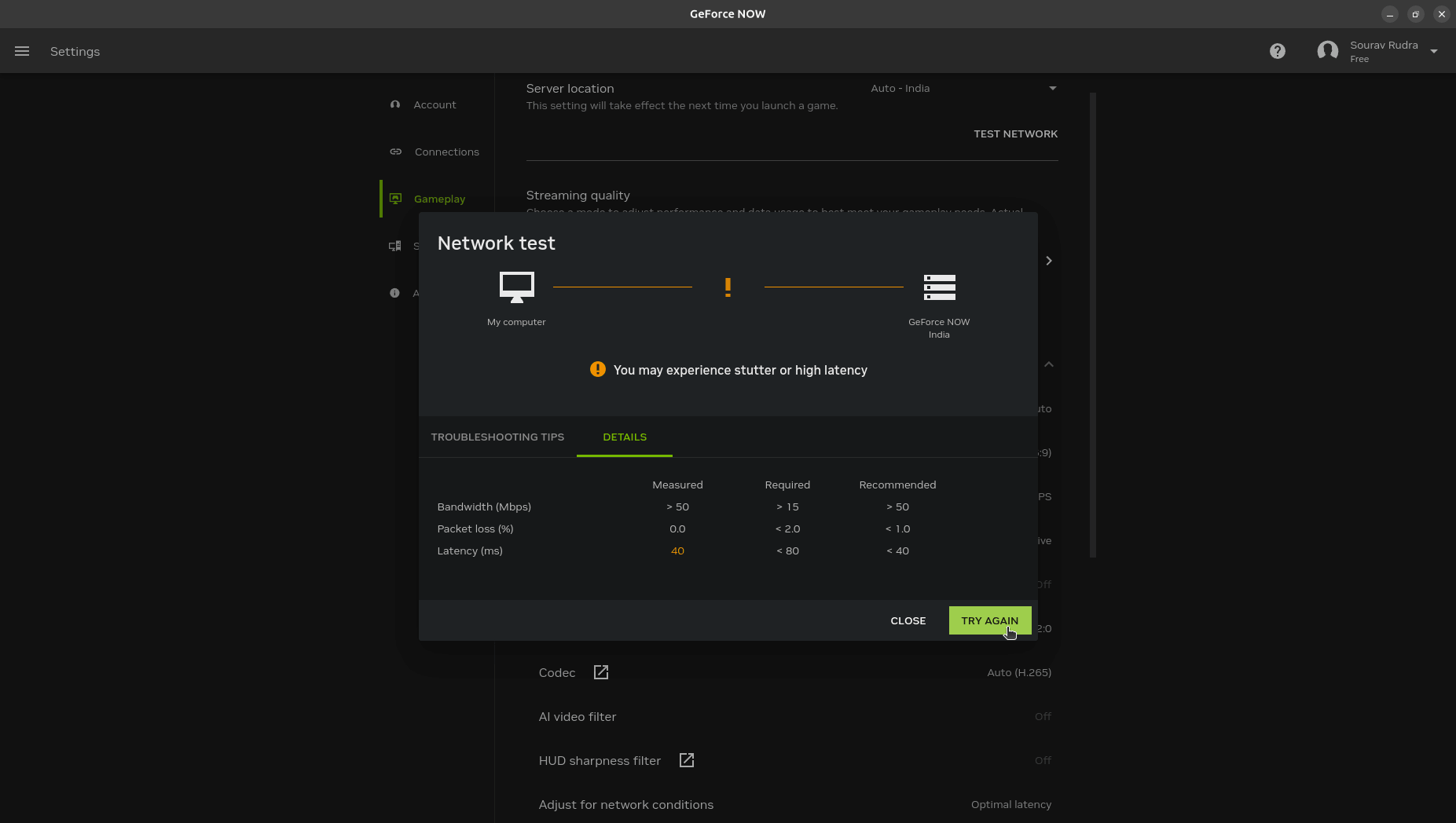
Before I could start playing, I ran a network test via the settings menu to see if everything was good to go. The app reported that I could face stuttering or high latency as I was connected to a wireless network, suggesting I connect an Ethernet wire instead.
You will see me facing those issues very soon. 😅
Initially, I tried using the “Free” tier to see what the native app could do on my Ubuntu setup. It was a big fail, as I was stuck in a 300+ waiting queue for access to a machine, and when I eventually did come to the front, I was kicked out because I had left my laptop idle.
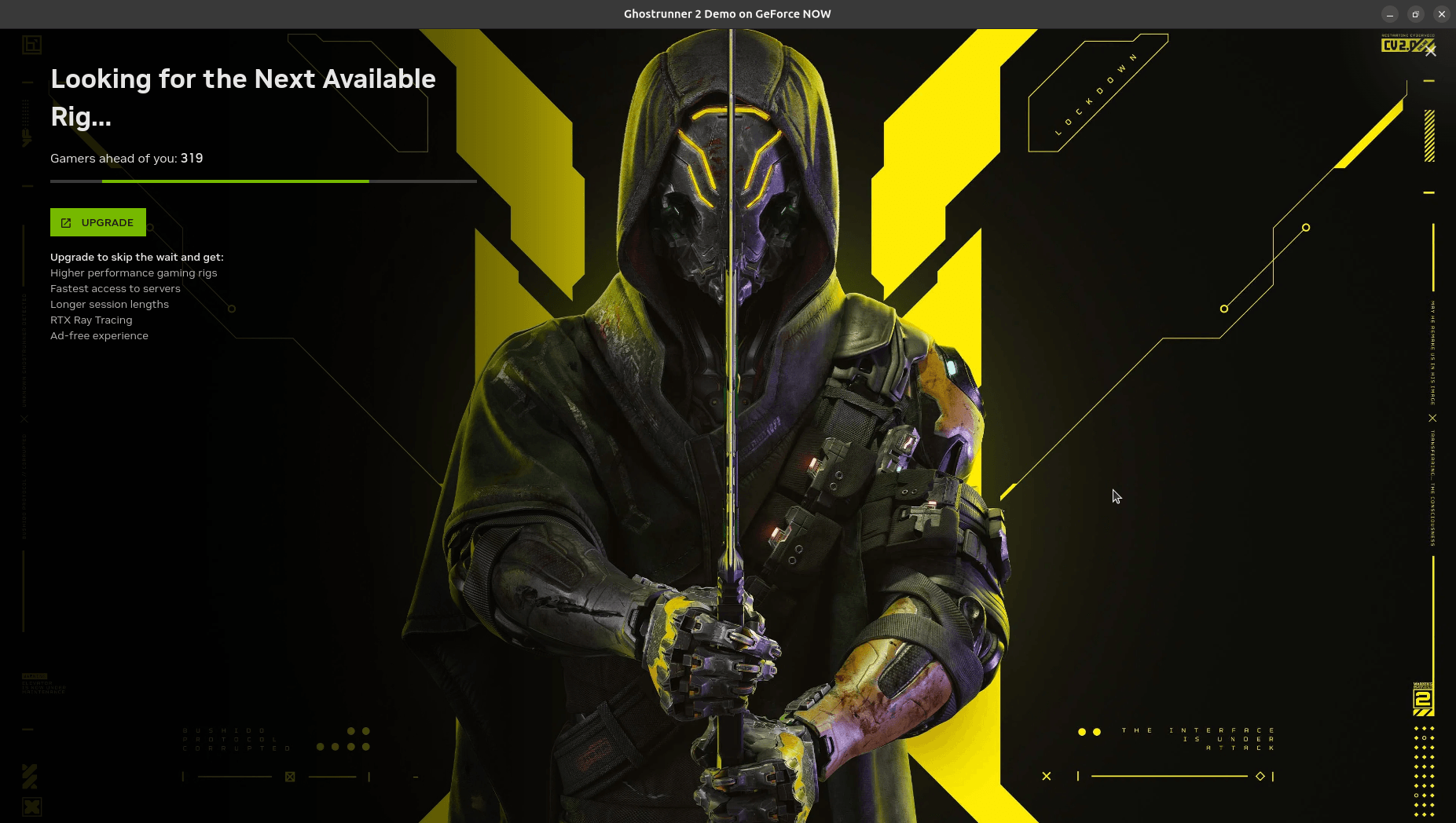
I then decided to get in touch with NVIDIA, and thanks to some helpful folks, I was set with a 14-day promotional key for GeForce NOW Ultimate. Next, I had to test some games that could take advantage of a GeForce RTX cloud rig.
The titles I went for were Fortnite, as the multiplayer pick, and Ghostrunner 2, as the singleplayer pick.
Two games in the spotlight
Fortnite
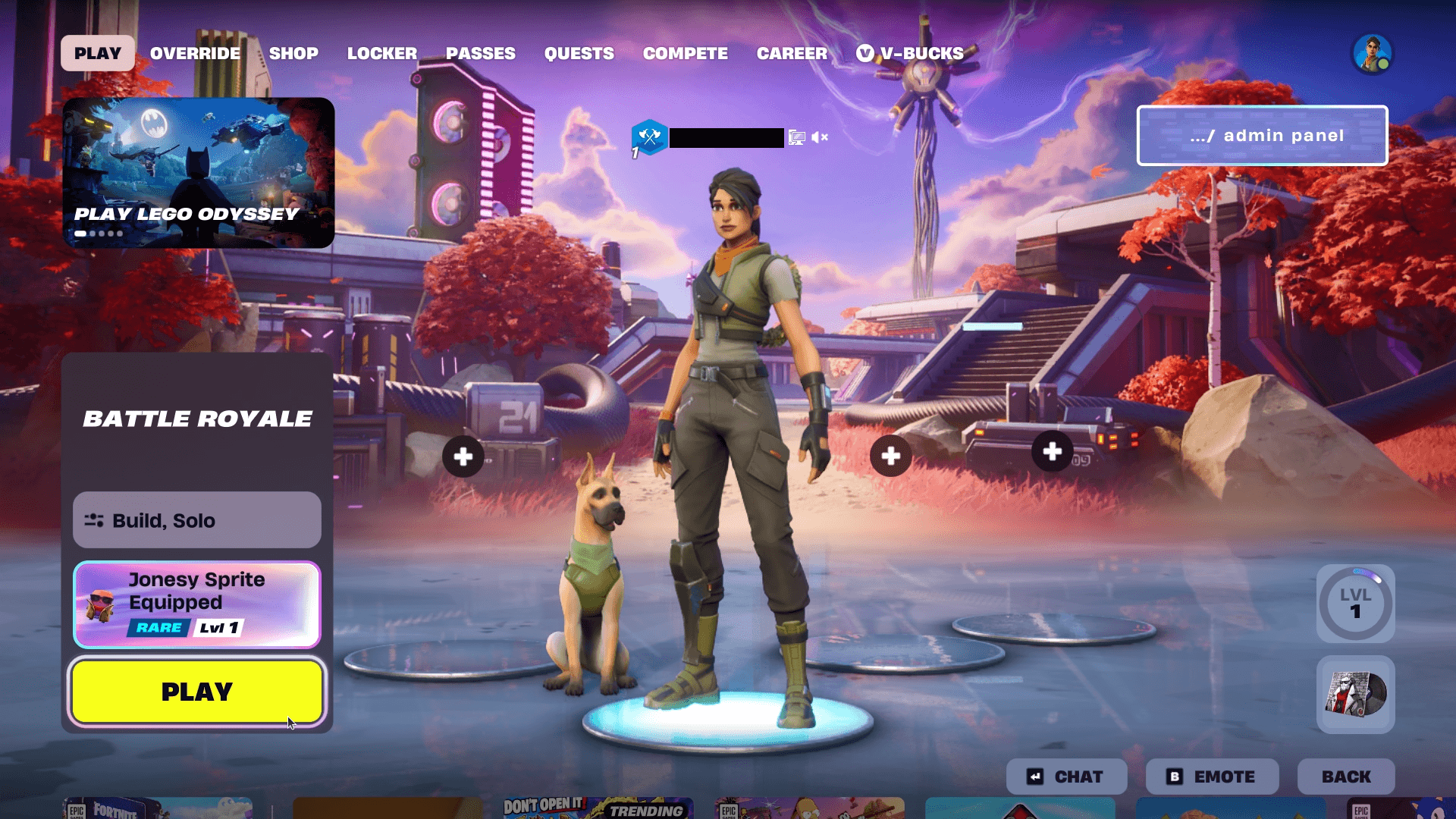
The first game I want to show you is Fortnite, the infamous battle royale game that doesn’t seem to be going out of trend anytime soon. Seeing that GeForce NOW supports directly linking one’s Epic Games account to the service, I was able to quickly get into the game.
I left the graphical settings untouched, noting that the display name was “NVIDIA VGX,” the FPS limit set to “Unlimited,” and the rendering mode was “DirectX 12.”
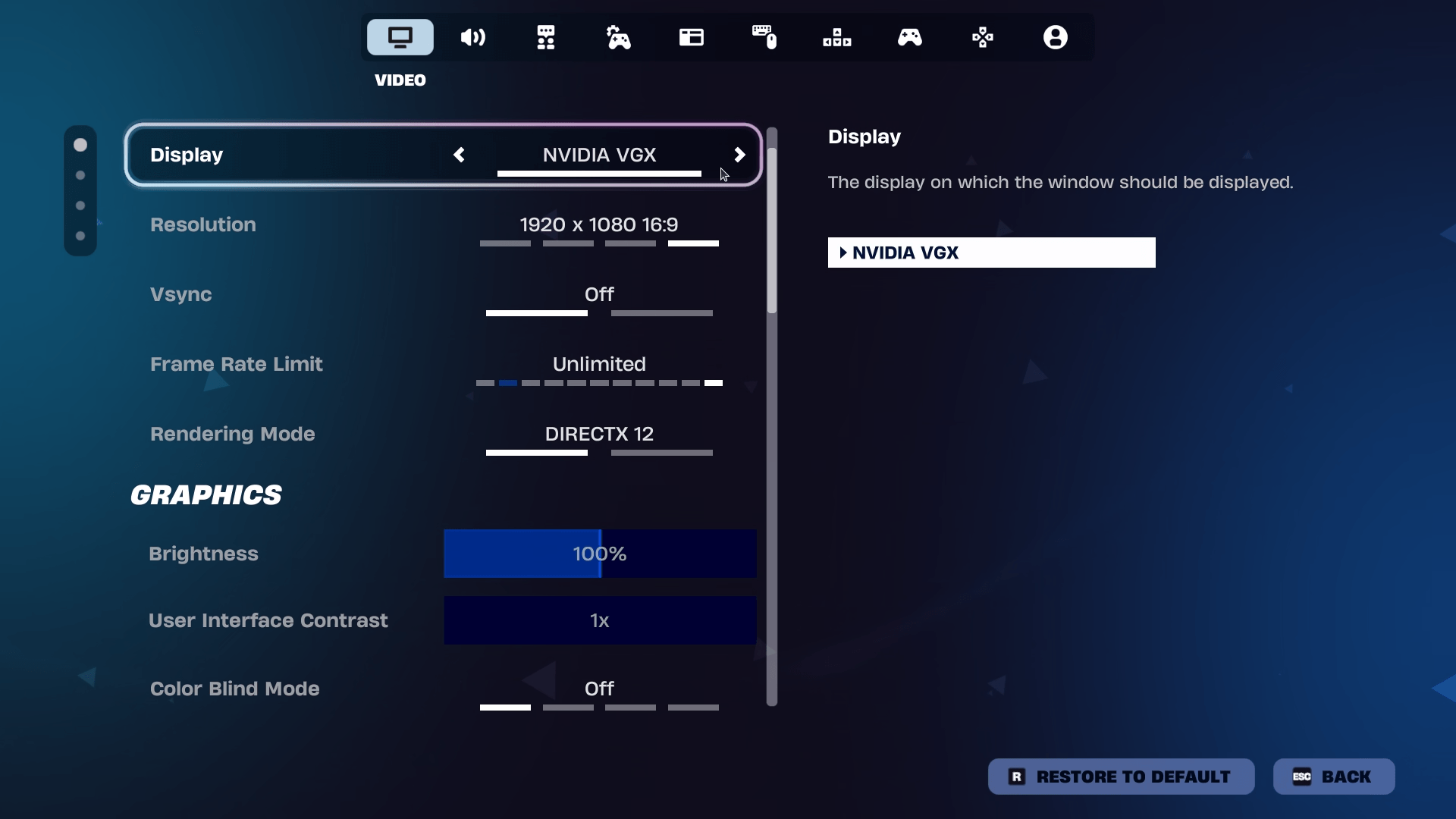
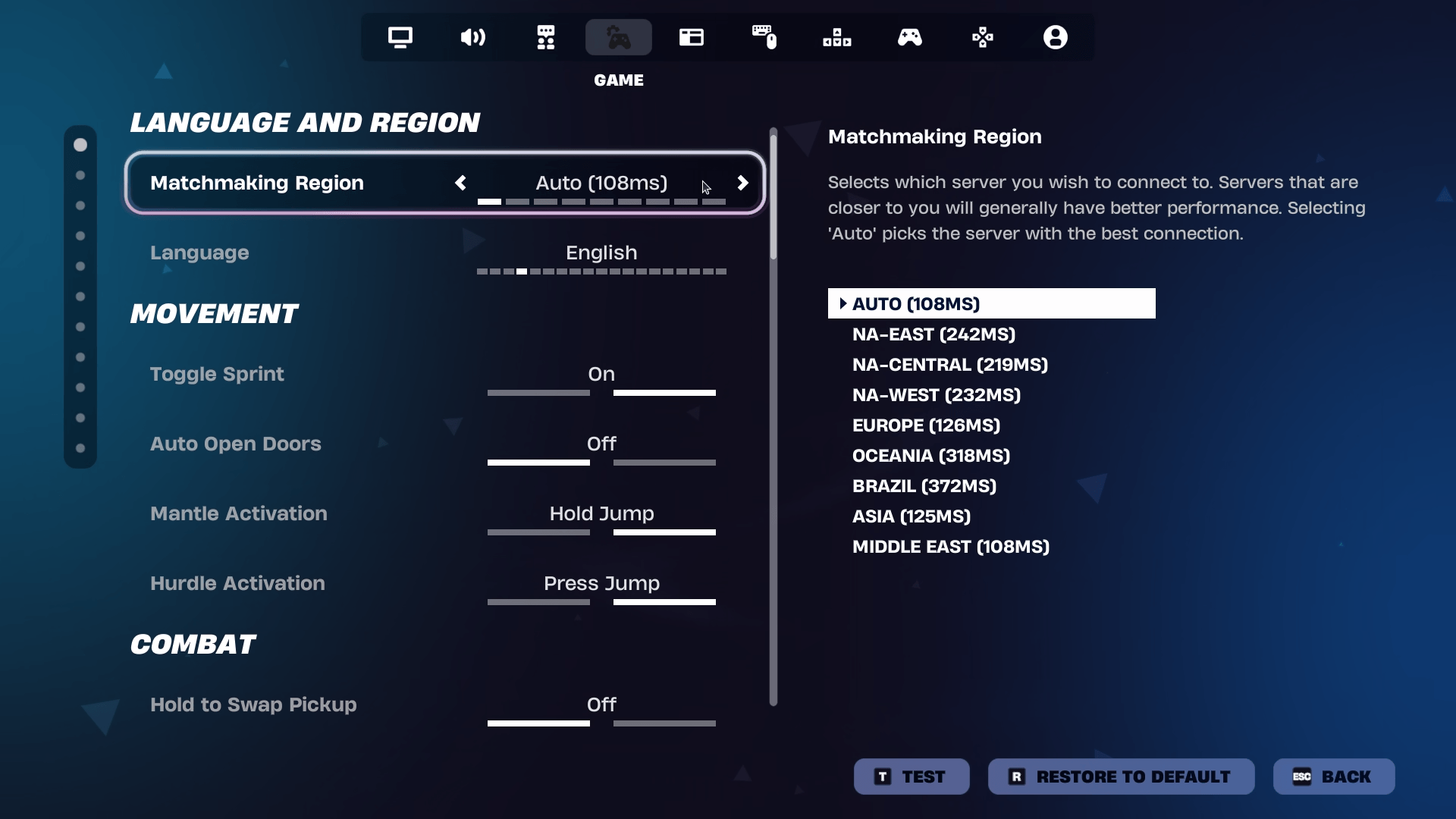
Even the matchmaking region was correctly set, and I was getting pings in the 100-120ms range. In the first battle royale match, I noticed that the image quality was not that sharp, and the game stuttered, with GeForce NOW warning of a spotty connection.
That was a given since I was connected to my ISP’s weak wireless router. 🫠
Watch until the end to see some top-tier potato aim.
Across sessions, things did improve, and I even managed to win a match. That is when I realized that I could use “Ctrl+G” to launch the GeForce NOW overlay, which gave me access to many options, such as the remaining session time, the ability to enable real-time statistics, and a few others.
Equipped with the expanded metrics, I got to know that I was on a GeForce RTX 4080-powered rig that was pushing the in-game FPS up to 160, as advertised for the Ultimate plan, while the stream was running at ~55 FPS and the server latency was at ~45ms.
I was also losing considerable amounts of frames and packets due to my network setup, which had been quite inconsistent at providing the required bandwidth to drive such a demanding multiplayer game mode that hosts up to 100 players in a single match.
Ghostrunner 2
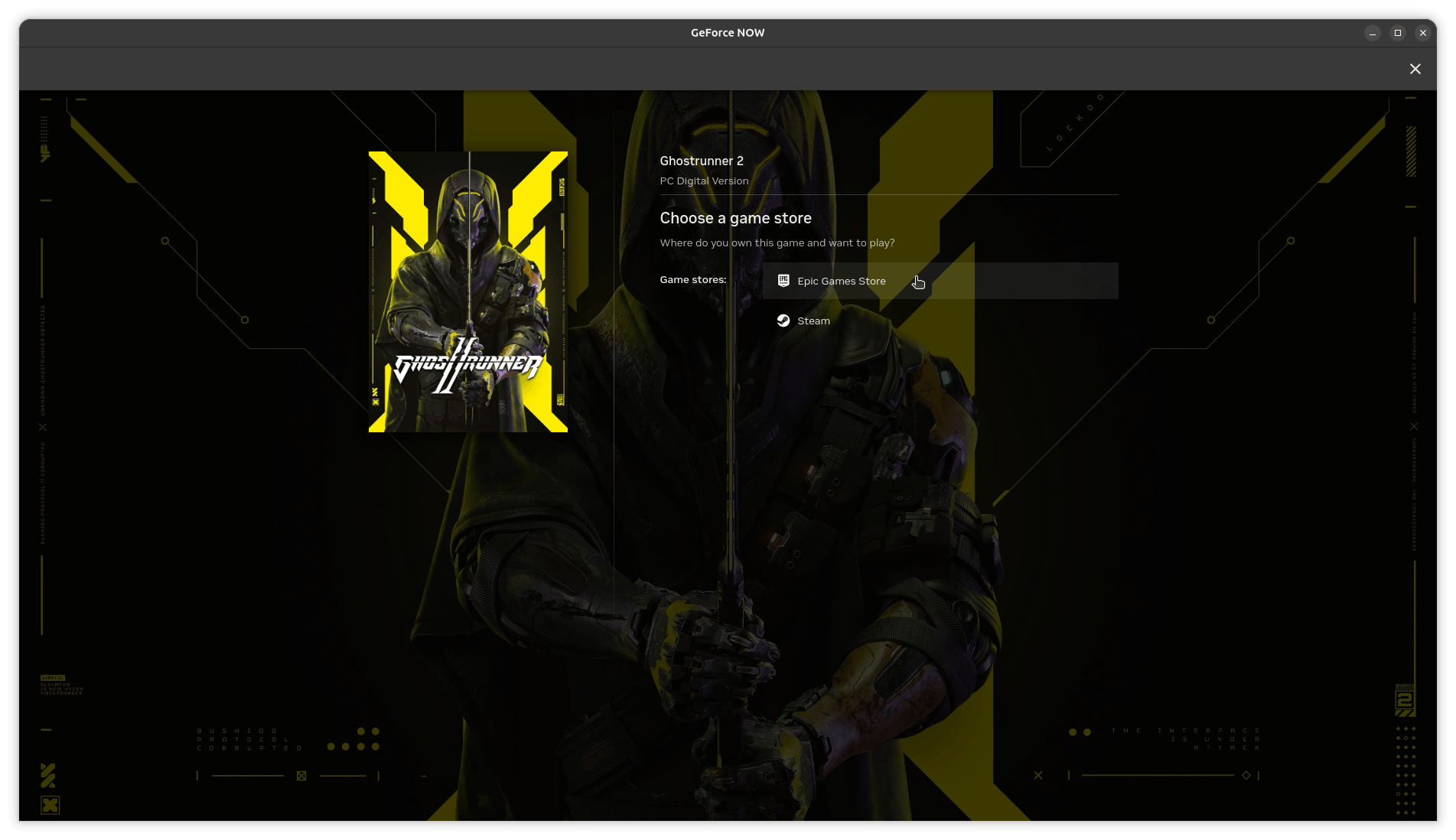
Next up is the singleplayer pick for this review, Ghostrunner 2, which continues the story of Jack, a clank…, erm, cyborg, rebuilt by a group of human rebels after they found him in a near-destroyed state.
Before I could start playing this, I had to again link my Epic Games account to validate access to the game. This is something NVIDIA needs to work on. If they could give gamers a one-click way of validating all their owned games that are available on GeForce NOW via a specific platform, that would go a long way in ensuring a friction-less experience.
Coming back to the game, the last time I played it was when I tested the demo version in the third-party GeForce Infinity app, where it performed awfully. While there were a bunch of factors that caused those problems, this time around, it was a much better experience.
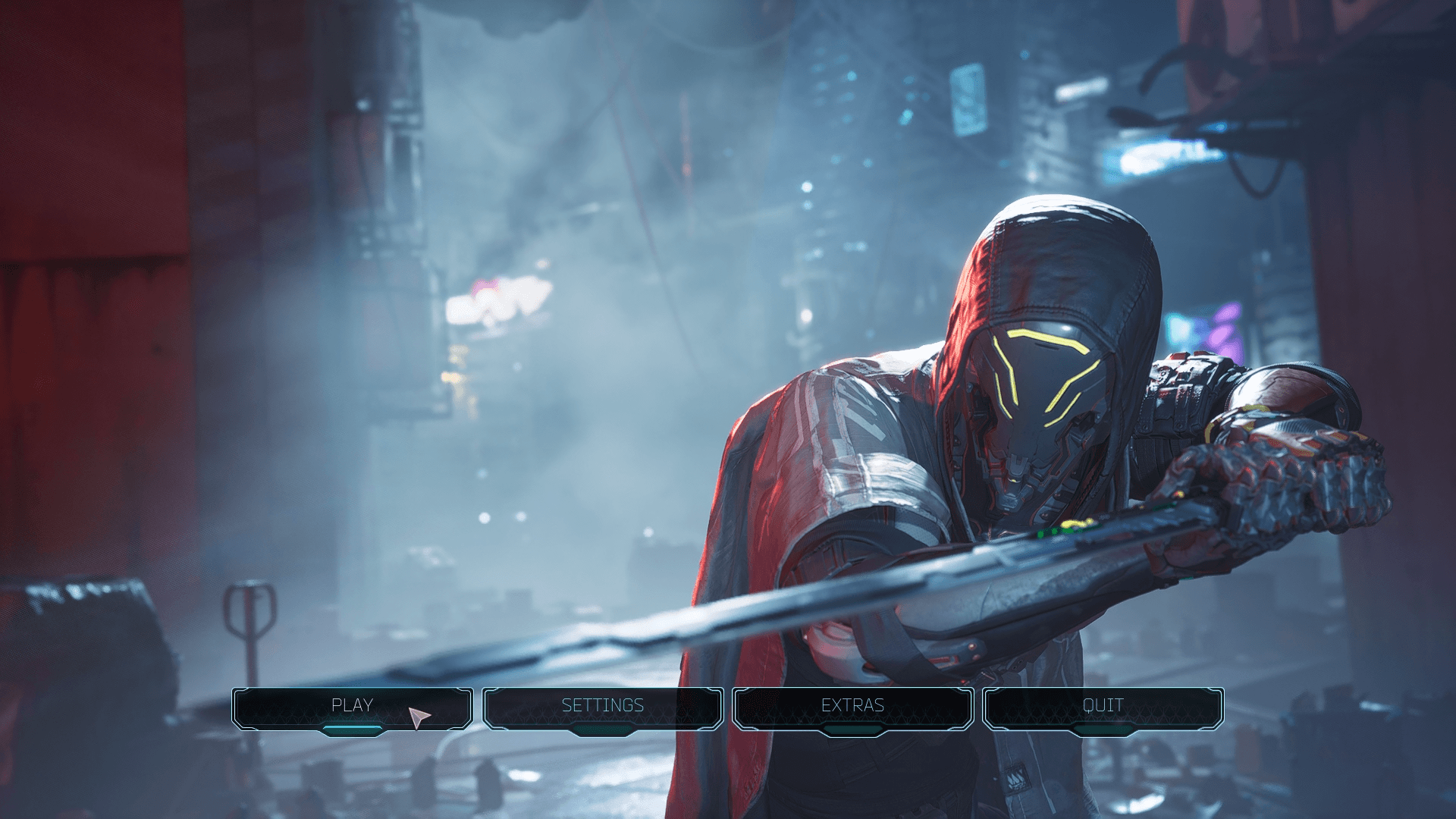
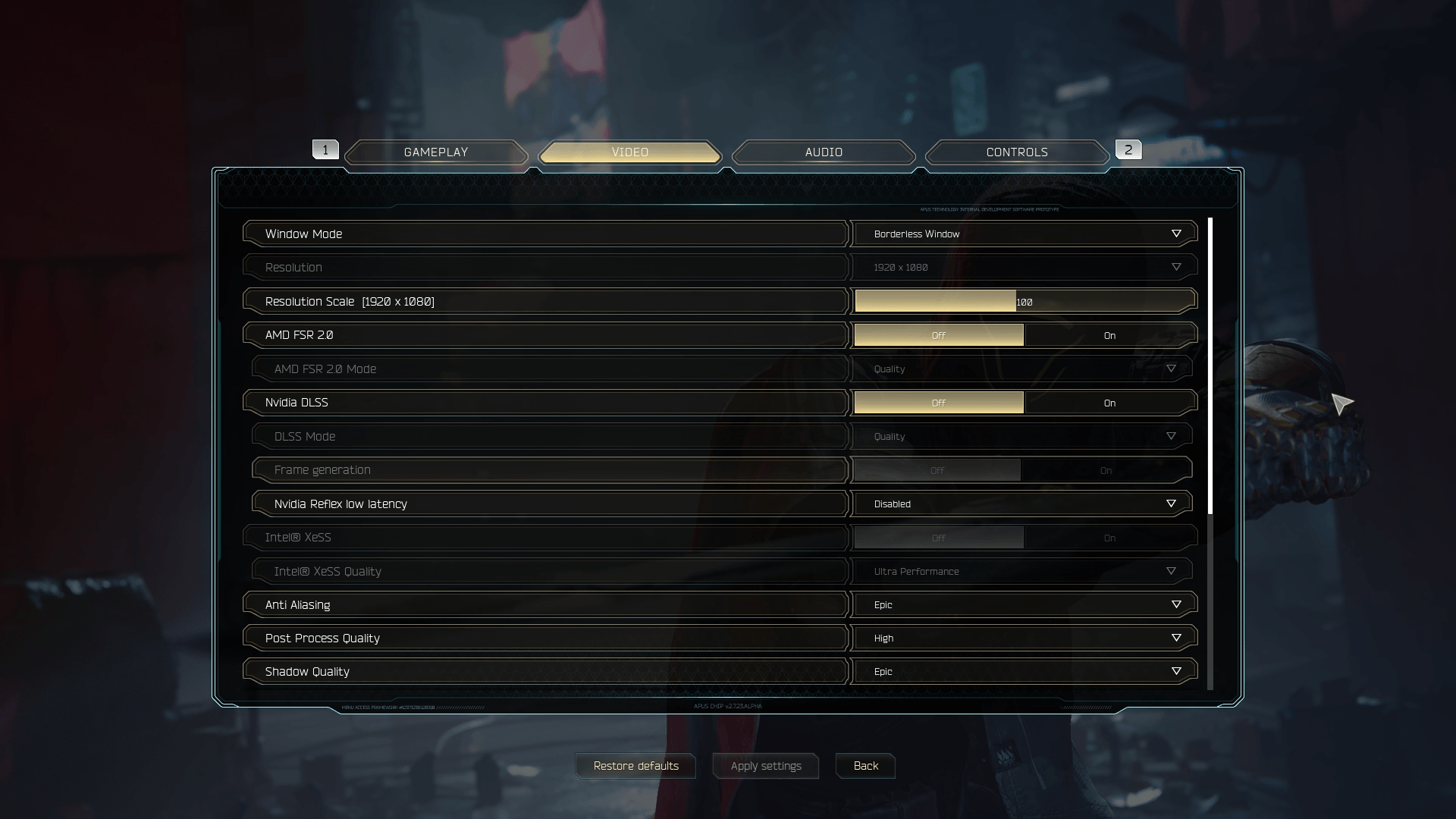
Like Fortnite earlier, I didn’t change the pre-set graphical settings, keeping them at a relatively high preset without enabling any kind of upscaling via AMD FSR or NVIDIA DLSS.
Again, I faced some microstutters, but the game itself looked really good and was very responsive throughout my playthrough. Without the lag, the game felt as good as running on a similarly equipped gaming rig locally.
I fell off the platform right at the end btw.
I can now confidently say that using Geforce NOW on a wired setup or with a very capable wireless router is the way to go. As doing so ensures a consistent flow of bandwidth that is required to stream such amounts of data quickly.
Being located closer to your nearest GeForce NOW server also helps. 😉
During play, I also noticed that my laptop going into Sleep mode would automatically disconnect me from GeForce NOW, with the app notifying me of the occurrence. All the while, the gaming rig itself remains active, and I can quickly jump back in by hitting Play again.
Some closing thoughts
At the end of my testing, I was left thinking that NVIDIA could easily bring the native client to platforms like Arch Linux and Fedora. This would help them cover a large chunk of the Linux gamer base, seeing that there are many derivatives of these distros that are quite popular among gamers.
Coming back to the question I asked in the title of this review: Is GeForce NOW gameable on Linux? On Ubuntu 26.04 LTS, yes, even without the Xorg session NVIDIA recommends. Wayland handled things fine.
While its closed-source nature and paid tiers will be dealbreakers for many of you out there, the thing it offers is convenience. You get easy access to a gaming rig without having to invest in one, and the latter’s a far cry (gaming pun hehe) right now thanks to inflated prices.
Game on!
If you are looking for instructions to install GeForce NOW on your Ubuntu PC, then continue reading. First, go to the official website to fetch the .bin file; look for it under the “Linux” category.
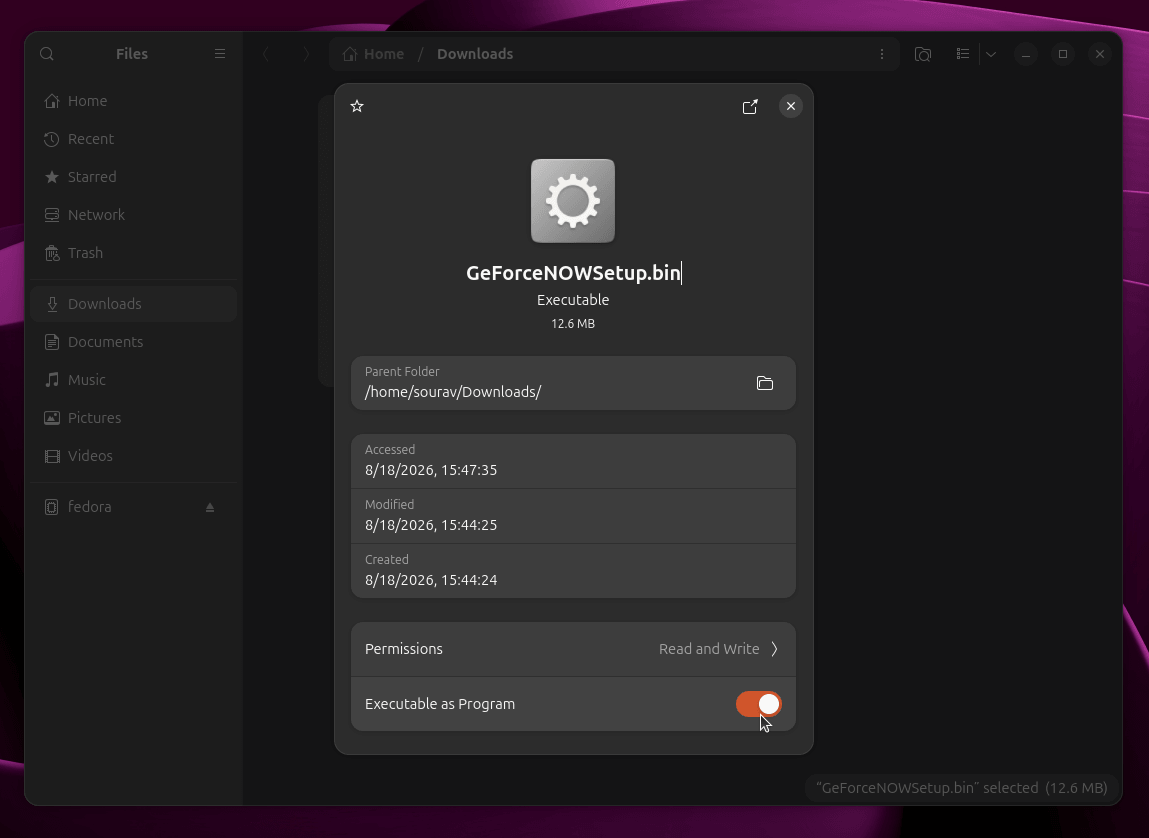
Once the file is downloaded, go to it in Files and right-click on it. Now click on “Properties,” and enable “Executable as Program.”
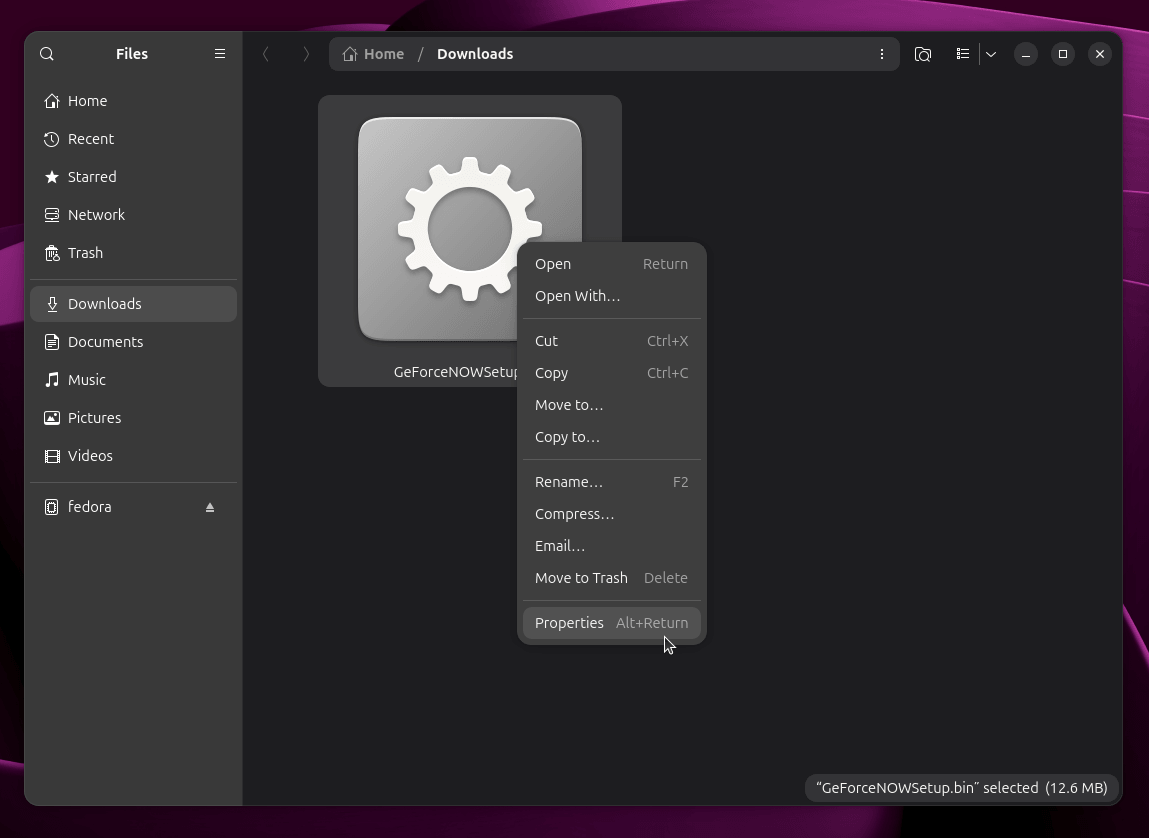
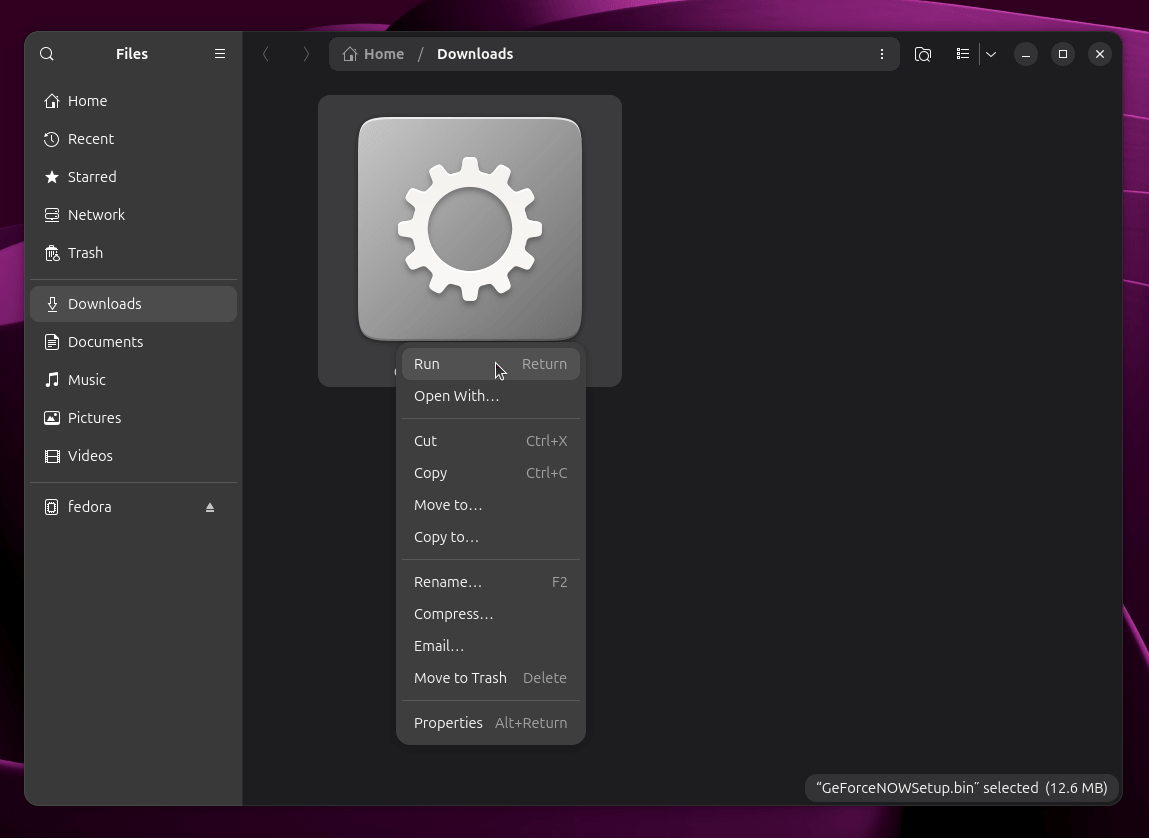
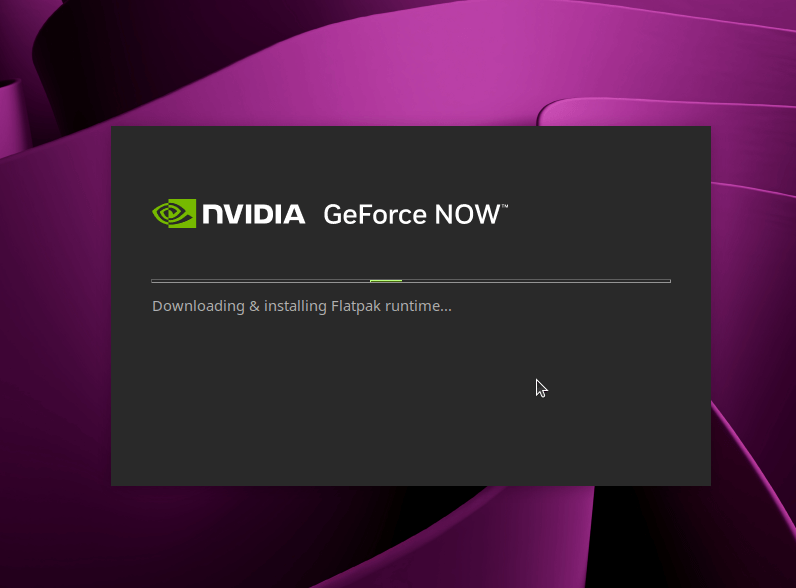
Launch the executable by either double-clicking on it or clicking “Run” from the right-click context menu. Wait for it to complete the download and installation.
Next, you will have to agree to NVIDIA’s Privacy Policy and GeForce NOW’s Terms of Use. Be sure to go through them, as they contain many clauses.
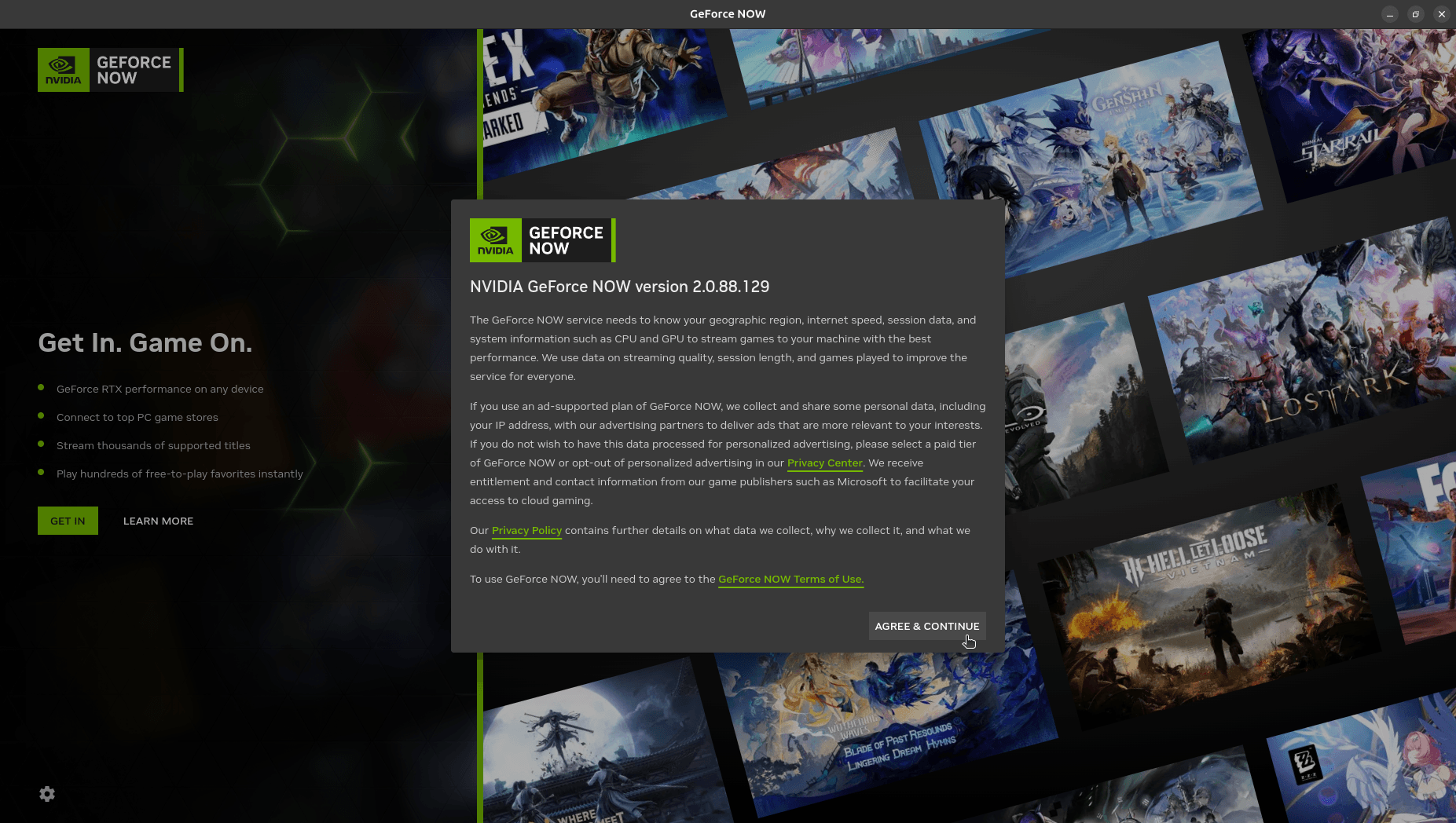
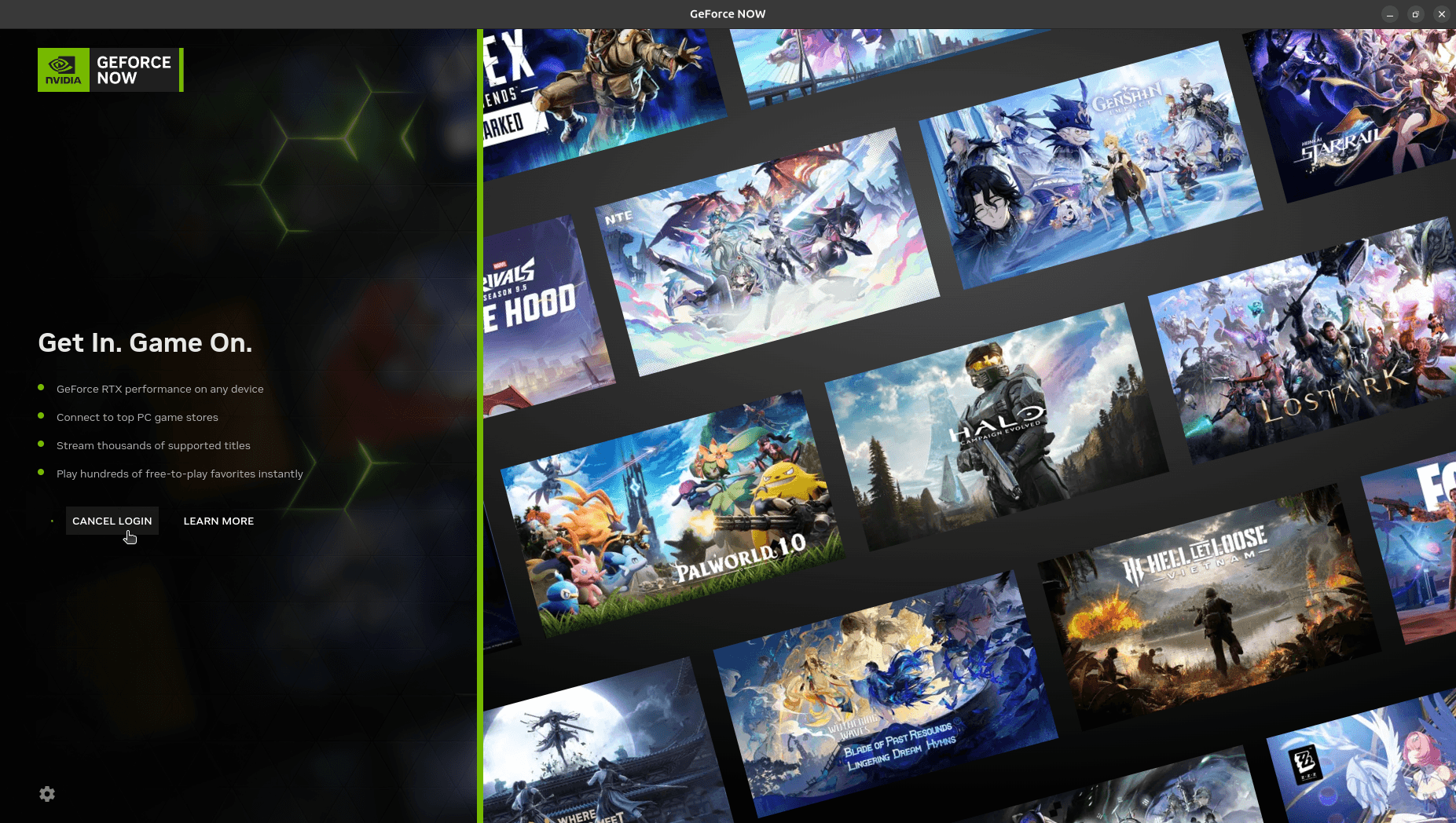
The app will then ask you to sign in with your NVIDIA account, for which the authentication will be carried out via the default browser on your system. And that’s about it; just select a plan and start playing.
