
BentoPDF Handles PDFs Locally, So You Don’t Have to Upload Them to Websites
There are plenty of online PDF tools that let you edit documents without installing anything on your computer. You just open a website, upload your file, make the changes, and download the edited document.
But there is a catch. You are handing your files over to a third-party service, and you may not always know how it handles your data. Some services may have questionable privacy practices, while others are outright malicious.
In fact, the FBI has warned people about fraudulent online file converters that steal sensitive information and spread malware in the past.
These tools scrape uploaded files for personal details, banking information, email addresses, and passwords, making them particularly risky when dealing with confidential work documents that should’ve never left an organization’s secure environment.
BentoPDF is an open source alternative that advertises itself as a privacy-first tool that processes files directly in your browser instead of uploading them to a server, helping avoid some of the aforementioned privacy risks associated with online PDF tools.
BentoPDF: For Your PDF Needs
homepage ss here
Created by Alam, a developer out of India, BentoPDF traces its origins to an internal tool that was being used for merging and splitting PDFs. Soon after its creation, the lead dev decided to share his work with the world via Reddit, and a few weeks later the code was live on GitHub.
BentoPDF uses WebAssembly, which lets heavy programs run right inside your browser. Its OCR tool, for instance, runs on Tesseract.js, a port of the Tesseract OCR engine. That way, the processing happens on your computer, and nothing is uploaded to a server.
The project is dual-licensed, where the code is provided under the AGPL-3.0, making it free to use and open for anyone looking to fork it. A separate commercial license is available for closed-source use and costs $79 as a one-time purchase.
Alam also publishes two other open source projects, Hyper Compress and Kura. The first is a PDF compression engine, while the latter converts PDFs to standards like PDF/A and PDF/UA.
Anyhow, coming back to the PDF editor, I took it for a test run on Vivaldi, a Chromium-based browser, covering a few tools to see how it holds up in everyday use.
Editing PDFs
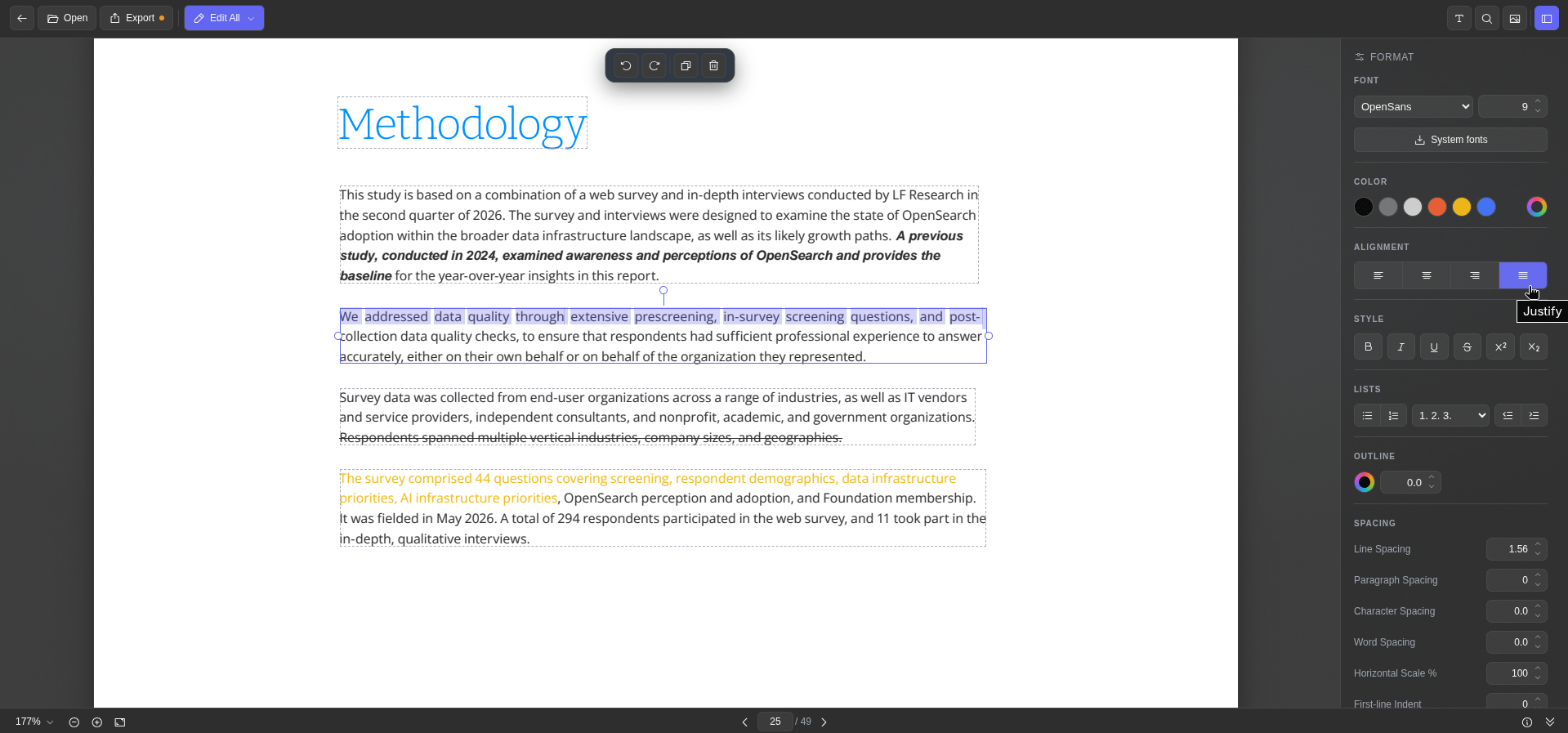
The Edit PDF Text tool shows each block of text in the document with a dashed outline, and picking one brings up the formatting sidebar, which houses the usual editing controls.
It has buttons for tweaking the font, size, colors, alignment, and character spacing, along with bold, italic, underline, and strikethrough formatting.
I could also make it fetch all the fonts installed on my Linux system using the System fonts button, and the info button at the bottom was useful for glancing over the metadata of a document.
Once done editing, exporting the file is only a matter of clicking the “Export” button.
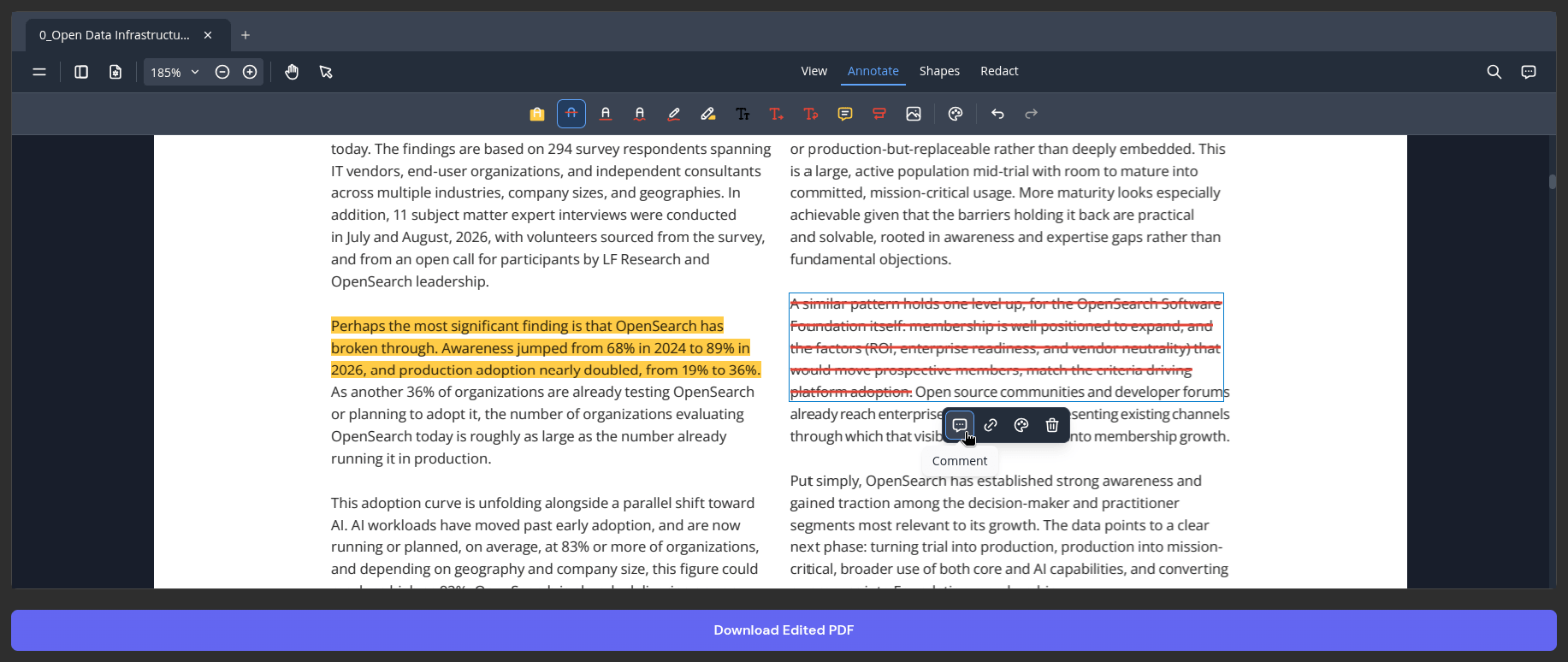
The PDF Editor is mainly meant for annotation work, with tools for highlighting, strikethrough, ink, text insertion, and comments. You pick the relevant tool and drag your cursor over a piece of text to apply it.
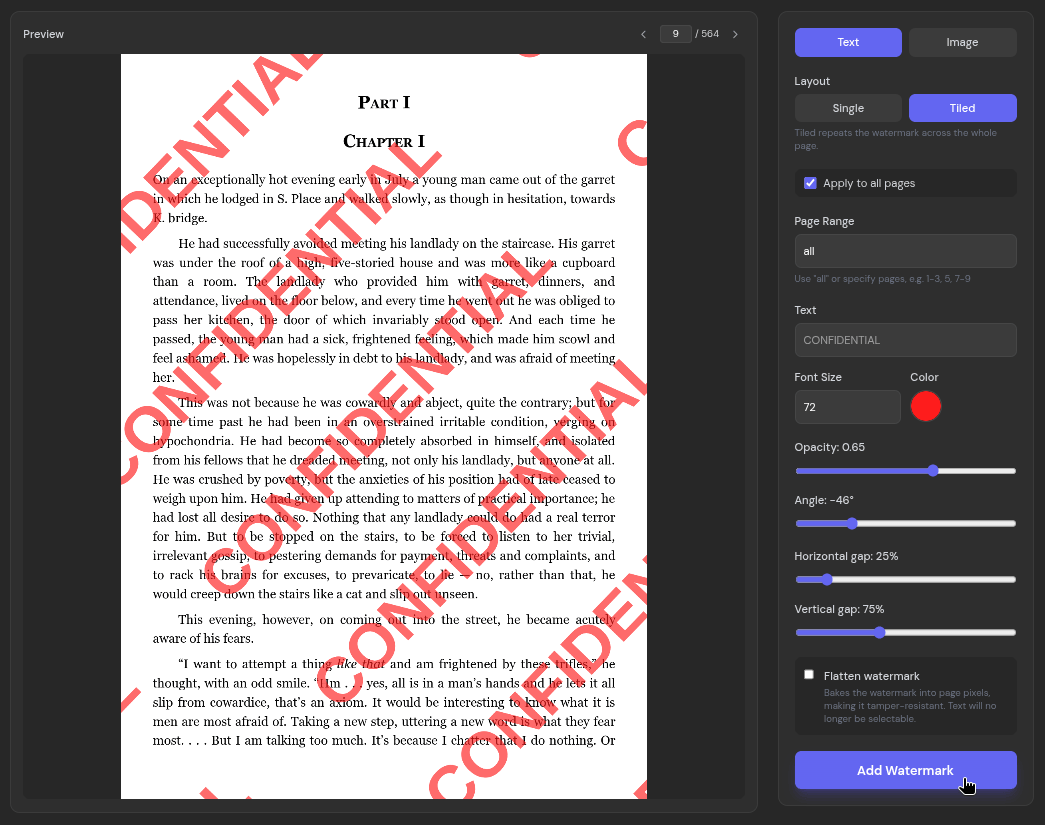
Adding watermarks to documents is also possible via the Add Watermark tool, which should come in handy for protecting your work or marking a document as sensitive. It offers a lot of flexibility, letting you choose between a text or image type watermark, a single or tiled layout, and granular controls for the pages, text, and visibility.
Common keyboard shortcuts like the ones for copy (Ctrl+C), paste (Ctrl+V), undo (Ctrl+Z), and redo (Ctrl+Y) also work well here.
Easy OCRs
Sometimes a PDF is nothing more than a set of page images, like a scanned report or a document full of charts. You cannot search through it or copy anything out of it because there is no text for your PDF viewer to find.
The solution to that problem is to run OCR on it, which converts the pages into machine-readable text.
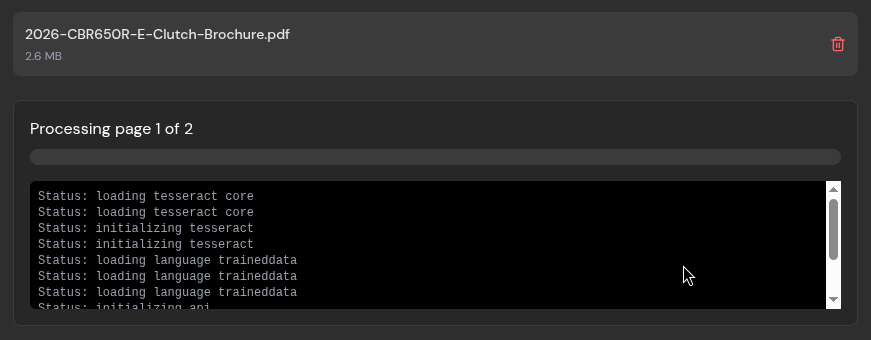
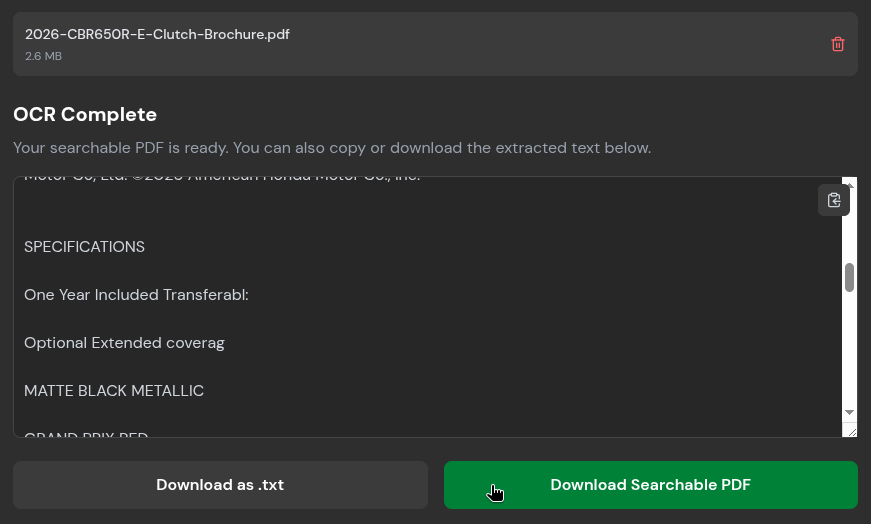
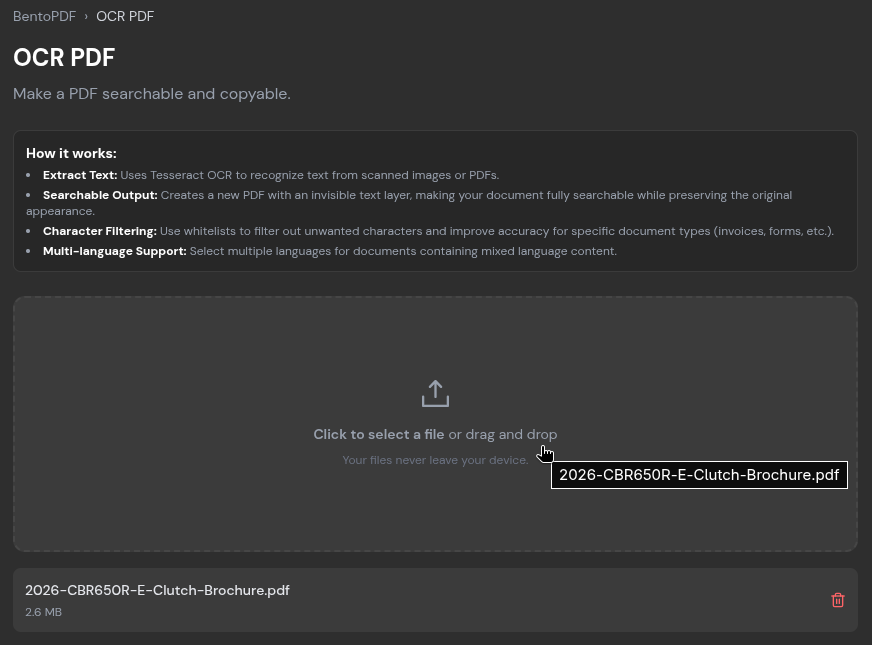
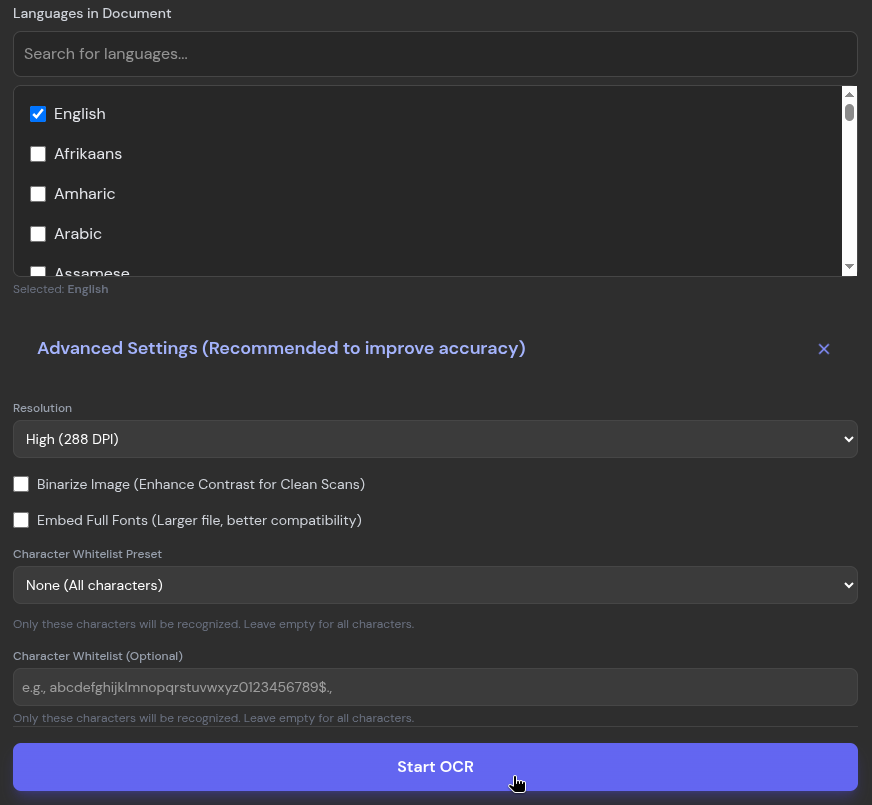
OCR PDF handles this in BentoPDF by letting you upload a file, select the relevant language(s) found in the document, and start the process. During my test, I used a two-page brochure for a motorcycle I like to window shop for and left the advanced settings untouched.
It took a while to process the pages, but the output was mostly accurate. Only the very small, lossy text at the bottom of the document tripped it up. I could copy everything to the clipboard or export it as a .txt or searchable PDF file.
File Conversions
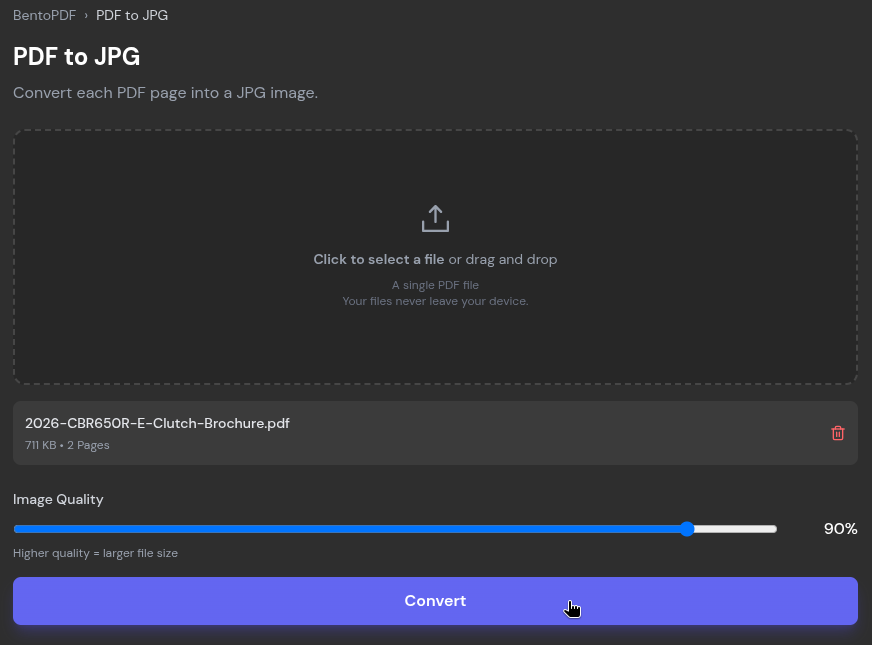
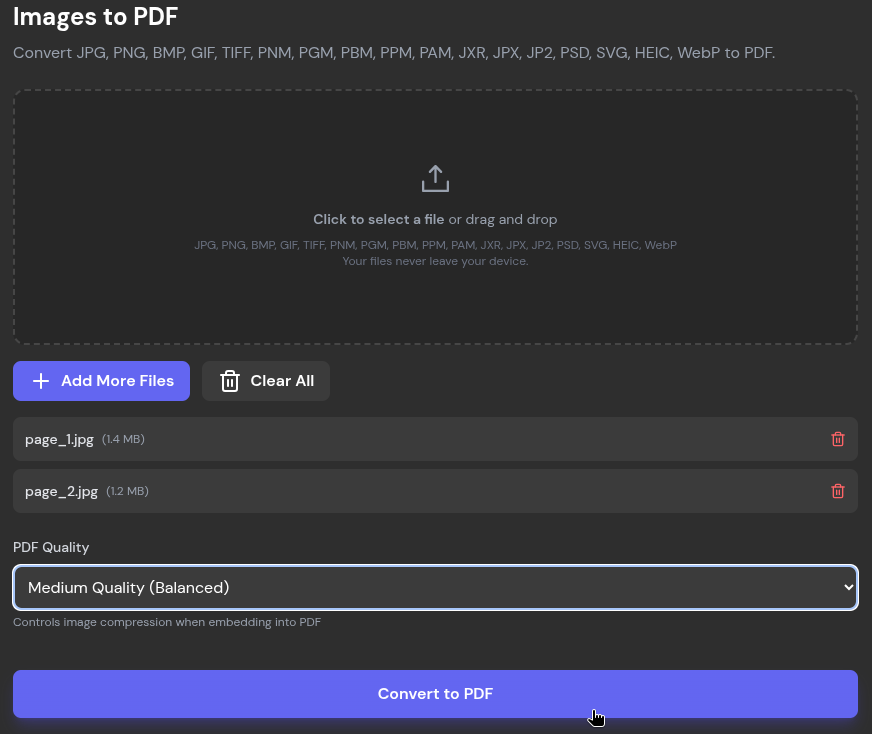
BentoPDF has a range of file conversion tools available, and I tested out two of them. PDF to JPG converts each page of a PDF into a JPG image, and using it is quite simple. You upload a PDF file, set the image quality with a slider (the pre-set value is 90%), and click “Convert.”
Images to PDF does the reverse, and it accepts an array of formats beyond JPG, including PNG, BMP, HEIC, and PSD.
There are plenty more conversion tools on offer, covering formats like ODP, CSV, EPUB, JSON, WebP, and Markdown, among others.
Quick Compressions
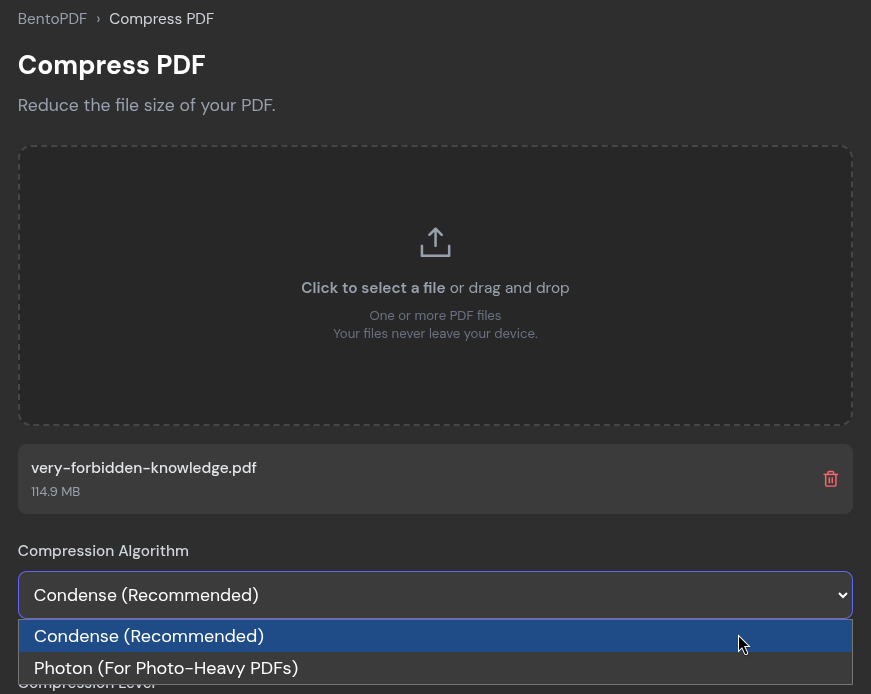
Usually, when handling PDF files that need to be sent via email, its file size matters a lot. Popular email services like Gmail, Proton Mail, Outlook.com, and Yahoo Mail cap attachments at around 20 to 25 MB.
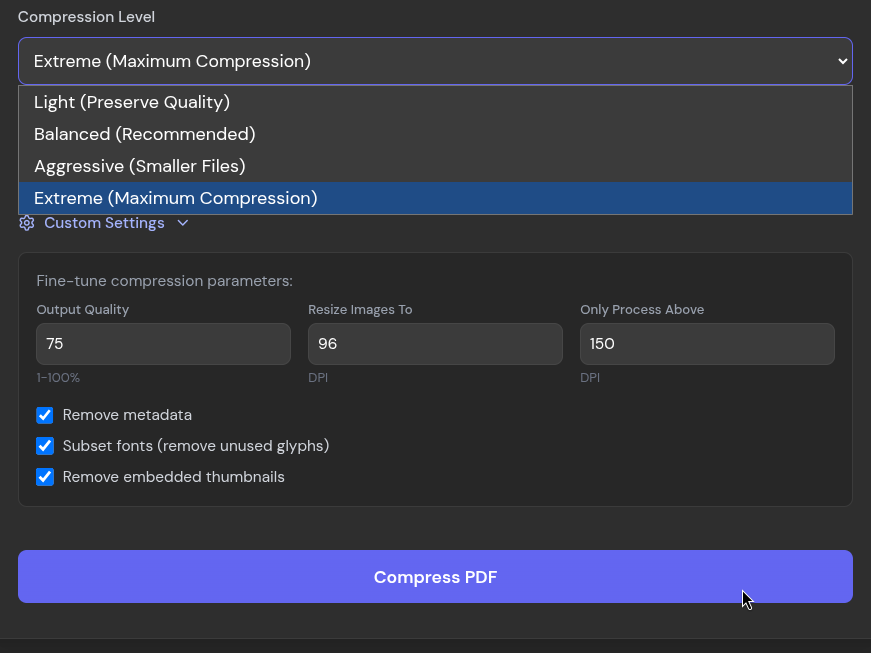
To tackle that, the Compress PDF tool offers two algorithms, “Condense“, which is the recommended one, and “Photon,” that’s tailored for photo-heavy PDFs. Alongside them are four compression levels that run from “Light” to “Extreme.”.
For checking it out, I stuck with Condense and only changed the compression level, going with Extreme to see how small the file could could get.
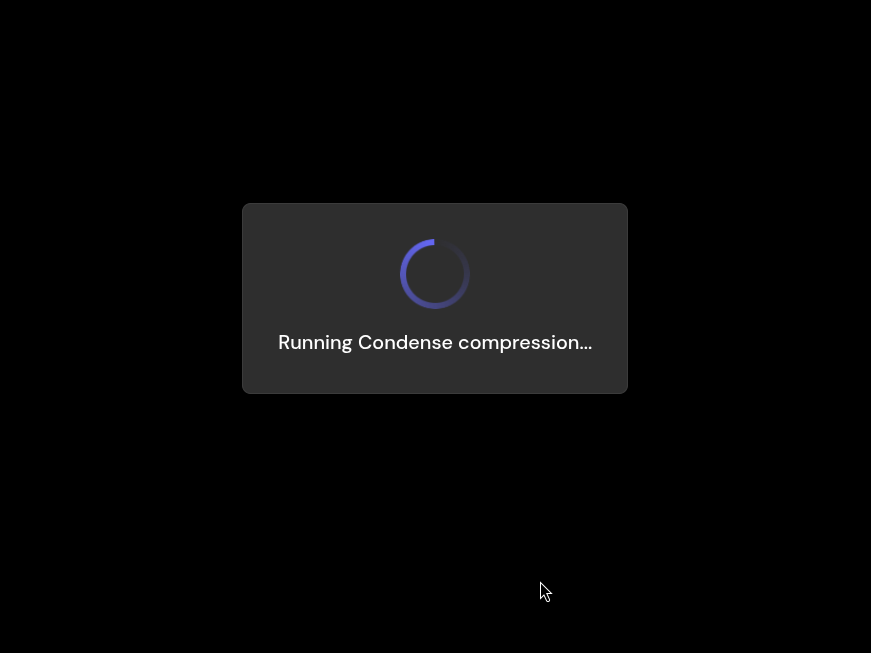
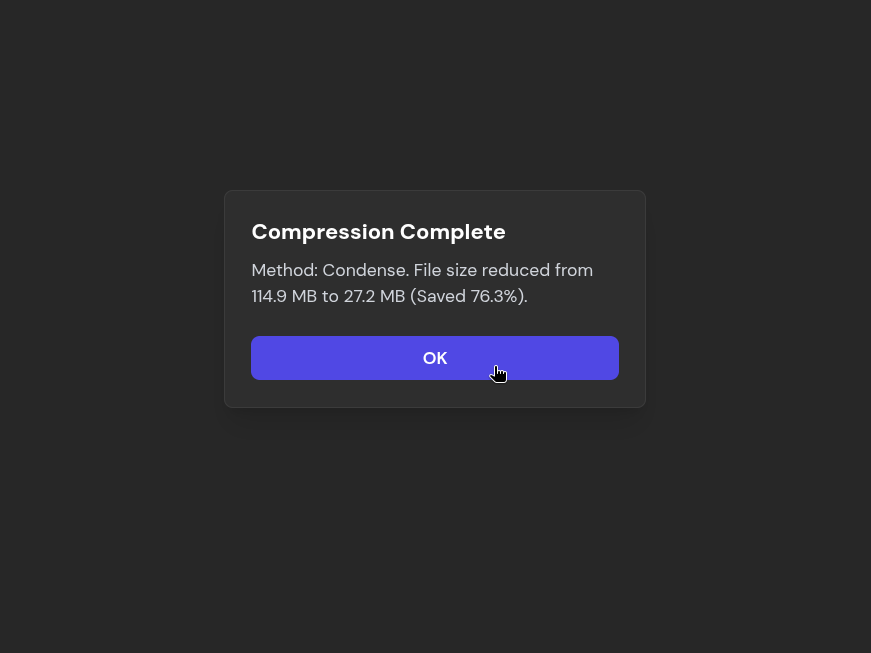
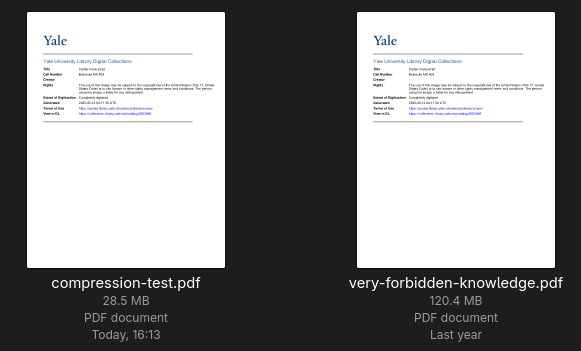
It took quite a while to process, but BentoPDF brought my 120.4 MB PDF down to 28.5 MB, a 76.3% reduction. That is still a little over the usual email limits, but for a 214-page document, it’s a good result.
The text and images stayed very readable too, and I only noticed the loss in quality when I zoomed into the images.
Start Editing
There’s a lot more BentoPDF has to offer than what I have covered above. Just scroll down on the homepage to see its full list of 100+ PDF tools. There are some security-focused ones that I am sure many of you will like.
If you are looking for the source code, then you should visit the project’s GitHub repository, which also contains details on the tech stack that powers BentoPDF.
